• Skip to primary navigation
  • Skip to main content
  • Skip to primary sidebar
  • Skip to footer

AppleToolBox

Tools and Fixes for Mac, iPad, iPhone & iWatch

Search posts

  • About
  • Contact

CONNECT WITH US

CATEGORIES

  • iPhone
  • iPad
  • iPod
  • Apple Watch
  • Mac/MacBook
  • AirPods
  • Apple TV
  • News
  • Apple Services
  • HomePod
  • Reviews

SITE

  • Home
  • About Us
  • Contact
  • Advertise

Search posts

You are here: Home / Apple Services / How to Edit Apple Notes on a Windows PC

How to Edit Apple Notes on a Windows PC

By Louis Roundtree 0 comments Last updated October 16, 2026

Things to Know
  • Notes on your iPhone can sync automatically with iCloud when Notes syncing is turned on in your iCloud settings.
  • You can access iPhone notes on Windows devices by signing in to iCloud.com in a web browser.
  • Any changes you make to notes stored in iCloud will sync with your iPhone and other devices signed in to the same Apple Account, provided Notes syncing is enabled on those devices.

The iPhone Notes app is a fairly versatile note-taking tool. You can make lists, check things off, and even scribble doodles using the basic art tools that come built in. And, if you’re a Windows user, you can edit the text of notes in a browser window.

Read on to learn how to access iPhone Notes on Windows machines so you can enjoy cross-device editing.

Access Apple Notes on Windows PC: Step-by-Step Guide

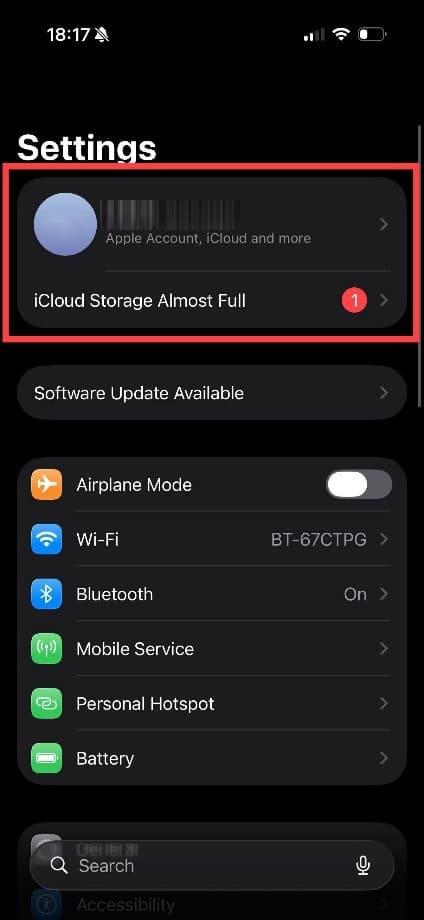
Step 1. Check that your notes are syncing to iCloud. To do this, open “Settings” on your iPhone and tap your name at the top of the screen to access your Apple Account settings.

How to Edit Apple Notes on a Windows PC 1

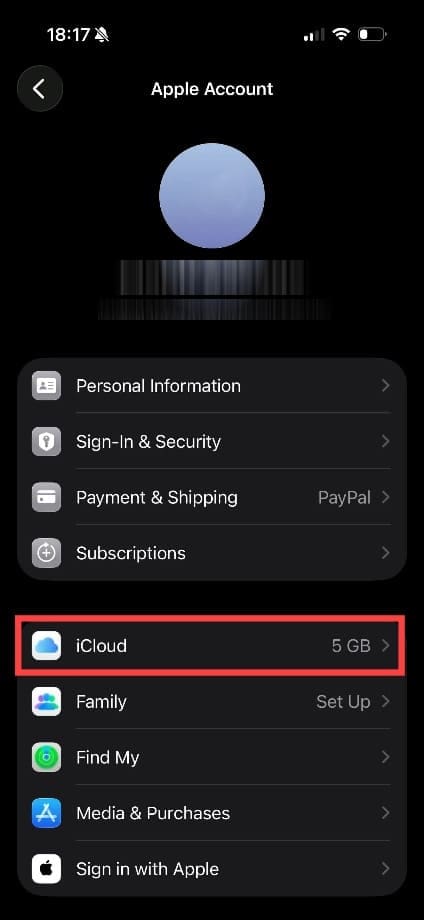
Step 2. Tap “iCloud” on the Apple Account page.

How to Edit Apple Notes on a Windows PC 2

Step 3. You should see a section labeled “Saved to iCloud.” This section only shows highlights, so tap on “See All.”

How to Edit Apple Notes on a Windows PC 3

Step 4. Find “Notes” in the list and check whether syncing is enabled. If it is turned off, tap “Notes” to access its sync setting.

How to Edit Apple Notes on a Windows PC 4

Step 5. The switch next to “Sync this iPhone” should be slid to the right and green. If not, simply tap it once to switch the sync on. You may need to wait an hour before attempting the remaining steps in the process (longer if you don’t have a stable internet connection). If the sync was already on, you can move straight on to the next steps.

How to Edit Apple Notes on a Windows PC 5

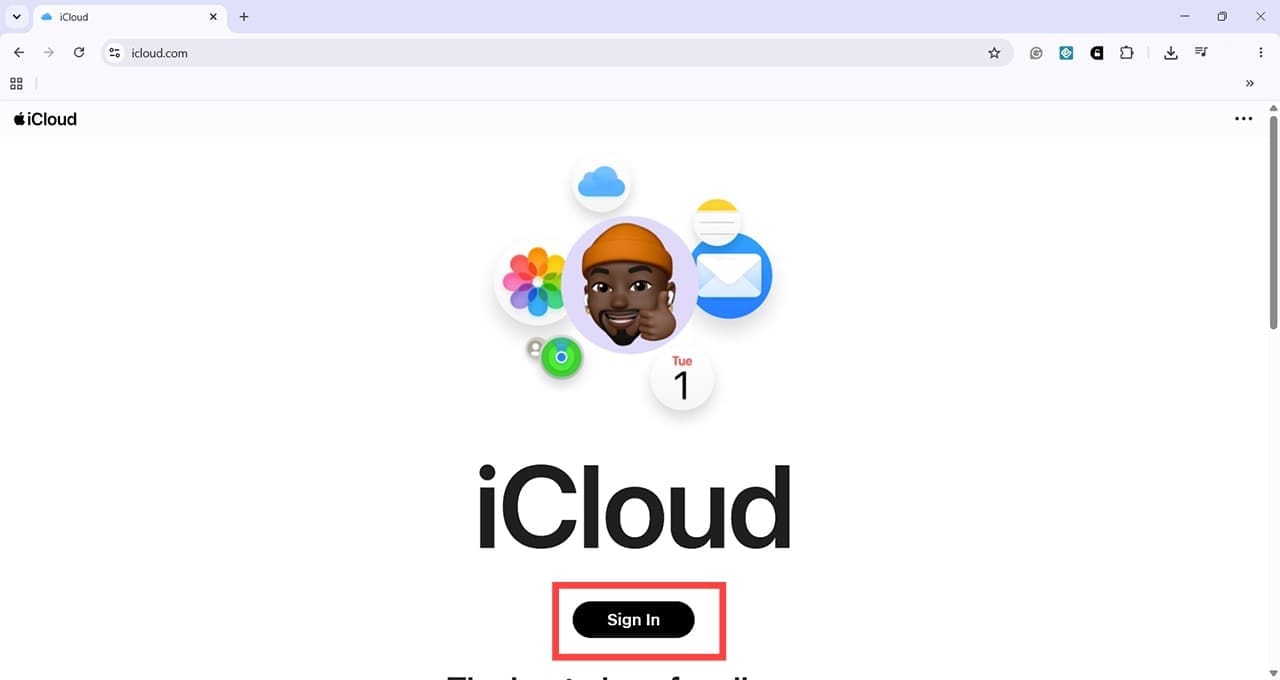
Step 6. Now switch to your Windows PC. Open a web browser and go to https://www.icloud.com/notes. Sign in with the same Apple Account you use on your iPhone.

How to Edit Apple Notes on a Windows PC 6

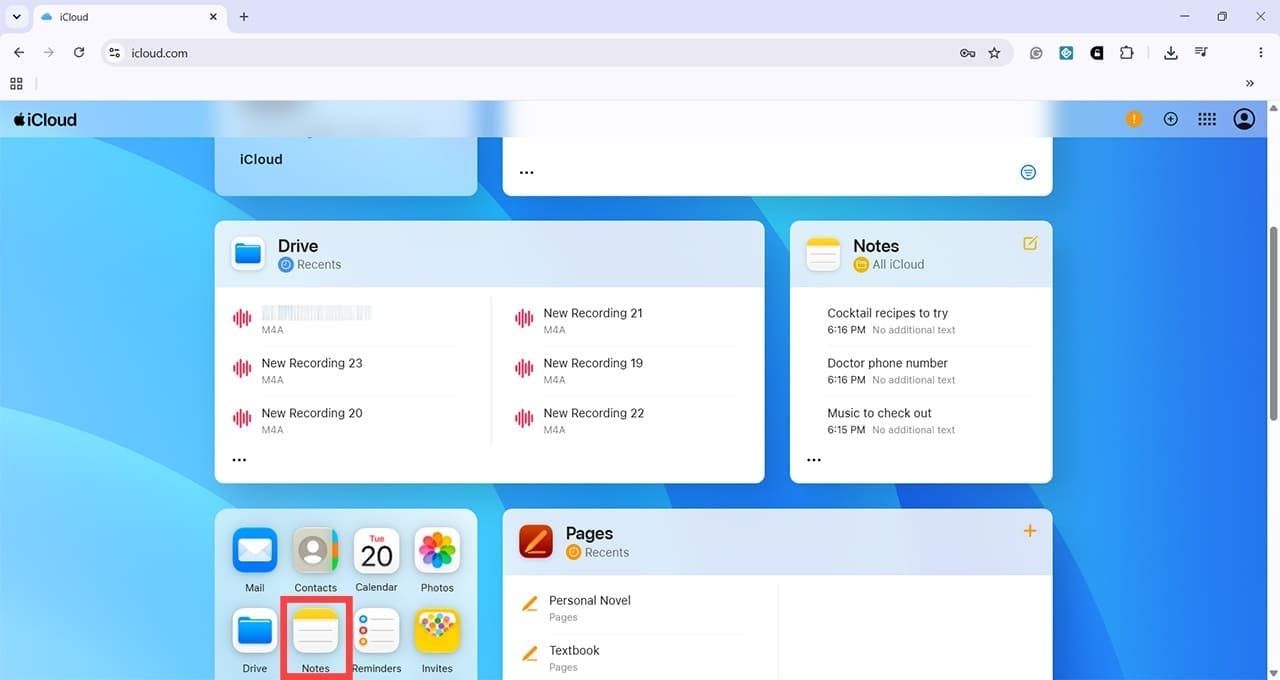
Step 7. Once you’re logged in, you can scroll down until you see the Notes app.

How to Edit Apple Notes on a Windows PC 7

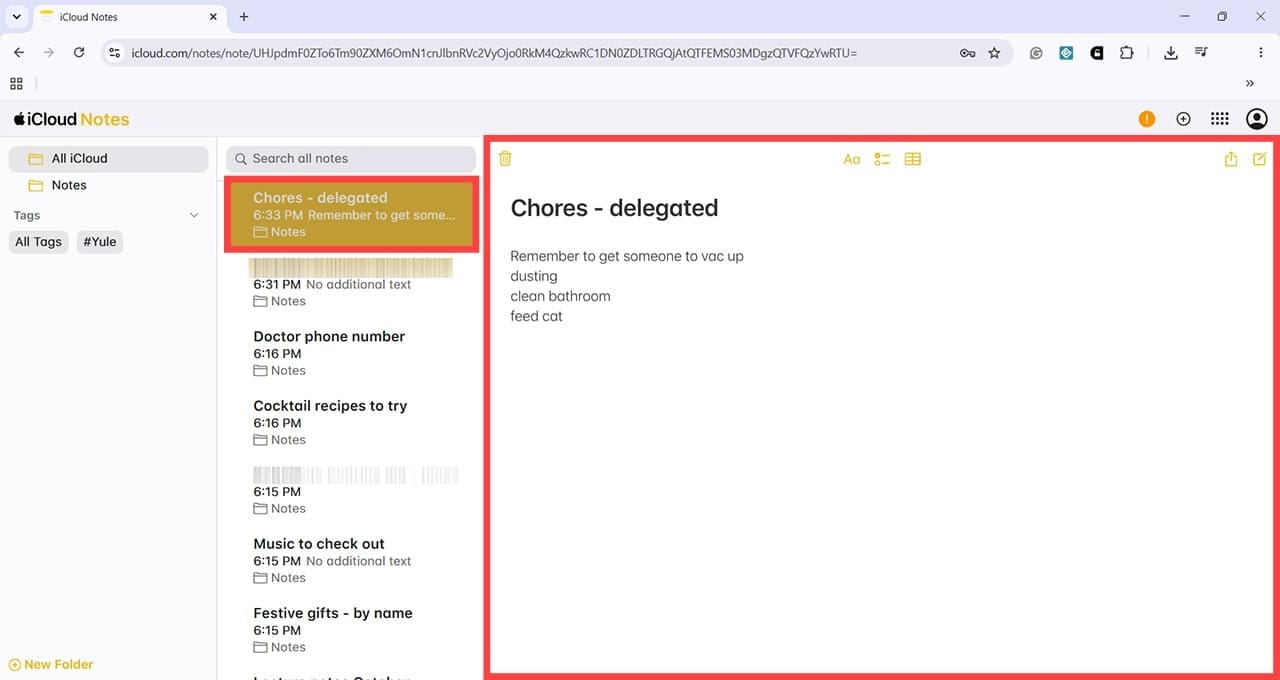
Step 8. Click once on Notes to open the app in the browser window. You can click on any note to see its contents, and use the arrow keys on your keyboard to move up and down. You can also use the leftmost menu to navigate or create folders.

How to Edit Apple Notes on a Windows PC 8

Step 9. To edit iPhone Notes on your Windows PC, just click anywhere in the viewer pane on the right-hand side. You can now type directly into the note, and the changes will be saved in your iCloud account.

How to Edit Apple Notes on a Windows PC 9

Step 10. To check that syncing is working, return to your iPhone and open the Notes app.

How to Edit Apple Notes on a Windows PC 10

Step 11. Once in the app, you should be able to see the note you edited on Windows, with the most recent changes visible. Sync may take longer if you have a weak Wi-Fi or cellular data connection.

How to Edit Apple Notes on a Windows PC 11 How to Edit Apple Notes on a Windows PC 12

Related Posts:

  • iPhone 15 event - iPhone 15 Pro and iPhone 15 Pro Max A17 Pro Video Recording Promo
    iPhone 14 vs. iPhone 15: Should You Upgrade?
  • photo of an iphone with ios 16 downloaded on it
    iOS 16 Tips and Tricks: The Definitive List
  • iPhone 15 Pro Max - 4
    Best iPhone Lock Screen Widgets for iOS 17
  • pexels-tima-miroshnichenko-6860464
    How To Start Using Regex With The Shortcuts App
  • How to Edit a PDF on Mac 6 Best Methods You Should Know
    How to Edit a PDF on Mac: 6 Best Methods You Should Know
  • icloud drive not syncing windows 11
    How to Fix iCloud Drive Not Syncing on Windows 11
  • sidecar on iPadOS and macOS
    Sidecar not working in iPadOS and macOS? How to fix…
  • 2023 Mac Studio lifestyle - 1
    macOS Could Not Be Installed, How-To Fix
  • Update Apple ID settings on your iPhone, iPad, or Mac after changing your password
    Getting a Message to Update Apple ID Settings on…
Louis Roundtree
Louis Roundtree

As an avid gamer, I’ve run into my fair share of error codes and weird faults that have forced me to find fixes to problems I never anticipated. That gave me a passion for sharing those fixes with others so we can all game without feeling like our hardware is rebelling against us.

Reader Interactions

Write a Comment Cancel reply

Primary Sidebar

Recent Posts

  • How Students Can Use Universal Clipboard, AirDrop, and Handoff for Academic Work
  • How to Edit Apple Notes on a Windows PC
  • How to Transfer Voice Memos From an iPhone to a Windows PC
  • How to Get a Custom EQ for Your AirPods (iOS 27)
  • How to Run Two Apps Side-by-Side on iPhone
  • Can You Recover Permanently Deleted Files on a Mac?

Connect with us

Footer

ABOUT

  • About Us
  • Contact us
  • Advertise
  • Privacy
  • Terms of Use

GUIDES

  • iOS & iPadOS
  • Apple ID
  • iCloud
  • App Store
  • iTunes
  • FaceTime
  • iMessage
  • Siri
  • Books and iBooks
  • Game Center
  • AirPlay

CONNECT

  • Facebook
  • Twitter
  • FeedBurner
  • YouTube

© Copyright 2010-2024 Guiding Tech Media · All Rights Reserved

This site and its content are in no way affiliated or endorsed by Apple, Inc. · Reproduction without explicit permission is prohibited

Last Updated on October 21, 2026 by Louis Roundtree