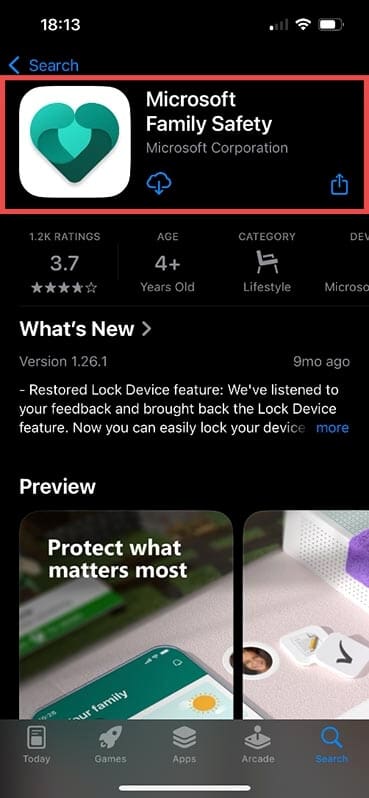
Step 1: Download the Microsoft Family Safety App – iOS edition from the App Store.
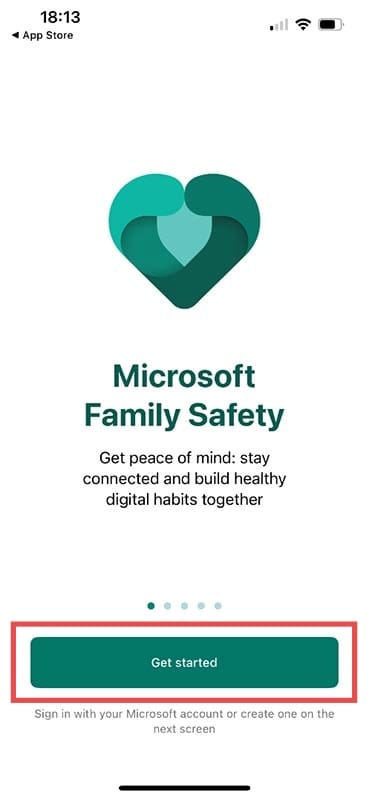
Step 2: Open the app and press Get started.
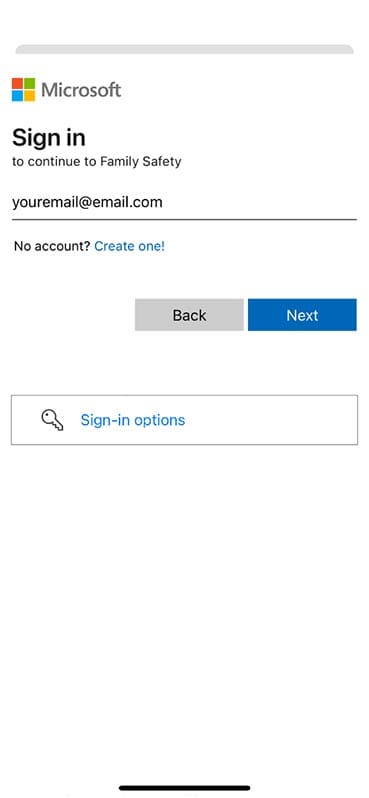
Step 3: Sign in with your regular Microsoft Account details.
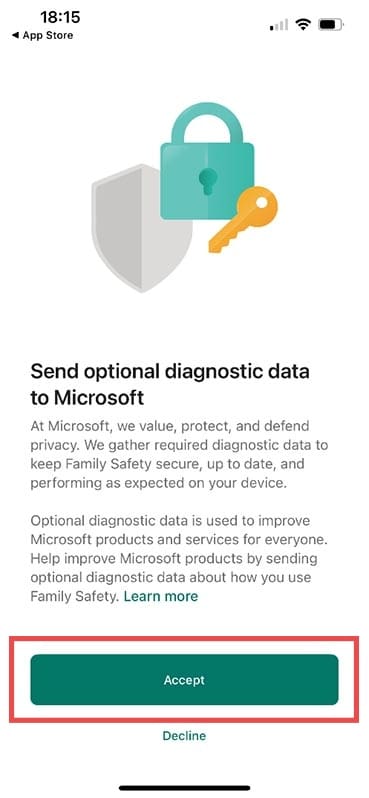
Step 4: Once you’ve signed in, the app will ask if you want to send diagnostic data to Microsoft. Pick your preference (it doesn’t impact the way the app works in any way) and you’ll move to the next screen.
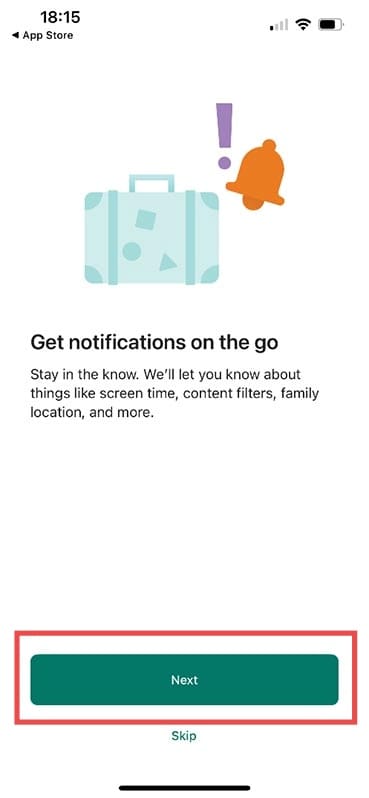
Step 5: Choose whether you want to accept notifications. Most people will find these useful as you’ll receive an alert if a child spends money, for example.
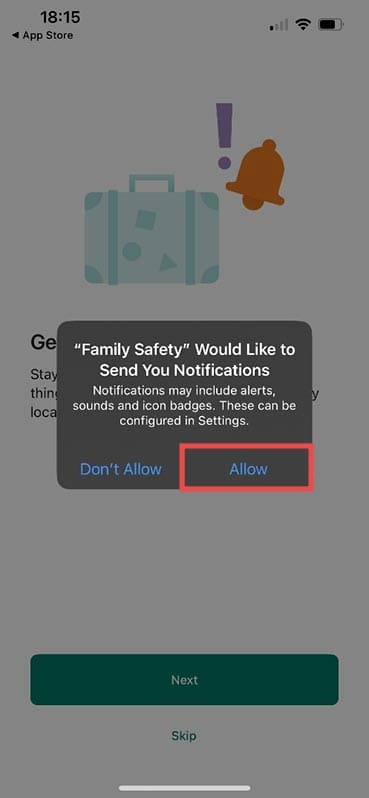
Step 6: If you want notifications, make sure you press Allow on the iPhone alert box that pops up, as shown below.
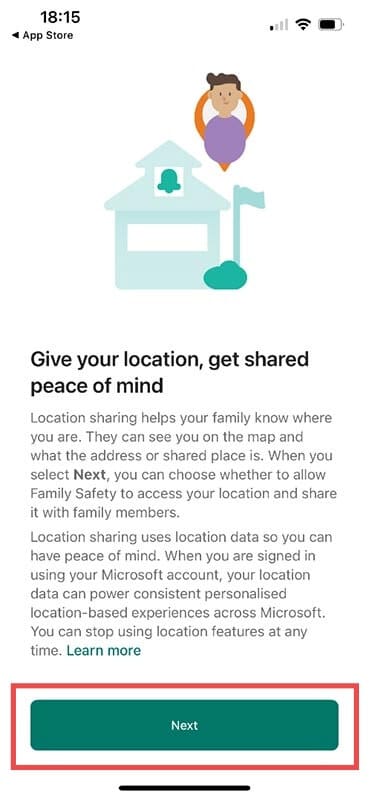
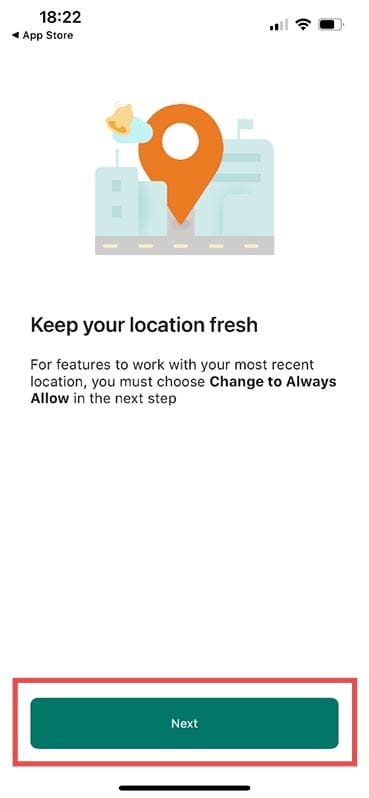
Step 7: If you want to share your location with other family members, you’ll need to activate this option in your app. Press Next.
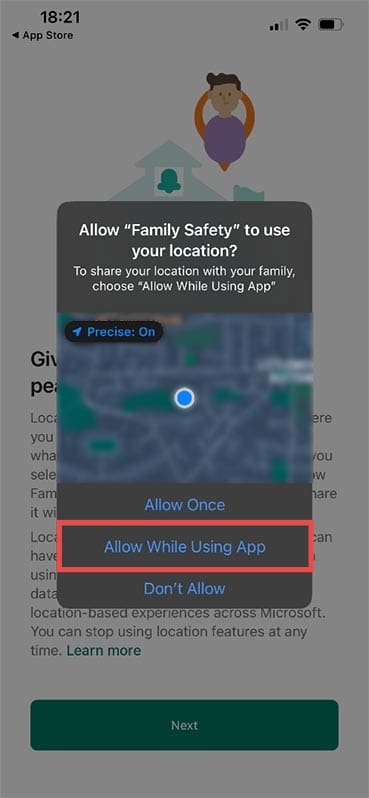
Step 8: Press Allow While Using App to activate location settings.
Step 9: The app will now prompt you to change this to Always Allow which you can do when prompted or later in your iPhone settings. It’s under Settings>Privacy & Security>Location Services>Family Safety.
Step 10: You’ll see a confirmation screen that the app is set up. Press Start using Family Safety.
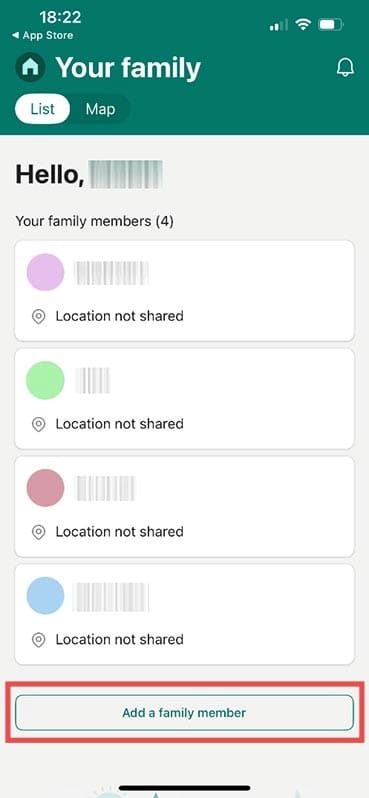
Step 11: The main home screen shows who is already in your family group. You can add more people by pressing Add a family member.
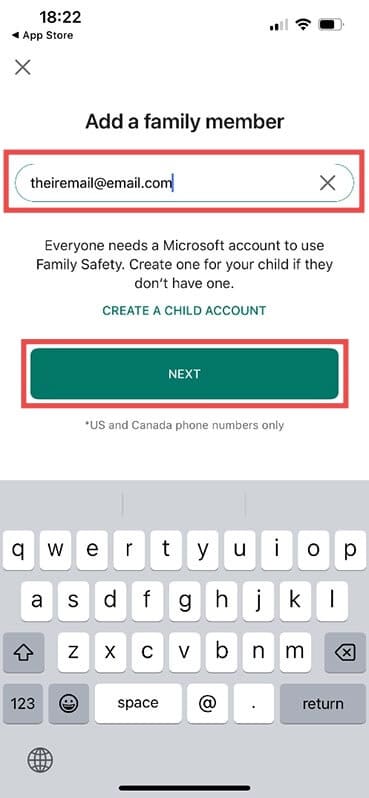
Step 12: You’ll need to create an account for them or, alternatively, add their existing email address when prompted.
Now all your family members are visible in one place.
Using Microsoft Family Safety App (iOS Version)
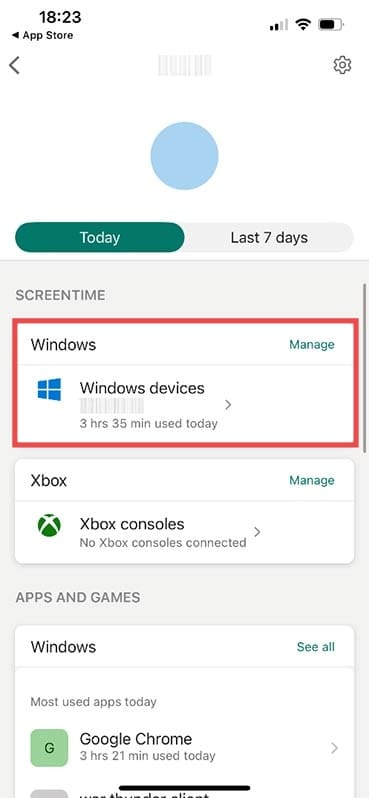
In the app, press on the name of a family member and you’ll instantly see which devices they’re using. Below, you can see a Windows laptop and how long it’s been used for.
Press on a device to see the screen time totals and also to switch screen time limits on or off.
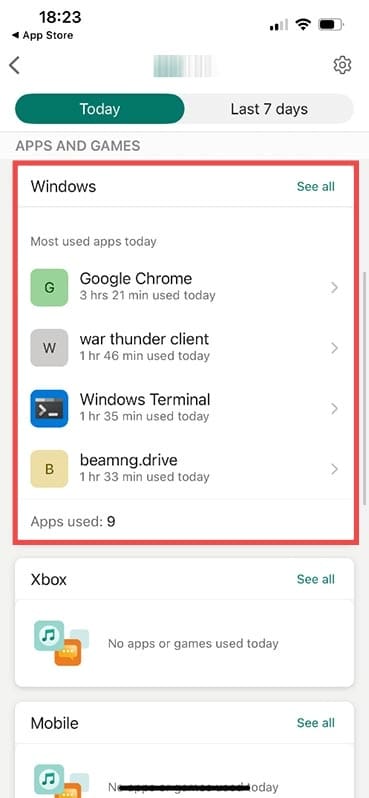
If you scroll down, you can see the top apps used on any device. You can press on the list for more information.
Scroll a little further and you’ll see any web searches, plus options to manage both content filters and spending.
Press on Web and Search to turn the web filters on or off. The Microsoft Family Safety web filters are quite restrictive and will block any content deemed not “family-friendly” plus any attempts to use browsers other than Microsoft Edge.
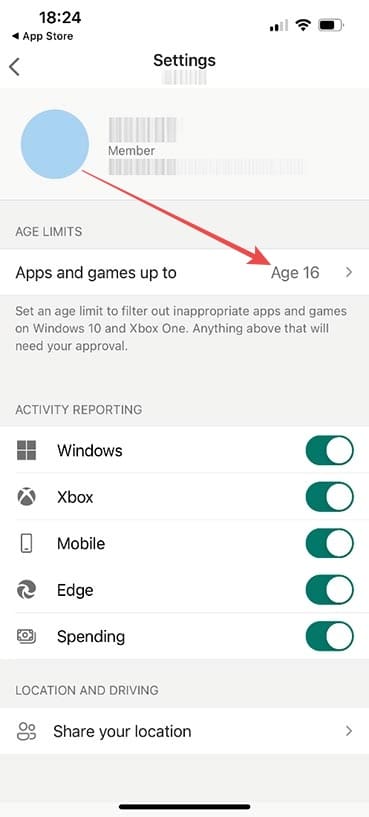
Press the back arrow then the cog in the top right corner to access Settings. Here you can see what age limits are applied for game and app downloads and which services you’re monitoring via the app. You can also adjust location settings for each individual here.
As an avid gamer, I’ve run into my fair share of error codes and weird faults that have forced me to find fixes to problems I never anticipated. That gave me a passion for sharing those fixes with others so we can all game without feeling like our hardware is rebelling against us.
















Write a Comment