Apple’s push to have users create an entire ecosystem of their devices has practically reached its peak with the release of various Continuity features. These are Apple-specific connectivity options that connect an iPhone, iPad, and a Mac to allow them to share details within apps themselves. They allow you to switch between different devices seamlessly, which can improve your workflow, especially if you need constant remote collaboration. Here’s how to use Apple’s continuity features with Microsoft Teams and get the most out of your devices.
Option 1. Using the iPhone or iPad as a Webcam for Teams Meetings
Continuity allows you to use your mobile devices as dedicated webcams for your PC, bringing the latest iPhone’s stellar image quality to the big screen. Plus, the entire system is built into the latest macOS (Ventura and later) and iOS versions, so you don’t need to download software or drivers.
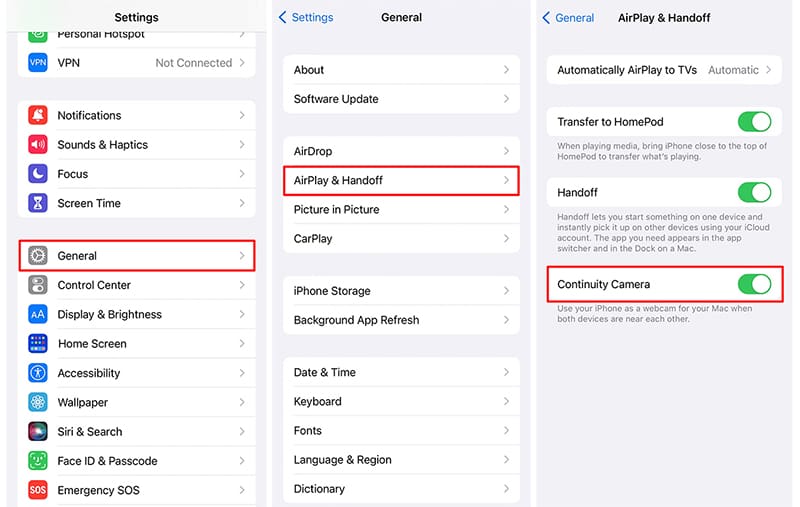
Step 1. On your phone or iPad, go to Settings.
Step 2. In the General options, go to “AirPlay & Handoff” (or “AirPlay & Continuity”) and enable “Continuity Camera.”
Step 3. On your PC, open Teams and join a meeting.
Step 4. In the meeting settings, go to change the camera settings.
Step 5. You should be able to see your mobile device pop up as a result from the list of available devices.
Once you select a mobile device, its back camera should immediately turn on and function as a webcam. You can choose to switch to your front camera if it’s better suited for your work.
Additionally, you’re highly recommended to get a phone stand so you can place the phone on your desk or mount it to the PC and have it function exactly like a webcam.
Option 2. Using the Continuity Clipboard for Seamless Copying
We all store a bunch of details on our phones, whether they are in the notes, messages, or in phone-only apps. But when you need to bring up that information to the PC, you usually have to finagle through notes apps. The Continuity clipboard allows you to combine the clipboard from your PC and mobile devices. When using Apple Continuity and Microsoft Teams this way, you can more easily fetch information that you’re receiving via notifications on the app.
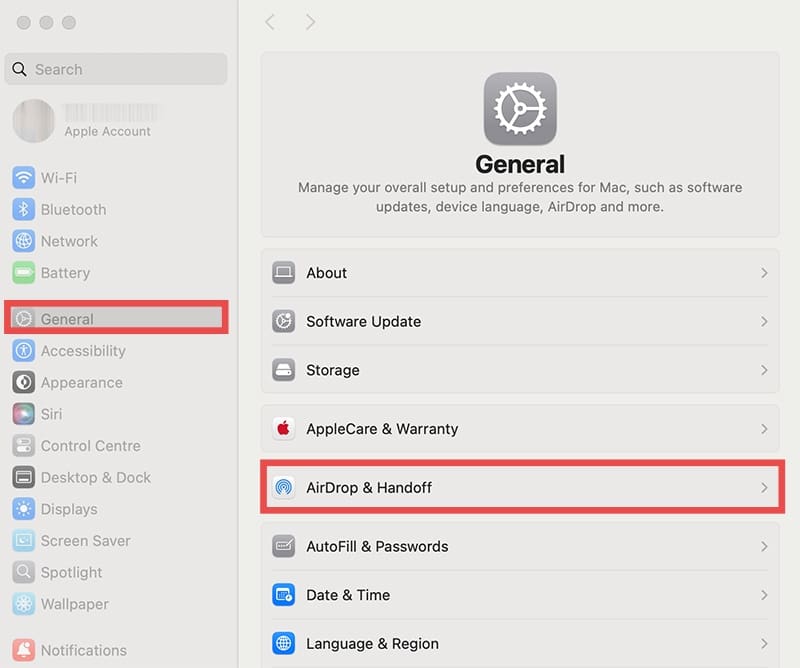
Step 1. On your Mac, go to System Settings.
Step 2. Click on the “General” tab, then click on “AirDrop & Handoff.” Enable the option “Allow Handoff between this Mac and your iCloud devices” from the menu.
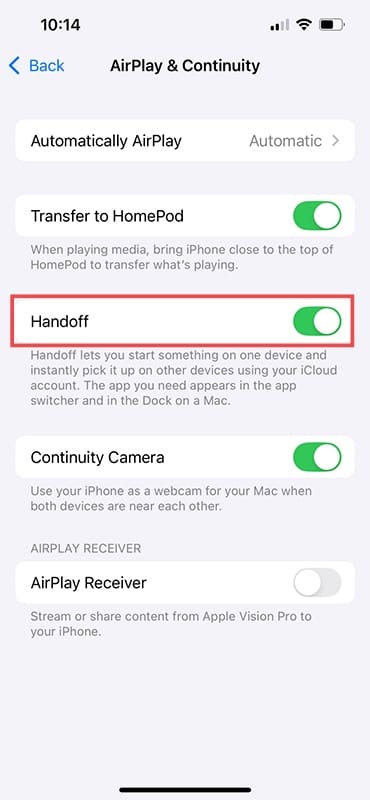
Step 3. On your iOS device, go to Settings, then to “General” and “AirDrop & Continuity,” then enable “Handoff.”
Step 4. With the universal clipboard on, as soon as you copy text, file, or image, or any other content, it populates all the clipboards on all devices that are connected.
Using Handoff Directly Inside Teams
If you’ve enabled Handoff (and Continuity) on both your mobile devices and the PC, they can save the context of textboxes and current content on the cloud to be accessed via any device using your iCloud ID.
When using an app on the PC, you can go to the Handoff icon on the left side of the dock, which allows you to upload the current app’s context to be used anywhere.
For apps on mobile devices, you can access the feature via the app switcher, which displays the banner on the bottom of the screen.
Once you master how to use Apple’s Continuity features with Microsoft Teams, you can switch between working on your phone and your PC without losing any time or content.
As an avid gamer, I’ve run into my fair share of error codes and weird faults that have forced me to find fixes to problems I never anticipated. That gave me a passion for sharing those fixes with others so we can all game without feeling like our hardware is rebelling against us.













Write a Comment