• Skip to primary navigation
  • Skip to main content
  • Skip to primary sidebar
  • Skip to footer

AppleToolBox

Tools and Fixes for Mac, iPad, iPhone & iWatch

Search posts

  • About
  • Contact

CONNECT WITH US

CATEGORIES

  • iPhone
  • iPad
  • iPod
  • Apple Watch
  • Mac/MacBook
  • AirPods
  • Apple TV
  • News
  • Apple Services
  • HomePod
  • Reviews

SITE

  • Home
  • About Us
  • Contact
  • Advertise

Search posts

You are here: Home / Mac / How to Use Microsoft Teams on Mac for Collaboration

How to Use Microsoft Teams on Mac for Collaboration

By Louis Roundtree 0 comments Last updated June 18, 2025

Things to Know
  • While Teams is a stock app on Windows 11, you must install manually on a Mac.
  • The system doesn’t change meaningfully between the two platforms, allowing for seamless cross-platform collaboration.
  • You’ll need a Microsoft account to access Teams, which is separate from your iCloud ID. You may also be provided an Office 365 account by your company, which will work for Teams.

Microsoft Teams has quickly become one of the go-to collaboration platforms for businesses, schools, and remote teams. When you first see the name, and considering that the app comes pre-installed on newer Windows devices, you might think that it’s only usable on Microsoft Windows systems. However, Teams extends its reach far beyond the Windows ecosystem and you can download Teams for Mac just like any other app.

Installing Microsoft Teams on Mac

Before using Microsoft Teams on Mac, make sure your PC meets the basic requirements. You’ll need macOS 11 (Big Sur) or later, at least 4 GB of RAM, and about 1.5 GB of free storage space. Essentially, Macs from 2013 onwards should handle Teams without any issue.

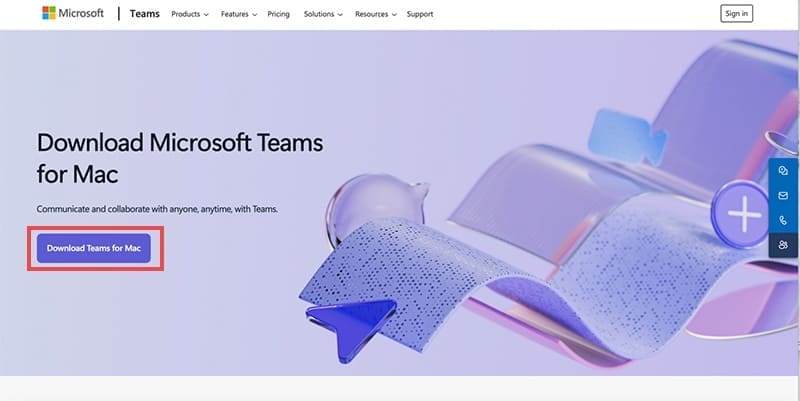
Step 1. Go to the Microsoft Teams official downloads page and click on “Download Teams for Mac.”

How to Use Microsoft Teams on Mac for Collaboration 1

Step 2. The website should automatically detect your system and redirect you to the Mac installer.

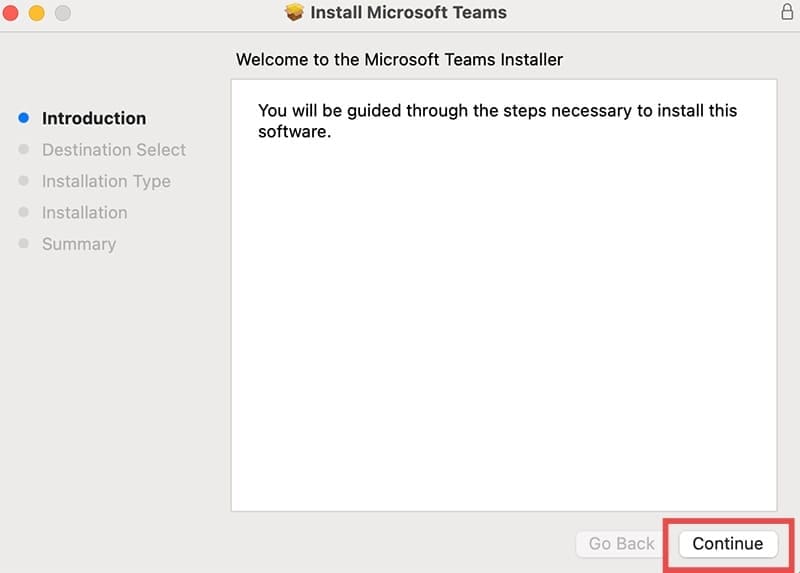
Step 3. Open the installer in the Downloads folder (MicrosoftTeams.pkg) and follow the installation wizard. You’ll likely need to enter your admin account credentials.

How to Use Microsoft Teams on Mac for Collaboration 1

Step 4. Launch the app and click on “Get Started.”

How to Use Microsoft Teams on Mac for Collaboration 3

Step 5. You’ll be prompted to sign in with your Microsoft account.

If you don’t have a Microsoft account, the app doesn’t seem to come with the ability to make one. You can use Microsoft’s online page.

Step 6. Go to Microsoft Accounts and select “Sign In.”

Step 7. Under the textbox for the email, select “Create one!”

Step 8. Enter an email account to use and follow the instructions, including setting up a password and recovery tool.

Step 9. Go back to the app and enter the new account credentials.

Best Practices for Mac Users

Here are some of the most common optimization and ease-of-use setups for Teams for Mac:

  • Go to the Notification Settings through your profile menu and customize alerts based on priority. Enable notifications only for mentions and direct messages to reduce distractions while staying informed about important communications.

How to Use Microsoft Teams on Mac for Collaboration 4

  • You can go to General Settings to make Teams automatically open when you turn on PC to get immediate updates when you start working.

How to Use Microsoft Teams on Mac for Collaboration 5

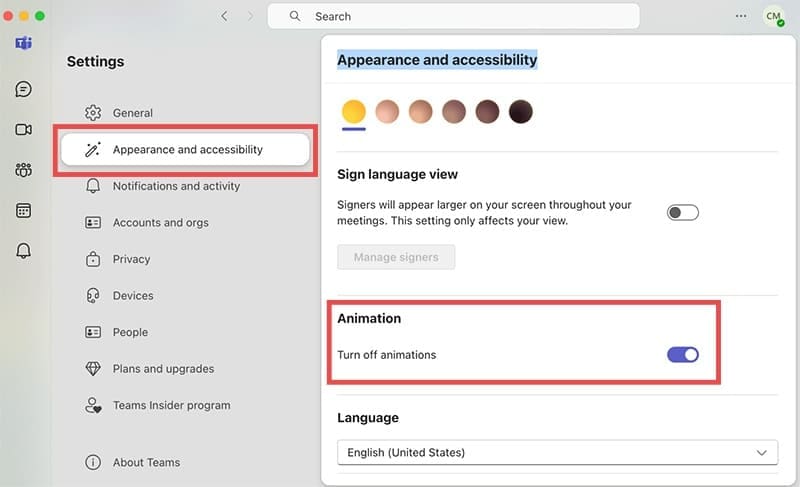
  • In the same panel, under Appearance and accessibility you can choose to “Turn off animations” if they’re causing performance issues on older machines. This will also prevent GIFs from auto-playing in channels.

How to Use Microsoft Teams on Mac for Collaboration 6

  • Use “Cmd + 1” through “Cmd + 5” to quickly navigate between Activity, Chat, Teams, Calendar, and Calls.
  • “Cmd + E” opens the search function, while “Cmd + Shift + O” starts a new conversation.
  • If Teams feels sluggish, quit Teams completely, then navigate to “~/Library/Application Support/Microsoft/Teams” in Finder and delete the Cache folder contents.
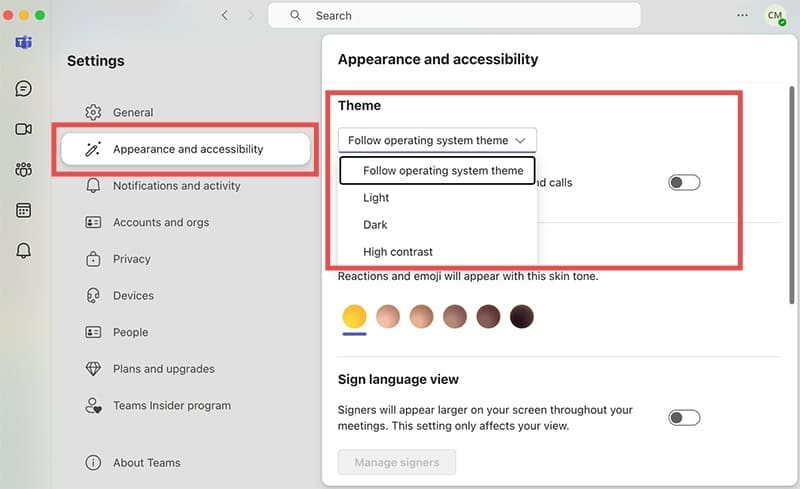
  • Teams offers three visual themes: Default, Dark, and High Contrast, with the Dark theme integrating well with macOS Dark Mode.

How to Use Microsoft Teams on Mac for Collaboration 7

Related Posts:

  • 2023 Mac Studio lifestyle - 1
    macOS Could Not Be Installed, How-To Fix
  • Will my Mac support macOS Big Sur?
    How to Stop Your Mac From Updating to macOS Big Sur
  • How to Install Windows 11 on Mac
    Want iMessage on Your Windows PC? How-To
  • pexels-marc-mueller-380769
    macOS vs Linux: An In-depth Comparison
  • Printers Compatible with macOS Big Sur
    Printer Stopped Working After Big Sur Update
  • pexels-tranmautritam-326508
    The Best Apple Ecosystem Features
  • pexels-jess-bailey-designs-810079
    How To Run Linux On Mac: A Step-by-Step Guide
  • Screen Shot 2021-10-24 at 3.08.11 AM
    The 2021 iMac Review: The Future Of Computing
  • 2022 Mac Mini with Studio Display and Accessories
    Mac Tips For New Users In 2023
Louis Roundtree
Louis Roundtree

As an avid gamer, I’ve run into my fair share of error codes and weird faults that have forced me to find fixes to problems I never anticipated. That gave me a passion for sharing those fixes with others so we can all game without feeling like our hardware is rebelling against us.

Reader Interactions

Write a Comment Cancel reply

Primary Sidebar

Recent Posts

  • How to Manage Your iPhone Call Log
  • Are Apple’s Safety Precautions Enough for AirTags?
  • How to Hide Username and Photo on the Mac Lock Screen
  • Microsoft Resume vs. Apple Handoff – Which Wins for Cross-Device Work?
  • How to Export iTunes Library to New Computer
  • What the Gemini Desktop App Will Bring to Mac

Connect with us

Footer

ABOUT

  • About Us
  • Contact us
  • Advertise
  • Privacy
  • Terms of Use

GUIDES

  • iOS & iPadOS
  • Apple ID
  • iCloud
  • App Store
  • iTunes
  • FaceTime
  • iMessage
  • Siri
  • Books and iBooks
  • Game Center
  • AirPlay

CONNECT

  • Facebook
  • Twitter
  • FeedBurner
  • YouTube

© Copyright 2010-2024 Guiding Tech Media · All Rights Reserved

This site and its content are in no way affiliated or endorsed by Apple, Inc. · Reproduction without explicit permission is prohibited

Last Updated on June 18, 2025 by Louis Roundtree