• Skip to primary navigation
  • Skip to main content
  • Skip to primary sidebar
  • Skip to footer

AppleToolBox

Tools and Fixes for Mac, iPad, iPhone & iWatch

Search posts

  • About
  • Contact

CONNECT WITH US

CATEGORIES

  • iPhone
  • iPad
  • iPod
  • Apple Watch
  • Mac/MacBook
  • AirPods
  • Apple TV
  • News
  • Apple Services
  • HomePod
  • Reviews

SITE

  • Home
  • About Us
  • Contact
  • Advertise

Search posts

You are here: Home / iPhone / How to Save a Video Frame as a Still Photo on iOS

How to Save a Video Frame as a Still Photo on iOS

By Louis Roundtree 0 comments Last updated November 27, 2026

Things to Know
  • The update to iOS 27 for iPhones and iPads includes an option to save video frames as still photos.
  • You can find this option while a video is paused on the frame you want to save.
  • Click the three-dot menu button and choose “Save Video Frame as Photo.”

The video capabilities of most iPhones are impressive. You can capture videos of just about anything, in just about any lighting conditions, helping you keep memories of concerts, parties, days out, and family gatherings. There may be times, though, when you wish you could transform some of the moments in your videos into still photographs.

Of course, you can simply screenshot a video on iPhone devices, but you may find that screenshots are blurred or tricky to capture while a video is running. The good news is that Apple has integrated a feature that allows you to save video frames as still images.

Follow this guide to learn how to save video frame on iOS devices like iPhones. Note: This feature only works on devices running iOS 27 or later, or iPadOS 27 or later.

Reasons to Save a Video Frame as a Still Photo

Here are just a few reasons you might want to save a frame from a video as a still image:

  • To create thumbnails for videos or to market videos on social media
  • Because you want photos of an event to send to people
  • Because you forgot to take still images when you were so busy taking a great video
  • As a low-data option to tell someone about your day (sending a video is very data-intensive)
  • To complete an album or photo collection
  • For artistic purposes, e.g., capturing and editing a key moment of a sporting event or weather phenomenon.

Whatever the reason you want to create stills, Apple has made it much easier with the latest iOS update.

Save Video Frame on iOS Devices: Step-by-Step Guide

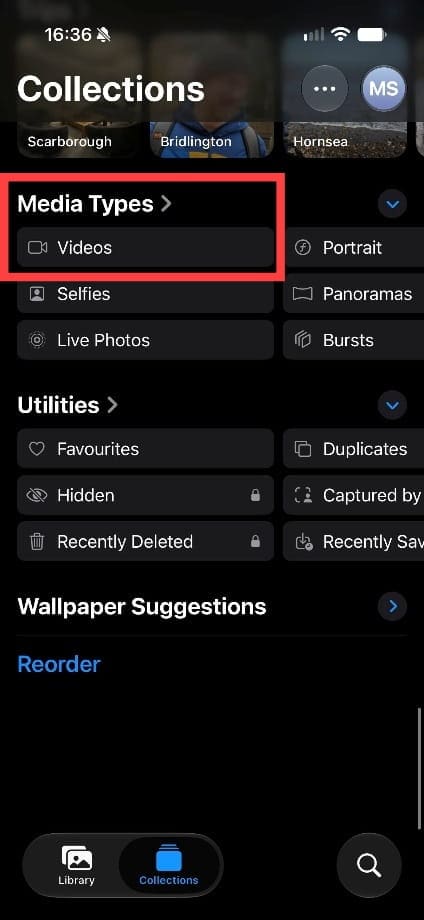
Step 1. Open Photos and find a video that you want to create a still image from. A quick way to find all your videos is to look for Collections > Media Types > Videos.

How to Save a Video Frame as a Still Photo on iOS 1

Step 2. Once you’ve found a video you want to use, play it, then pause it at the frame you want to save as a photo.

How to Save a Video Frame as a Still Photo on iOS 2

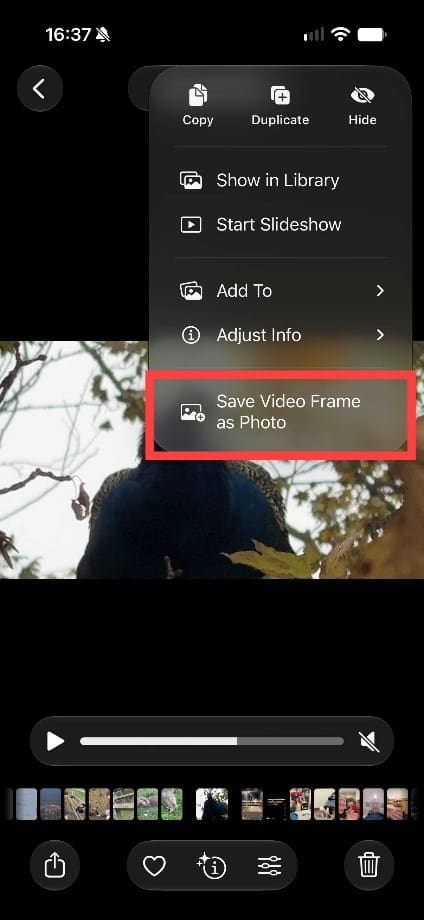
Step 3. Tap the three dots in the top-right corner (the menu button), then tap the option that says “Save Video Frame as Photo.”

How to Save a Video Frame as a Still Photo on iOS 3

You’ll see a confirmation message: Saved Video Frame.

How to Save a Video Frame as a Still Photo on iOS 4

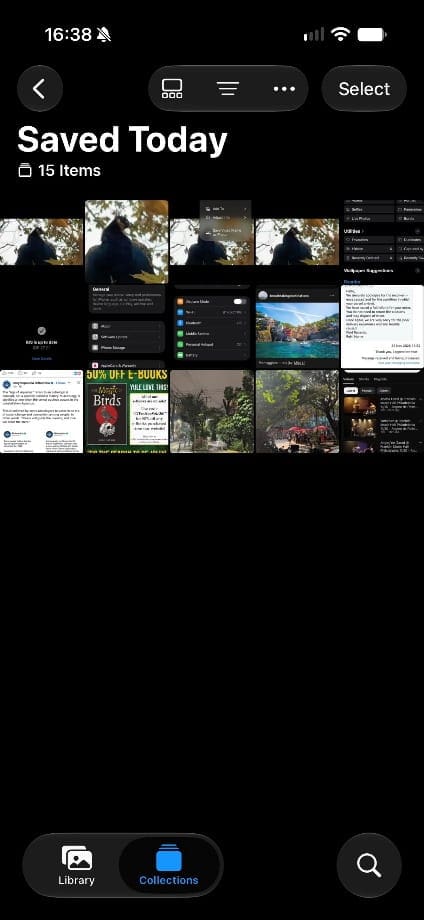
Step 4. Go back to the Photos app and look for your new photo in the Library section. Depending on how your library is sorted, the photo will appear at the bottom of the library if it’s sorted by “Added,” or next to the original video if it’s sorted by “Captured.”

How to Save a Video Frame as a Still Photo on iOS 5

Even though the photo has been snipped from a video, it retains its original date and location data, which you can see by tapping the photo and swiping up. You will also see that the image name includes the word “still” to help you differentiate between saved video frames and standard still photos.

How to Save a Video Frame as a Still Photo on iOS 6

Related Posts:

  • 2022 Mac Mini with Studio Display and Accessories
    Mac Tips For New Users In 2023
  • pexels-designecologist-1779487
    The Best iPhone And Mac Shortcuts For Beginners
  • photo of an iphone with ios 16 downloaded on it
    iOS 16 Tips and Tricks: The Definitive List
  • pexels-cottonbro-5082579
    Getting Started With iOS 15: Everything Good And Bad
  • pexels-tima-miroshnichenko-6860464
    How To Start Using Regex With The Shortcuts App
  • 0E4A6A0B-65E8-4184-B0C9-16C2179A1256
    The Best Weight Loss Apps For iPhone In 2021
  • iphone and airpods on a table
    These Apps Have the Best iOS 17 Widgets
  • WWDC 2021 Hero
    WWDC21 Recap: Everything You Missed In Apple's 2-Hour Event
  • iPhone 15 Pro Max - 4
    Best iPhone Lock Screen Widgets for iOS 17
Louis Roundtree
Louis Roundtree

As an avid gamer, I’ve run into my fair share of error codes and weird faults that have forced me to find fixes to problems I never anticipated. That gave me a passion for sharing those fixes with others so we can all game without feeling like our hardware is rebelling against us.

Reader Interactions

Write a Comment Cancel reply

Primary Sidebar

Recent Posts

  • How to Save a Video Frame as a Still Photo on iOS
  • Why Are My iPhone Videos Blurry After Sharing? A Practical Pre-Upload Checklist
  • How to Fix iPhone Notifications Not Appearing on Your Mac
  • Stainless Steel vs Silicone: Which Apple Watch Band Material Suits Your Day?
  • Apple Watch Flashing Tool: Restore S7 to Ultra 4 Guide
  • iPhone Recovery Assistant Keeps Failing After an iOS Update? Here’s What to Try

Connect with us

Footer

ABOUT

  • About Us
  • Contact us
  • Advertise
  • Privacy
  • Terms of Use

GUIDES

  • iOS & iPadOS
  • Apple ID
  • iCloud
  • App Store
  • iTunes
  • FaceTime
  • iMessage
  • Siri
  • Books and iBooks
  • Game Center
  • AirPlay

CONNECT

  • Facebook
  • Twitter
  • FeedBurner
  • YouTube

© Copyright 2010-2024 Guiding Tech Media · All Rights Reserved

This site and its content are in no way affiliated or endorsed by Apple, Inc. · Reproduction without explicit permission is prohibited

Last Updated on November 28, 2026 by Louis Roundtree