If your Mac and your iPhone are both set up with the same Apple Account (formerly Apple ID), you might assume that your iPhone notifications will automatically appear on both devices. However, your Mac may need some additional settings tweaking to fully mirror all the notifications you see on your iPhone.
Learn how to fix iPhone notifications not appearing on your Mac with this quick guide.
iPhone iOS Not Syncing With Mac: Activate iPhone Mirroring
Apple provides the iPhone Mirroring function so you can see all your iPhone notifications on your Mac without having to repeatedly open and interact with your phone. For this function to work, your Mac must have macOS Sequoia 15 or later and be a model with Apple Silicon or an Apple T2 Security Chip. Your iPhone needs iOS 18 or later, and both devices must be connected to the same Apple Account. Final check: make sure you have two-factor authentication (2FA) switched on for your Apple Account. You can check this at Apple.com.
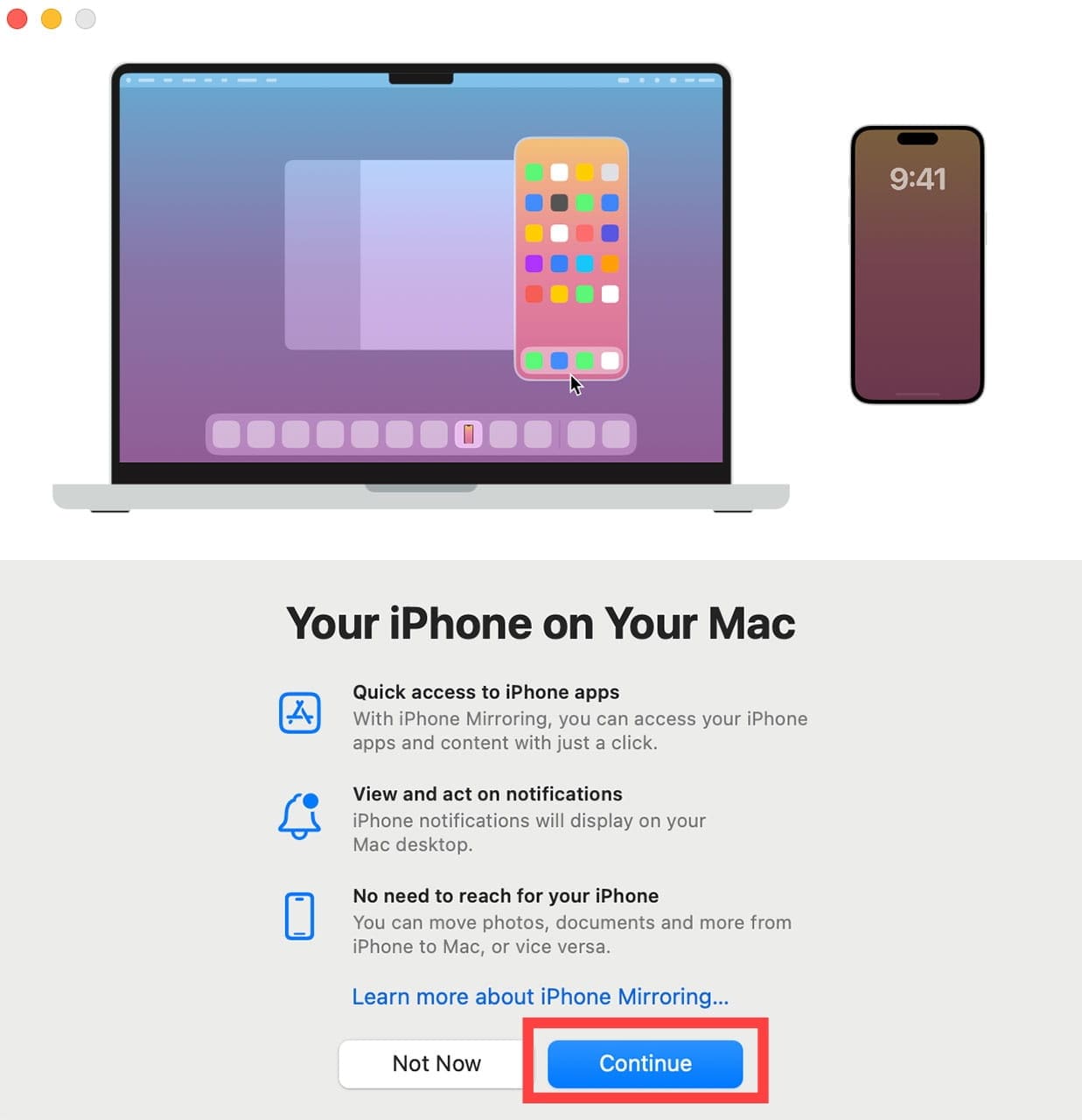
Step 1. To activate iPhone Mirroring, look for the icon in your Mac’s Dock (the icons at the bottom of the screen). If you can’t see it here, use Spotlight to search for it or find it in the Applications folder. Click iPhone Mirroring once you find it.
Step 2. Your Mac may prompt you to unlock your iPhone. Follow the on-screen instructions.
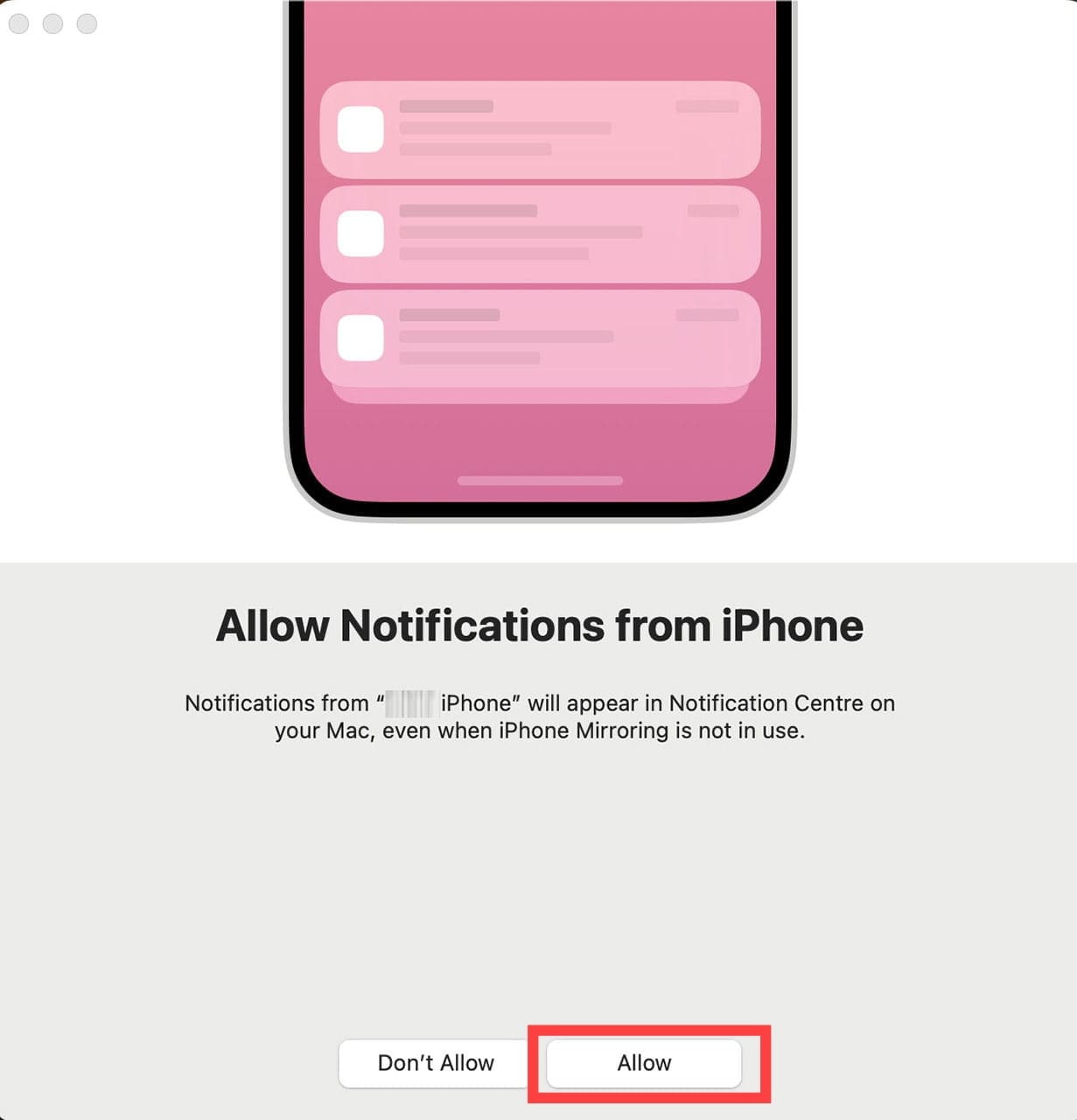
Step 3. Next, your Mac will ask if you want to allow notifications from your iPhone. Make sure you click “Allow” at this point.
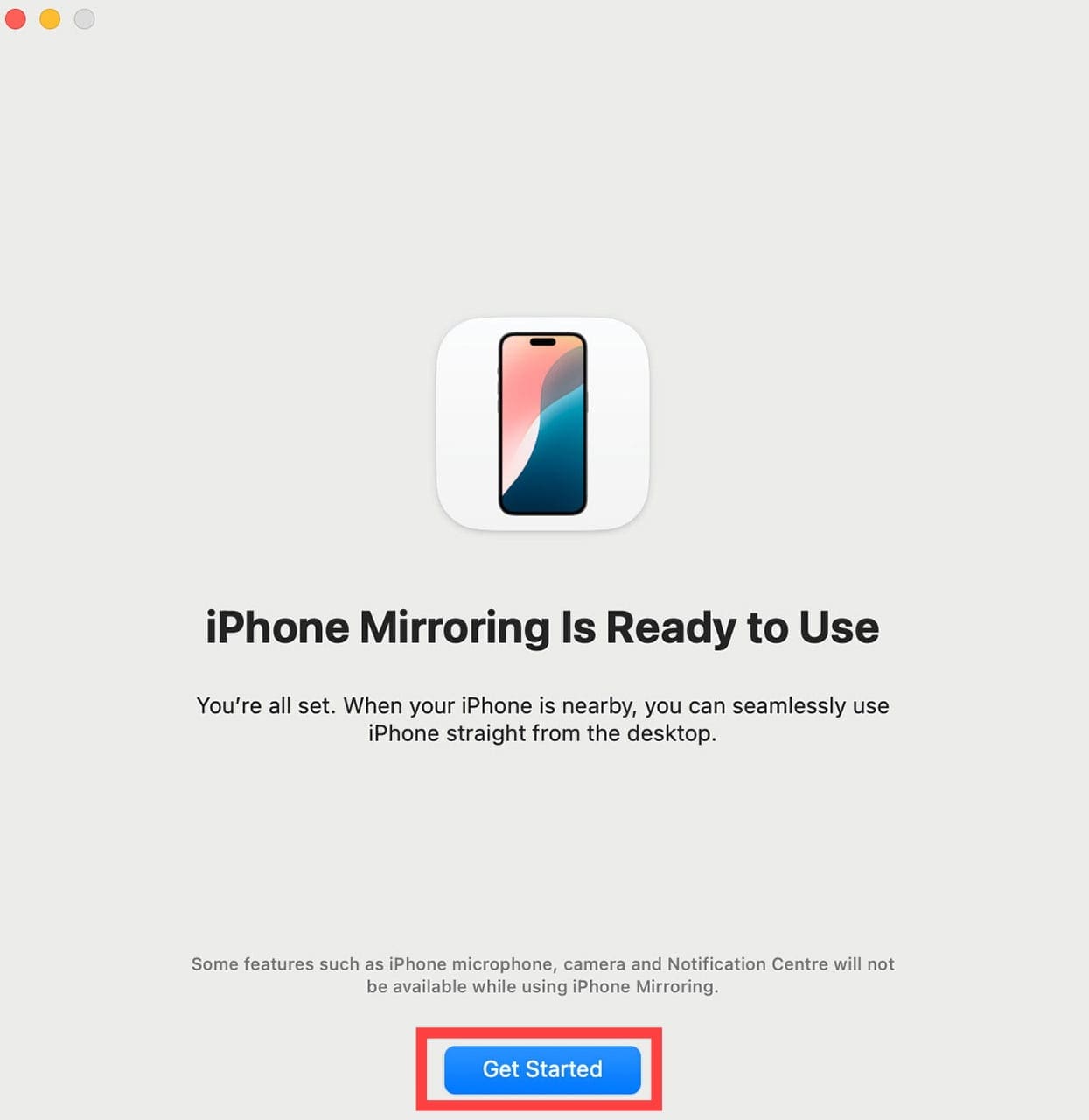
Step 4. Your Mac may also ask whether you want to authenticate each time you use iPhone Mirroring or authenticate automatically. You can change this setting later.
You will now see everything that occurs on your iPhone on your Mac, including all iPhone notifications.
iPhone Notifications Not Appearing on Mac: Switch Notifications On for Specific Apps
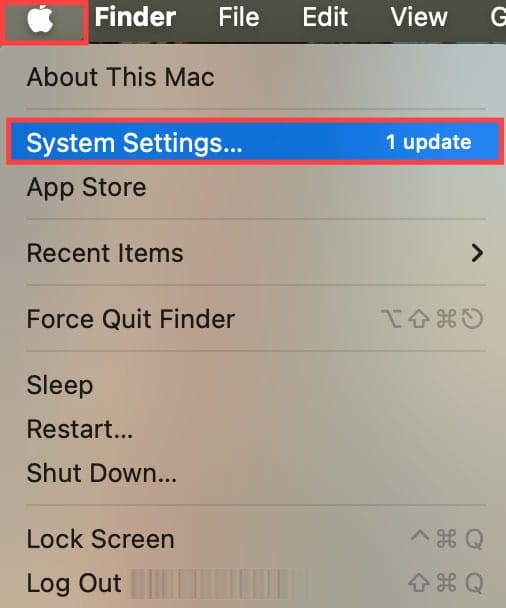
Step 1. Some apps may need notifications switched on manually, even when iPhone mirroring is active. To do this, click the Apple icon on your Mac and open System Settings.
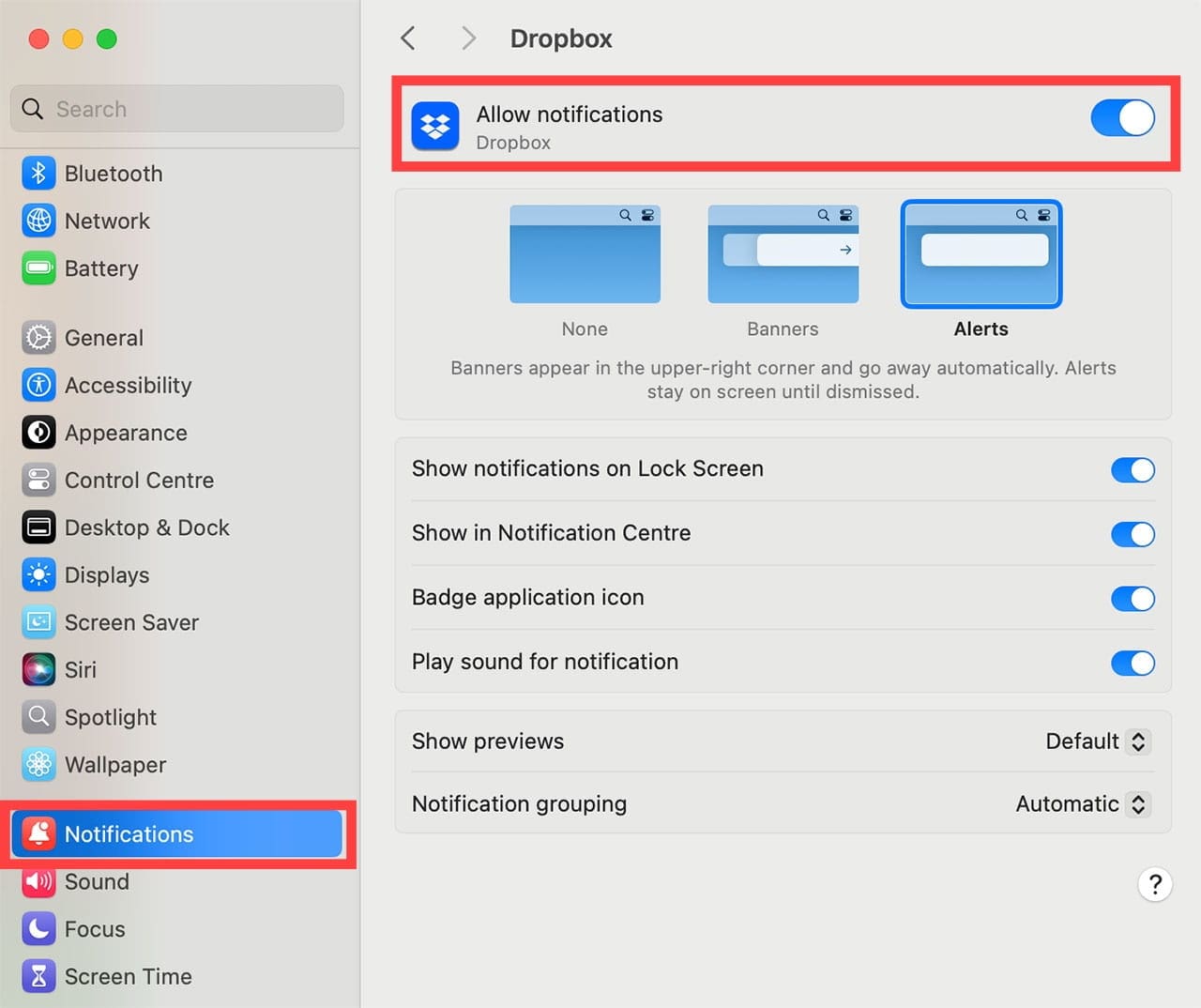
Step 2. Click “Notifications” in the left-hand menu, then select Allow notifications from iPhone. Under Mirror iPhone Notifications From, you can choose which iPhone apps are allowed to send notifications to your Mac.
Step 3. In your chosen app, ensure “Allow notifications” is switched on. You can also adjust specific notification settings, such as showing notifications when your Mac is locked, or how the notification appears.
Note: On older versions of macOS (Monterey and earlier), you’ll find notifications for individual apps under System Preferences > Notifications & Focus.
As an avid gamer, I’ve run into my fair share of error codes and weird faults that have forced me to find fixes to problems I never anticipated. That gave me a passion for sharing those fixes with others so we can all game without feeling like our hardware is rebelling against us.










Write a Comment