While sharing the screen between iPhones or iPads and Mac is generally a piece of cake thanks to AirDrop, Windows unfortunately doesn’t have nearly the same functionality out of the box. With that in mind, there are a few solutions you can try to get iOS to Windows screen mirroring working.
Option 1: iOS to Windows Casting with the Microsoft Store Apps
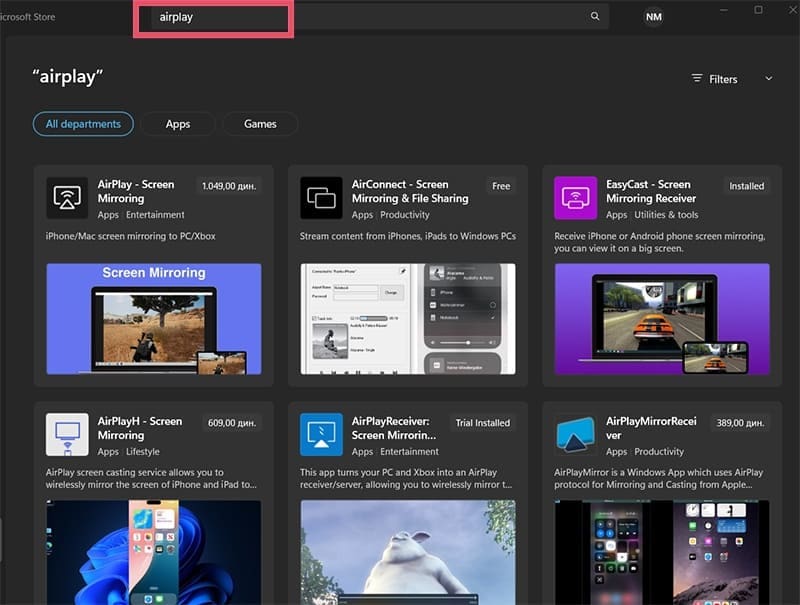
There are a few different apps on the Microsoft Store that allow the system to emulate an AirDrop receiver. Note that most apps are paid, but most of the features are usable without payment. You’ll just get consistent watermarks or popups to upgrade to the paid version. You can open the Microsoft Store and search for “AirPlay,” then expand the results.
App 1: AirConnect
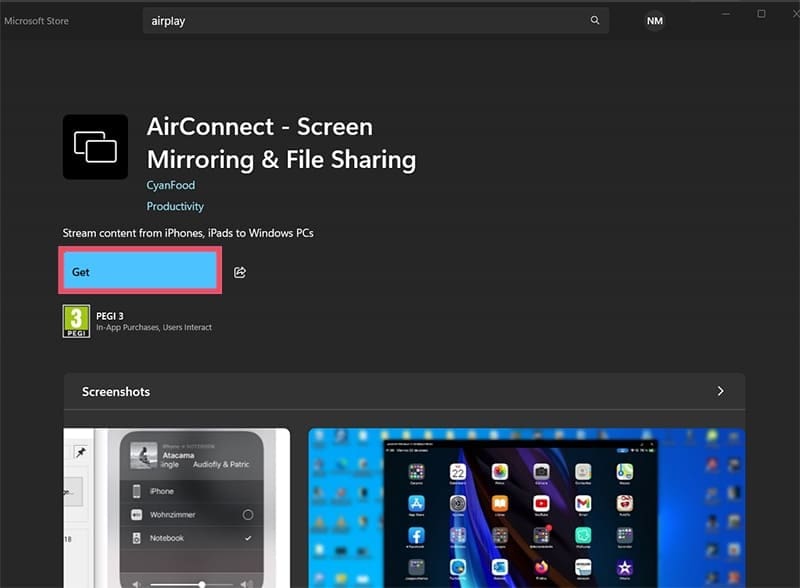
Step 1. Go to the option “AirConnect – Screen Mirroring and File Sharing.” Click on “Get” and wait for the device to finish downloading the app.
Step 2. Download “Bonjour for Windows” from the following support page.
Step 3. Open the AirConnect app on your PC and configure your PC’s name.
Step 4. On your iOS device, open AirPlay cast settings and search for the name set up in the previous step, then connect your device.
App 2: EasyCast
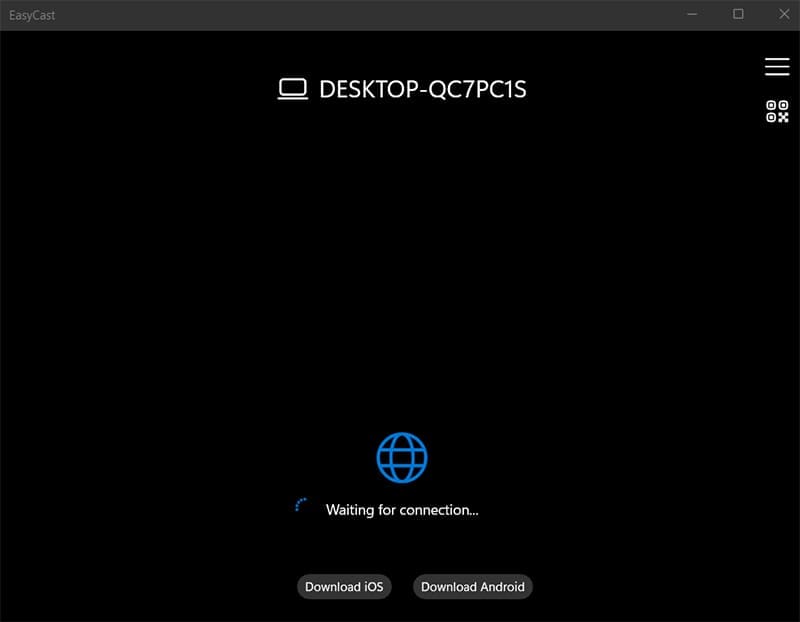
Step 1. Choose “EasyCast” from the results and download the app, then run it on Windows.
Step 2. On your iOS device’s app store, find and download “EasyCast Pro.” Run the app and allow location access.
Step 3. In the app, select “Broadcast Screen.”
Step 4. Find the PC from the list of available devices (it should automatically find the PC if it’s on the same Wi-Fi). Hit “Start” to begin screen casting.
Step 5. Confirm the setting and move out of the app. The PC’s screen should continue receiving the cast. You can end casting from the notification dock.
Note that this app doesn’t share sound by default and will ask you to go premium (which also removes ads). It costs only $7.99 for a lifetime license for a single device. Also, closing the app is a bit of a pain, as you may need to force close it.
App 3: AirPlay Screen Mirroring
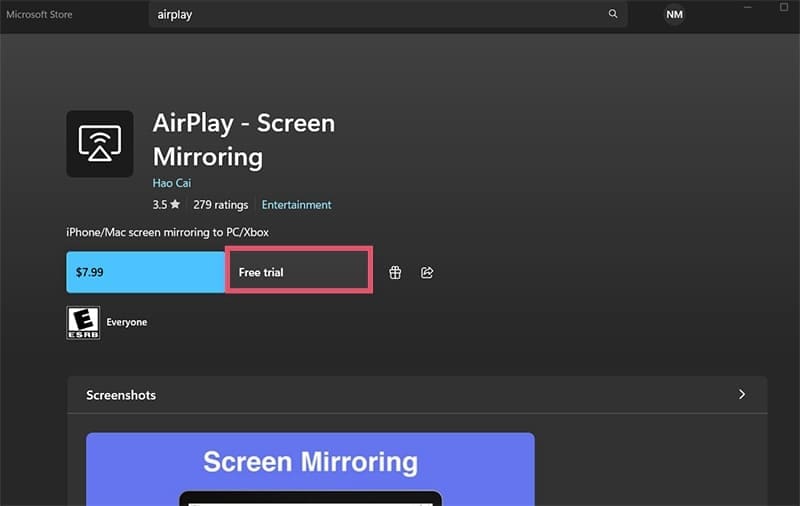
Step 1. Select the “AirPlay – Screen Mirroring” Option. Click on “Free Trial.”
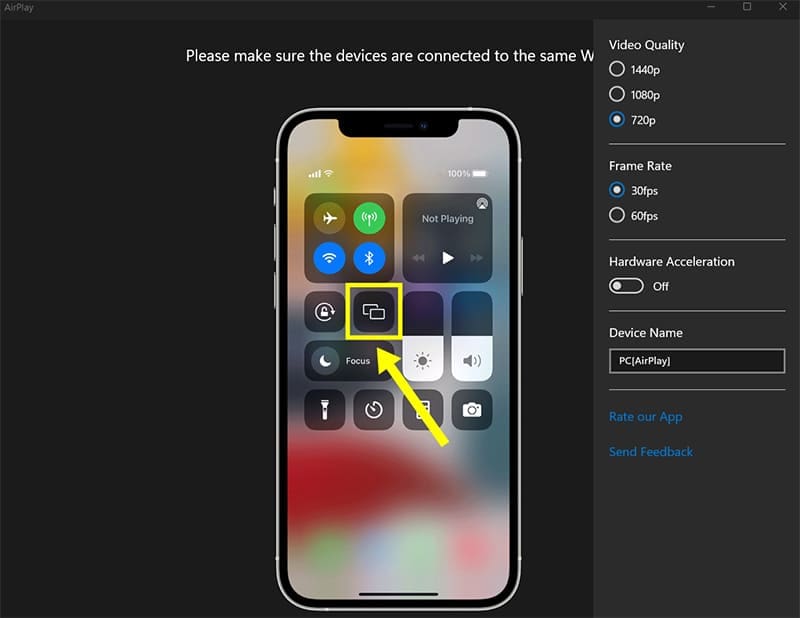
Step 2. Open the app, then go to your iOS device. You can see the advanced options in the hamburger menu.
Step 3. Go to the Casting settings via AirPlay (as you would with a Mac), then find the device as listed on the app.
With the free trial, you’ll get an ad or watermark across the screen. The app costs $7.99 to upgrade, which should be enough to work with most types of content you need to mirror.
Option 2: Third Party Apps to Mirror iPhone Screen to Windows
Another way to get iOS to Windows screen mirroring is through dedicated apps that won’t be on the Microsoft or App store. These usually offer additional options but may come with monthly or yearly subscriptions.
App 1: ApowerMirror
APowerSoft has a bunch of different apps mainly revolving around screen recording. Its mirroring app is no different, giving you a limited preview option to lure you into the $19.95 premium version. You can test it out on your browser, which can be useful if you just need to share a screen quickly.
Step 3. Open the AirCast menu on your iOS device and enter the code or use the QR scan to start.
The free trial is time-limited, and you’ll immediately get redirected to the premium account creation option.
App 2: iMyFone Mirror To
This is another freemium app that needs to be downloaded on the PC to work. The “free trial” is limited to three days and you’ll need to manually cancel the payment if you don’t want to pay $59.99 for the app.
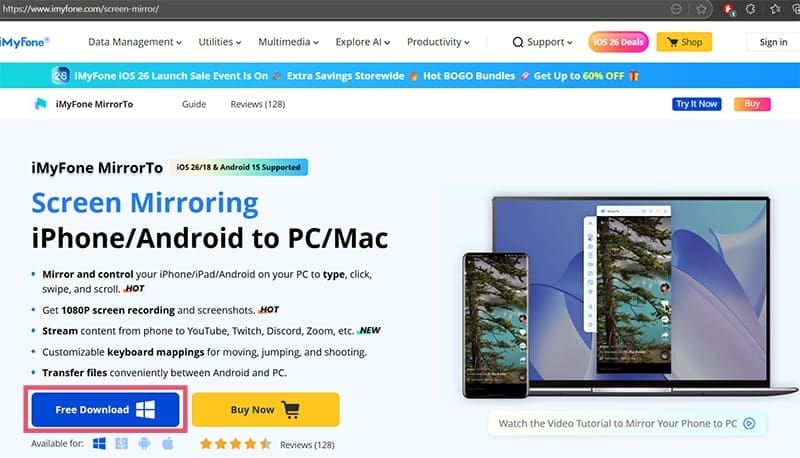
Step 1. Go to the website and select the “Mirror To” utility, then click on “Free Download.”
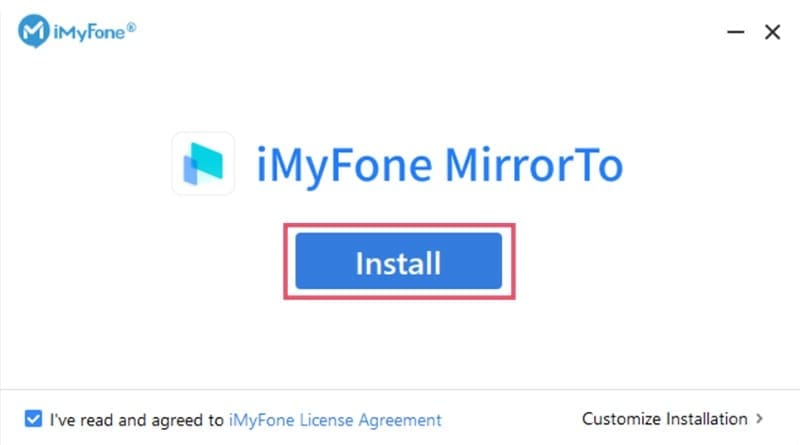
Step 2. Run the installer you downloaded and follow the instructions.
Step 3. Click on “Start Now” when the installation completes. Click on the “iOS” option.
Step 4. You’ll be prompted to make a premium account and finalize the payment creation step (which needs to be undone within three days to cancel it).
Step 5. Proceed through the app, at which point you’ll get an access code you can use with your iOS device’s AirCast.
One of the main benefits of the app is that it has a PC rather than a mobile device license, so you can use the PC to cast your Android devices as well, and it has options for device remote control via PC and vice versa. Otherwise, it’s not likely to be worth the cost.
App 3: LonelyScreen
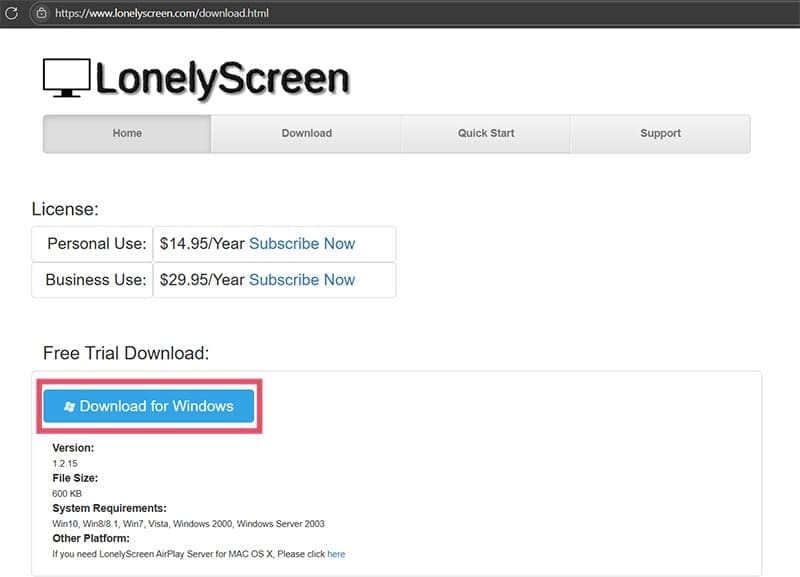
LonelyScreen is a freemium app where the free mode will throw ads to push you to upgrade to the $14.95 per year license.
Step 2. Run the installer and open the app when complete.
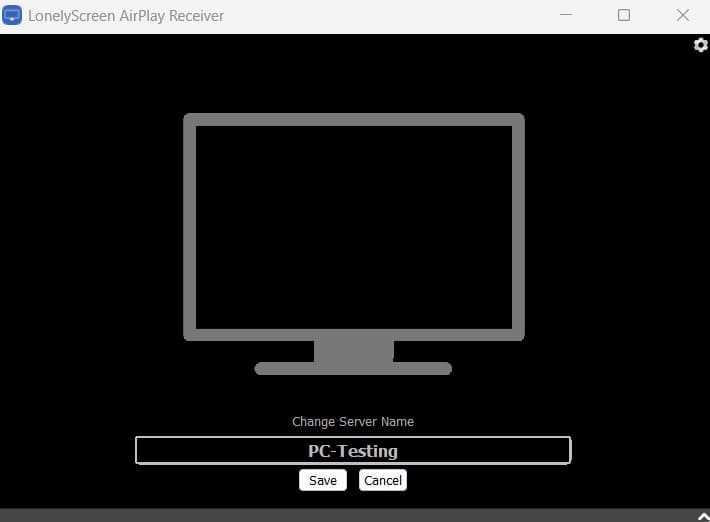
Step 3. The app looks minimalistic, but you can click on the name “LonelyScreen” to change the name of the device.
Step 4. Open AirCast on your iOS device, find the PC, and start screen mirroring.
Option 3: Use Meeting or Remote Control Software to Share Screen
If you need to cast your screen to another device that’s not connected to the same Wi-Fi or via AirCast, you can use meeting software like Teams or Zoom. Simply start a meeting between the PC where you want to cast and the iOS device you’re using, then use the screen sharing option on your iOS device. The PC will receive the screen and can view it (and hear its audio). Note that this will eat up mobile data and might have a lot of lag.
Alternatively, TeamViewer is another option, as it’s available for both Windows and iOS and allows the PC to access the iOS device remotely.
As an avid gamer, I’ve run into my fair share of error codes and weird faults that have forced me to find fixes to problems I never anticipated. That gave me a passion for sharing those fixes with others so we can all game without feeling like our hardware is rebelling against us.














Write a Comment