Wouldn’t it be great to be able to use your PC screen to operate your iPhone? It could be a surefire way to save a lot of time and wasted movements. If you agree, then you’ll be happy to know that there are quite a few ways to make that happen. This article will show you a few free ways to mirror your iPhone screen to your Windows PC.
Apple and Microsoft have often left things to third-party developers when it comes to cross-platform communication. Apps are still the most common way to share screens from one device to another, but recently, Microsoft has been taking more steps to include some limited ability to work with Apple. But directly facilitating screen mirroring still appears to be a bridge too far for them.
Ways to Mirror iPhone Screen to PC
There are ways to get it done, thankfully. We’ve listed some free ways to get your screen onto your PC’s monitor:
AirDroid Cast
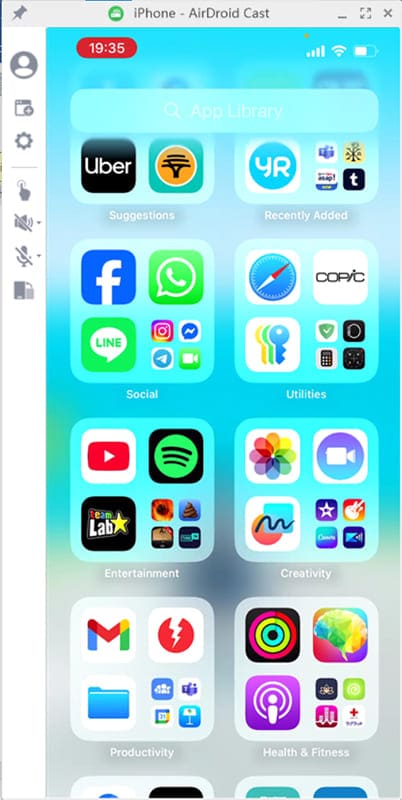
AirDroid is a free-to-use third-party app (for one device only) that’ll allow you to mirror your iPhone directly to your PC. To do this, you’ll first need the app installed on your PC from their website and also on your iPhone from the App Store. Once you’ve got both, it’s time to get connected. Here’s what to do:
Step 1. Start AirDroid Cast on both your PC and iPhone.
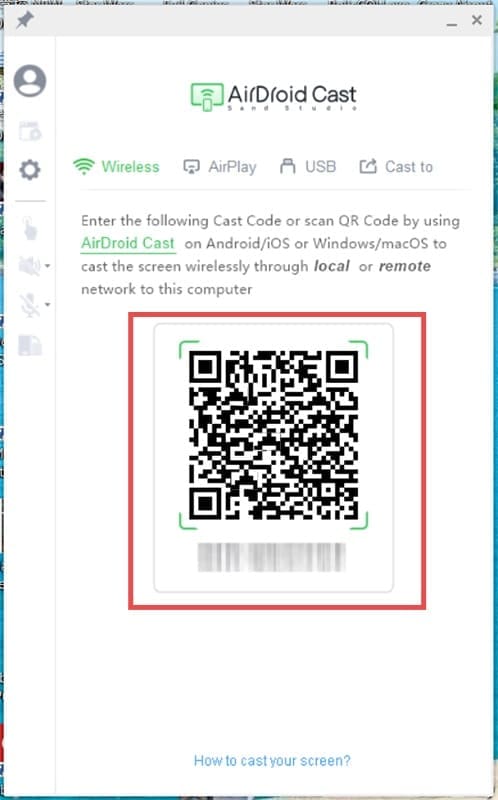
Step 2. The PC app will display a QR code and cast code. Either scan with your iPhone or enter the QR code to proceed.
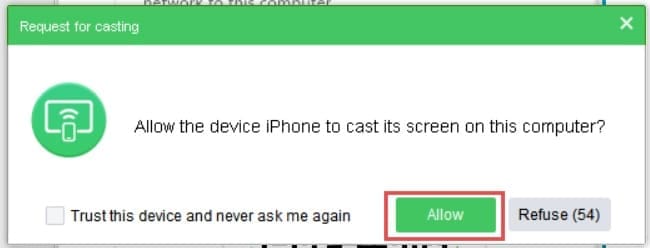
Step 3. Click the “Allow” button to confirm access. Do the same for the message on your iPhone.
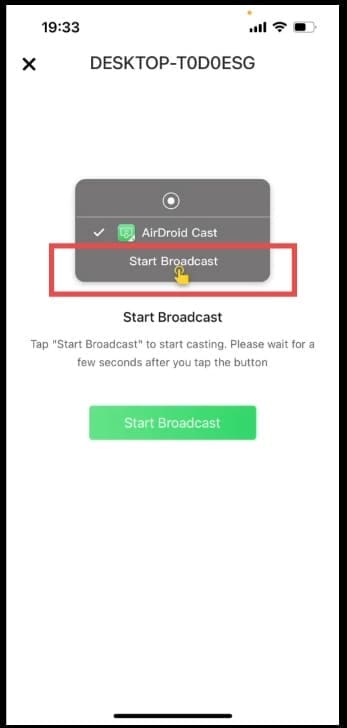
Step 4. Press the “Start Broadcast” button on your iPhone.
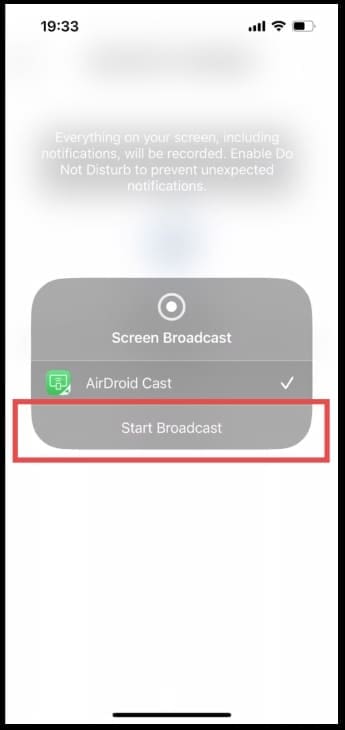
Step 5. On the next screen, press the “Start Broadcast” button and wait for the timer to count down.
Step 6. Your screen will then be visible on your PC.
AirDroid allows you to go full screen, with options to rotate as well. You can end the streaming at any time by locking your device or exiting either app.
AirServer
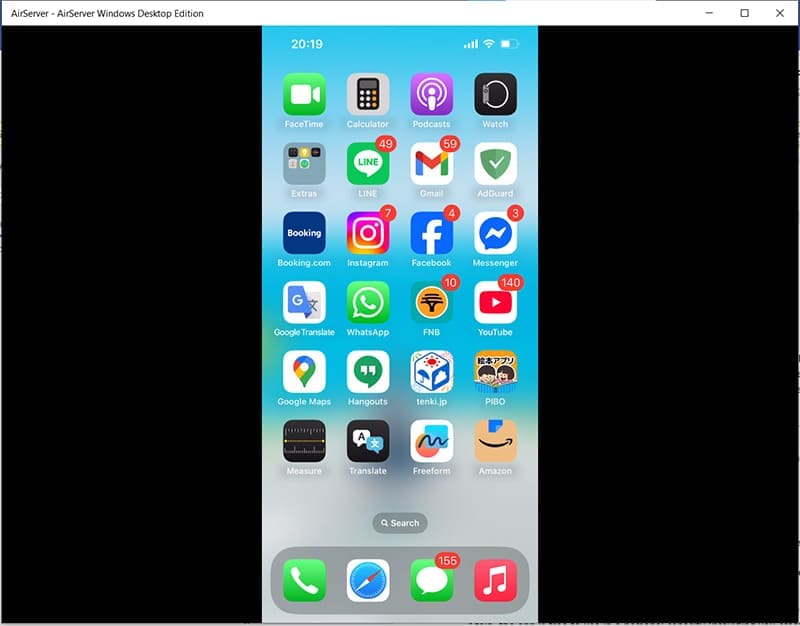
If your iPhone and PC are sharing the same Wi-Fi connection (which is very likely), then with the help of AirServer, one can be mirrored on the other. You’ll need to have the AirServer Windows edition downloaded and installed on your PC first. Note that using it is free for a trial period. Once done, it’s time to connect:
Step 1. Open AirServer on your PC.
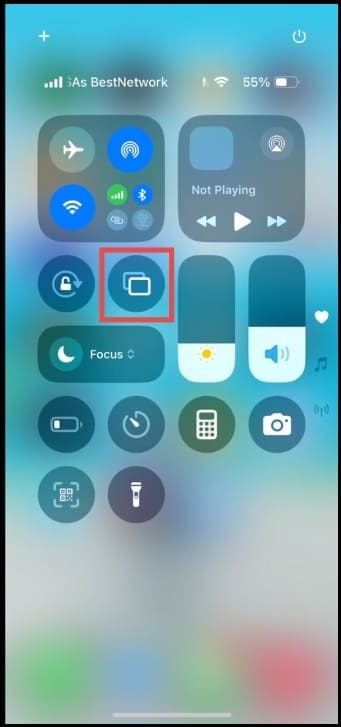
Step 2. On your iPhone, swipe down to open the Control Center. Select the Screen Mirroring icon.
Step 3. Look for your PC in the list of possible devices and tap it.
Step 4. On your PC, the AirServer app should now be mirroring your iPhone.
Sharing Your Screen via Messaging App
Depending on your line of work, you might frequently share your screen with others for meetings or video calls. But did you know that for most of these messaging apps, you can keep things between you and yourself and just mirror the screen of your iPhone to your PC instead?
There are plenty of apps that can help with this, i.e., Teams, Zoom, Slack, etc. The process is quite similar between these apps. To begin, you start a call with yourself on your PC and then join with the same app on your iPhone. Be sure to mute one device to prevent reverb.
Once that’s done, enable screen sharing on your iPhone, and you’ll have a quick way to mirror your smartphone to your PC. It’s as easy as that.
As an avid gamer, I’ve run into my fair share of error codes and weird faults that have forced me to find fixes to problems I never anticipated. That gave me a passion for sharing those fixes with others so we can all game without feeling like our hardware is rebelling against us.











Write a Comment