There are a lot of things you love to share with your family: laughter, vacations, memories, and more.
Well, now, with Apple’s Family Sharing subscription options, your ability to share the things you love has leveled up.
Family Sharing is affordable and easy to set up. And we’re here to walk you through the setup and answer questions you might have so you can start sharing today.
With Apple’s Family Sharing plan, up to six family members can stream millions of Apple Music songs.
And if that isn’t awesome enough, Family Sharing also lets you share other Apple offerings like Apple News+, Apple Arcade, and even Apple TV+. Your family can have access to music, TV shows, movies, games, and more.
I’ve used Apple’s Family Sharing for years with my own family. My husband and college kids love it.
But, what if one of your family members is a minor? Apple’s got you covered with Apple ID for kids. This is one of the things I appreciate, as a parent. With Apple ID for kids, parents can set limitations and permissions that can help keep your child or teen safe from explicit content, downloading off-limits apps, or making purchases. You can rest easy while your child streams KidzBop in their AirPods all day.
One person—an adult—sets up Family Sharing for the family group from their Apple device (iPhone, iPod touch, or iPad. For Mac, see below.)
Go to SETTINGS > [your name, which should be the first in line under the search bar]
Tap FAMILY SHARING
Tap SET UP YOUR FAMILY
Follow the instructions.
Once your family members accept the invitation on their end, you’re all set. It’s that easy!
Add More People to Your Family Sharing Plan
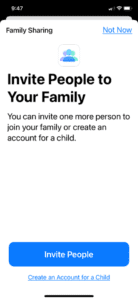
Wanna share more love? If you already have Family Sharing set up and would like to add another lucky family member, simply go to SETTINGS > [YOUR NAME] > FAMILY SHARING > ADD MEMBER. It will tell you here how many more people can add to your family.
Tap INVITE PEOPLE and follow the instructions.
Setting up Family Share from your Mac
Setting up Family Share on your Mac is just as easy. Click on APPLE MENU > SYSTEM PREFERENCES > FAMILY SHARING. Then follow the instructions to add members.
Other awesome benefits of Family Share
Besides the services already mentioned, Family Share offers other benefits that I, as a parent, genuinely appreciate. These can be found at SETTINGS > APPLE ID > FAMILY SHARING.
There you’ll see your sharing family members. Scrolling down, you’ll see the apps/services you’re sharing with them.
Below that is a section called MORE TO SHARE.
APPLE SUBSCRIPTIONS offers things like Apple Arcade, Apple News, and Apple Fitness. It reads “Subscribe one, and everyone in your family gets access using their own devices and their own accounts.”
PURCHASE SHARING gives you the option of sharing everyone’s purchases with each other. This is a great feature, as only one person pays but all can enjoy!
iCLOUD STORAGE allows you to share your iCloud storage with family members. But don’t worry, users’ photos and files are kept private. Family members will have access to the storage, not what’s stored. (Think of it like a wall of lockers. Each member can use a locker or two without having access to the contents of other lockers.)
APPLE CASH is a great feature for parents of teens and kids under 18. It allows kids to pay for purchases and send and receive money, all under the seeing eyes of their parents.
SCREEN TIME. I can’t say enough about this feature. When shared with a child who has a child Apple ID, you have access to how your kids are using their devices. Screen Time tracks app usage, websites visited, and other pertinent information. It creates weekly reports as well as information on specific apps. It also allows the parent to set time limits for apps, websites, and more. Parents can also adjust settings so kids can’t make purchases, download apps, and more, without a request sent right to the parent’s phone. I could write an entire article on how much I love using Screen Time to keep my kids safe.
What if you just want to share music?
Say you’re not interested in sharing that much with your family. You’d prefer to only share music. No problem! You can subscribe to Apple Music as a student, individual, or for a family in two ways.
You can click on THIS LINK to sign up for 3 months free to try it out.
Or, from your device, you can tap on the APPLE MUSIC APP or iTUNES > LISTEN NOW or FOR YOU > tap on the trial offer (for either one person or for family). You’ll sign in with your Apple ID, confirm billing info, and you’re in!
With Apple Music, you’ll have access to millions of songs at your fingertips. You can download content, create playlists, and more, for one low monthly subscription fee.
For Apple Family sharing to work, each user must have their own unique Apple ID
The organizer must have a valid method of payment
Apple devices need to have IOS8 or later for sharing to work
Mac users need to have OS X Yosemite to access sharing
Family members aren’t added automatically. They must accept the invitation to join sent by the organizer. If they can’t find the invitation, the organizer can resend it.
Though you can have access to Apple Family Sharing through the Apple Music app on your Android phone, Family Sharing works best when all family members are using Apple devices.
If a family member has their own subscription, they will have to cancel it before they can accept your invitation to share that specific service.
For more information on the benefits of Apple Family, check out Apple’s page HERE
If you run into problems, you can visit the Apple Family Sharing Support page HERE












Write a Comment