• Skip to primary navigation
  • Skip to main content
  • Skip to primary sidebar
  • Skip to footer

AppleToolBox

Tools and Fixes for Mac, iPad, iPhone & iWatch

Search posts

  • About
  • Contact

CONNECT WITH US

CATEGORIES

  • iPhone
  • iPad
  • iPod
  • Apple Watch
  • Mac/MacBook
  • AirPods
  • Apple TV
  • News
  • Apple Services
  • HomePod
  • Reviews

SITE

  • Home
  • About Us
  • Contact
  • Advertise

Search posts

You are here: Home / iPhone / How to Change the Language in Nike Training Club for iOS

How to Change the Language in Nike Training Club for iOS

By Danny Maiorca 0 comments Last updated January 19, 2023

Nike Training Club is one of the best fitness apps for iPhone users, and you can access hundreds of workouts for free. In addition to English, you can use the service in a selection of other languages.

Related Reading:

  • How to Use Nike Training Club on iOS
  • The Big Changes Coming to Apple Fitness+ in 2023
  • How to Use Audio Hints With Apple Fitness
  • Can You Use Fitness+ on an iPhone Without Apple Watch?
  • Apple Fitness+ Review Is It the Perfect At-Home Gym?

Changing the language in Nike Training Club for iOS is easy. This article shows you how to do precisely that, and we’ll also mention which languages you can change it to.

Contents

  • Which Languages Are Available for Nike Training Club on iOS?
  • How to Change the Nike Training Club Language in iOS
  • Changing Your Language in Nike Training Club for iOS Is Easy

Which Languages Are Available for Nike Training Club on iOS?

Nike Training Club’s iOS app is available in dozens of languages. You’ll find two versions of Chinese, along with multiple versions of Spanish. You can also use the app in Arabic, Italian, and French.

Other languages you can use Nike Training Club in include Swedish, Dutch, and Korean.

How to Change the Nike Training Club Language in iOS

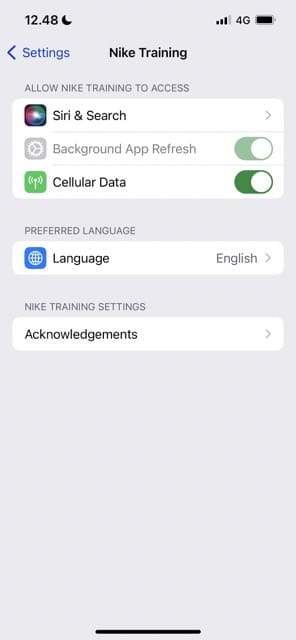
Screenshot showing the settings for Nike Training Club in iOS
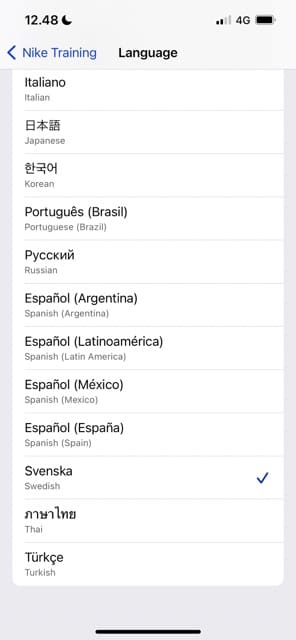
Screenshot showing the list of languages in Nike Training Club for iOS
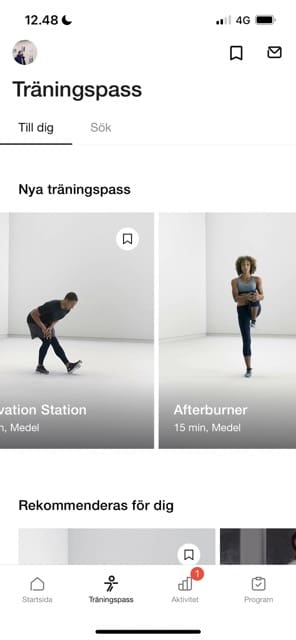
Screenshot showing Nike Training Club on iOS in a new language

Changing the language for Nike Training Club on iOS shouldn’t take you too long. Follow these instructions to do it:

  1. Open the Settings app and go to Nike Club > Language.
  2. Select the language you want to change your app to from the list of options.
  3. Open the Nike Training app, and your changes should have taken immediate effect.

Changing Your Language in Nike Training Club for iOS Is Easy

If you want to change the language in Nike Training Club, doing so is simple on your iOS device. You have dozens of languages to choose from, and you can change as many times as you feel is necessary.

Once you’ve changed the language in Nike Training Club, you can access your catalog the same as before.

Related Posts:

  • pexels-sanaan-mazhar-2272752
    Workout vs Nike Run Club: Which Is The Best Apple Watch App?
  • photo of a person running outdoors
    How to Use Nike Training Club on iOS
  • 0E4A6A0B-65E8-4184-B0C9-16C2179A1256
    The Best Weight Loss Apps For iPhone In 2021
  • Apple Watch Ultra Tips and Tricks
    Apple Watch Tips and Tricks for 2023
  • iphone and airpods on a table
    These Apps Have the Best iOS 17 Widgets
  • pexels-ketut-subiyanto-4473622
    Apple Fitness+ Alternatives: Is There A Better…
  • Apple Far Out Event - Apple Watch Series 8 - 45
    Best Free Apple Watch Apps
  • Apple Fitness Plus HIIT
    How to use Audio Hints with Apple Fitness
  • photo of an iphone saying hello
    The Best Language-Learning Apps for iOS
Danny Maiorca

Danny has been a professional writer since graduating from university in 2016, but he’s been writing online for over a decade. He has been intrigued by Apple products ever since getting an iPod Shuffle in 2008 and particularly enjoys writing about iPhones and iPads. Danny prides himself on making complex topics easy to understand. In his spare time, he’s a keen photographer.

Reader Interactions

Write a Comment Cancel reply

Primary Sidebar

Recent Posts

  • How to Manage Your iPhone Call Log
  • Are Apple’s Safety Precautions Enough for AirTags?
  • How to Hide Username and Photo on the Mac Lock Screen
  • Microsoft Resume vs. Apple Handoff – Which Wins for Cross-Device Work?
  • How to Export iTunes Library to New Computer
  • What the Gemini Desktop App Will Bring to Mac

Connect with us

Footer

ABOUT

  • About Us
  • Contact us
  • Advertise
  • Privacy
  • Terms of Use

GUIDES

  • iOS & iPadOS
  • Apple ID
  • iCloud
  • App Store
  • iTunes
  • FaceTime
  • iMessage
  • Siri
  • Books and iBooks
  • Game Center
  • AirPlay

CONNECT

  • Facebook
  • Twitter
  • FeedBurner
  • YouTube

© Copyright 2010-2024 Guiding Tech Media · All Rights Reserved

This site and its content are in no way affiliated or endorsed by Apple, Inc. · Reproduction without explicit permission is prohibited