WhatsApp is one of the most popular apps out there with more than 1 billion active monthly users around the world. This is despite the fact that it is banned in at least 12 countries around the world. The app works great on an iPhone and provides an alternative to people that use Skype or other platforms. Sometimes the app can cause issues. Several users find that their Whatsapp launches into a white screen and does not move beyond that. It just ends up closing down after a few seconds.
We will look at few ways in which this issue can be sorted on your iPhone without you loosing your history/app data.
Please follow each of the steps below and try accessing whatsapp after each of the steps to see if it resolves the white screen issue for you.
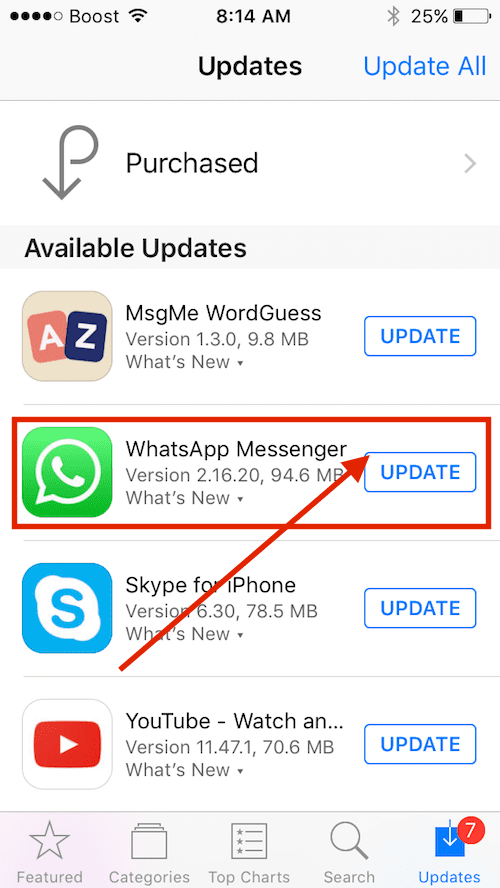
Step – 1 Since this is a third-party app, the first course of action is to make sure that you do not have any pending updates that need to be applied to your iPhone.
Tap on Appstore on the main screen. Next, Tap on “Updates” on the bottom right and check if there are any available updates for Whatsapp. Go ahead and update your iPhone with the latest updates for Whatsapp.
If your problem is related to app update, this step will likely take care of the problem.
Step – 2Close and Restart
Double click quickly on your home button to open all the opened apps on your iPhone. Swipe up “Whatsapp” if you find it open on your iPhone. Once the app is closed, perform a forced reset by pressing the Home button and the on/off button together for about 10 seconds till you see the Apple logo show up on your iPhone.
Let the iPhone start on its own and now try launching Whatsapp to see if this resolves your issue.
Step – 3 Change WhatsApp Settings
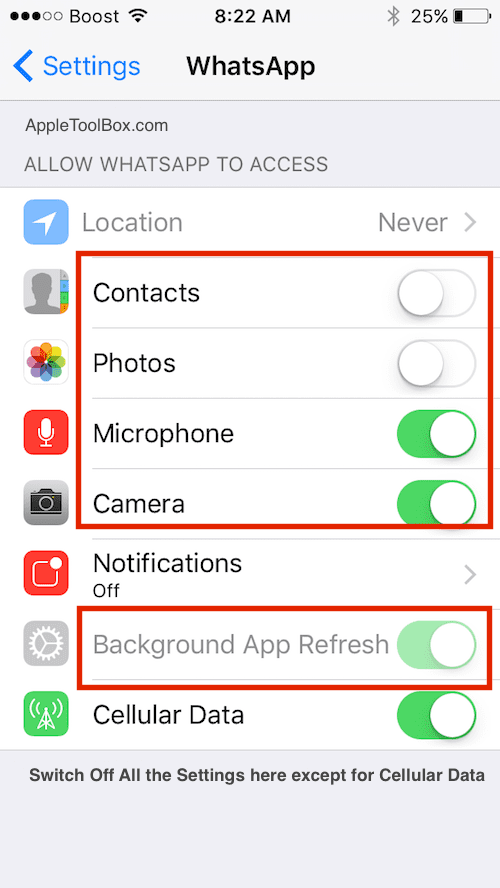
Sometimes, the whatsapp white screen problem may be related to the app settings.
Tap on Settings > Whatsapp and trun OFF all the settings except for cellular data and notifications.
Launch Whatsapp from your home screen. If the app launches without any hiccups, you can come back to settings and re-enable your settings. This toggling off process of the app’s permissions/settings and launching the app can at times mitigate this issue.
Step – 4 Reinstall App
If you have tried the steps above without success, your last course of action is to delete the app and re-install it on your iPhone.
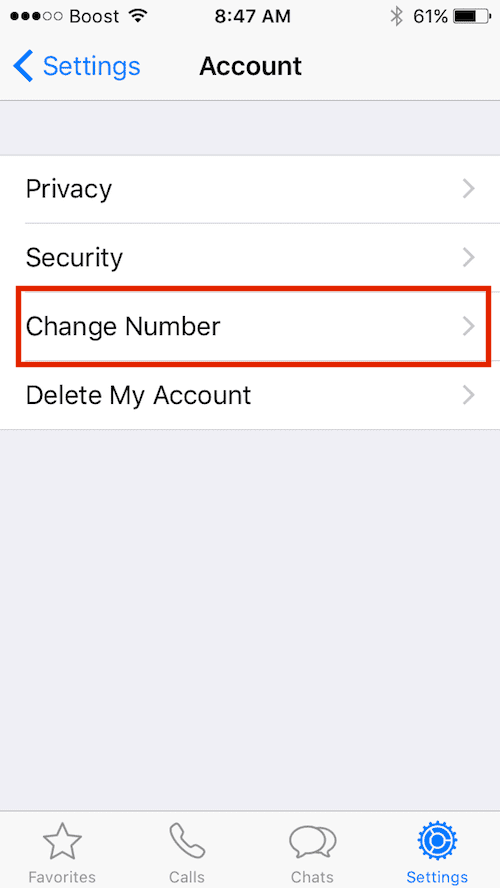
When re-installing you can choose a different number to re-install and once you have installed the app with a different number, you can then launch the app. Tap on Settings > Account > Change Number and migrate to your original number. This way, you can save some of your history.
We hope that you found these steps handy while dealing with the issue. Most users are able to resolve this issue by simply toggling off Whatsapp permissions and then launching the app. Once the app starts up without the white screen, you can then enable the all the permissions ( such as contacts..etc).
Obsessed with tech since the early arrival of A/UX on Apple, Sudz (SK) is responsible for the original editorial direction of AppleToolBox. He is based out of Los Angeles, CA.
Sudz specializes in covering all things macOS, having reviewed dozens of OS X and macOS developments over the years.
In a former life, Sudz worked helping Fortune 100 companies with their technology and business transformation aspirations.
I was about to give up and reinstall my whatsapp. However, i did follow your instructions on the background app settings. It works!!!!! I find it so helpful!!! Thank you so much!!













THIS IS AMAZING I USUALLY NEVER EVER EVER EVER COMMENT BUT AFTER I READ THIS MY WHATSAPP WORKED AGAIN! Thank you so much to whoever made this
If i reinstall the app, does the number i use before be affected?
I was about to give up and reinstall my whatsapp. However, i did follow your instructions on the background app settings. It works!!!!! I find it so helpful!!! Thank you so much!!
Lola,
You have my absolute favorite name. And thank you for letting us know it worked. Awesome!
Liz