• Skip to primary navigation
  • Skip to main content
  • Skip to primary sidebar
  • Skip to footer

AppleToolBox

Tools and Fixes for Mac, iPad, iPhone & iWatch

Search posts

  • About
  • Contact

CONNECT WITH US

CATEGORIES

  • iPhone
  • iPad
  • iPod
  • Apple Watch
  • Mac/MacBook
  • AirPods
  • Apple TV
  • News
  • Apple Services
  • HomePod
  • Reviews

SITE

  • Home
  • About Us
  • Contact
  • Advertise

Search posts

You are here: Home / iPhone / Using Google Voice For iPhone Voicemail

Using Google Voice For iPhone Voicemail

By Sudz Kar 0 comments Last updated March 8, 2016

One of the things that I like about Google Voice is the ability to get my voicemail in message form. For example, when someone leaves me a voicemail on my iPhone, and I can’t necessarily check it right away, I get it sent in text form to an email to me, which I can then read at the moment. Then tend to right away if need be. And since I use Google Voice for work, it gives me a written transcription of messages which helps if for some reason a voicemail gets erased. So how do I do this? It is really pretty simple.

The first thing you are going to want to do is sign up for a Google Voice account, if you already haven’t. You can either have a separate number assigned to you, or you can pay $20 to keep your current cell phone number as your Google Voice number. For the sake of this example, this would be for those who decide to just get a separate number assigned to them.

Once you are in Google Voice, you are going to want to go to the Voice Settings. Then click on the Phone tab. Here you are going to want to “Add Another Phone”. You are going to want to add your cell phone number to this list. Then you are going to want to click the box next to it, so any Google Voice call you get, gets forwarded to your iPhone.

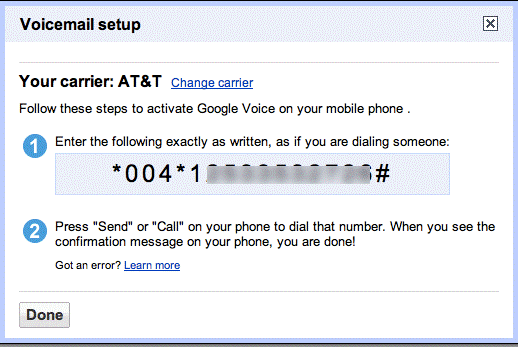
Then you will see next to your number, a link that says “Activate Google Voicemail on this phone.” Click on that link and you will see instructions on how to do this. Once you complete this process on your iPhone you will now be able to get any voicemail that comes into your iPhone on Google Voice. The nice part about this feature is that any voice mail you get, whether it be to your iPhone phone number or your Google Voice phone number, will go straight to Google Voice for you.

Please keep in mind, your voicemail, will no longer go to your iPhone voicemail as well. So, you may want to download the free Google Voice app from the App Store to help you in this process as well so that you can check your voicemail.

Related Posts:

  • The home screen on an iPhone
    iOS iPhone Visual Voicemail Not Working After iOS 17…
  • iPhone 15 event - iPhone 15 Pro and iPhone 15 Pro Max A17 Pro Video Recording Promo
    iPhone 14 vs. iPhone 15: Should You Upgrade?
  • pexels-tima-miroshnichenko-6860464
    How To Start Using Regex With The Shortcuts App
  • Screen Shot 2021-08-21 at 6.58.10 PM
    DuckDuckGo's Email Privacy Features Might Beat Apple
  • pexels-designecologist-1779487
    The Best iPhone And Mac Shortcuts For Beginners
  • iPhone 15 Pro Max - 4
    Best iPhone Lock Screen Widgets for iOS 17
  • photo of an iphone with ios 16 downloaded on it
    iOS 16 Tips and Tricks: The Definitive List
  • pexels-cottonbro-5082579
    Getting Started With iOS 15: Everything Good And Bad
  • iOS 16 Unsend Messages on Your On Your iPhone
    No Text or Message Notification Alerts or Sounds on…
sudz - apple
Sudz Kar

Obsessed with tech since the early arrival of A/UX on Apple, Sudz (SK) is responsible for the original editorial direction of AppleToolBox. He is based out of Los Angeles, CA.

Sudz specializes in covering all things macOS, having reviewed dozens of OS X and macOS developments over the years.

In a former life, Sudz worked helping Fortune 100 companies with their technology and business transformation aspirations.

Reader Interactions

Write a Comment Cancel reply

Primary Sidebar

Recent Posts

  • How to Hide Username and Photo on the Mac Lock Screen
  • Microsoft Resume vs. Apple Handoff – Which Wins for Cross-Device Work?
  • How to Export iTunes Library to New Computer
  • What the Gemini Desktop App Will Bring to Mac
  • What to Do When Windows 11 Won’t Detect Your iPad
  • Outlook Outage 2026: iPhone Fixes for Sign-In Chaos

Connect with us

Footer

ABOUT

  • About Us
  • Contact us
  • Advertise
  • Privacy
  • Terms of Use

GUIDES

  • iOS & iPadOS
  • Apple ID
  • iCloud
  • App Store
  • iTunes
  • FaceTime
  • iMessage
  • Siri
  • Books and iBooks
  • Game Center
  • AirPlay

CONNECT

  • Facebook
  • Twitter
  • FeedBurner
  • YouTube

© Copyright 2010-2024 Guiding Tech Media · All Rights Reserved

This site and its content are in no way affiliated or endorsed by Apple, Inc. · Reproduction without explicit permission is prohibited

Last Updated on March 8, 2016 by