Apple Mac laptops provide a high level of customization for the home screen and the lock screen. That includes adjusting whether your username and associated photo or avatar image appear on the lock screen.
Learn why you might want to hide user Mac login screen and how to do this in a few simple steps.
Hide User Mac Login Screen: Why You Want to Do This
There are several reasons you might want to hide your user details from the lock screen of your Mac.
Firstly, it’s a simple way of decluttering the lock screen. If you like a simplified view, or you use your Mac for work and want it to appear streamlined or on-brand, then removing unnecessary icons and images can help.
Secondly, it adds to security and privacy. When your username and photo appear on the lock screen of your Mac, anyone can instantly see who has been using it. This can be particularly problematic if you work at various locations on your Mac or need to leave it unattended for periods of time.
When you remove the username and photo, no one will be able to see whose machine it is simply by opening the Mac and looking at the lock screen.
This is particularly useful if you have a shared Mac in a workspace, as users can’t see the personal details of other users, helping to protect their privacy.
Hide User Mac Login Screen: Step-By-Step Guide
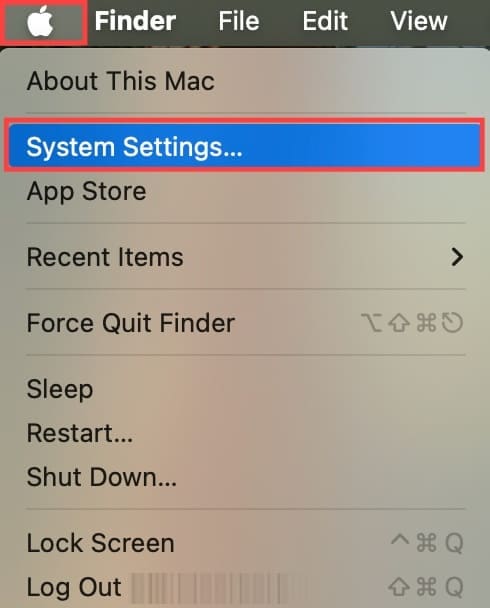
Step 1. Use the Apple logo in the top left corner of the screen to access System Settings.
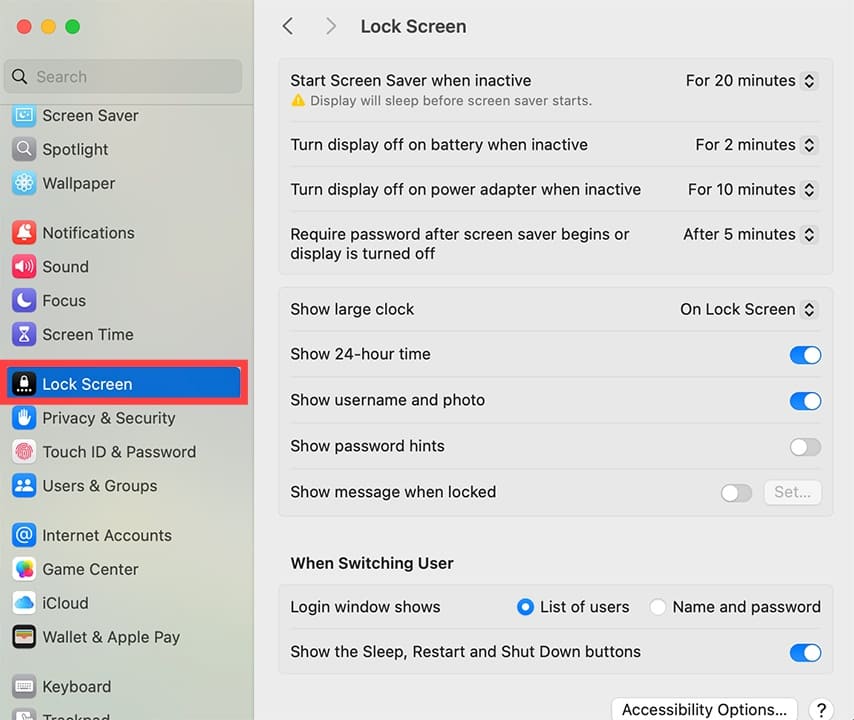
Step 2. In the System Settings left-hand menu, scroll down until you find “Lock Screen.” Click here.
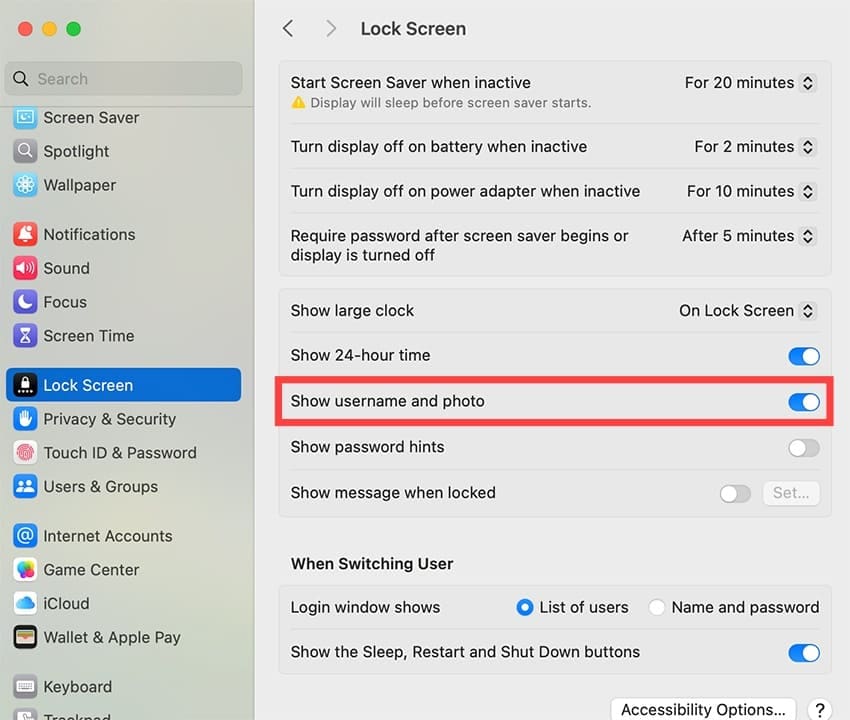
Step 3. Go to “Show user name and photo.” By default, this is set to “On” and will have a blue toggle button.
Switch off the toggle next to “Login window shows” by selecting “Name and password” instead of “List of users.” This will effectively remove any username details and your photo or avatar from the lock screen.
From the same settings menu, you can:
Change whether you want the Mac to turn the lock screen on when inactive.
Decide whether you have to enter a password to bypass the screensaver mode.
Add password hints to your lock screen – not recommended for shared workspaces.
Show a specific message when the lock screen is active, for example, that you’ll be back in five minutes.
Opt to show a list of all registered users on the lock screen or simply a space to enter a username and password.
Decide whether the lock screen shows the Sleep, Restart, and/or Shut Down buttons.
Customizing your lock screen promotes privacy and security while decluttering the screen as needed.
As an avid gamer, I’ve run into my fair share of error codes and weird faults that have forced me to find fixes to problems I never anticipated. That gave me a passion for sharing those fixes with others so we can all game without feeling like our hardware is rebelling against us.












Write a Comment