• Skip to primary navigation
  • Skip to main content
  • Skip to primary sidebar
  • Skip to footer

AppleToolBox

Tools and Fixes for Mac, iPad, iPhone & iWatch

Search posts

  • About
  • Contact

CONNECT WITH US

CATEGORIES

  • iPhone
  • iPad
  • iPod
  • Apple Watch
  • Mac/MacBook
  • AirPods
  • Apple TV
  • News
  • Apple Services
  • HomePod
  • Reviews

SITE

  • Home
  • About Us
  • Contact
  • Advertise

Search posts

You are here: Home / iPhone / How to Check if Your Device Is Compatible With Siri AI

How to Check if Your Device Is Compatible With Siri AI

By Louis Roundtree 0 comments Last updated July 3, 2026

Things to Know
  • All current Apple devices with the latest software have Siri, but not all will work with the new Siri AI when it launches in the fall of 2026.
  • Even some devices that can update to iOS 27 will not be capable of running all the Siri AI features.
  • Siri AI compatible devices will include iPhones, from the iPhone 15 onward, iPads with the M4 chip, and Macs with an M1 processor and better.

In early June 2026, Apple announced the upcoming launch of Siri AI, a massively upgraded version of Siri that will be available with the launch of iOS 27, expected this fall. New features include more natural language and personal context understanding, an app that records and displays previous conversations, and generative AI functions, such as email drafts and photo edits.

If you’re excited about these new features, you’re not alone. However, not all Apple devices will be capable of running the new, more powerful version of Siri. Take a look at how to check if you own Siri AI compatible devices and what hardware will be supported.

AI Siri Compatible Devices: How to Check Yours

Step 1. To find out if your device will run Siri AI, you need to know exactly what device you have. Note: The ability to run iOS 27 isn’t a guarantee that you’ll get full Siri AI functionality. Some Apple devices will have access to limited features, and may only be able to access Siri AI with a strong internet connection. Check your device model by heading to “Settings,” then “General.”

How to Check if Your Device Is Compatible With Siri AI 1

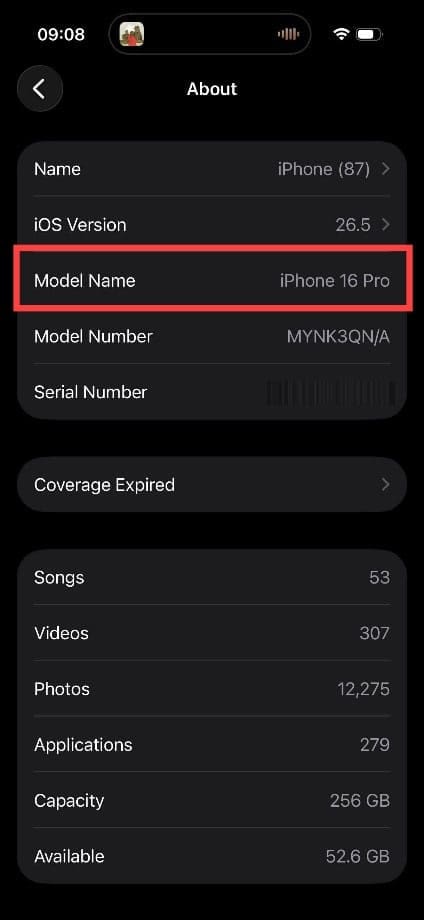
Step 2. Click on “About,” then make a note of the model name and cross-reference it against our list of Siri AI compatible devices below.

How to Check if Your Device Is Compatible With Siri AI 2

List of Siri AI Compatible Devices

These are the devices that Apple states will have full Siri AI compatibility:

  • iPhones: The iPhone 15 Pro, 15 Pro Max, and all 16 and 17 models offer the full functionality of Siri AI, with newer devices such as the upcoming iPhone 18 also expected to offer full support.
  • iPads: Full features are expected to work on iPad A17 Pro, all M1+, M2, M3, and M4 iPads and later, such as the eighth-generation iPad Air and Pro models.
  • Macs: Any Mac with an M1 chip or better should be able to run Siri AI.
  • Other devices: All models of the Apple Vision Pro are AI Siri compatible devices. Apple Watches will offer functionality based on the capabilities of the device they’re connected to.

The following devices will have some Siri AI functionality, but only when connected to the internet, as these are cloud-based AI services:

  • iPhones: All models from iPhone 15 and later should offer some Siri AI functionality after being updated to iOS 27.
  • iPads: Any iPad with an M1 chip or better should run a limited version of Siri AI.

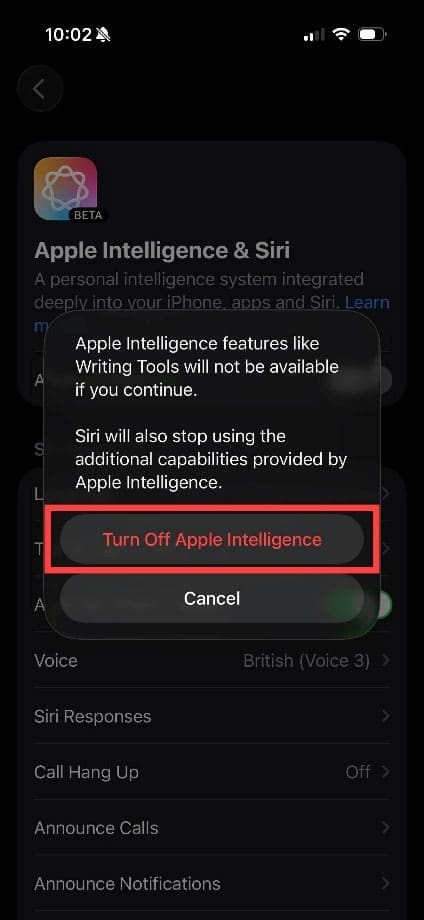
If you decide that you don’t want to use the AI features of Siri, you can head to Settings > Apple Intelligence & Siri > Apple Intelligence and turn the service off. This ensures that your conversations aren’t stored and may improve the battery life of your device.

How to Check if Your Device Is Compatible With Siri AI 3

Related Posts:

  • photo of an iphone with ios 16 downloaded on it
    iOS 16 Tips and Tricks: The Definitive List
  • outlook iphone outage
    Outlook Outage 2026: iPhone Fixes for Sign-In Chaos
  • iphone and airpods on a table
    These Apps Have the Best iOS 17 Widgets
  • iPhone App Store Header
    Best Free iPhone Apps 2023
  • iPhone 15 Pro Max - 4
    Best iPhone Lock Screen Widgets for iOS 17
  • sidecar on iPadOS and macOS
    Sidecar not working in iPadOS and macOS? How to fix…
  • pexels-cottonbro-5082579
    Getting Started With iOS 15: Everything Good And Bad
  • Screen Shot 2021-08-21 at 6.58.10 PM
    DuckDuckGo's Email Privacy Features Might Beat Apple
  • iphone organization apps
    5 Great Apps for Staying Organized on Your iPhone
Louis Roundtree
Louis Roundtree

As an avid gamer, I’ve run into my fair share of error codes and weird faults that have forced me to find fixes to problems I never anticipated. That gave me a passion for sharing those fixes with others so we can all game without feeling like our hardware is rebelling against us.
Reader Interactions

Write a Comment Cancel reply

Primary Sidebar

Recent Posts

  • How to Check if Your Device Is Compatible With Siri AI
  • How to Get Rid of Reading List in Safari
  • Gaming Alternatives to Whisky: Which Is Better for Running Windows Games on Mac?
  • How to Hide App Results From Spotlight
  • How to Set Up iCloud Passwords on a Windows PC?
  • How to Turn Off Apple Music’s Dark Mode

Connect with us

Footer

ABOUT

  • About Us
  • Contact us
  • Advertise
  • Privacy
  • Terms of Use

GUIDES

  • iOS & iPadOS
  • Apple ID
  • iCloud
  • App Store
  • iTunes
  • FaceTime
  • iMessage
  • Siri
  • Books and iBooks
  • Game Center
  • AirPlay

CONNECT

  • Facebook
  • Twitter
  • FeedBurner
  • YouTube

© Copyright 2010-2024 Guiding Tech Media · All Rights Reserved

This site and its content are in no way affiliated or endorsed by Apple, Inc. · Reproduction without explicit permission is prohibited

Last Updated on July 4, 2026 by Louis Roundtree