Have you ever had a message on your iPhone that tells ou need to re-enter your Outlook password? You’re not alone. Recently, the problem has been getting worse. Smartphone users, particularly iPhone owners, have been repeatedly prompted to enter their Microsoft credentials, despite not changing their password or adjusting their account settings.
The problem stems from Microsoft server issues. However there are some steps you can take to minimize the impact of this Outlook iPhone outage.
The Outlook iPhone outage is just one part of a wider issue with Outlook services that’s been ongoing for a while. Microsoft recently stated that a scheduled update to Outlook services may not have worked as well as expected when deployed ”at scale.” The tech giant has rolled back the service update to before that change, but unfortunately, some people are still experiencing issues.
The problem, for many users, is that Outlook isn’t just their email app. It controls calendars, appointments, meetings, and other parts of daily work and personal life. So, when you can’t sign in, it becomes a major inconvenience. Below are some steps you can try to get your Outlook account back up and running on your iPhone.
Top tip: Before getting started, make sure your Microsoft credentials are correct by signing into any other Microsoft service (e.g., Xbox, Teams) on a different device.
Outlook iPhone Outage Fix No. 1: Resync Mail Account
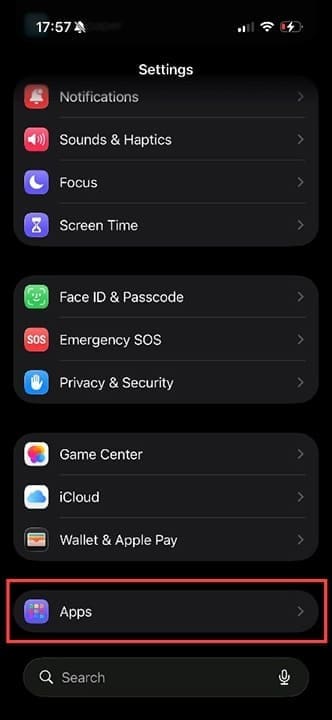
Step 1. On your iPhone, go to Settings > Apps.
Step 2. In the Apps screen, tap on “Mail,” then on “Mail Accounts.”
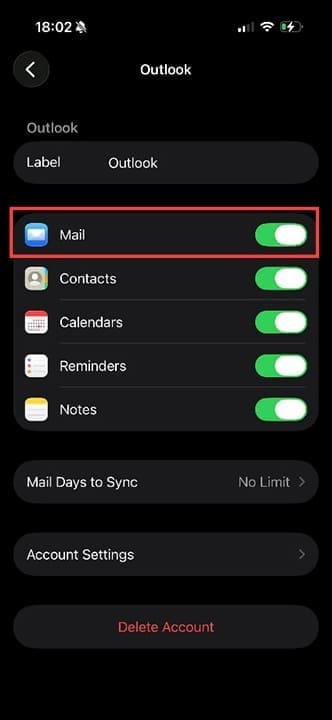
Step 3. Tap onto your Outlook account, and you’ll see the specific sync settings for that email address. Tap on the Mail toggle to switch it off. It will turn gray. Toggle it on again to make it turn green. Your Outlook mail should resync and start working correctly.
Outlook iPhone Outage Fix No. 2: Delete and Re-add Account
Step 1. Head back to the same area, so Settings > Apps > Mail > Mail Accounts > Outlook, and this time, select “Delete Account.” Confirm you want to do this when prompted by the pop-up.
Step 2. You may need to wait a few minutes while your iPhone processes this request. Once the “Deleting” spinning wheel has vanished, you can move on to the next step.
Step 3. After the account has been deleted, you’ll return to the Mail Account setting screen. From here, tap on “Add Account.”
Step 4. Enter your correct Outlook email address, and you’ll be sent to a Microsoft page to verify your details. If you have 2FA (two-factor authentication) set up, you’ll need to follow that process to get a verification code sent to another email address or your cell phone. Otherwise, you’ll need to enter your Microsoft account password when prompted.
Step 5. Once you’ve verified your Outlook username and password, you’ll be taken to the Mail Accounts settings area. Tap on the blue “Save” button to complete the setup for your Outlook account.
Outlook iPhone Outage Fix No. 3: Use Outlook on Your Browser
Step 1. This is more of a workaround than a fix, but if your Outlook sign-in problems continue, you can try using Outlook on your browser. Start by opening Safari (or any other browser on your iPhone) and heading to Outlook.com.
Step 2. Click “Sign in” and ignore any prompts to download an app as you don’t need this.
Step 3. Enter your usual Outlook username and password, and you should be able to use your account as normal. You can also check for any Microsoft service errors on the Microsoft Health Service Page. If Outlook shows “Operational,” then one of the above fixes should work.
As an avid gamer, I’ve run into my fair share of error codes and weird faults that have forced me to find fixes to problems I never anticipated. That gave me a passion for sharing those fixes with others so we can all game without feeling like our hardware is rebelling against us.

















Write a Comment