Predictive text is, arguably, one of the most useful advancements in texting technology. It helps you type faster and corrects mistakes quickly. However, it’s not infallible. If you’re fed up with having to correct your predictive text’s suggestions, you’ll be pleased to know that disabling the feature is very easy.
Read on to discover how to disable predictive text in iOS 26 to regain control over your typing.
iOS 26 Disable Predictive Text: Why You Might Want To
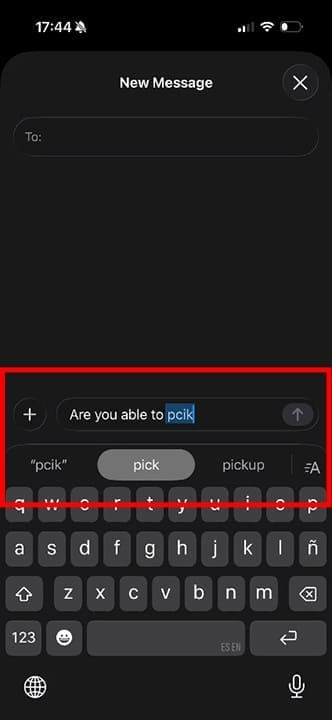
iPhones with iOS 26 support both predictive text and inline predictive text. Standard predictive text suggests words and emojis above the keyboard as you type. You can tap on these options to choose them, which, in theory, makes typing faster and more intuitive. Predictive text with autocorrect can also help you rectify mistakes as you type, for example, changing errors or less commonly used words to more frequently typed ones.
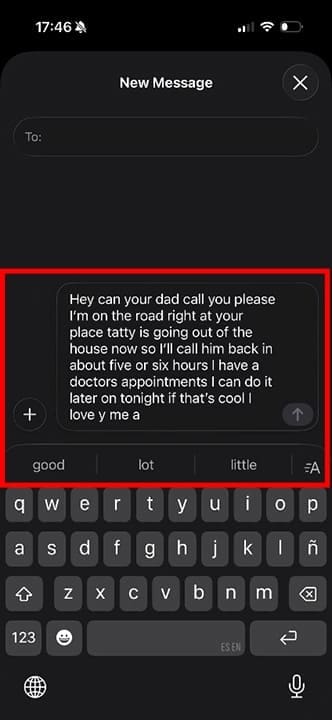
Inline predictive text goes a step further, suggesting entire phrases or ways to complete a sentence. The predictions appear in the text field, and you can press the Space bar as you type to confirm that these words are okay.
There are a number of reasons why you might not want these features. If you type fast, you can accidentally accept suggestions that are less than useful and end up with messages that don’t make sense.
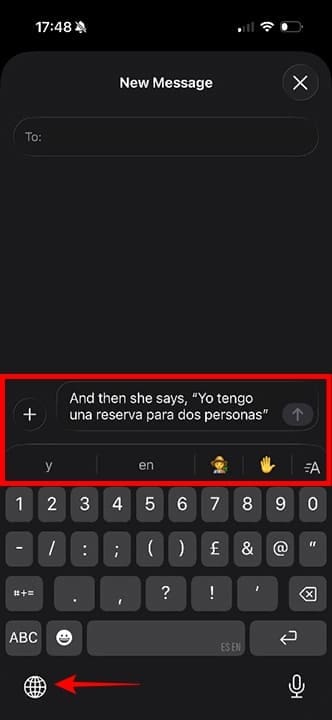
Predictive text is also not very useful if you’re multilingual. Even when you switch to another keyboard, for example, the Spanish keyboard, your iPhone may still suggest English words as well as Spanish ones. Plus, if you’re switching between languages, predictive text can slow you down.
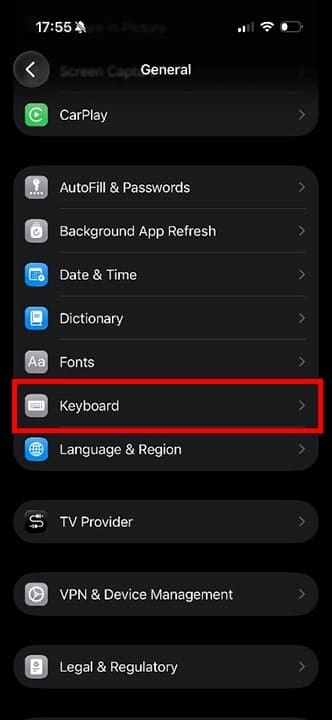
Step 1. Open “Settings” and go to General > Keyboard.
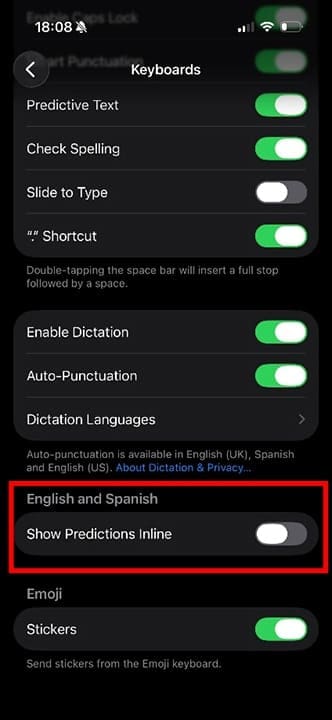
Step 2. To turn off standard predictive text, press the toggle next to “Predictive Text” (or “Predictive”) so it turns gray.
Step 3. To turn off inline predictive text only, leave “Predictive Text” on (green), and, instead, tap the toggle next to “Show Predictions Inline.” This will leave the conventional predictive text on but prevent the suggestions that appear in the text box as you type.
Other options that you can disable in this section include:
Smart Punctuation: This adds commas, periods, and apostrophes automatically. Turn it off for a more manual experience.
Slide to Type: This allows you to slide your finger across the keyboard from letter to letter, rather than tapping individual letters.
Stickers: Allows you to choose stickers as well as emojis using the emoji keyboard.
Check Spelling: When this is enabled, you’ll get a red dotted line under any words your iPhone thinks are spelled incorrectly.
Auto-correction: Turning this off prevents words from automatically being changed to “correct” versions. This is very useful for multilingual users.
Now you know how to disable predictive text in iOS 26, and you can enable and disable the options that support your typing preferences.
As an avid gamer, I’ve run into my fair share of error codes and weird faults that have forced me to find fixes to problems I never anticipated. That gave me a passion for sharing those fixes with others so we can all game without feeling like our hardware is rebelling against us.













Write a Comment