If you use Spotlight on Mac but want certain apps or files hidden, you can do that. This guide shows how to hide app results from Spotlight and offers a few other search tips.
How to Hide App Results From Spotlight on Your Mac
Let’s start with the easiest solution. If you don’t want any apps showing up in your Spotlight searches, then it’s best to disable apps from showing up entirely. Here’s how to do so:
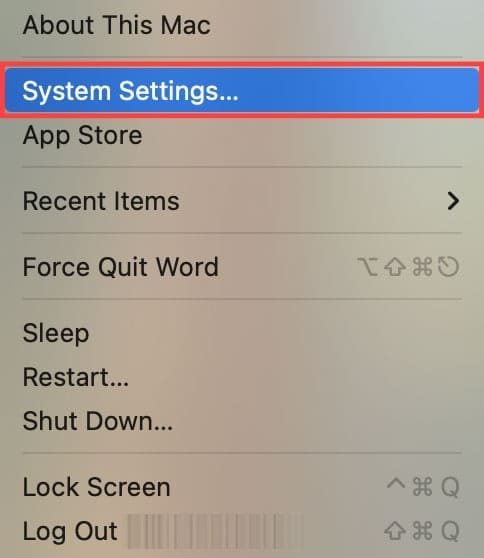
Step 1. Click the Apple icon in the menu bar and then “System Settings.”
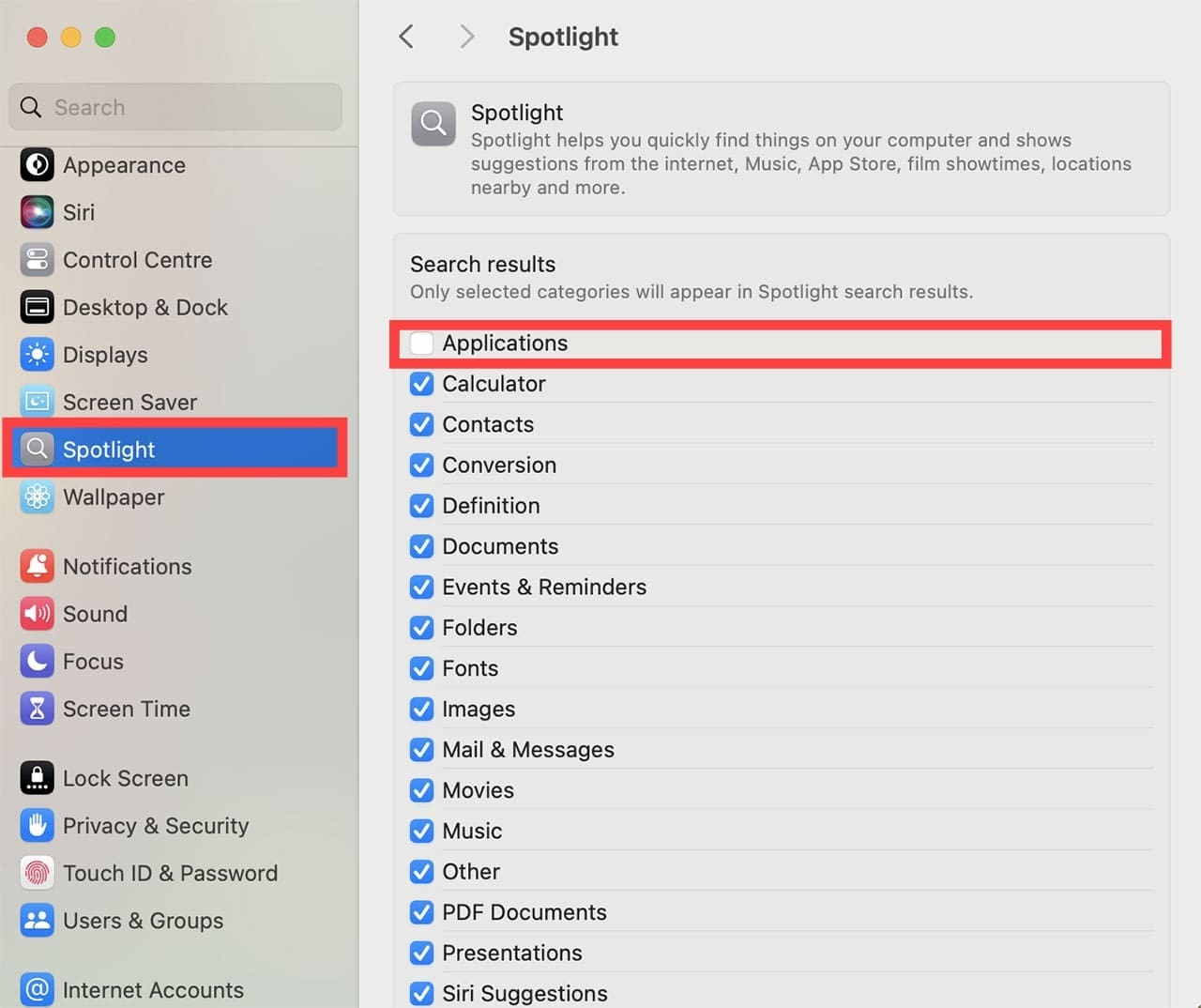
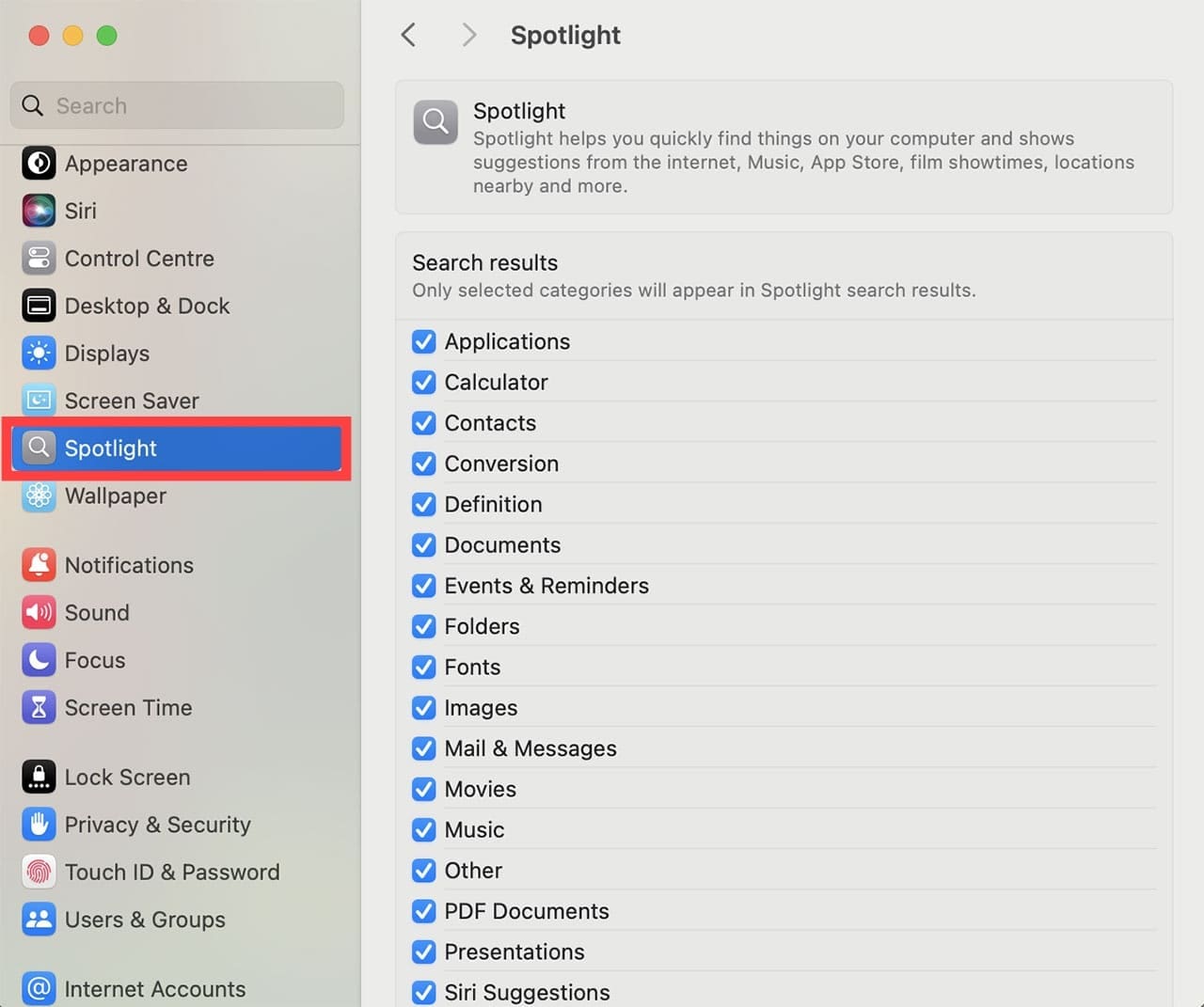
Step 2. In the Settings window that pops up, scroll down to and select “Spotlight” from the side panel.
Step 3. In the main window, scroll all the way down to “Results from System” and uncheck the “Applications” option.
Note: If you’re looking to disable any other type of item from appearing, such as Files or iPhone Apps, uncheck these as well.
Step 4. Exit the Settings, and apps shouldn’t appear in a Spotlight search again.
Hiding App Results on Your iPhone and iPad
For iOS, the process for hiding apps is slightly different, but still straightforward. On your iOS device, you have the ability to hide individual apps from the Spotlight search. Here’s how to do it:
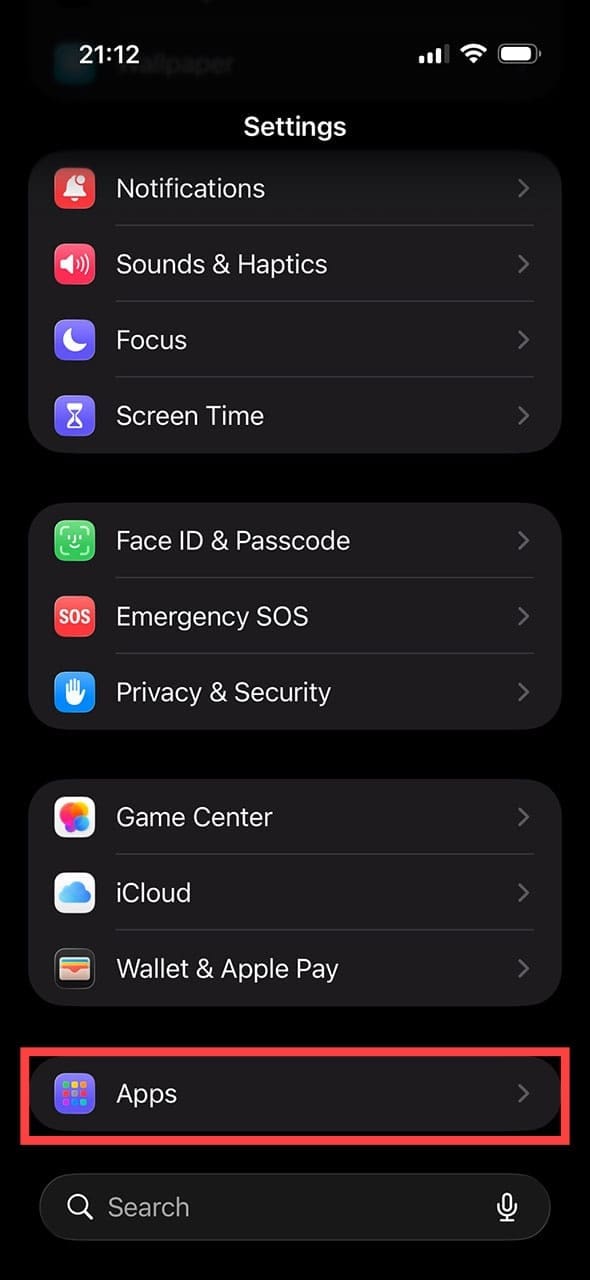
Step 1. Tap Settings on your device.
Step 2. Under “Apps” tap the app you want to hide from search.
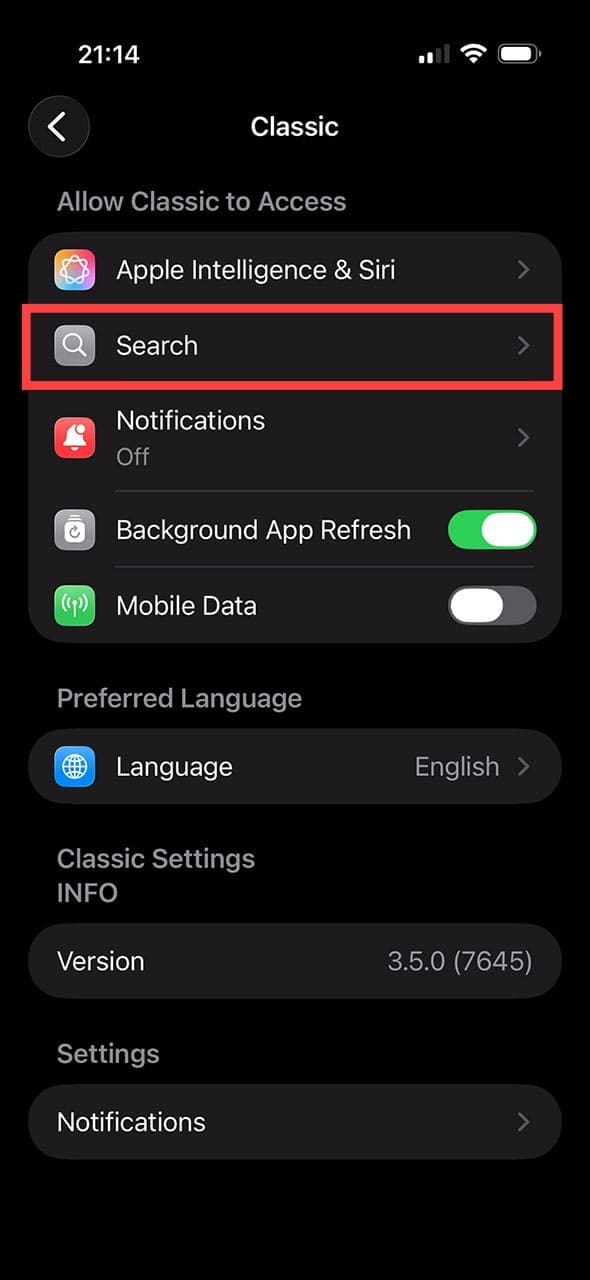
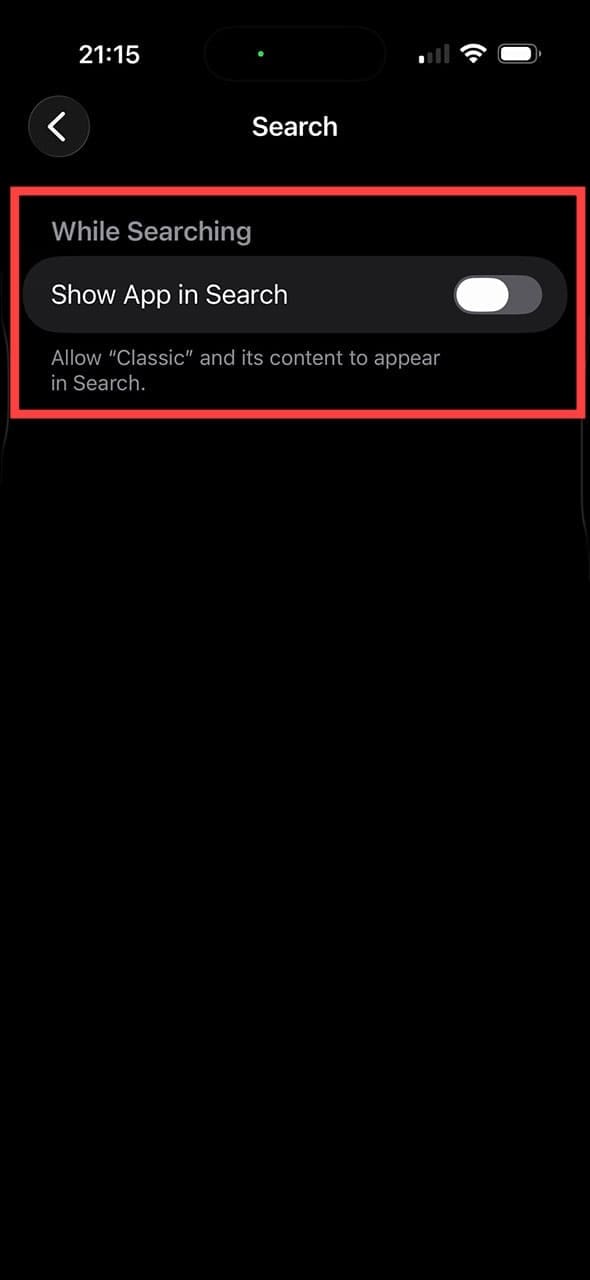
Step 3. Tap “Search.”
Step 4. Toggle “Show App in Search” to “Off.” Do this for as many apps as you’d like.
Disabling Related Content in iOS
If you want to hide more than apps in Spotlight, you can also block other content types. For example, Spotlight shows “Related Content” – files and suggestions from Apple and partners – which you can restrict.
Step 1. Tap “Settings” on your iOS device.
Step 2. Scroll down and select “Search” from the options.
Step 3. Turn off “Show Content in Search” or similar Spotlight content settings, depending on your iOS version.
Preventing Spotlight From Accessing Specific Areas for Mac
If there are files you’d rather keep out of the spotlight, then you can easily stipulate this in the System Settings. Here’s what to do:
Step 1. Click the Apple icon in the Menu Bar and choose “System Settings.”
Step 2. Click “Spotlight” in the sidebar.
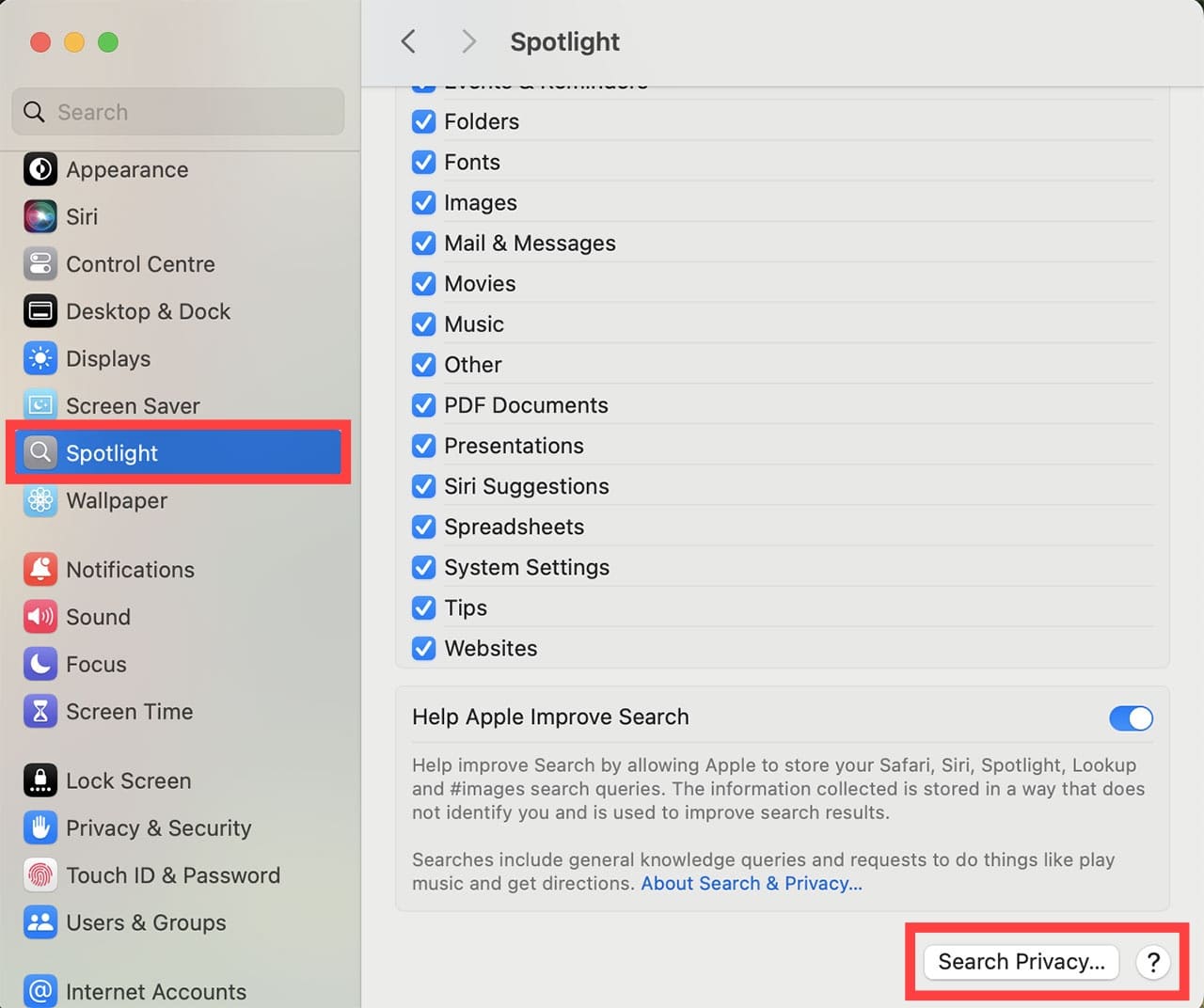
Step 3. In the main window, scroll down and click “Search Privacy.”
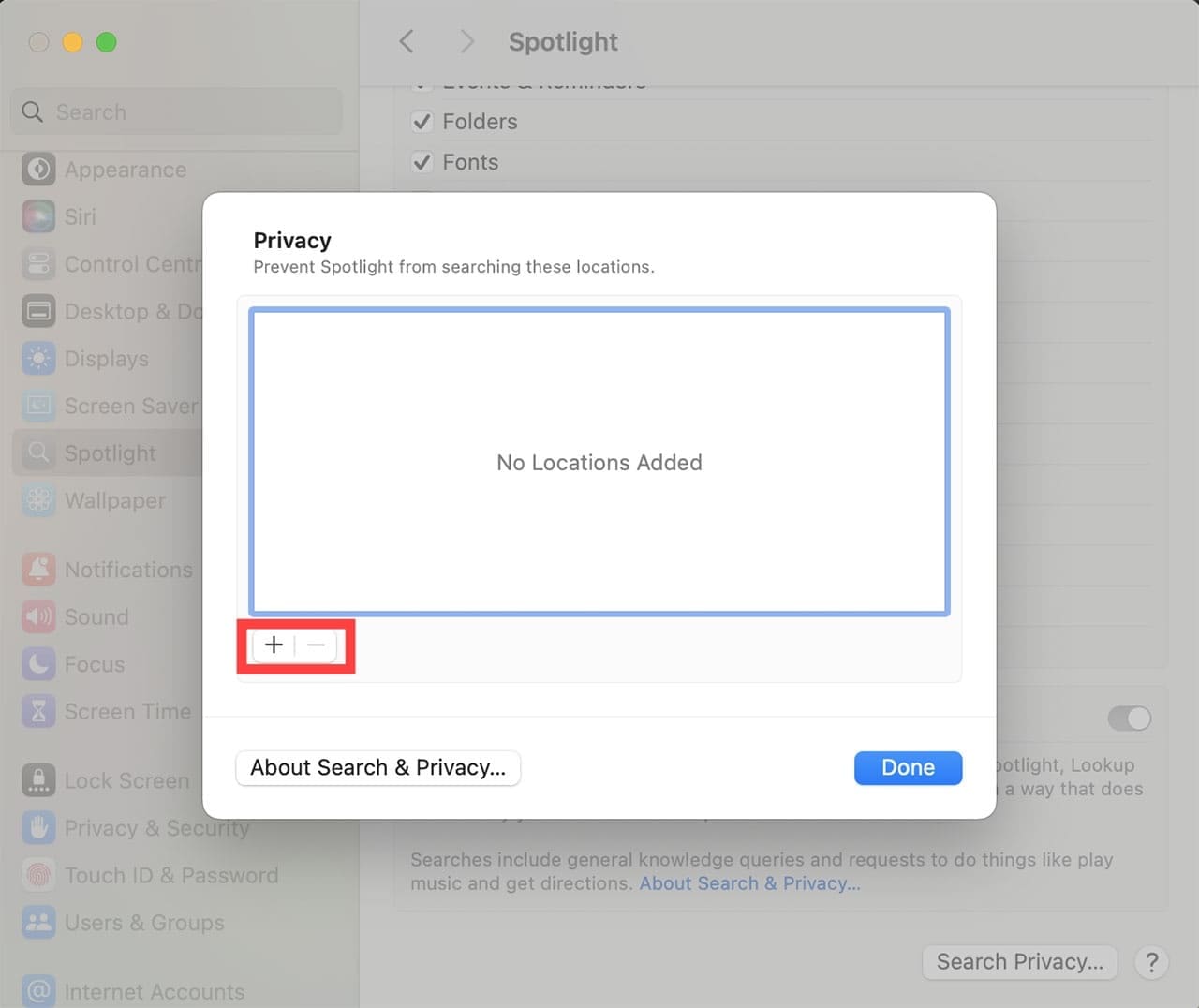
Step 4. You can click the Plus icon and add files and folders via the Directory, or you can simply drag and drop them into the field provided.
Step 5. If you want to include folders and files in these excluded folders, find them and click the “minus” icon.
As an avid gamer, I’ve run into my fair share of error codes and weird faults that have forced me to find fixes to problems I never anticipated. That gave me a passion for sharing those fixes with others so we can all game without feeling like our hardware is rebelling against us.











Write a Comment