• Skip to primary navigation
  • Skip to main content
  • Skip to primary sidebar
  • Skip to footer

AppleToolBox

Tools and Fixes for Mac, iPad, iPhone & iWatch

Search posts

  • About
  • Contact

CONNECT WITH US

CATEGORIES

  • iPhone
  • iPad
  • iPod
  • Apple Watch
  • Mac/MacBook
  • AirPods
  • Apple TV
  • News
  • Apple Services
  • HomePod
  • Reviews

SITE

  • Home
  • About Us
  • Contact
  • Advertise

Search posts

You are here: Home / iPhone / How to Stop Sharing Analytics in iOS 26

How to Stop Sharing Analytics in iOS 26

By Louis Roundtree 0 comments Last updated June 10, 2026

Things to Know
  • Your iPhone may be collecting data on app usage, crashes, and your location to improve Apple’s services.
  • If you’re not happy to share this data, you can stop sharing iPhone analytics by changing some of your privacy and security settings.
  • You can also turn off Siri and dictation improvements to prevent Apple from using your voice to train its AI technologies.

Nearly all smart devices try to leverage your usage and personal data to make improvements. They may gather data on what happens when apps crash, the apps you use the most, and even where you’re using your device. Apple iPhones generally ask you if you want to share your data during the setup process. If you’ve decided you want to share analytics, or you’ve changed your mind about sharing your data, this guide will show you how to stop sharing iPhone analytics data right away on iPhones using iOS 26.

Stop Sharing Analytics iOS 26: Reasons to Not Share Analytics

The fact that your analytics options are held under Privacy & Security is the top reason most people don’t want to share this information: it can feel like a breach of privacy. You have every right to keep app usage and location information to yourself. That’s why Apple provides the option to turn these settings off.

Another reason to adjust your analytics settings is that some options may allow Apple to use Siri and Dictation audio and transcripts to improve Siri, Dictation, and other speech-recognition related features. While this data is anonymized, it can be unnerving knowing that recordings of your voice and transcripts of conversations are being used to improve future generations of AI.

Additionally, some users may have heard that when they stop sharing iPhone analytics, their battery life improves, but this hasn’t been proven.

Stop Sharing Analytics iOS 26: Step-by-Step Guide

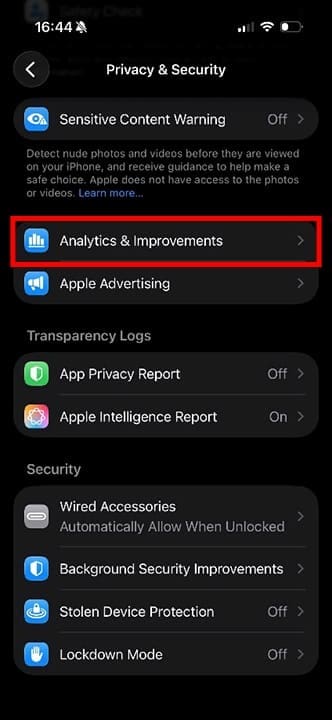
Step 1. On your iPhone, go to Settings > Privacy & Security and look for “Analytics & Improvements.”

How to Stop Sharing Analytics in iOS 26 1

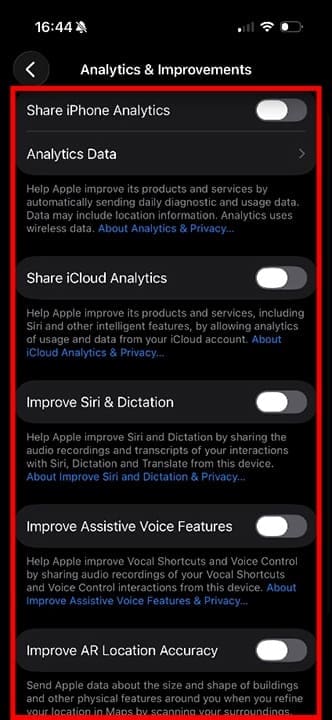
Step 2. Once in the “Analytics & Improvements” menu, the main button you need to toggle off is “Share iPhone Analytics.” Other options include “Share iCloud Analytics,” “Improve Siri & Dictation,” “Improve Assistive Voice Features,” and “Improve AR Location Accuracy.” For the highest level of data privacy and to ensure your usage and voice aren’t being used to train AI, toggle all of these options off.

How to Stop Sharing Analytics in iOS 26 2

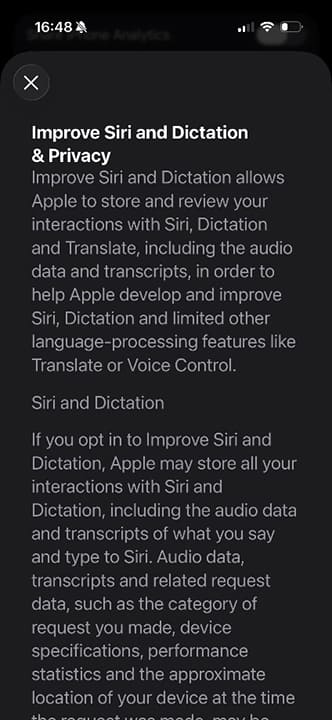
Remember, if you decide you want to share analytics at any point, you can follow the same menu path and toggle any of these options back on with a single tap. There is no direct benefit to doing this, but Apple may use it to identify bugs and develop new features. You can also click on the blue links underneath each option to find out more about analytics. For example, when you click on “About Improve Siri…” you can see an explainer stating that your audio data and transcripts of Siri conversations will be stored by Apple, alongside the location of your device at the time of these conversations.

How to Stop Sharing Analytics in iOS 26 3

Related Posts:

  • pexels-lisa-4629485
    The Best HomeKit Devices For 2021
  • 2022 Mac Mini with Studio Display and Accessories
    Mac Tips For New Users In 2023
  • photo of an iphone with ios 16 downloaded on it
    iOS 16 Tips and Tricks: The Definitive List
  • pexels-rfstudio-3825585
    How To Pick A Repair Shop For Apple Devices
  • pexels-designecologist-1779487
    The Best iPhone And Mac Shortcuts For Beginners
  • 2023 Mac Studio lifestyle - 1
    macOS Could Not Be Installed, How-To Fix
  • pexels-jess-bailey-designs-810079
    How To Run Linux On Mac: A Step-by-Step Guide
  • pexels-cottonbro-5082579
    Getting Started With iOS 15: Everything Good And Bad
  • 0E4A6A0B-65E8-4184-B0C9-16C2179A1256
    The Best Weight Loss Apps For iPhone In 2021
Louis Roundtree
Louis Roundtree

As an avid gamer, I’ve run into my fair share of error codes and weird faults that have forced me to find fixes to problems I never anticipated. That gave me a passion for sharing those fixes with others so we can all game without feeling like our hardware is rebelling against us.

Reader Interactions

Write a Comment Cancel reply

Primary Sidebar

Recent Posts

  • How to Stop Sharing Analytics in iOS 26
  • How to Manage Your iPhone Call Log
  • Are Apple’s Safety Precautions Enough for AirTags?
  • How to Hide Username and Photo on the Mac Lock Screen
  • Microsoft Resume vs. Apple Handoff – Which Wins for Cross-Device Work?
  • How to Export iTunes Library to New Computer

Connect with us

Footer

ABOUT

  • About Us
  • Contact us
  • Advertise
  • Privacy
  • Terms of Use

GUIDES

  • iOS & iPadOS
  • Apple ID
  • iCloud
  • App Store
  • iTunes
  • FaceTime
  • iMessage
  • Siri
  • Books and iBooks
  • Game Center
  • AirPlay

CONNECT

  • Facebook
  • Twitter
  • FeedBurner
  • YouTube

© Copyright 2010-2024 Guiding Tech Media · All Rights Reserved

This site and its content are in no way affiliated or endorsed by Apple, Inc. · Reproduction without explicit permission is prohibited

Last Updated on June 11, 2026 by Louis Roundtree