By default, your iPhone (or iPad) is set to “Light” mode, where the backgrounds are white and bright. Many people like to switch to “Dark” mode, where the backgrounds are less glaring, especially at night. Apple Music, like most iOS apps, has display settings controlled by the main mode you choose. So, if your phone is set to light mode, Apple Music will also be set to light mode.
However, since the release of the iOS 26.5 update, some users have noticed that Apple Music doesn’t appear to be following the correct mode settings, with some albums still appearing with bright backgrounds. One answer is to disable Apple Music dark mode by switching the mode off completely, for a more consistent experience.
Read on to learn how to turn Apple Music to dark mode (and off again), and other ways to control the visual settings for Apple Music.
How to Turn Apple Music to Dark Mode or Disable It: Step-by-Step Guide
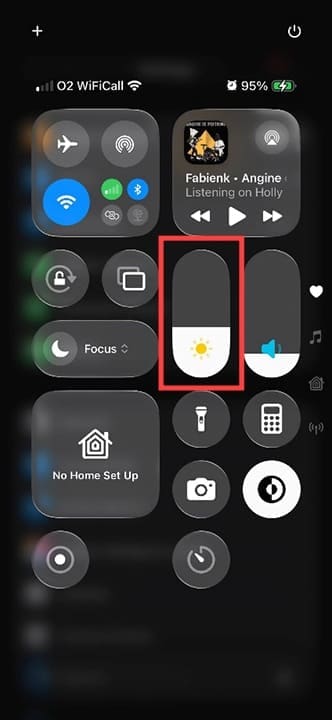
Step 1. The simplest way to switch between light and dark mode is by using the control panel. Swipe down from the top-right corner of your iPhone. Look for the brightness control. It looks like a bar with a sunshine logo on it.
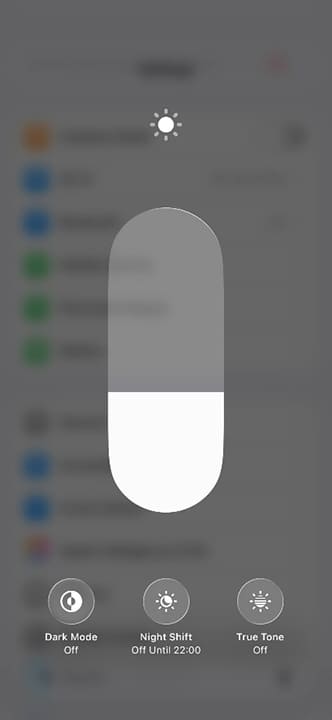
Step 2. Hold your finger on the brightness control until it fills the whole screen. You’ll now see the option to switch dark mode on or off.
Step 3. Switch it off, and you’ll immediately notice that the screen brightens.
Disable Apple Music Dark Mode in Settings
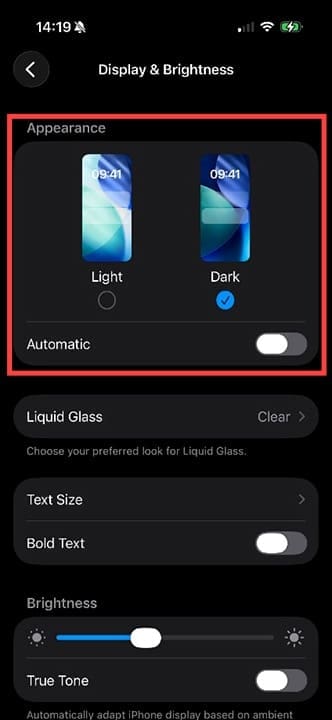
Step 1. You can also achieve this via the main Settings menu. Go to “Settings” and look for “Display & Brightness.”
Step 2. From here, you can choose light or dark mode from the icons at the top of the screen.
Step 3. Tap the Light appearance icon, and the change will apply across compatible apps.
Further Adjustments to the Apple Music Display
You may notice that when you head into Apple Music, some albums still have backgrounds that seem more like they’re stuck in dark mode.
Even though the main screen is definitely responding to the light mode settings.
You can use your Accessibility settings to adjust this further, as follows.
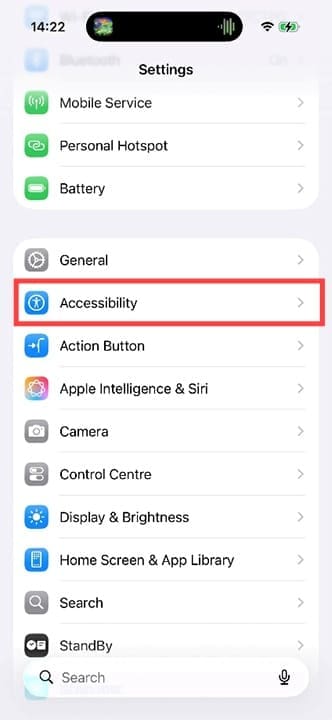
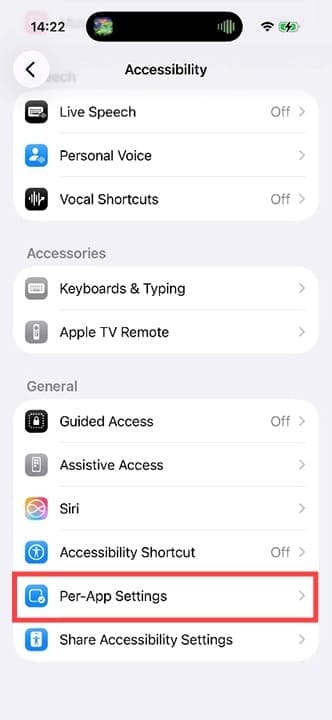
Step 1. Head back to “Settings” and this time tap on “Accessibility.”
Step 2. Scroll to “Per-App Settings.”
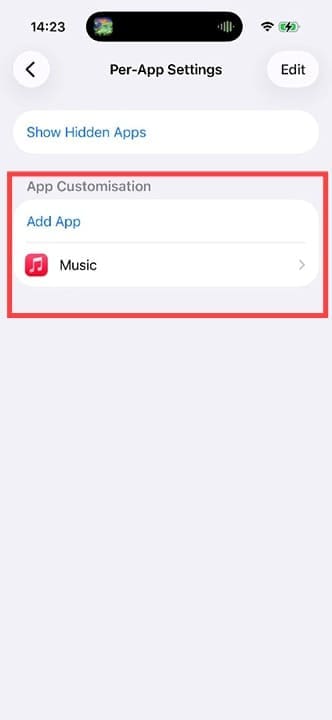
Step 3. Tap “Add App.”
Step 4. You’ll now need to scroll through your apps until you find “Music.” Note: It is listed simply as “Music,” not “Apple Music.”
Step 5. Tap on the Music app symbol, and you’ll see it appear under the App Customization center.
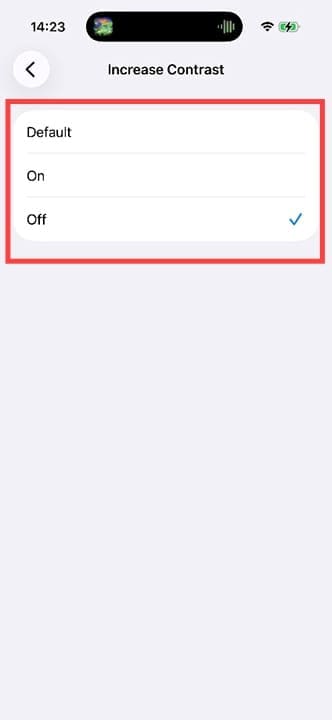
Step 6. Tap on “Music” and then look for “Increase Contrast.” Set this to “Off” to better emulate light mode.
Step 7. Reopen your Apple Music app, and you should find that the colors and backgrounds are more neutral and less like dark mode. Hopefully, a future iOS update will ensure these settings are more consistent across all apps.
As an avid gamer, I’ve run into my fair share of error codes and weird faults that have forced me to find fixes to problems I never anticipated. That gave me a passion for sharing those fixes with others so we can all game without feeling like our hardware is rebelling against us.


















Write a Comment