If you use iMessage, you already know that it’s a neat instant messaging service that works exclusively between Apple devices. It requires a Wi-Fi connection but doesn’t need cellular service, making it a more versatile option than SMS.
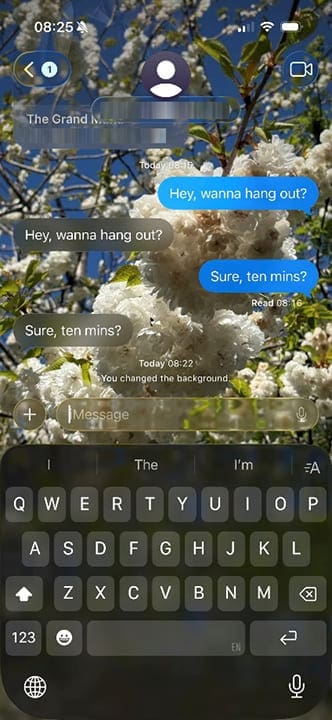
Up until recently, iMessages had the same plain background as SMS messages. With the advent of iOS 26 and macOS 26, though, you can now change iMessage background settings and choose a colorful, dynamic background or a photo. It should be noted that when you set or change your background, the person or group on the other end of the chat will see the change as well.
Learn how to change a background on iMessages in this step-by-step guide.
Change iMessage Background on iPhone: Set a Dynamic Background
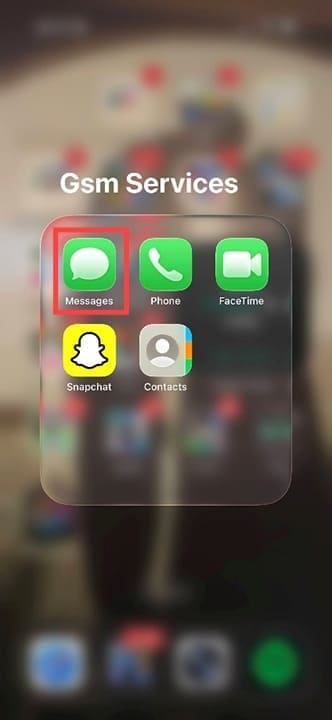
Step 1. To make any changes to iMessage backgrounds, you have to go into the actual conversation thread itself, not your Settings menu. Start by opening the Messages app.
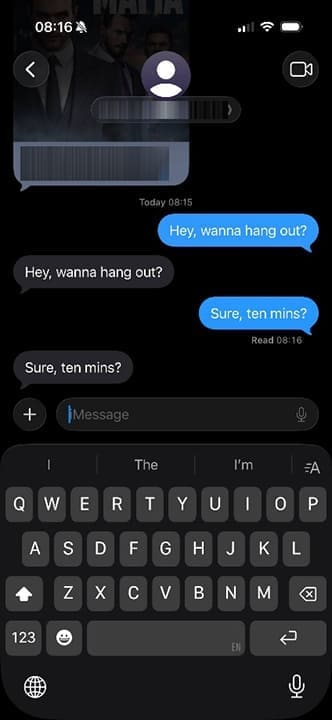
Step 2. Tap on the relevant conversation.
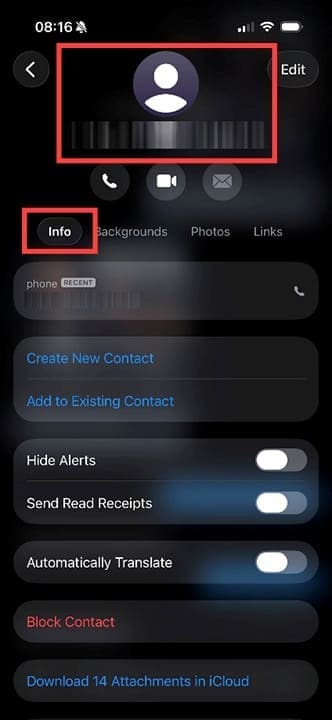
Step 3. Tap the “person” icon at the top to see contact info, or group contact info if it’s a multi-contact conversation thread.
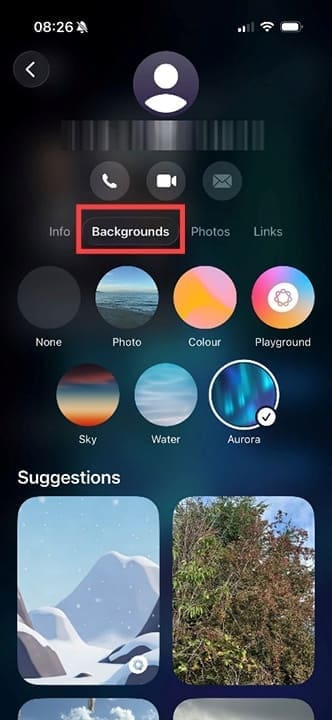
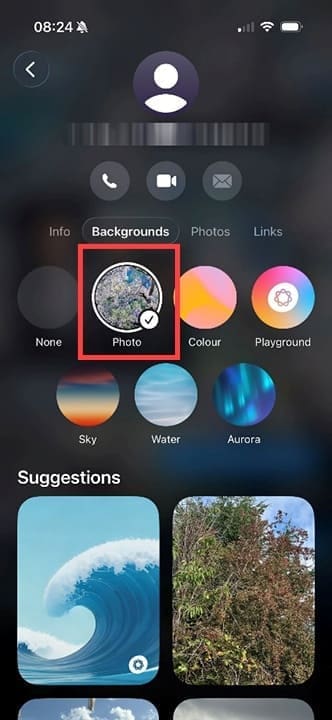
Step 4. Tap on Backgrounds. Choose one of the pre-selected dynamic backgrounds or browse the Suggestions area.
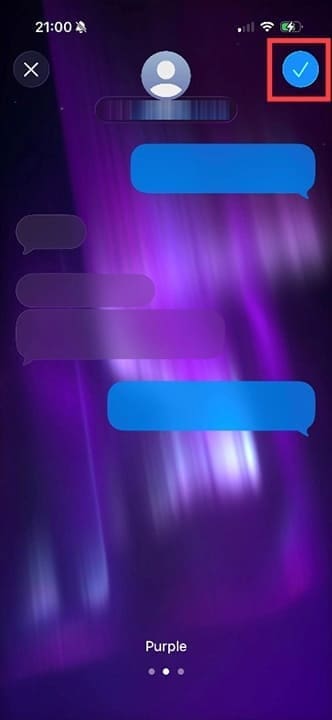
Step 5. Many of the dynamic backgrounds allow you to customize the color.
Step 6. Click the blue tick button in the corner to see the background in your message thread.
How to Change a Background on iMessage to a Photo
Step 1. Follow the above steps, but when you get to step 4, look for the second option in your list of background options, which should be Photo.
Step 2. You’ll now see a selection of photos from your device. Featured photos are shown by default, but you can change this using the options at the top of the screen. Tap the photo you want for your iMessage background.
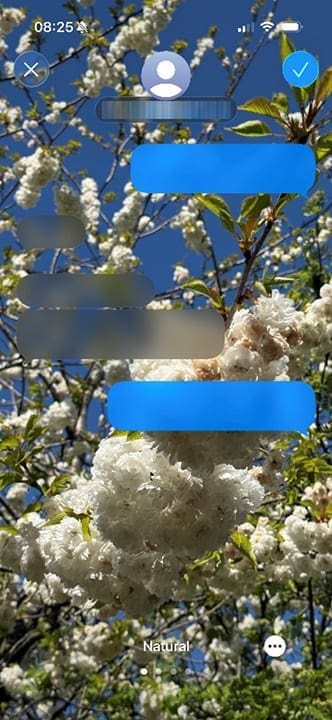
Step 3. You’ll see a preview screen showing what the photo will look like as your background.
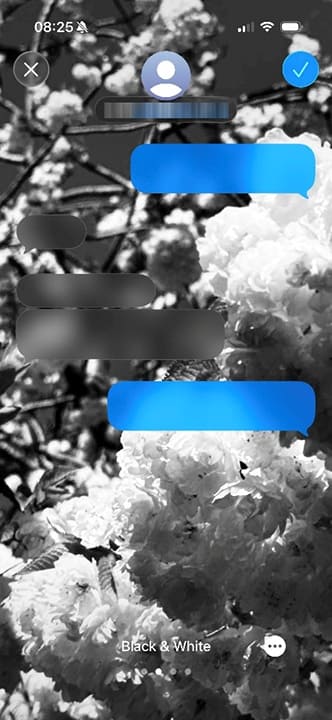
Step 4. You can swipe left to change the photo’s tone, for example, to monochrome, duotone, or many more.
Step 5. Click the blue tick to set your iMessage background photo.
Change iMessage Background Back to Default
To revert your iMessage background to default, simply follow the steps above and once you get to Backgrounds, choose “None.” You can also use any of these steps on an iPad that has iMessage enabled.
Change iMessage Background on Mac
Step 1. The process on a Mac is almost identical to on an iPhone. Head to the Messages app and open it.
Step 2. Click on the conversation where you want to change the background.
Step 3. Click the contact details or group name at the top of the conversation thread.
Step 4. Select “Backgrounds” and either choose a dynamic option or select a photo.
Step 5. Click the blue checkmark button to complete your iMessage background change.
As an avid gamer, I’ve run into my fair share of error codes and weird faults that have forced me to find fixes to problems I never anticipated. That gave me a passion for sharing those fixes with others so we can all game without feeling like our hardware is rebelling against us.















Write a Comment