When someone sends you a cool link to view, but you don’t have time, you could just click it and leave it open until you get around to taking a look at it. There’s always the risk, though, that you’ll accidentally close it. The Reading List feature on Apple devices is the solution to this. Instead of having dozens of open tabs (which can slow your device down and drain your battery), you can save items to the Reading List. You’ll see a convenient list of “to be read” items when you open a new browser page.
Of course, if you like to keep your start pages clean and clutter-free, you might want to know how to get rid of Reading List in Safari. Read on to learn how to clear Reading List in Safari and how to stop it from appearing when you open your browser.
Reading List Basics: How to Add Items to Reading List
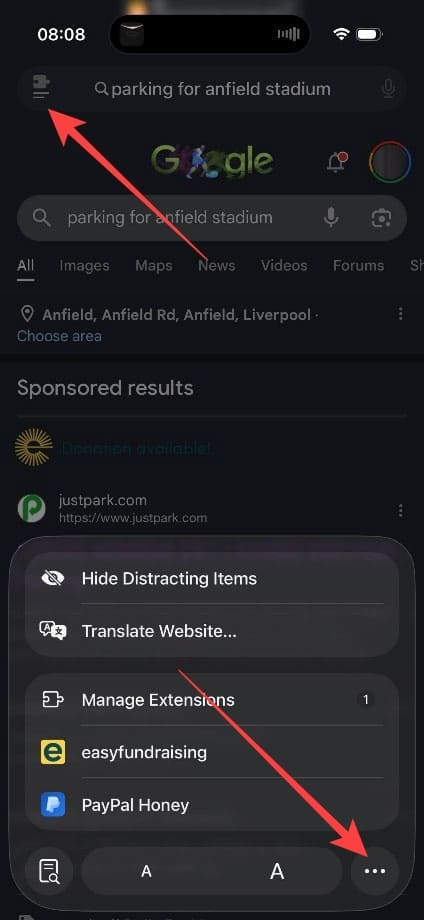
Step 1. If you’ve opened a link that you want to save for later, tap the Share button (the box with an upward arrow) at the bottom of the screen on iPhone and iPad, or in the toolbar on Mac.
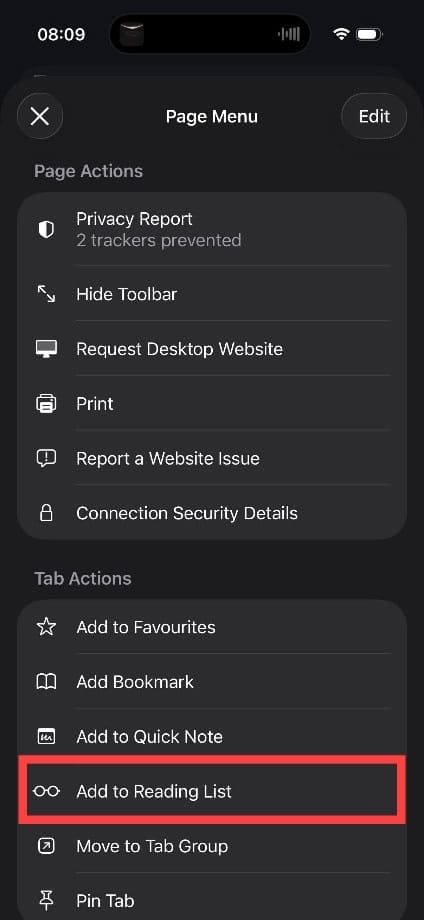
Step 2. Tap “Add to Reading List” from the share menu. On Mac, you can also hover over any link and Shift-click it to add it directly to your Reading List without opening it first. You can use the same share menu to add bookmarks and pin tabs as needed. Head to the next section to learn how to get rid of Reading List in Safari.
How Do I Delete Reading List in Safari? Step-by-Step Guide
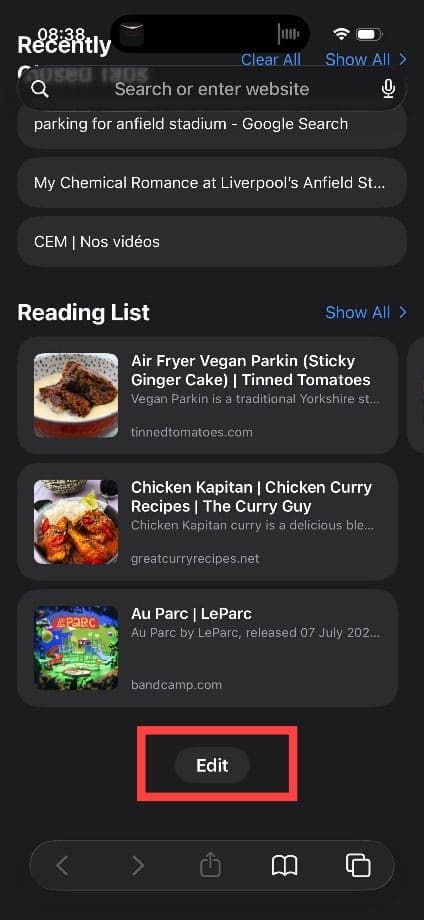
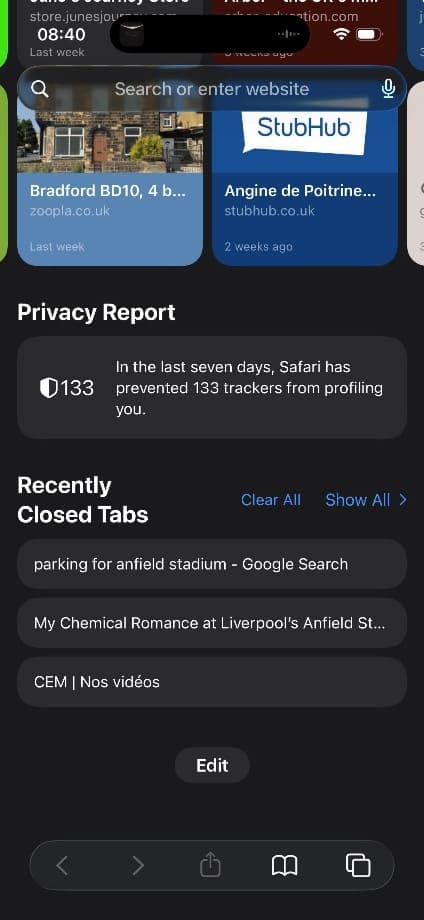
Step 1. On iOS devices, start by opening a blank Safari page. Your Reading List will be visible if you scroll down. To change that, look for the “Edit” function, usually near the bottom of the page.
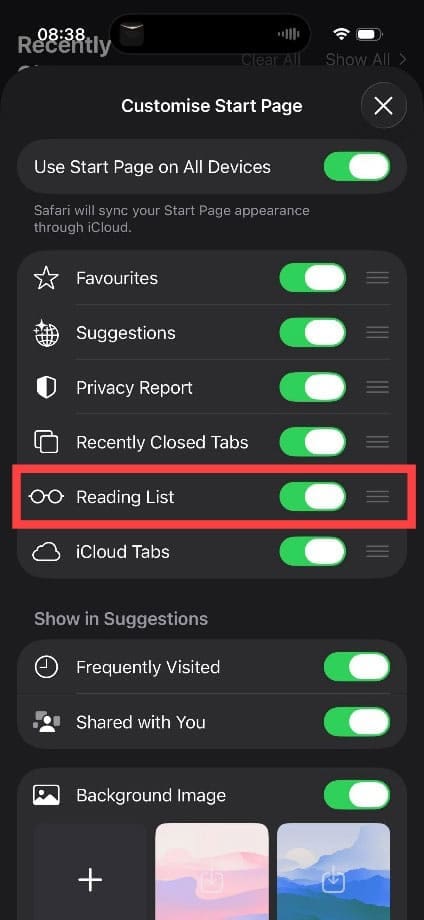
Step 2. Tap on “Edit,” then tap the toggle next to “Reading List” to turn it off.
This stops ‘Reading List” from appearing when you first open a browser page. On Mac devices, you can hide it in two ways: click the “Sidebar” button in the toolbar to close the sidebar entirely, or go to “View” in the menu bar and select “Hide Reading List Sidebar.” You can also hide it from the Start Page specifically by clicking the three-lines button in the lower-right corner of the Start Page and unchecking “Reading List.”
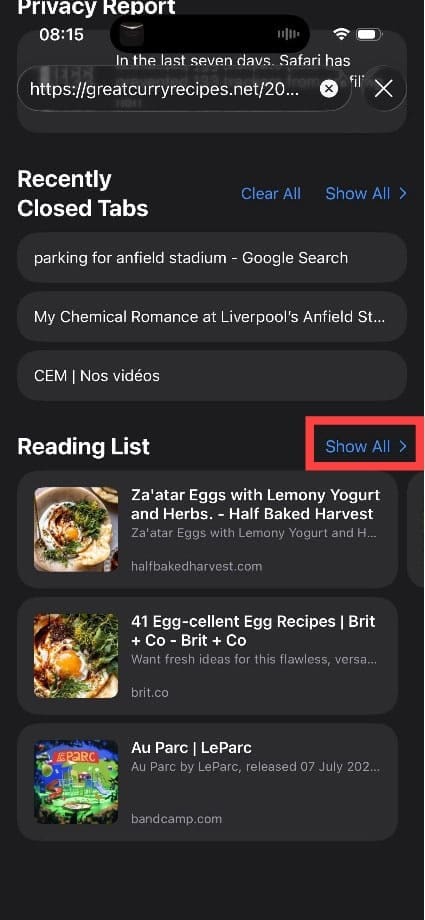
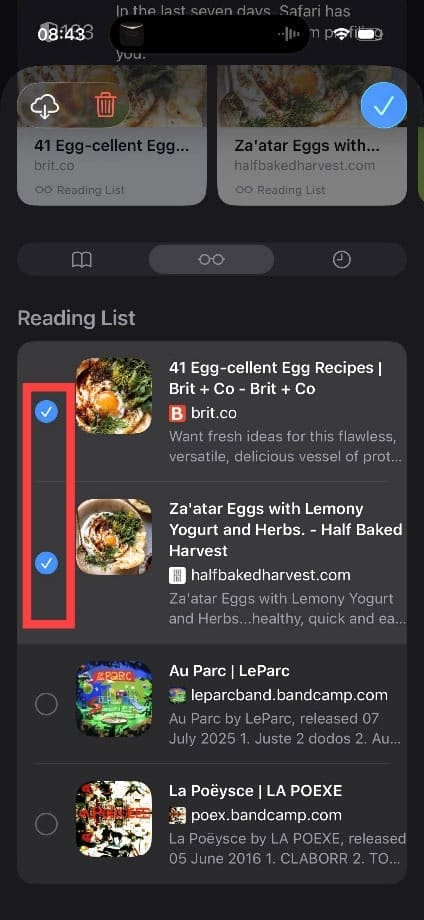
Step 3. To delete items from your Reading List on iPhone or iPad, tap the book icon at the bottom of the screen, then tap the glasses icon to switch to Reading List view. Tap “Edit,” then tap the circle next to each item you want to remove, and tap “Delete.” Alternatively, you can swipe left on any individual item and tap “Delete” to remove it quickly.
Step 4. On Mac devices, right-click on any item in your Reading List sidebar and use “Remove Item” to delete a single entry, or “Clear All Items…” to remove everything at once.
Step 5. Tap the items you want to delete, then press the trash can icon. On Mac devices, you can simply right-click on your Reading List and use the “Remove Item” and “Clear All Items” functions to edit your Reading List.
As an avid gamer, I’ve run into my fair share of error codes and weird faults that have forced me to find fixes to problems I never anticipated. That gave me a passion for sharing those fixes with others so we can all game without feeling like our hardware is rebelling against us.













Write a Comment