Cross-device functionality is a big draw for both Windows 11 and macOS users. The ability to use your phone as a webcam, for example, can make meetings easier and more accessible. Both Apple and Microsoft offer different solutions for accessing phone content and capabilities: Apple Handoff works on macOS, while Microsoft Resume is the Windows 11 alternative.
This Microsoft Resume and Apple Handoff comparison explores the features of each solution and considers which is really best for cross-device work.
Microsoft Resume vs Apple Handoff: Key Differences
Apple Handoff has been around since 2014. It provides relatively seamless cross-device functionality, allowing you to pick up where you left off on your Mac on your iPhone or iPad, and vice versa. This works on apps including:
FaceTime
Safari
Mail
iWork
Firefox
Chrome
And many more.
To set up Apple Handoff on a Mac, open the Apple menu and head to System Settings > General > Allow Handoff between this Mac and your iCloud devices.
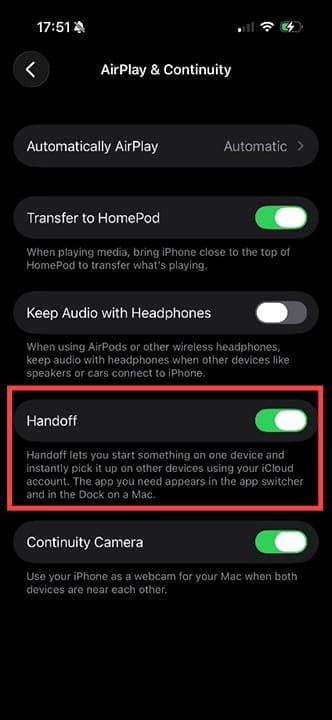
Make sure the service is also switched on in the settings of your iPhone or iPad. Go to Settings > General > AirPlay & Continuity > Handoff, and ensure the button is switched on.
Microsoft Resume is the alternative cross-device solution for Windows 11 machines. It offers some of the same functionality, including the ability to continue on an app on your PC – for example, Word – after you’ve been using it on an Android device.
Unfortunately, because Microsoft doesn’t have a unified ecosystem, the features don’t function as smoothly as they do on Apple devices. This is because the instructions have to work their way through various Android servers and Microsoft servers, with the chance of data or instructions dropping along the way. The resulting connection becomes even clunkier when either Windows or the smart device in question isn’t updated to the latest software.
When fully functional, Microsoft Resume should allow you to:
Open OneDrive files from the same account on multiple devices.
Handoff browsing sessions from one device to another.
Continue service from certain apps, like Spotify, so you can instantly pick up what you were listening to on your phone on your Windows PC.
So far, there’s no effective way to hand off from the PC to a smart device, apart from for cloud-based apps like OneDrive. There’s also minimal support for most third-party apps.
It’s also possible for Resume connections to fail because one device has its notifications switched off, or because permissions have been inadvertently denied.
To make sure Microsoft Resume is set up correctly, follow these steps:
Step 1. On your Windows machine, go to Settings > Apps > Resume.
Step 2. From here, you can turn Resume on and any associated apps. In many cases, OneDrive will be the only app that you can control from this panel.
Step 3. Search for the Phone Link app to connect your smartphone. You can choose either iPhone or Android, but most Microsoft Resume features only work with Android devices running Android 10 or later. Follow all the onscreen prompts and ensure you say “Yes” to any permissions requests during the process, both on your phone and Windows machine.
Note: You must make sure Bluetooth is switched on for both devices and that both devices are on the same Wi-Fi network.
Microsoft has stated it is rolling out more features for Resume in the near future. As it stands, when it comes to the Microsoft Resume vs Apple Handoff debate, the smooth functionality of Apple Handoff wins every time.
As an avid gamer, I’ve run into my fair share of error codes and weird faults that have forced me to find fixes to problems I never anticipated. That gave me a passion for sharing those fixes with others so we can all game without feeling like our hardware is rebelling against us.














Write a Comment