• Skip to primary navigation
  • Skip to main content
  • Skip to primary sidebar
  • Skip to footer

AppleToolBox

Tools and Fixes for Mac, iPad, iPhone & iWatch

Search posts

  • About
  • Contact

CONNECT WITH US

CATEGORIES

  • iPhone
  • iPad
  • iPod
  • Apple Watch
  • Mac/MacBook
  • AirPods
  • Apple TV
  • News
  • Apple Services
  • HomePod
  • Reviews

SITE

  • Home
  • About Us
  • Contact
  • Advertise

Search posts

You are here: Home / iPad / What to Do When Windows 11 Won’t Detect Your iPad

What to Do When Windows 11 Won’t Detect Your iPad

By Louis Roundtree 0 comments Last updated May 15, 2026

Things to Know
  • When Windows 11 won’t detect iPad or iPhone devices, the cause could be physical or settings-based.
  • The most common causes are faulty cables or poor connections.
  • In certain cases, you may need to reset your Trust settings.

Being able to connect your iPad to a Windows laptop or desktop computer is really convenient. It makes it easy to back up your data, encrypt that backup for added security, and even transfer your favorite music, movies, and TV series from your PC onto your iPad.

So, when Windows 11 won’t detect iPad tablets, it’s a pain. Thankfully, there’s usually a simple reason for this problem. Read on to discover what you should be checking, including what settings to adjust to get your iPad and Windows 11 machine syncing successfully again.

Windows 11 Won’t Detect iPad: Potential Causes

The primary causes of Windows 11 not detecting iPad are:

  • A faulty cable – Check the cable to see if it’s frayed, kinked, or otherwise damaged.Try another cable and see if that works.
  • A poor connection – Check that the USB connector is plugged in correctly to both devices and doesn’t wobble or fall out.
  • Incorrect Trust settings – You can inadvertently tell your iPad not to trust a computer, and it may block that connection until this setting is reset.

Follow the steps below to refresh your iPad’s Trust settings.

Windows 11 Not Detecting iPad: Reset Privacy (Trust) Settings

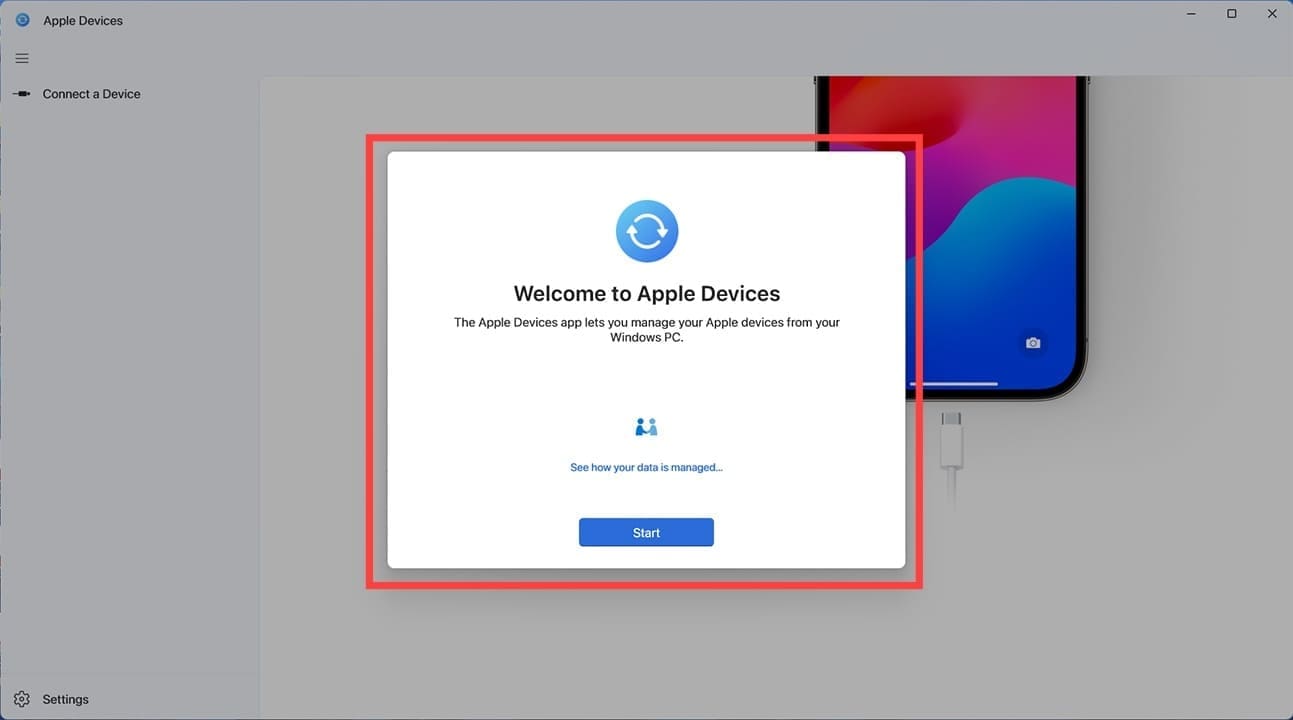
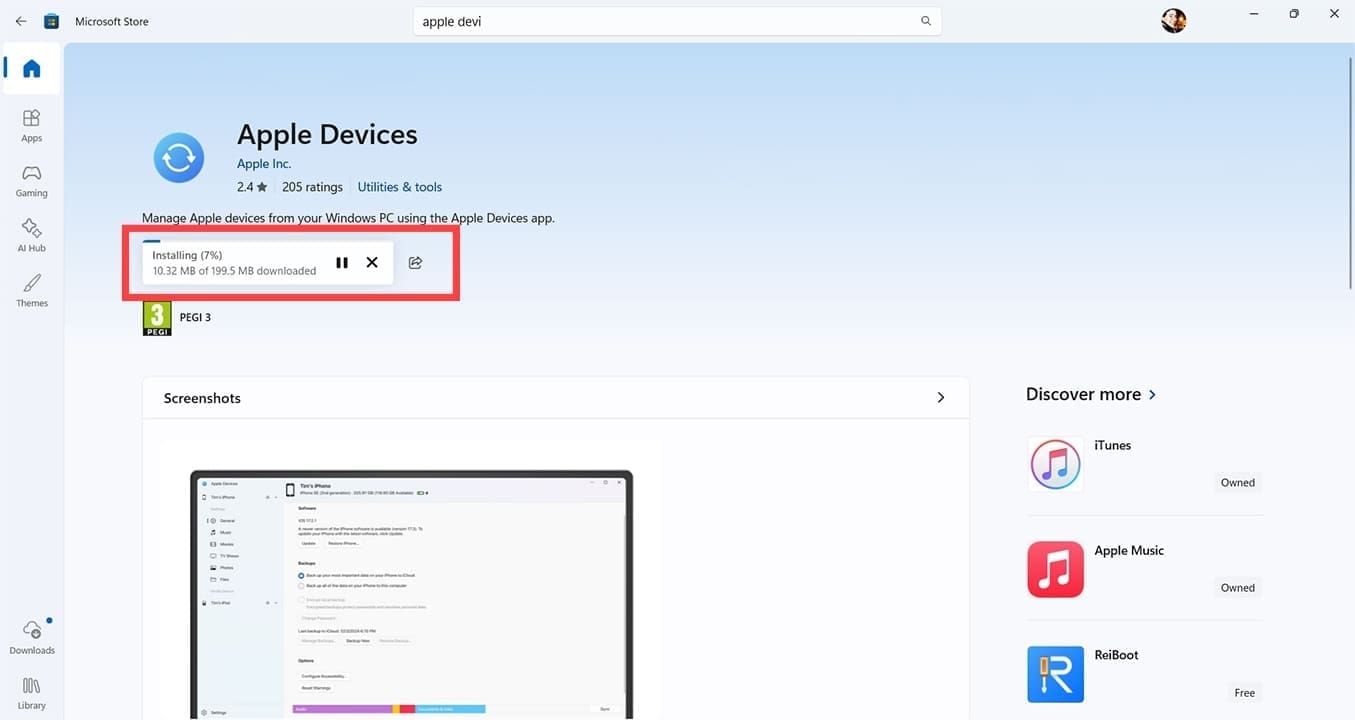
Step 1. First, you need to make sure you’ve downloaded the latests version of the Apple Devices app onto your Windows 11 machine. If you don’t have it, head to the Microsoft Store and download it.

What to Do When Windows 11 Won’t Detect Your iPad 1

Step 2. Follow the onscreen prompts to complete the setup of Apple Devices.

What to Do When Windows 11 Won’t Detect Your iPad 2

Step 3. On your iPad (or iPhone), head to Settings > General > Transfer or Reset iPad/iPhone. On older models or pre-iOS 16, you may simply see the option to Reset.

What to Do When Windows 11 Won’t Detect Your iPad 3

Step 4. Tap on “Reset,” then “Reset Location & Privacy.” This is done so that if you accidentally set your iPad to not trust a particular computer, you can reset that Trust setting.

What to Do When Windows 11 Won’t Detect Your iPad 4

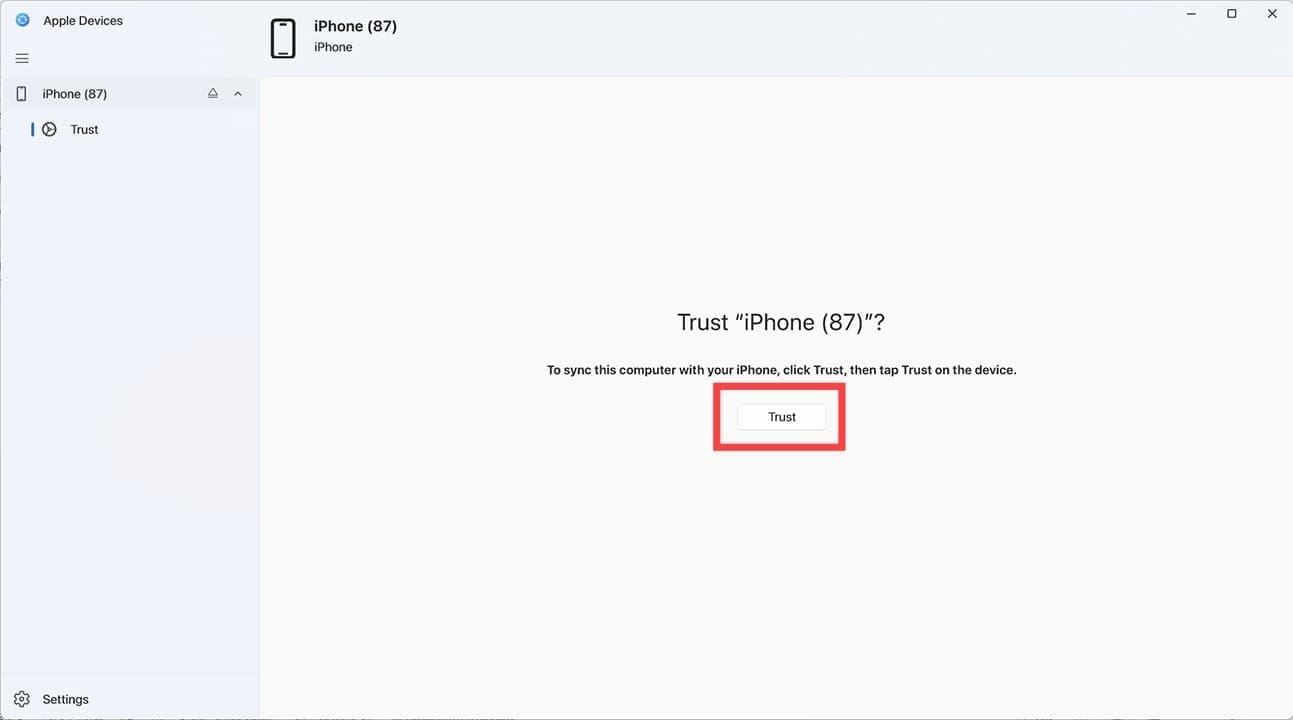
Step 5. Make sure Apple Devices is still open and connect your iPad to your Windows 11 computer, using the appropriate cable. Note: New iPads will use a USB-C charging lead while older models may still require a Lightning cable. You will see a message asking whether you want to trust your iPad or iPhone. Click “Trust.”

What to Do When Windows 11 Won’t Detect Your iPad 5

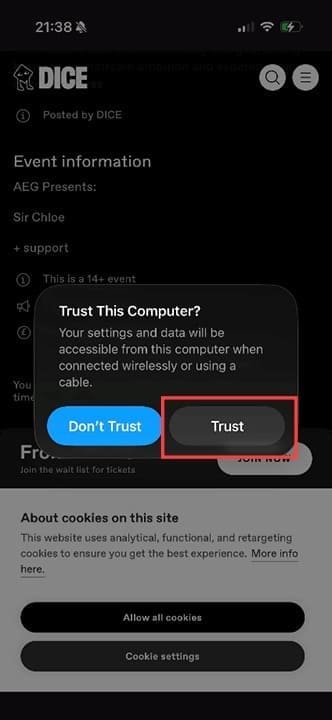
Step 6. This automatically prompts your iPad to present a pop-up asking “Trust This Computer?” To complete the sync between your iPad and Windows 11, click “Trust.” Sometimes, people click the “Don’t Trust” button in error – it’s blue, which normally means “Accept” within Apple’s design language.

What to Do When Windows 11 Won’t Detect Your iPad 6

Step 7. Enter your passcode to confirm you’re happy to trust the Windows 11 computer.

What to Do When Windows 11 Won’t Detect Your iPad 7

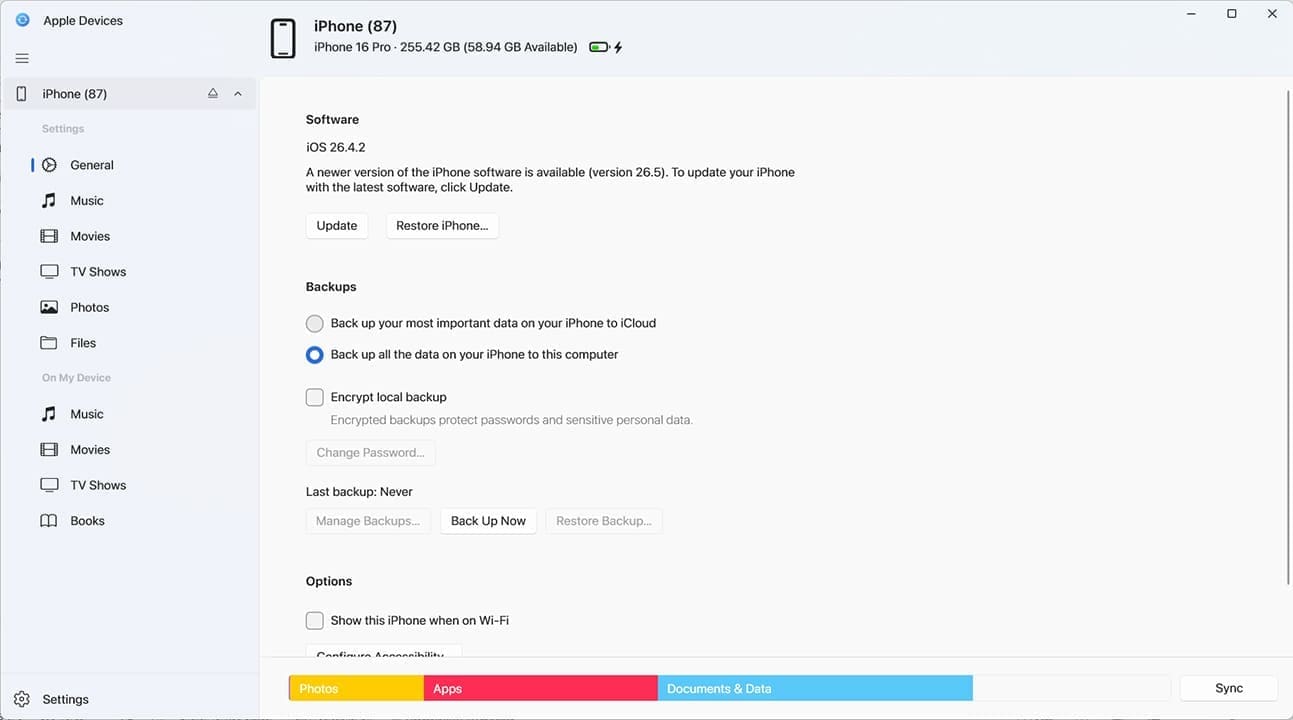
Step 8. You can now use Apple Devices to back up your iPad or iPhone, encrypt backups, or sync media between your devices.

What to Do When Windows 11 Won’t Detect Your iPad 8

Related Posts:

  • Photo of someone using Apple Music on their smartphone
    How to Fix Apple Music Not Working on iPhone / iPad
  • An iPhone, Mac, and MacBook on a table
    Can You Use Time Machine to Back up Your Mac to…
  • sidecar on iPadOS and macOS
    Sidecar not working in iPadOS and macOS? How to fix…
  • 2023 Mac Studio lifestyle - 1
    macOS Could Not Be Installed, How-To Fix
  • Update Apple ID settings on your iPhone, iPad, or Mac after changing your password
    Getting a Message to Update Apple ID Settings on…
  • How to Install Windows 11 on Mac
    Want iMessage on Your Windows PC? How-To
  • transfer spotify playlists to apple music
    Useful Apps to Transfer Spotify Playlists to Apple Music
  • 2022 Mac Mini with Studio Display and Accessories
    Mac Tips For New Users In 2023
  • Windows computer
    How to AirDrop from iPhone to Windows PC
Louis Roundtree
Louis Roundtree

As an avid gamer, I’ve run into my fair share of error codes and weird faults that have forced me to find fixes to problems I never anticipated. That gave me a passion for sharing those fixes with others so we can all game without feeling like our hardware is rebelling against us.

Reader Interactions

Write a Comment Cancel reply

Primary Sidebar

Recent Posts

  • How to Stop Sharing Analytics in iOS 26
  • How to Manage Your iPhone Call Log
  • Are Apple’s Safety Precautions Enough for AirTags?
  • How to Hide Username and Photo on the Mac Lock Screen
  • Microsoft Resume vs. Apple Handoff – Which Wins for Cross-Device Work?
  • How to Export iTunes Library to New Computer

Connect with us

Footer

ABOUT

  • About Us
  • Contact us
  • Advertise
  • Privacy
  • Terms of Use

GUIDES

  • iOS & iPadOS
  • Apple ID
  • iCloud
  • App Store
  • iTunes
  • FaceTime
  • iMessage
  • Siri
  • Books and iBooks
  • Game Center
  • AirPlay

CONNECT

  • Facebook
  • Twitter
  • FeedBurner
  • YouTube

© Copyright 2010-2024 Guiding Tech Media · All Rights Reserved

This site and its content are in no way affiliated or endorsed by Apple, Inc. · Reproduction without explicit permission is prohibited

Last Updated on May 15, 2026 by Louis Roundtree