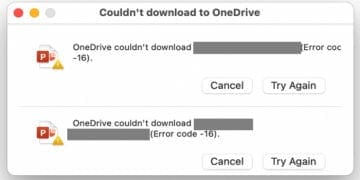
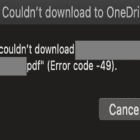
OneDrive error code 16 indicates your local client failed to sync and download your files. Unfortunately, restarting your OneDrive client and rebooting the computer won’t always work. If you’re looking for additional solutions to fix this problem, pursue the troubleshooting steps below.
Go to OneDrive Live and check if the problem persists.
Check if the file name includes special characters. If this is the case, rename the problematic file, exclude special characters, and try to sync and download your files again.
Check if the cache folder got corrupted. Move the cache folder ~/Library/Containers/com.microsoft.word to your desktop, restart OneDrive and check the results.
Create a new user profile and check if error code 16 is gone. If your user profile got corrupted, the new profile should be immune to this error.
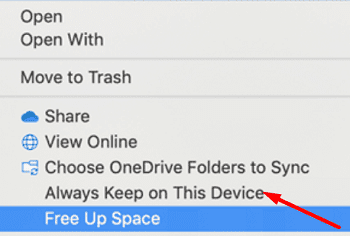
Additionally, if you have File-on demand enabled, go to your OneDrive folder and right-click the problematic file. Then select Always keep on This device and check if this workaround solved the problem.
Enter Safe Mode
Enable Safe Mode and check if OneDrive is still throwing error code 16 on the screen. Restart your Mac, and hold the Shift key to enable Safe Mode. Launch only OneDrive, and if the issue is gone, then most likely third-party programs are interfering with the app.
Disable all the background apps and turn them back on one by one in regular mode to identify the culprit. Many users confirmed Adguard for Mac was to blame for error code 16. If you’re using this adblocker, disable it or permanently remove it from your computer.
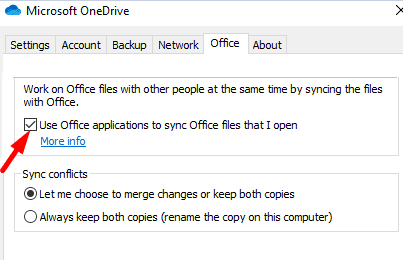
Additionally, navigate to Settings, click on Preferences, go to Office and uncheck “Use Office applications to sync Office files that I open“. Check if the error persists.
Reset OneDrive
Exit OneDrive and go to your Applications folder.
Note: If there are multiple OneDrive copies in the Applications folders, delete the duplicates and try again.
Right-click OneDrive and select Show Package Contents.
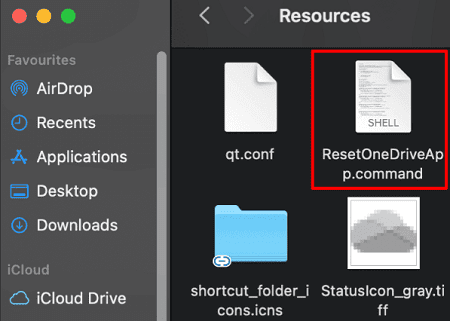
Navigate to Contents, and click on the Resources folder.
Double-click on ResetOneDriveApp.command (or ResetOneDriveAppStandalone.command) to run the script.
Launch OneDrive again and check the results.
Reinstall the App
If the error persists, reinstall OneDrive. Keep in mind that if you decide to uninstall the app without resetting it first, you’re back to square one. So, reset the app, uninstall it if the problem doesn’t go away, restart your Mac and only then download a fresh copy of OneDrive. In this manner, you also make sure you’re running the latest OneDrive app version on your machine.
Additionally, check if there’s a newer macOS version available for your device. Update your Mac and check if you notice any improvements with your OneDrive app.
Conclusion
To sum up, error code 16 usually pops on the screen when OneDrive fails to sync and download your files. To fix it, disable Adguard for Mac, reset OneDrive, create a new user profile, and reinstall the app. We hope these solutions helped you troubleshoot the problem. Feel free to share your feedback in the comments below.
Madalina has been a Windows fan ever since she got her hands on her first Windows XP computer. She is interested in all things technology, especially emerging technologies — AI and DNA computing in particular.









Write a Comment