If you are getting code -49 with every OneDrive for Mac file that you’re trying to download, don’t panic. This is a pretty rare error code, but the good news is that you can fix it. Follow the troubleshooting steps below to get the job done.
First things first, make sure you’re running the 64-bit app version. If you’re using an old Office for Mac version, install the 64-bit version. As a quick reminder, neither macOS Catalina nor Big Sur supports 32-bit apps. So, go to the App Store, download the latest OneDrive version and check if error -49 is gone.
Check the File Name
Additionally, check the problematic file and rename it if the file name includes special characters. While your MacBook may support the respective characters, OneDrive is actually pretty picky when it comes to file names. For more information on the limitations that apply to OneDrive file names and file types, go to Microsoft’s support page.
Make sure you have enough space on your computer to download the problematic file. If you’re running out of storage space, delete some of your largest files.
Unlink Your Account and Remove .DS_Store Files
Go to OneDrive Settings, and click on the Account tab. Then, click on Unlink this Mac. Restart OneDrive, link your Mac to OneDrive again, and check the results.
If the problem persists, try removing your .DS_Store files. If these files got corrupted, OneDrive won’t be able to sync your files and folders correctly.
Go to Finder, navigate to Applications, and select Utilities.
Double-click on Terminal.
Enter sudo ls, and hit the Return key. This will give you super-user (root) permissions in Terminal. Enter your admin credentials, if prompted.
Locate the problematic file or folder and go back to Terminal.
Type cd followed by a space, and then drag the problematic folder into Terminal. The tool will automatically complete the folder path for you. Press the Return key.
Then type rm -f .DS_Store and hit Return again. Check if the problem is gone.
Reset OneDrive
Go to your Applications folder.
Then right-click on OneDrive and select Show Package Contents.
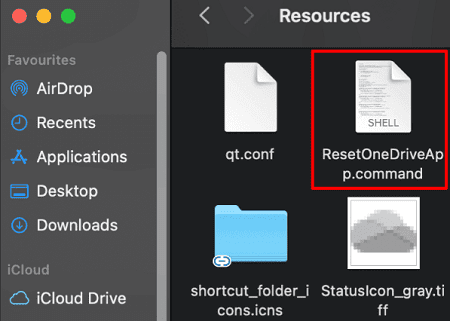
Go to Contents, and select Resources.
After that, double-click on ResetOneDriveApp.command (or ResetOneDriveAppStandalone.command).
Launch OneDrive and check the results.
Clean Install OneDrive
Click on the OneDrive icon, select Preferences, go to About, and click the Unlink option.
Open the Applications folder and drag OneDrive to Trash.
Navigate to /Users/UserName/Library/Containers.
If the two folders below are visible on your machine, drag them to Trash:
com.microsoft.skydrive-mac
com.microsoft.SkyDriveLauncher
Delete the OneDrive folder stored locally.
Check if there’s a OneDrive folder under your name and remove it.
To fix OneDrive error code 49, make sure to install the 64-bit app version. Then, check if the file name contains special characters, and rename it. Additionally, unlink your Mac, remove the DS_Store files, and reset OneDrive. If the problem persists, uninstall and reinstall OneDrive. Did these solutions help you fix the problem? Let us know in the comments below.
Madalina has been a Windows fan ever since she got her hands on her first Windows XP computer. She is interested in all things technology, especially emerging technologies — AI and DNA computing in particular.











Write a Comment