Millions of Mac users rely on Microsoft Office, especially when working collaboratively with other users. Oftentimes, it’s the compatibility factor that tips the scales in Office’s favor. It’s fair to say that if you work with complex spreadsheets, Excel is the right tool to handle the task.
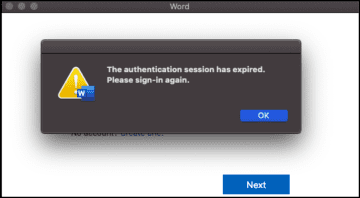
In spite of all these advantages, Microsoft Office for Mac does come with its fair share of issues. For example, your Office apps may randomly prompt you to sign in again because “the authentication session has expired”. The only problem is that the alert doesn’t disappear after you enter your credentials countless times. Without further ado, let’s explore how you can troubleshoot this problem.
How Do I Fix Expired Authentication Sessions in Office?
⇒ Important Note: Don’t forget to back up your data before pursuing the solutions below.
Allow Office to Access Your Keychain
This error usually indicates that Office does not have access to your keychain.
Sign out and close all your Office apps.
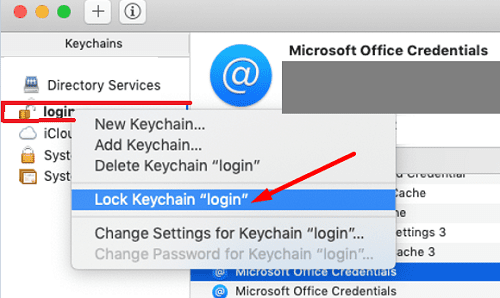
Open your Keychain app.
Select your default keychain (it’s usually the Login keychain) and click on the lock icon. Most likely, the keychain is unlocked.
Then launch any Office app you want and grant MS Office permission to access the keychain.
Enter the correct password and click on the Always Allow option when prompted.
If Office prompts you to sign in again, enter your credentials, and check if the error persists.
Check the Location of the Office Folder
If Office keeps on prompting you to grant its apps access to the keychain, check if the installation package has been moved to a different location. The default location should be the Applications folders. If your Office package is not there, bring it back and check if the error is gone.
Remove Certain Password Entries
Make sure to log out and quit all Office apps.
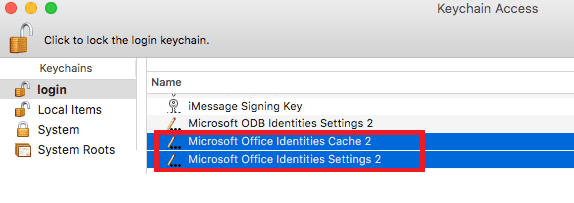
Go back to Keychain Access and delete the following password entries: Microsoft Office Identities Cache 2 and Microsoft Office Identities Settings 2.
If there are any ADAL entries in the keychain, delete them as well.
Restart your computer, launch Office and check if you can sign in again.
Renew Your Keychain
Other users fixed this issue by renewing the keychain information.
Exit all Office apps.
Launch Finder, and press Command + Shift + G to open the Go to Folder window.
Then, enter ~/Library and hit Go.
Go to ~/Library/Containers and delete the com.microsoft.word.mac folder.
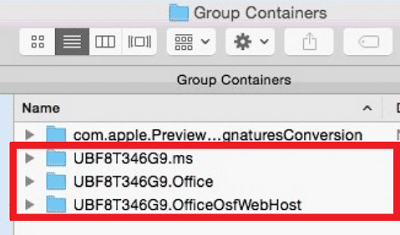
After that, navigate to ~/Library/Group/ Containers and delete the UBF8T346G9.Office folder.
Note: If the glitch persists, delete all the UBF8T346G9 entries (UBF8T346G9.ms, UBF8T346G9.Office, and UBF8T346G9.OfficeOsfWebHost).
To clear your keychains, go to Finder → Applications → Utilities → Keychain Access.
Locate and delete all the Microsoft Office entries.
Restart your Mac, launch your Office apps again, and type in your credentials. Check if the authentication error persists.
Delete the Microsoft User Data Folder
Open the Documents directory and delete the Microsoft User Data folder. If your system stores old copies of previous Office versions in that folder, they might be interfering with your current Office session.
Additional Solutions
Disable your antivirus tool, turn off your firewall, and sign in again. You can re-enable your security tools after logging back into your Office account.
Create a new user profile on your Mac. If the current user profile got corrupted, this workaround should resolve the problem.
Reinstall Office. First, you need to uninstall Office and then download the Office Suite again. For step-by-step instructions, go to Microsoft’s Support page.
Conclusion
“The authentication session has expired” is an annoying Office error that indicates your Office apps couldn’t access your keychain. To fix it, allow Office to access your keychain and delete the Microsoft Office Identities Cache entries. Additionally, delete the Microsoft User Data folder from Documents and check the results. Did you manage to solve the problem? Which solution did the trick for you? Let us know in the comments below.
Madalina has been a Windows fan ever since she got her hands on her first Windows XP computer. She is interested in all things technology, especially emerging technologies — AI and DNA computing in particular.











Write a Comment