The Apple Watch Series 9 introduces a host of new features, but one that stands out is the new gesture called “Double Tap.” This gesture is designed to make the Apple Watch even more user-friendly, especially in situations where your hands might be occupied.
The double tap gesture is simple. By double tapping your index finger and thumb together, you can perform various actions on your Apple Watch. This includes answering a call, opening a notification, playing and pausing music, and more. Imagine being able to play or pause your music while carrying groceries or answering a call while paddle-boarding. It’s all about making the Apple Watch experience more seamless and intuitive.
The double tap gesture on the Apple Watch Series 9 is a testament to Apple’s commitment to enhancing user experience. It’s a small but significant feature that can make a big difference in everyday scenarios. So, the next time you’re juggling multiple tasks, just remember – a simple double tap can make your life a tad easier!
How to Use Double Tap on Apple Watch
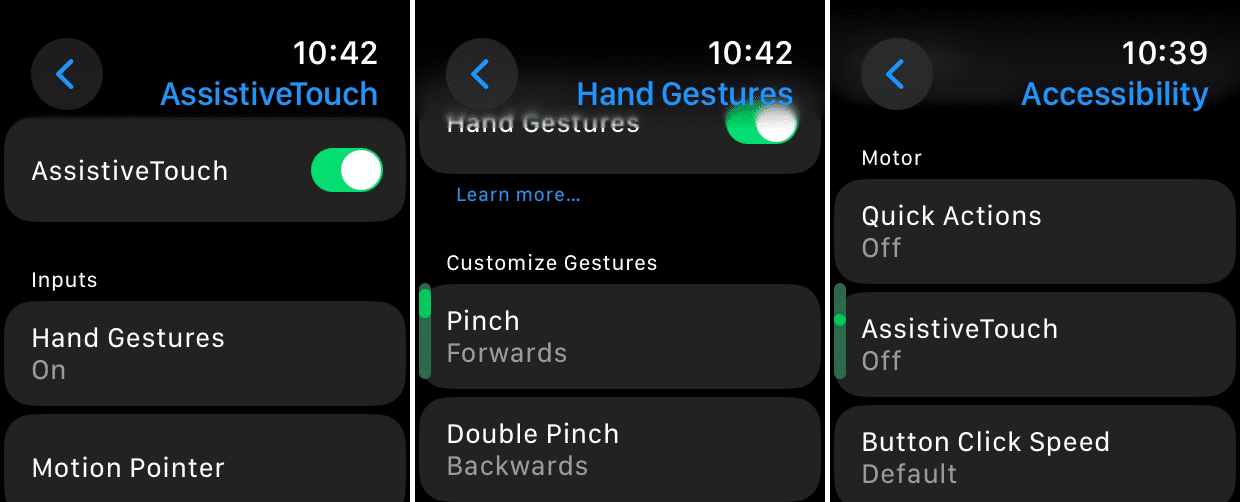
Did you know that you don’t actually need the Apple Watch Series 9 or the Watch Ultra 2 if you want to use Double Tap? That’s because this feature originally appeared as an Accessibility option a few years ago. This means that you can actually use Double Tap on older Apple Watch models. Because it’s hidden within the Accessibility menu, you’ll need to first enable AssistiveTouch, then customize the gestures to your liking.
Here’s how you can use Double Tap on Apple Watch, even if it’s not the Series 9 or Watch Ultra 2:
Open the Settings app on your Apple Watch.
Scroll down and tap Accessibility.
Scroll down until you reach the Motor section, then tap AssistiveTouch.
Tap the toggle next to AssistiveTouch to the On position.
When prompted, tap the OK button.
Under the Inputs section, tap Hand Gestures.
Scroll down to the Customize Gestures section.
Tap Double Pinch.
Select one of the following options:
General
Forwards
Backwards
Tap
Action Menu
Digital Crown
Press Crown
Turn Up
Turn Down
Dynamic
System
Notification Center
Control Center
Press Side Button
Press Action Button
Press Action and Side Buttons
Dock
Show Apps
Show Widgets
Apple Pay
Siri
Control Nearby Devices
Hold Side Button
Sleep Display
Interaction
Motion Pointer
Tap and Hold
Gesture Mode
Autoscroll
Digital Crown
Vertical
Horizontal
Scroll to Bottom
Scroll to Top
Shortcuts
None
Tap the < Back button in the top right corner to save your changes.
Being able to use Double Tap on the Apple Watch can be really convenient, but we can’t help but be disappointed by the fact that it’s limited to newer models. Thankfully, we can still harness the power of Accessibility features in order to bring Double Tap to older Apple Watch versions.
The biggest thing that we can recommend is to play around with the feature after you enable it. The gestures do take a bit of time to get used to, and there’s quite a bit more that you can actually do, besides just tapping your fingers together in order to make a selection or respond to a message.
Conclusion
The Double Tap feature on the Apple Watch is a game-changer, offering a blend of convenience and innovation. As we’ve explored in this guide, mastering this gesture can truly elevate your Apple Watch experience, making everyday tasks just a bit smoother. Whether you’re in the middle of a workout, cooking up a storm in the kitchen, or simply out and about, the Double Tap is there to ensure your watch responds swiftly to your needs. So, give it a try, practice a bit, and soon enough, you’ll wonder how you ever got by without it.
Andrew Myrick is a freelance writer based on the East Coast of the US. He enjoys everything to do with technology, including tablets, smartphones, and everything in between. Perhaps his favorite past-time is having a never-ending supply of different keyboards and gaming handhelds that end up collecting more dust than the consoles that are being emulated.











Write a Comment