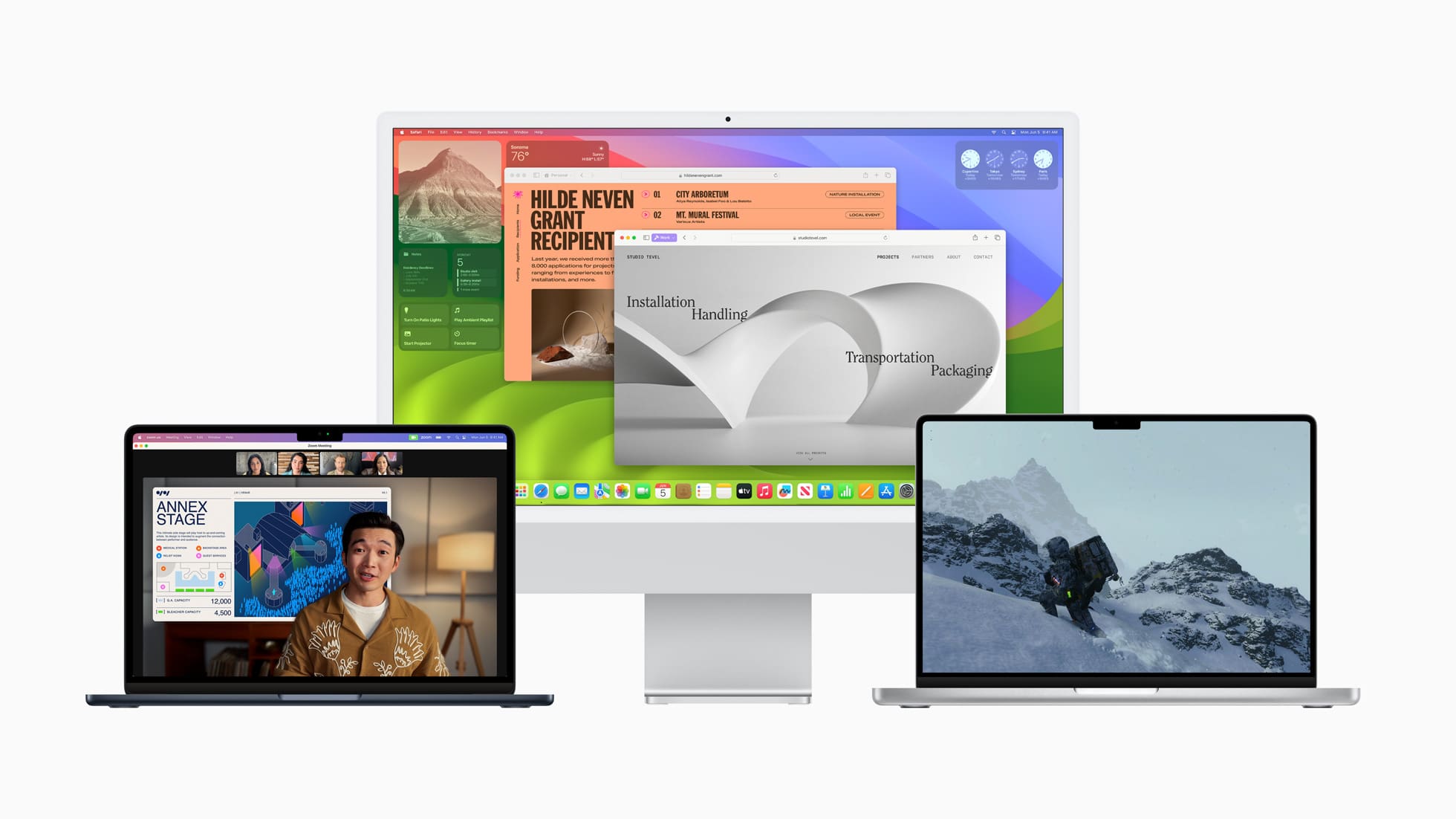
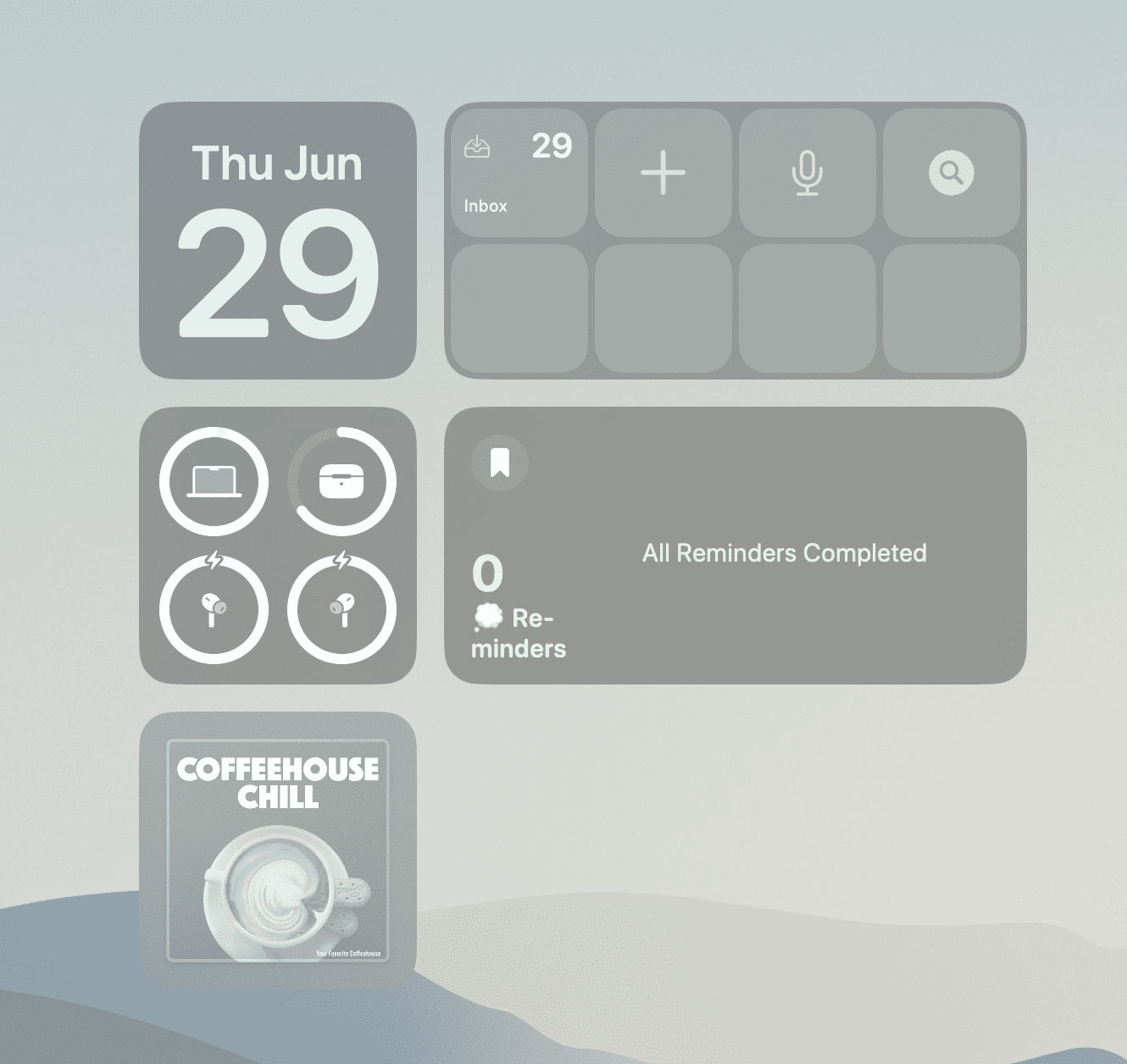
Widgets, the mini-applications that provide quick access to information or functions from your apps, have long been a staple on iPhones. With the introduction of macOS Sonoma, Apple brought this feature to the Mac, offering users the ability to use iPhone widgets on their desktops or laptops.
Widgets provide at-a-glance information from your favorite apps without needing to open them. This can include weather updates, calendar events, reminders, news headlines, and more. Having this information on your Mac’s desktop can improve your productivity and efficiency.
If you use both an iPhone and a Mac, having the same widgets on both devices can provide a consistent user experience. This can make it easier to switch between devices and keep track of information.
Despite being a useful tool for quickly accessing information or performing tasks, Apple ultimately removed the feature with the release of macOS 10.15 Catalina. Until macOS Sonoma, the default way to use and add desktop widgets to Mac is through the Notification Center. But pushing the limits even further, the combination of iOS 17 and macOS Sonoma makes it possible for you to use widgets from apps downloaded on your iPhone, on your Mac’s desktop.
The only other two requirements in order to use iPhone Widgets on Mac are that you must be signed in with the same Apple ID on both your iPhone and Mac. Plus, your “iPhone must be nearby, or your Mac and iPhone should be connected to the same Wi-Fi network.” Otherwise, the widgets won’t update or even appear on your Mac, and you aren’t able to add them to your Mac’s desktop.
Enable iPhone Widgets on Mac
Because the ability to use iPhone widgets on Mac relies on Apple’s Continuity and Handoff functionality, the requirements listed above should come as little surprise. However, there is one more feature that Apple states must be enabled before you’ll be able to view and select which iPhone widgets you want to use on your Mac desktop:
Open the Settings app on your iPhone.
Tap General.
Scroll down and tap AirPlay & Handoff.
Tap the toggle next to Continuity Camera to the On position.
Continuity Camera was a feature released alongside iOS 16 and macOS Monterey, making it possible to use your iPhone’s vastly-superior camera hardware as a webcam for your Mac. When participating in “regular” video calls on your Mac, your iPhone will use either the standard or wide-angle lens to keep everything in view. The wide-angle lens comes in handy for those who want to play around with Center Stage, a camera feature that is designed to keep you in the middle of the frame, even if you’re moving around.
Use iPhone Widgets on Mac
Provided that you have already enabled Continuity Camera, along with running iOS 17 and macOS Sonoma, you’ll be able to finally use iPhone widgets on Mac. And here are the steps that you need to take in order to do so:
Unlock your Mac.
Remove any open app windows, giving you a clear view of your Mac’s desktop.
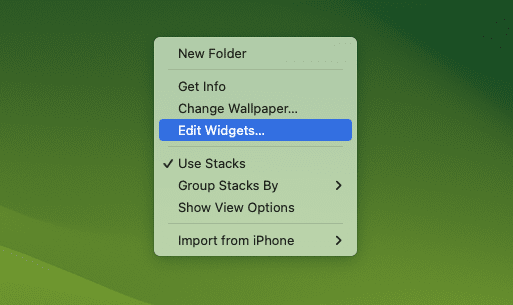
If using a trackpad, tap with two fingers to reveal the drop-down menu. If using a mouse, simply right-click to reveal the same menu.
From the menu that appears, highlight and select Edit Widgets…
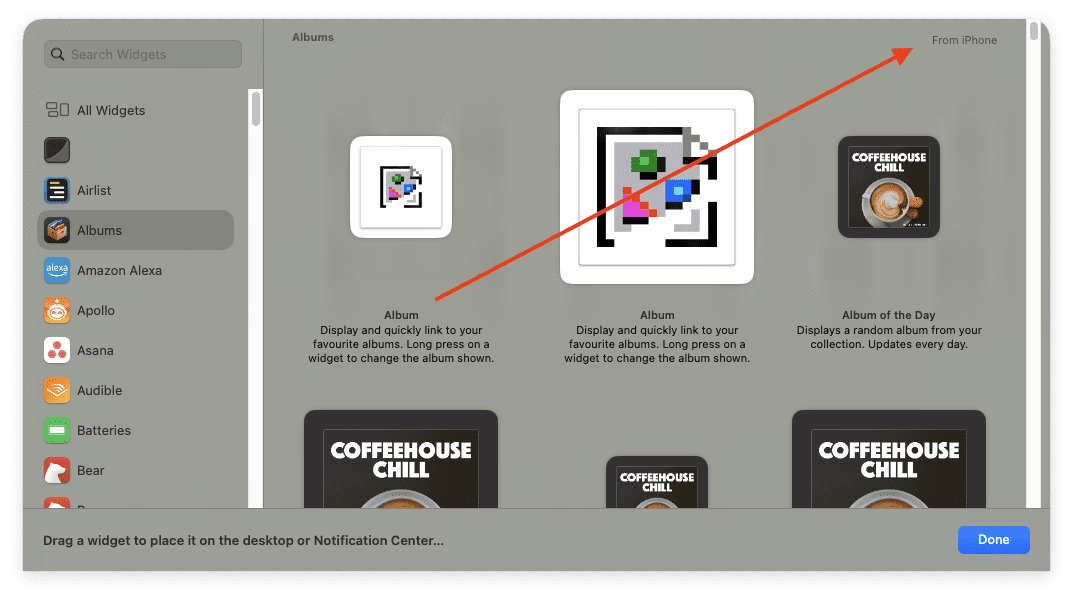
At the bottom of your screen, a new widget menu will appear.
Go through the list of apps on the left, and locate the app that you want to use a widget for on your desktop.
If applicable, select the widget and layout that you want to use.
Drag and drop the widget to its corresponding location on your Desktop. Alternatively, you can click the Green + button in the top left corner of the widget to add it to your Desktop.
It’s important to note that when you go through the steps above to add and use iPhone widgets on Mac, it might be difficult (at first) to differentiate iPhone widgets from Mac widgets. Thankfully, Apple thought of this, as you’ll see From iPhone in the top right corner of the new widget interface when you are trying to figure out which widgets you want to use.
Andrew Myrick is a freelance writer based on the East Coast of the US. He enjoys everything to do with technology, including tablets, smartphones, and everything in between. Perhaps his favorite past-time is having a never-ending supply of different keyboards and gaming handhelds that end up collecting more dust than the consoles that are being emulated.












Write a Comment