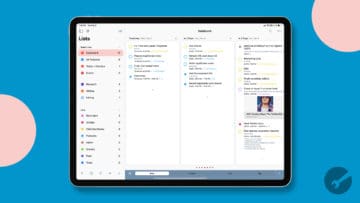
If there’s one thing we know about apps on the iPhone and iPad, it’s that there is no shortage of productivity and task management solutions. But in recent years, Apple’s own Reminders app has been getting some rather impressive updates, which includes the ability to use Kanban View in Apple Reminders on iOS 17.
A Kanban board is a visual project management tool designed to optimize workflow efficiency and organization. It originated from the Japanese manufacturing industry and has since been widely adopted across various sectors, particularly in software development and agile project management. The Kanban board consists of columns representing different stages of the workflow, such as “To-Do,” “In Progress,” and “Done.”
Tasks are represented as cards that are moved between these columns as they progress through the workflow. This visual representation enables team members to quickly assess the status of tasks, identify bottlenecks, and prioritize work accordingly. By limiting the number of tasks in progress, Kanban boards help to balance workload, improve communication, and increase overall productivity.
How to Use Kanban View in Apple Reminders on iPhone and iPad
In the grand scheme of things, being able to use Kanban View in Apple Reminders is not really all that much of a “game-changing” feature. However, if you’ve used apps such as Trello, Todoist, or Asana that offer a similar layout, you might be chomping at the bit to use this with Apple’s own Reminders app. But before you can get started, you’ll first need to enable this new “Column” view and set up the different sections.
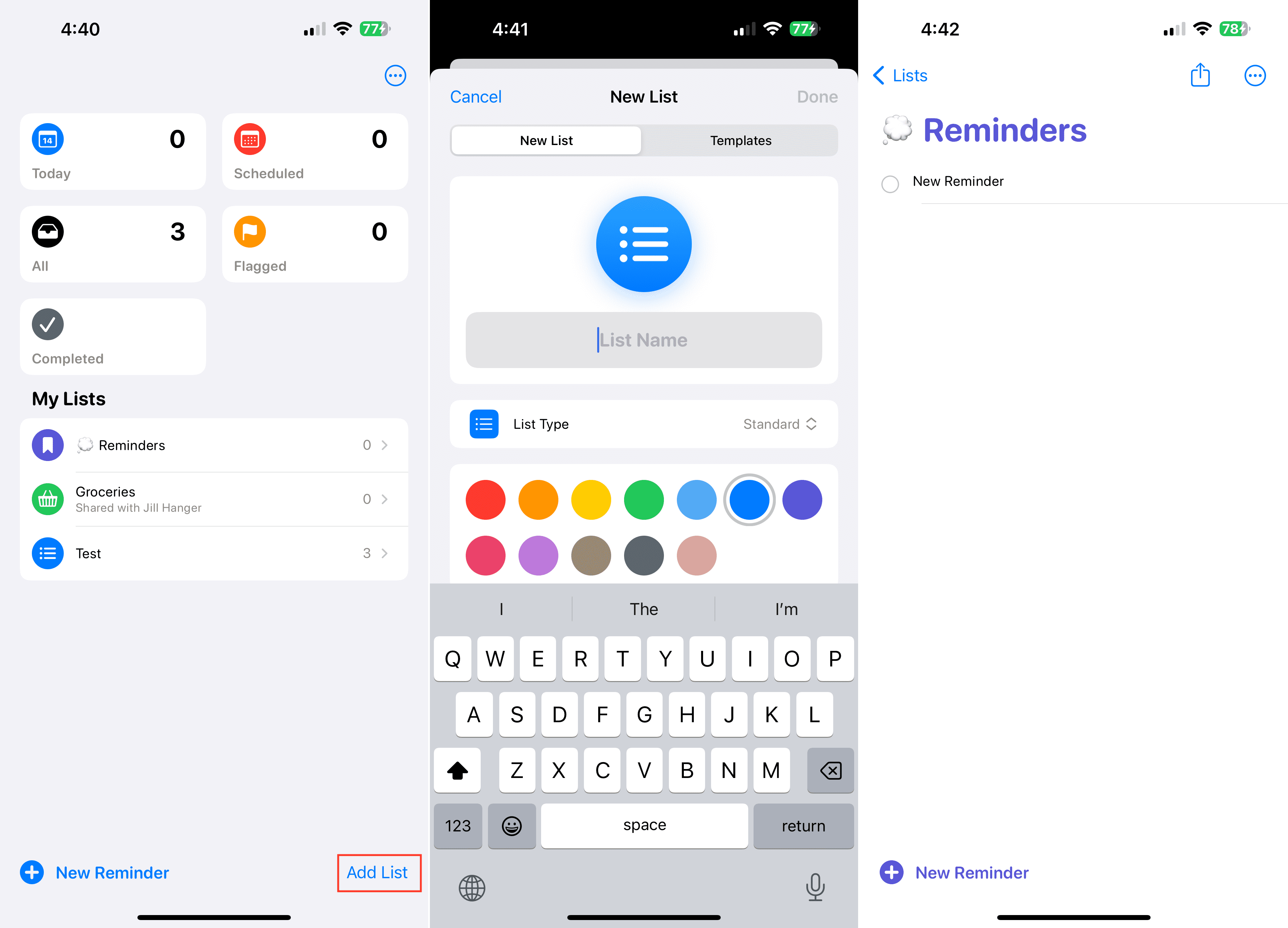
Open the Reminders app on your iPhone and/or iPad.
In the bottom left corner, click the Add List button.
Customize the list with a Name, Color, Icon, and List Type.
Click the OK button.
Once created, select the newly-created list under the My Lists section.
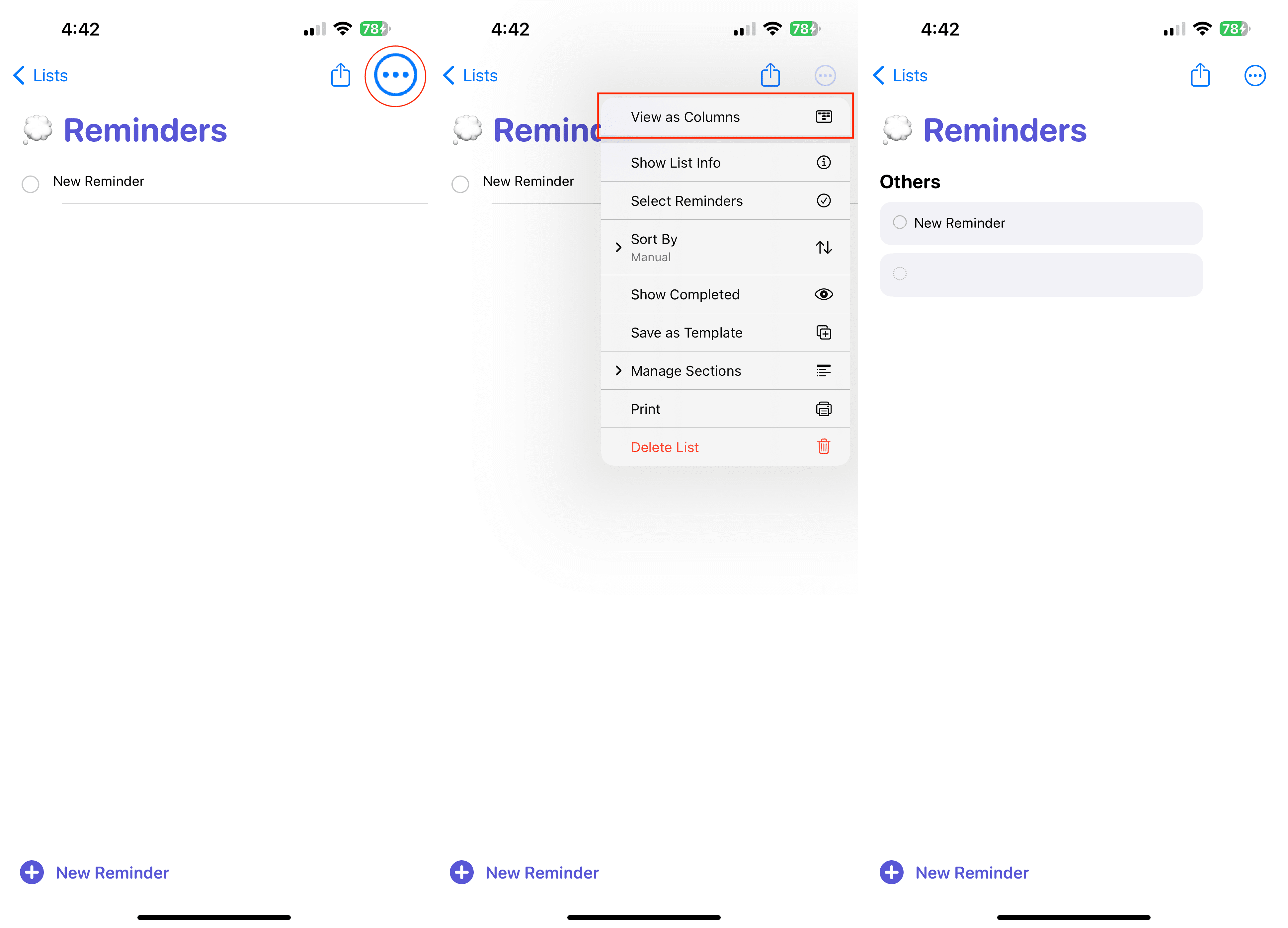
In the top right corner, tap the Ellipsis (…) button.
Tap View as Columns.
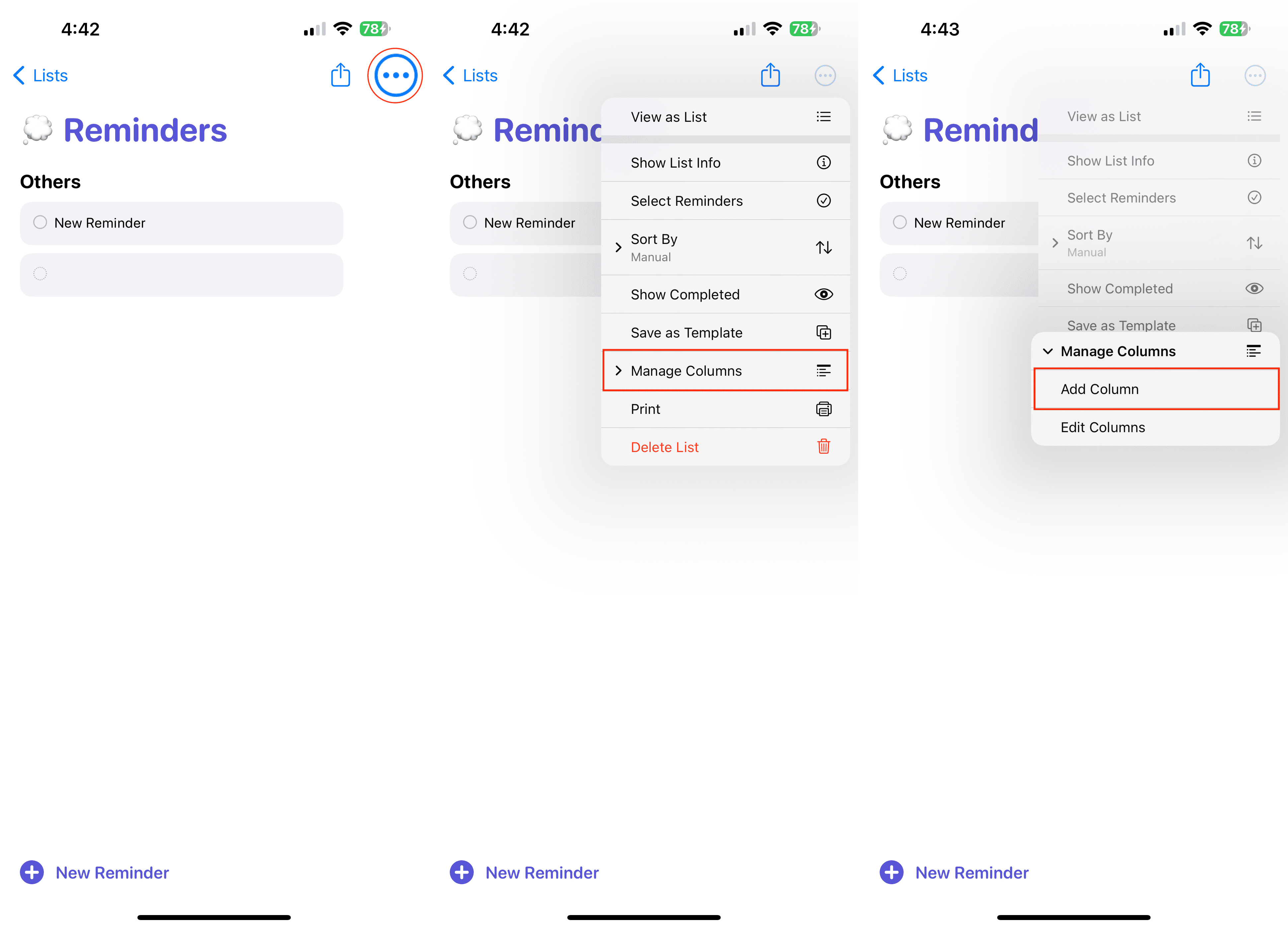
In the top right corner, tap the Ellipsis (…) button again.
From the menu that appears, tap Manage Columns.
Tap Add Column.
Enter a name for the first section that you want to have appear.
Repeat the steps for any other sections that you want to have.
From there, you can just start adding any tasks or reminders, and then can drag and drop them between the different sections or columns. This really is a great way to keep an eye on the progress of a project, while being able to enjoy all of the fantastic features that Reminders has to offer.
How to Use Kanban View in Apple Reminders on Mac
It shouldn’t come as too much of a surprise, but Apple doesn’t even mention that you can use this new Kanban View in Apple Reminders on the Mac. Thankfully, the feature is available, as you’ll be able to enjoy this layout across all of your Apple devices. Here’s how you can set up and use Kanban View in Apple Reminders on Mac:
Open the Reminders app on your Mac.
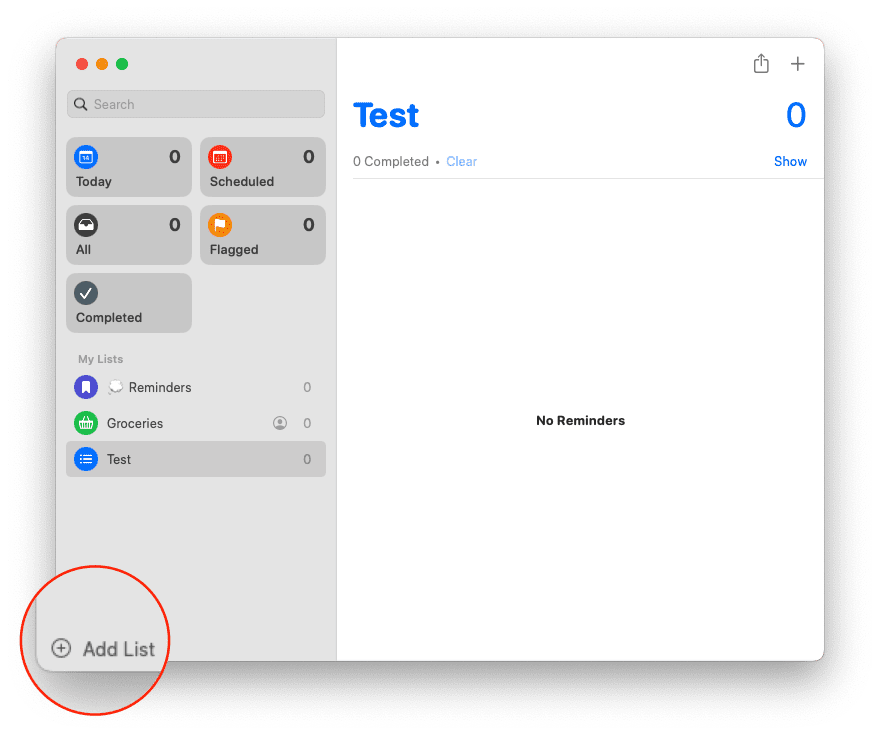
In the bottom right corner, click the Add List button.
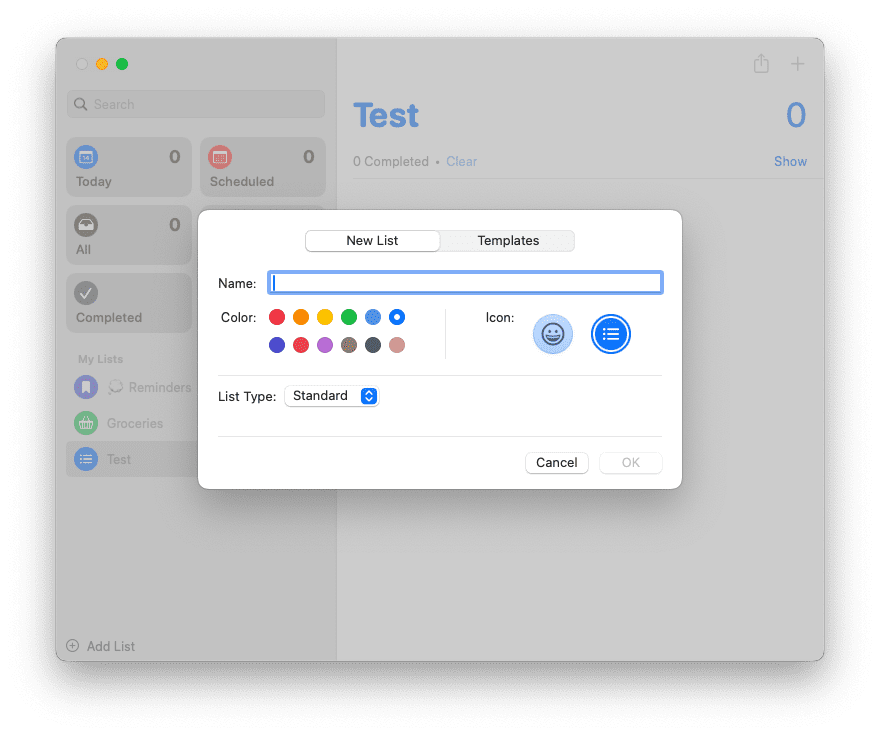
Customize the list with a Name, Color, Icon, and List Type.
Click the OK button.
Once created, select the newly-created list under the My Lists section in the left sidebar.
On the right side of the window, right-click.
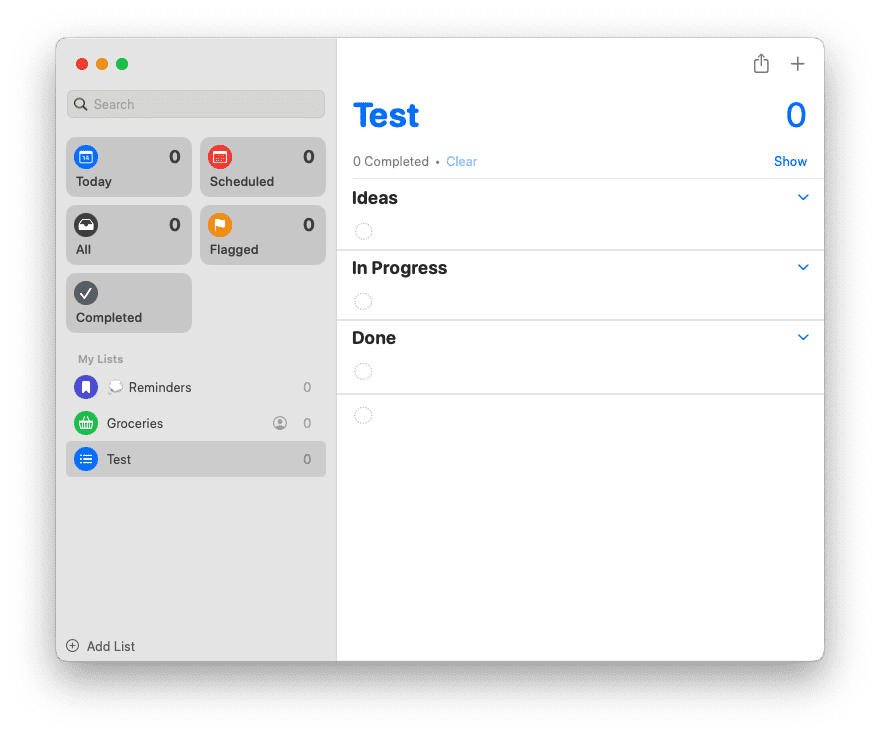
From the menu that appears, select Add Section.
Enter a name for the first section that you want to have appear.
Repeat the steps for any other sections that you want to have.
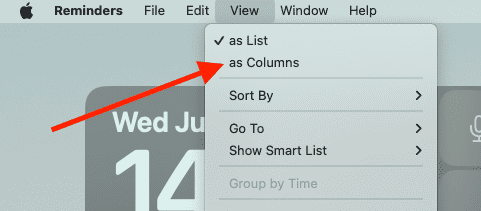
Once you’ve finished adding sections, click View in the Menu Bar.
Click as Columns.
The same rules apply to using this view in the Reminders app on an iPhone or iPad. However, we found that the “touch targets” on the different reminders are a bit finicky in Reminders on the Mac. But as long as you don’t click inside the different reminders, and try to grab ahold of them from the corners, you’ll shouldn’t run into too many issues.
Andrew Myrick is a freelance writer based on the East Coast of the US. He enjoys everything to do with technology, including tablets, smartphones, and everything in between. Perhaps his favorite past-time is having a never-ending supply of different keyboards and gaming handhelds that end up collecting more dust than the consoles that are being emulated.










Write a Comment