iOS users have been playing games on their devices forever. Who remembers the good days of Fruit Ninja, Doodle Jump, and Flappy Bird? However, sometimes it can be hard to find new games unless you scour the App Store constantly. Netflix identified an opening in the market where it can act as a platform for those looking to find and download games under a single subscription. A lot of us already have Netflix accounts, so why not enjoy some extra games along with it? The Netflix Games section feels similar to the Epic Games platform on PC and macOS, where you can explore new titles and access them in a centralized location. So if you’re new to Netflix Games, read on to find out what it is and how you can create your own Gamertag.
Netflix Games is an offshoot of the main Netflix application that allows you to shop for games and access them on one platform. If you have a Netflix account, then you have instant access to Netflix Games and can use it straight away! It seems as if Netflix Games still requires quite some development, as you have to manually search for the term “games” to find any mobile games on the Netflix app. The Netflix support page claims that if you scroll down, you can find a row for games, but this doesn’t appear for everyone. Alternatively, if you’re already aware of a Netflix Games title, you can search it on the iOS App Store and download it there.
How to Create a Netflix Gamertag
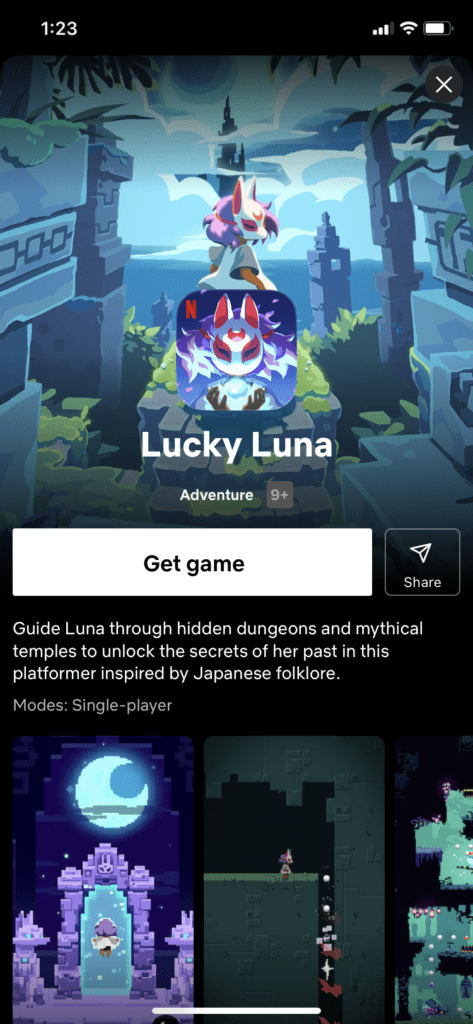
So if you want to get started with Netflix Games, you may want to create yourself a Netflix Gamertag so you can identify yourself online and have a bit of fun. As mentioned previously, it seems as if Netflix Games is still undergoing some heavy development, as the platform feels a little messy still. There’s no actual section dedicated to the games where you can change your Netflix Gamertag, access your games, or chat with friends. So to change your online identity, follow these steps:
Open the Netflix app on your iPhone.
Search for “Lucky Luna”.
Netflix will redirect you to the iOS App Store.
Download the game.
Follow the prompts to create your Netflix Gamertag.
Alternatively, search “Lucky Luna” in the iOS App Store yourself and download from there.
What Does Netflix Games Have?
As of writing, Netflix Games doesn’t offer too much in terms of variety. It does have titles in various gaming categories, for example, racing, card, strategy, action and adventure, and sports, but it’s still expanding its catalog. You can play games such as Into the Breach, Wonderputt Forever, Heads Up!, or Bowling Ballers. Kids’ accounts won’t be able to access Netflix Games just yet, as each game has different ratings. We’re excited to see how Netflix may expand its offering and if it’ll challenge other gaming platforms.










Write a Comment