We’ve come a long way from the old days of iOS where the only thing that you could “customize” was the wallpaper. Jailbreaking has been around for almost as long as the iPhone, but the community is smaller than it once was, and it’s not as simple to jailbreak a device as it once was.
Thankfully, Apple is finally giving in to the demands of its users, by bringing more customization options to the masses. With iOS 14, widgets were added, and it was discovered that you could use custom icons courtesy of the Shortcuts app. And with iOS 16, things are getting even more customizable.
How to Add Widgets to iPhone Lock Screen in iOS 16
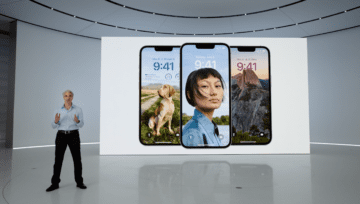
For the first time ever, you can actually change the way your iPhone Lock Screen looks and feels. In addition to bringing a Portrait effect to compatible wallpapers, iOS 16 now makes it possible to add various widgets (up to five total). There are different combinations available, and we only expect this to grow once third-party apps are updated with support for WidgetKit and iOS 16. Until then, here’s how you can add widgets to iPhone Lock Screen in iOS 16:
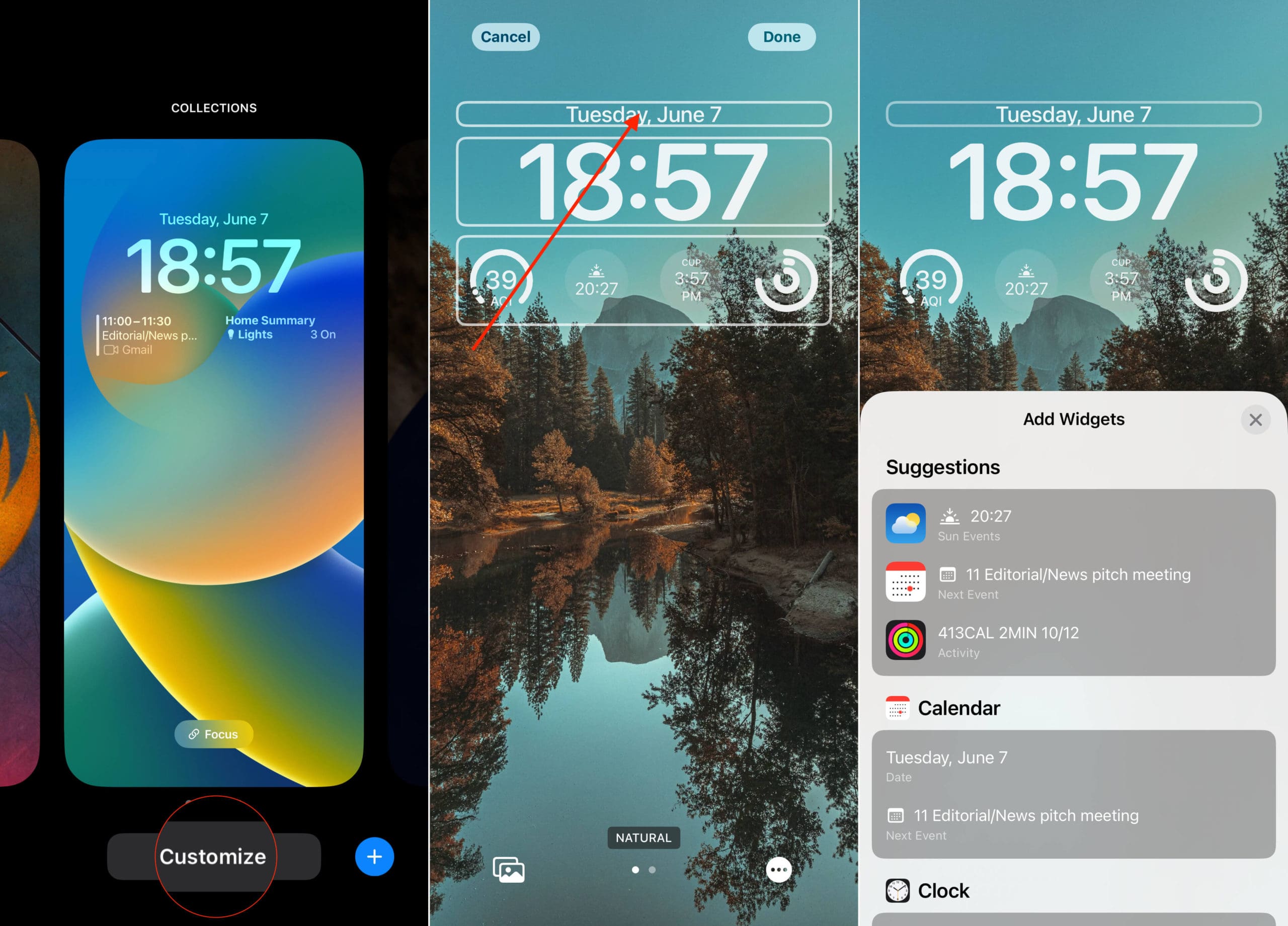
Press the Side button or tap the screen to show your iPhone Lock Screen.
Press and hold on to an empty area until you feel your iPhone vibrate.
Tap the Customize button at the bottom of the screen.
At the top of the screen, tap the widget outline.
Scroll through the list and select one of the following:
Suggestions
Calendar
Date
Next Event
Clock
City
Next Alarm
Fitness – Activity
Reminders – Due Today
Stocks – Symbol
Weather
Moon Events
Sun Events
Conditions
Location
Rain
Air Quality
UV Index
Wind
Tap the widget area below the Clock.
Scroll through the list and tap the widget(s) that you want to add.
After you’re finished, tap the Done button in the top right corner.
Lock Screen Widget Limitations
It’s important to make mention that there are limits to the number and types of widgets that can be used. First of all, as this is just iOS 16 Developer Beta 1, you’ll only find widgets for Apple’s own apps. Developers are just now diving into this new feature and the improvements with WidgetKit.
Secondly, there are several different combinations that you can use for the bottom row of widgets:
(4) 1×1 widgets
(2) 2×2 widgets
(2) 1×1 widgets + (1) 2×1 widget
We don’t expect that list of combinations to change, as these are really just designed to be glanceable. Of course, you can tap on them, and will be taken into the corresponding app after your iPhone is unlocked.
Lastly, there is no way, currently, to add widgets to the Lock Screen on iPadOS 16. It’s entirely possible that this changes during the development cycle, but it’s more likely that Lock Screen widgets and customization will come to iPad owners with next year’s version of iPadOS.
Show Off Your iPhone Lock Screen Creations
One of the best aspects of the community is that everyone loves to share their different creations. If you are already running iOS 16 on your own iPhone, show off what your iPhone Lock Screen looks like. Plus, let us know what apps you are hoping to see updated with support with widgets!
Andrew Myrick is a freelance writer based on the East Coast of the US. He enjoys everything to do with technology, including tablets, smartphones, and everything in between. Perhaps his favorite past-time is having a never-ending supply of different keyboards and gaming handhelds that end up collecting more dust than the consoles that are being emulated.








Write a Comment