One feature on newer iPhones is that the screen brightness can change on its own, like the phone has a mind of its own. This is actually a feature that allows the phone to adjust by registered ambient lighting. Below we’ll explore how your phone does this, why it does this and how to turn it off if you don’t like the feature.
This is a feature called Auto-Brightness. It was introduced during iOS 11. It allows the phone to change the brightness of your screen based on how dark or light it is in the room. The phone has sensors that can tell what the ambient lighting in a room is like.
The feature does this because most people prefer looking at a dimmer screen in darker environments as it creates less stress on the eye. By the same token, you’d see a bright screen in lighter rooms. The feature can even help conserve the battery life of the phone.
There’s another feature called Night Shift, which changes the color and brightness of your iPhone’s screen during the night, which can make the phone look darker. The idea is to help you not stare at the brightest screen in the world right before bed, which can help you sleep better.
Why Turn Off Auto-Brightness and Night Shift?
While these features sound all well and good, sometimes people feel they’re truly annoying. A slight change in the ambient lighting can make your phone darker or brighter than you’d like.
Or if you tend to be a night owl who stays up reading on your device well into the night, a darker screen might not be something you want out of life just yet or at all.
Sometimes the phone shifting its lighting on its own at all is downright distracting.
Below we’ll go into how to turn off these features.
How to Disable Auto-Brightness
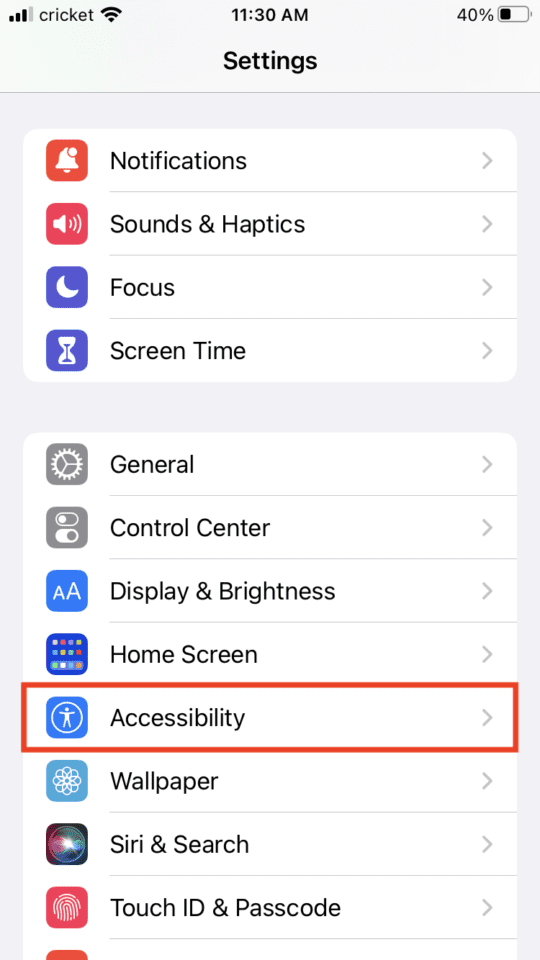
Go into your Settings app.
Select the Accessibility listing.
Select Display and Text Size.
Auto-Brightness is at the bottom. Select it so that its button turns gray.
How to Turn off Night Shift
Select your Settings app.
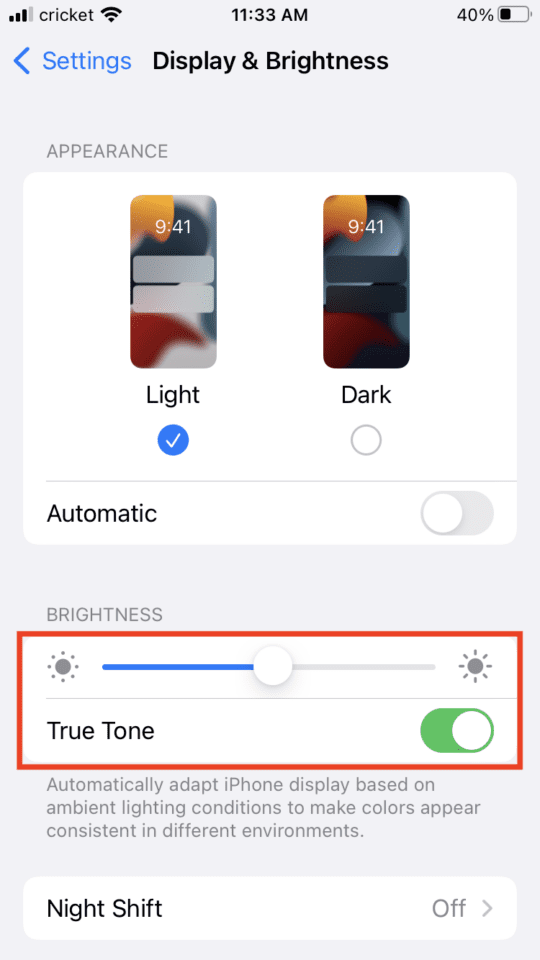
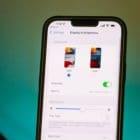
Tap Display & Brightness.
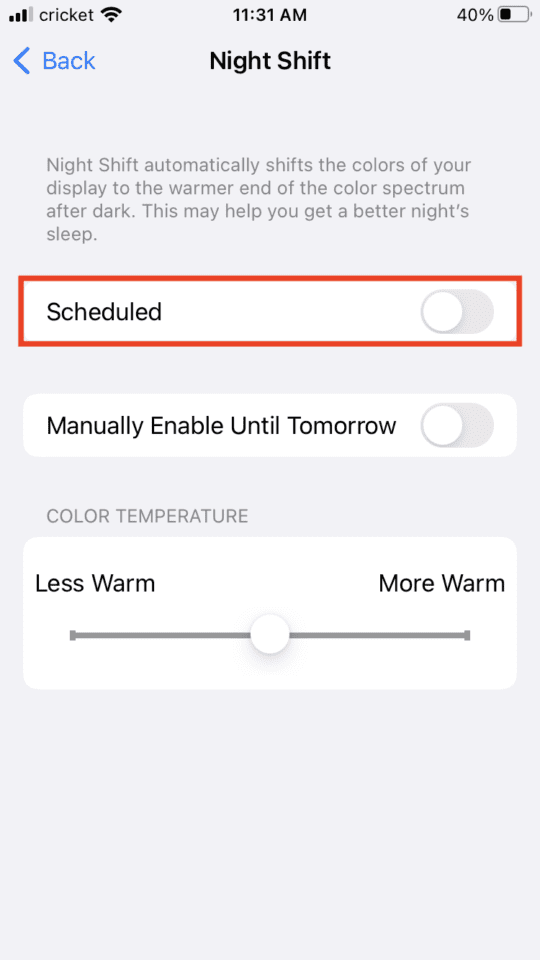
Select the part of the screen that says Night Shift.
Tap the button next to Scheduled so it turns from green to gray.
Adjusting Your Phone’s Brightness Manually
You might want full control over how bright your phone is at all times. You can do this in a couple of ways.
Access your control center drop-down menu. This can be different on different phones, but in general, swipe up from the bottom on older phones or down from the top right on newer.
You’ll see a sliding bar with the sun on it in the middle of the screen. You can slide that around with your finger to control the brightness of the screen.
Another way to access your brightness is to:
Go to Settings.
Select Display & Brightness.
Under Brightness, you should have a slide bar that will change your screen’s brightness.
You may also want to switch off True Tone by tapping the green button.
Luckily, it’s so easy to customize this feature. It’s your phone and you stare at it all day, so it makes sense to adjust the brightness to a level of personal comfort.
Thank you so much ~ super helpful! My seemingly random increasing screen brightness was solved by turning off the relatively hidden Auto Brightness button, which was on even with the Night Shift button off.











Thank you so much ~ super helpful! My seemingly random increasing screen brightness was solved by turning off the relatively hidden Auto Brightness button, which was on even with the Night Shift button off.