Safari is the native browser pre-installed on all Apple devices. It’s considered the best fit due to its optimization for Apple hardware, resulting in faster page loading, increased battery life, and lower memory usage when compared to other third-party browser choices. That being said, it can still suffer from crashes and fail to load in certain situations. This guide will take you through some of the common issues that can occur, with step-by-step instructions on how to fix Safari not working on Mac.
Before attempting the more technical diagnostics and fixes, it’s worth starting with the obvious and checking that there are no issues with your internet connection. Making sure all cables are securely attached to ports and to the router is the logical starting point; a loose or damaged cable can often be the cause.
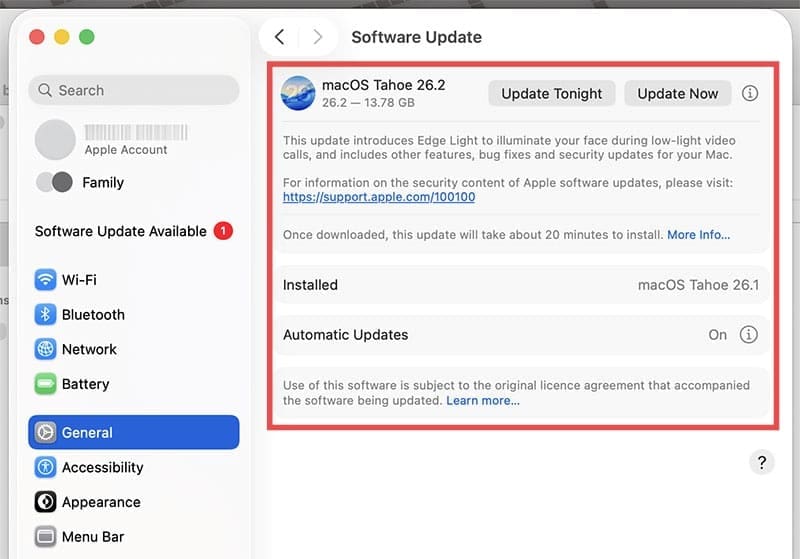
If all the cables and connections are intact, it’s worth checking for available OS updates. If your system needs updating, this could be the root of the problem.
Internet Settings
If you’ve ruled out your internet connection and software updates from the equation, you should move on to checking your internet settings.
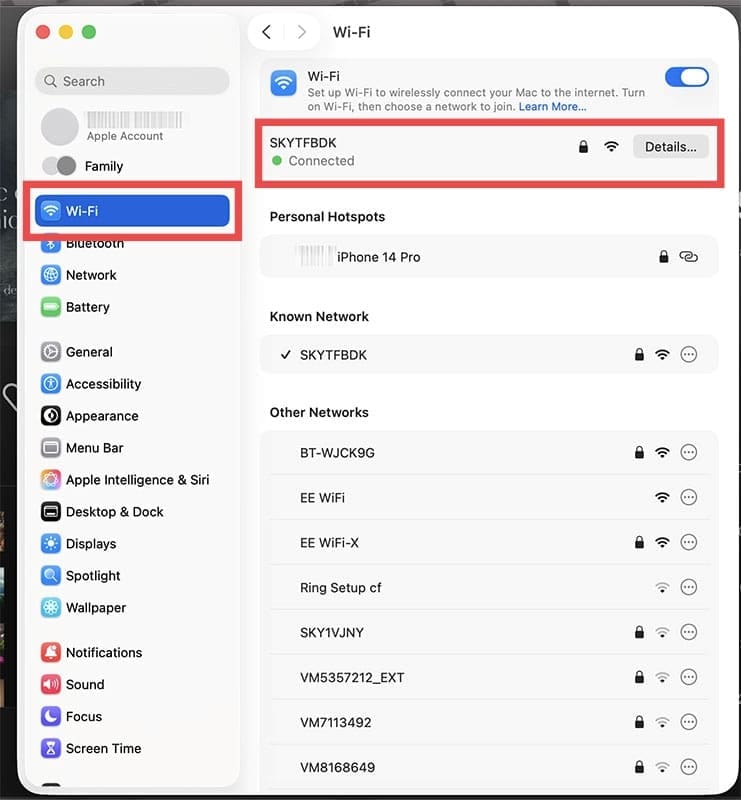
Step 1. Navigate to “Settings” in the dock at the bottom of the desktop screen.
Step 2. Click on “Network” or “Wi-Fi” and check your connection status.
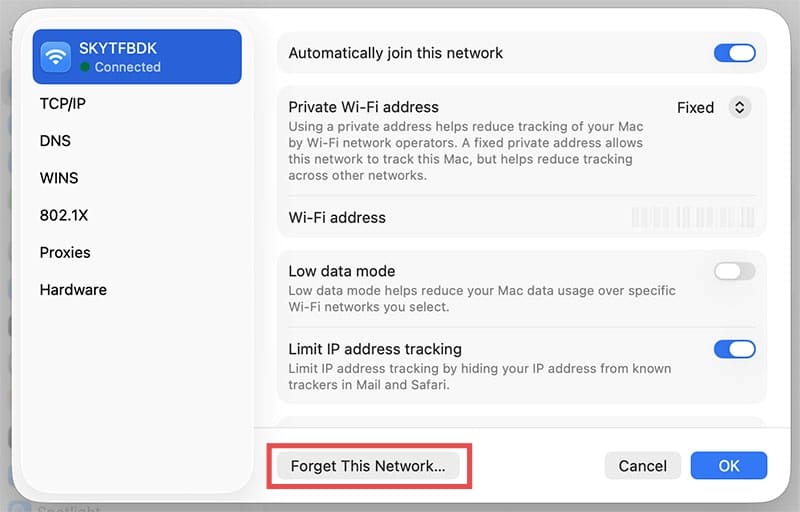
Step 3. If you see an issue or error message relating to your internet connection, try forgetting the network and rejoining by clicking on the “Details” button to the right of your network, and navigating to the “Forget This Network” button at the bottom of the window.
Clear the Cache, Cookies, and Browsing History
If your internet connection isn’t the issue, you should try clearing the browsing history and cache as this can often resolve performance and page loading problems.
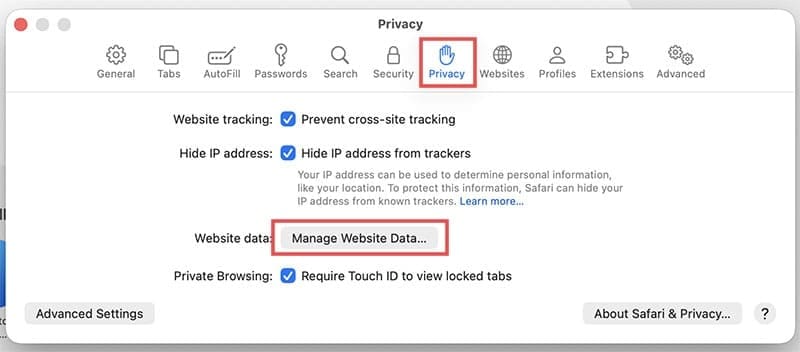
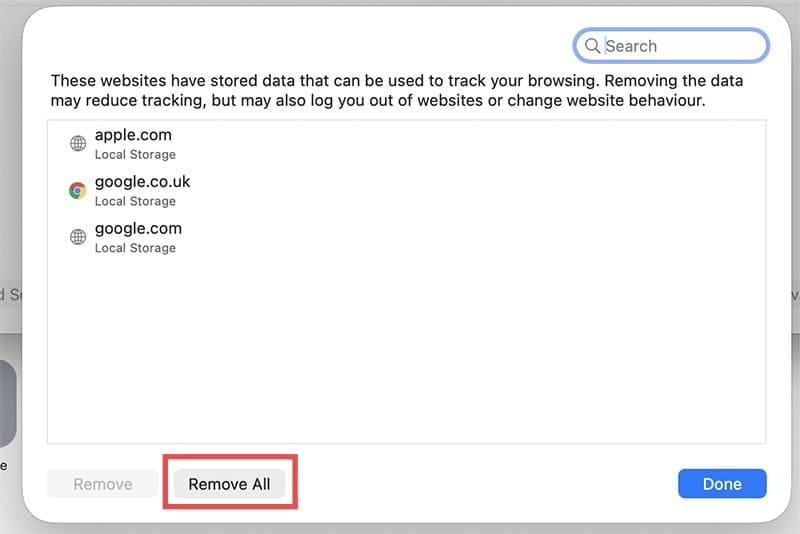
Step 1. Go to “Safari” then “Settings” and select “Privacy.”
Step 2. Click “Manage Website Data” and select “Remove All.”
You can also alternatively use the “Clear History” option under the “History” menu.
Disable Extensions
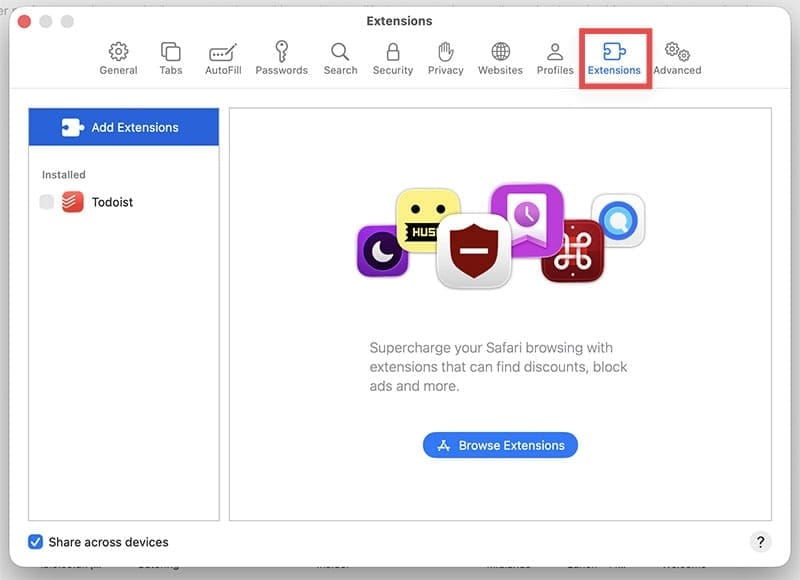
Your next item to check is to look at installed extensions. Any that are outdated or incompatible are frequent sources of issues relating to Safari crashing or not loading properly. This is particularly common after a macOS update. You should disable the extensions one at a time to identify which one is causing the problem.
Step 1. Disable all extensions by navigating to “Safari” “Settings” and “Extensions.” If Safari works after this, re-enable them one at a time until you find the problematic ones.
Advanced Options
If none of the fixes above have resolved the issue, there are more advanced options you can try, but proceed with caution and only attempt these if you feel confident enough working with advanced settings and configurations.
Booting in Safe Mode
If the issue persists, you can boot the in Safe Mode in order to isolate and eliminate problematic startup programs and extensions. If Safari works in Safe Mode, you’ll know the problems lie with one or more startup apps or settings. You can then identify which are causing the conflict through a process of elimination, removing and reinstalling programs and items until you discover the problem.
Step 1. If your Mac has an Intel chip, restart the computer and hold the “Shift” key until the login screen appears, and select “Safe Mode.” On Apple Silicon Macs (M1, M2, M3, and M4), hold the power button until “Options” appears, then select “Safe Mode.”
Step 2. Try running Safari. If it works, you’ll know this issue is with a particular program or startup protocol. You’ll need to discover which by trial and error, making sure you don’t delete any system- critical software or settings.
Resetting NVRAM or PRAM
As a last resort, if all other options have failed, you can reset the Non-Volatile Random Access Memory (NVRAM) or the Parameter Random Access Memory (PRAM). These are the types of memory in Macs that store system settings and configuration information even when the computer is switched off. You can do this by simultaneously holding down the “Option,” “Command,” “P,” and “R” keys.
Note that this option isn’t available on newer Mac Silicon machines, as these systems self-manage the memory, offering no option for user reset.
As an avid gamer, I’ve run into my fair share of error codes and weird faults that have forced me to find fixes to problems I never anticipated. That gave me a passion for sharing those fixes with others so we can all game without feeling like our hardware is rebelling against us.











Write a Comment