The Apple Watch is one of the most personal devices you own. It’s on your wrist all day, every day. Whether you want to display your fitness progress, keep track of the weather, monitor your stock portfolio, or simply show off a beautiful design, Apple Watch faces come into play. And despite the breadth of options, changing your watch face is easier than you might think, so here are some tips and tricks for customizing Apple Watch face.
Tip 1: Edit Your Watch Face Directly from Your Wrist
The fastest way to customize your current watch face is to edit it directly on your Apple Watch. You can make most quick adjustments without needing your iPhone.
Step 1. Press and hold the watch face currently displayed on your screen. The face will zoom out and show edit options.
Step 2. Tap the Edit button at the bottom of the screen.
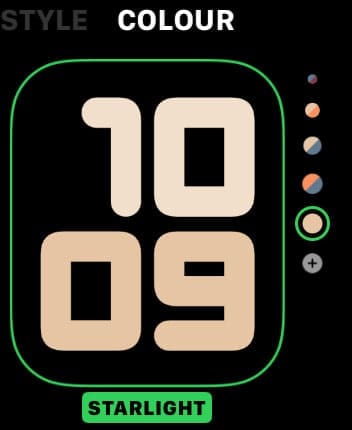
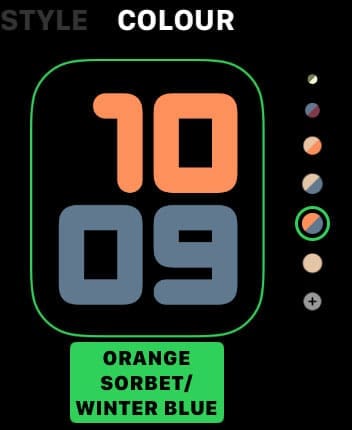
Step 3. You will see a series of customization screens. Swipe left and right to navigate through the different customization options, which typically include color, style, numerals, and complications.
Step 4. When you find an option you want to change (like the color), tap it. Rotating the Digital Crown (the dial on the side of your watch) will cycle through your options.
Step 5. Tap the up arrow at the top to move to the next customization screen, or tap the checkmark to finish customizing.
Tip 2: Use the Watch App on Your iPhone for Advanced Customization
The Watch app on your iPhone is practically the only way to preview every option available to you, so if you’re wondering how to customize your Apple Watch face, it’s by far the most straightforward option.
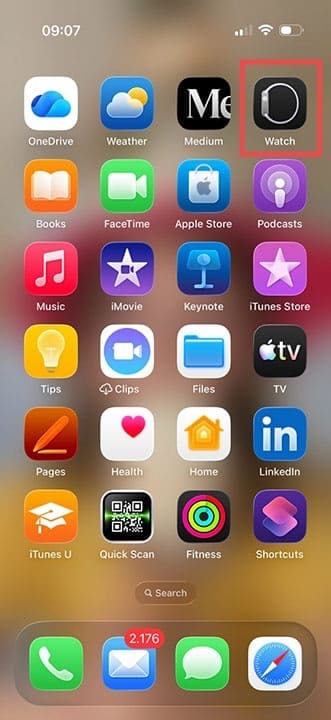
Step 1. Open the Watch app on your iPhone.
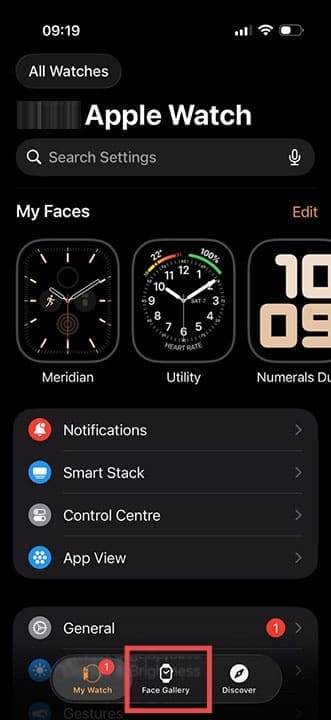
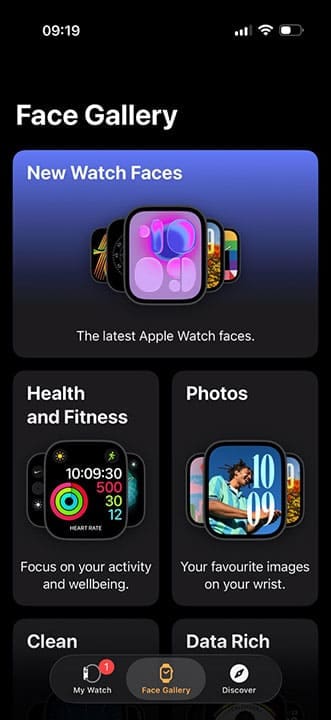
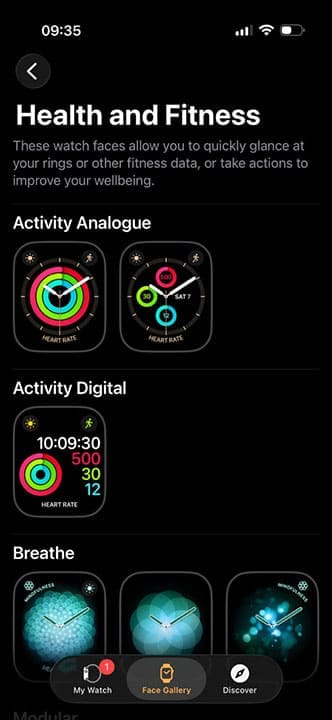
Step 2. Tap the Face Gallery tab at the bottom of the screen. This shows all available watch faces.
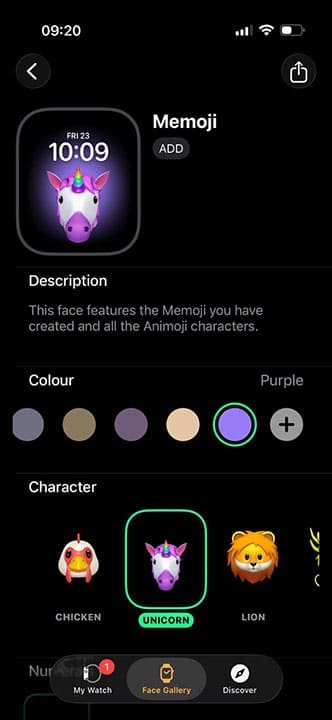
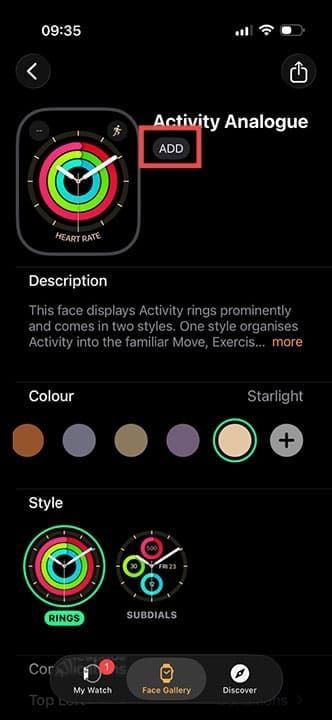
Step 3. Tap on a watch face you want to add or customize. A preview will appear showing what the face looks like.
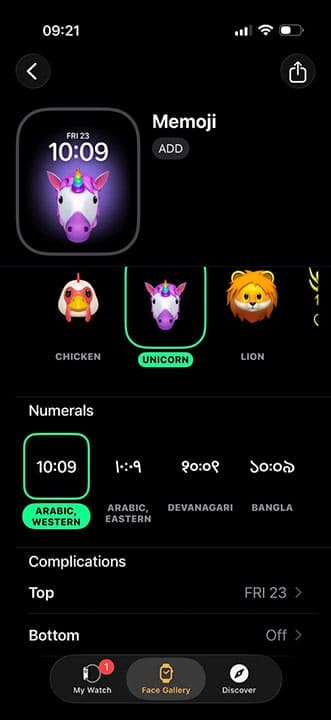
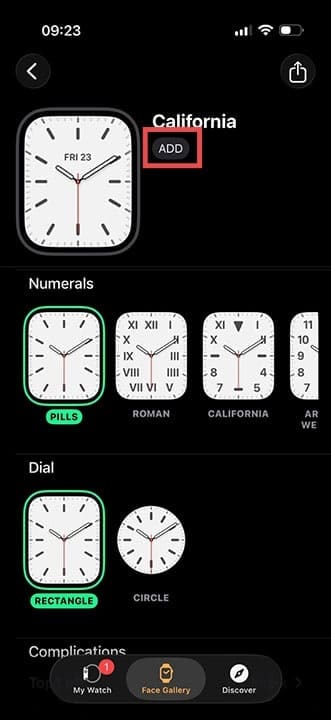
Step 4. Here you can customize the watch face. You will see color options, style variations, and a section for adding complications.
Step 5. To add a complication, tap the area where you want it (usually marked with a plus sign), then select an app from the list provided. Note that not all complications exist for all apps or on all watch faces.
Step 6. Once you are happy with your design, tap “Add” to save the new watch face or “Save” if you are editing an existing one.
Tip 3: Keep Multiple Watch Faces for Different Scenarios
One of the most powerful customization tricks is creating multiple watch faces optimized for different situations – work, exercise, sleep, or personal time.
Step 1. Open the Watch app on your iPhone and go to Face Gallery.
Step 2. Find a watch face you want to duplicate or create a new variation of. Customize it according to your needs (for example, a minimalist face for work with just time and calendar, or a fitness-focused face showing your activity rings).
Step 3. Tap “Add” to create this new watch face.
Step 4. Repeat this process to create additional faces for other purposes. You can have up to 10 watch faces.
Step 5. On your watch, press and hold the current watch face and swipe left and right to cycle through all your available faces. Tap one to switch to it instantly.
Tip 4: Use Smart Stack for Multiple Complications on Tap
Smart Stack provides a swipeable collection of full-screen widgets that auto-rotate based on context, accessible from any watch face.
Step 1. On your Apple Watch, swipe up from the bottom of any watch face (or rotate the Digital Crown upward) to open the Smart Stack.
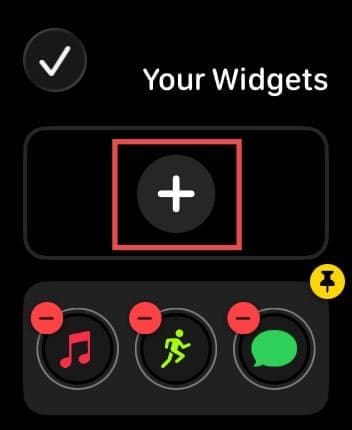
Step 2. Tap the Edit button, then tap the + button to add new widgets.
Step 3. Tap to add complications to the stack. You can add 5-10 different complications, each from a different app or showing different data from the same app. Use the − button to remove widgets, or tap the pin icon on ones you want to keep visible at the top.
Step 4. Your watch can automatically rotate through the stack based on which information is most relevant. For example, if you have a calendar complication, it might show up more prominently during work hours.
Step 5. In the Smart Stack view on your watch, you can swipe up and down or rotate the Digital Crown to manually cycle through the complications at any time.
Tip 5: How to Do Custom Apple Watch Faces With Third-Party Apps
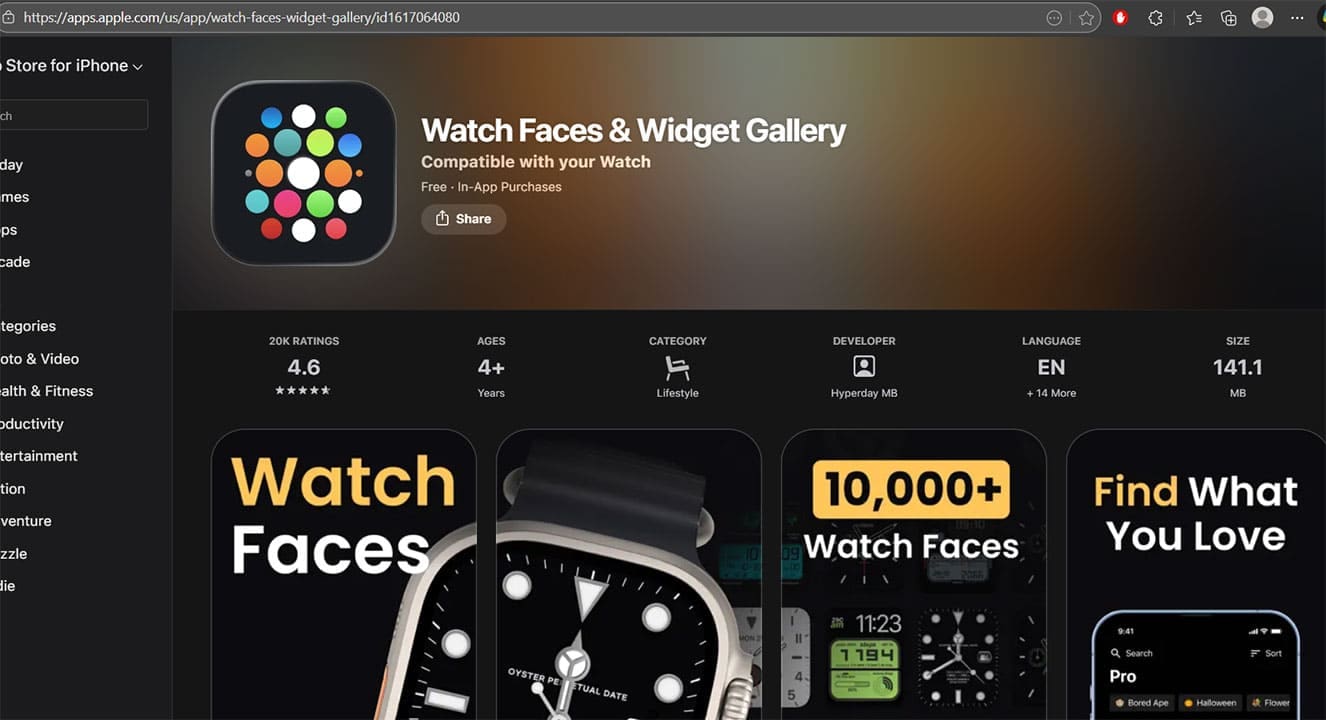
If you don’t quite like the stock options, you can use third-party tools and apps.
Step 1. Open the Watch app on your iPhone, or open the App Store directly on your watch.
Step 2. Search for watch faces or browse the featured section for apps that offer watch face options.
Step 3. Download and install your favorite watch face apps (use the “Add to My Faces” option). Many are free, though some premium options charge a one-time fee or subscription.
Step 4. Once installed, go to the Watch app on your iPhone and navigate to “Face Gallery.” The new watch faces will appear in your available options.
Step 5. Customize these third-party faces just like Apple’s built-in faces, adding complications and adjusting colors and styles.
Popular third-party watch face apps include Carrot Weather (for detailed weather displays), Timing (for world clocks), and various gaming-themed faces for sports enthusiasts.
As an avid gamer, I’ve run into my fair share of error codes and weird faults that have forced me to find fixes to problems I never anticipated. That gave me a passion for sharing those fixes with others so we can all game without feeling like our hardware is rebelling against us.















Write a Comment