Microsoft Teams can become a surprising drain on your Mac’s resources, particularly CPU and memory, preventing other processes from working properly. If you get Microsoft Teams hogging all resources Mac can get, there are a few ways to improve performance.
Fix 1: Disable GPU Hardware Acceleration When Microsoft Teams Hogging All Resources (Mac)
Counterintuitively, disabling hardware acceleration (which should reduce the CPU load by using graphics instead) can actually improve performance on many Macs. This is especially notable for older devices where the graphics card doesn’t actually get activated for Teams.
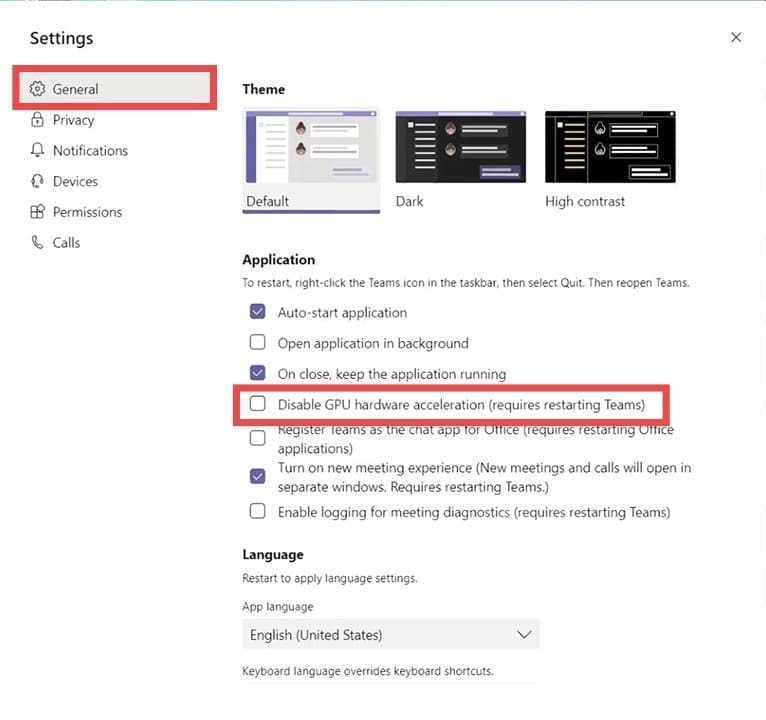
Step 1. Click on your profile picture in Teams then select “Settings.”
Step 2. Go to the “General” tab.
Step 3. Turn the setting “GPU hardware acceleration” to off.
Step 4. Restart Teams.
Fix 2: Limit Background Activity to Fix Microsoft Teams Hogging Resources
Teams continues running a process (or few) even when you’re not actively using it. In some cases, this can present as a resource hog when you also have a bunch of other background apps.
Step 1. Open Teams and go to Settings.
Step 2. In the “General” tab, disable “Auto-start application” to prevent Teams from launching at login.
Step 3. Turn off “On close, keep the application running” so Teams actually quits when you close the window.
Fix 3: Clear the Teams Cache
Teams stores significant amounts of cached data. While this improves loading times for large channels, it can slow an older Mac. The cache might also get corrupted or duplicate itself if Teams gets a bad update, which increases the risk of resource hogging.
Step 1. Quit Teams completely from the menu bar.
Step 2. Open Finder and press “Command + Shift + G.”
Step 3. Go to “~/Library/Application Support/Microsoft/Teams” by entering this in the address bar.
Step 4. Delete the contents of the following folders: cache, blob_storage, databases, GPUCache, and Local Storage.
Step 5. Restart Teams from your Applications folder and sign in.
Fix 4: Reduce Notifications and Chat Activity
Constant notifications means Teams is always running in the background so it’s one more process that takes up CPU time.
Step 1. In Teams, go to Settings, then to “Notifications.”
Step 2. Select which alerts you receive, then disable activity feed notifications for less critical items.
Step 3. Close unused chat windows and channels to reduce active connections.
Fix 5: Update to the Latest Version
While unlikely to help, you should ensure that Teams is on the latest version possible, which should improve performance. You can do that by going to the app’s setting and selecting “Updates.”
Fix 6: Reduce Video Quality in Meetings
Lowering video quality can significantly reduce resource consumption if you’re experiencing Microsoft Teams hogging all resources Mac has.
Step 1. Go to Settings, then choose “Devices.” Turn down the resolution options.
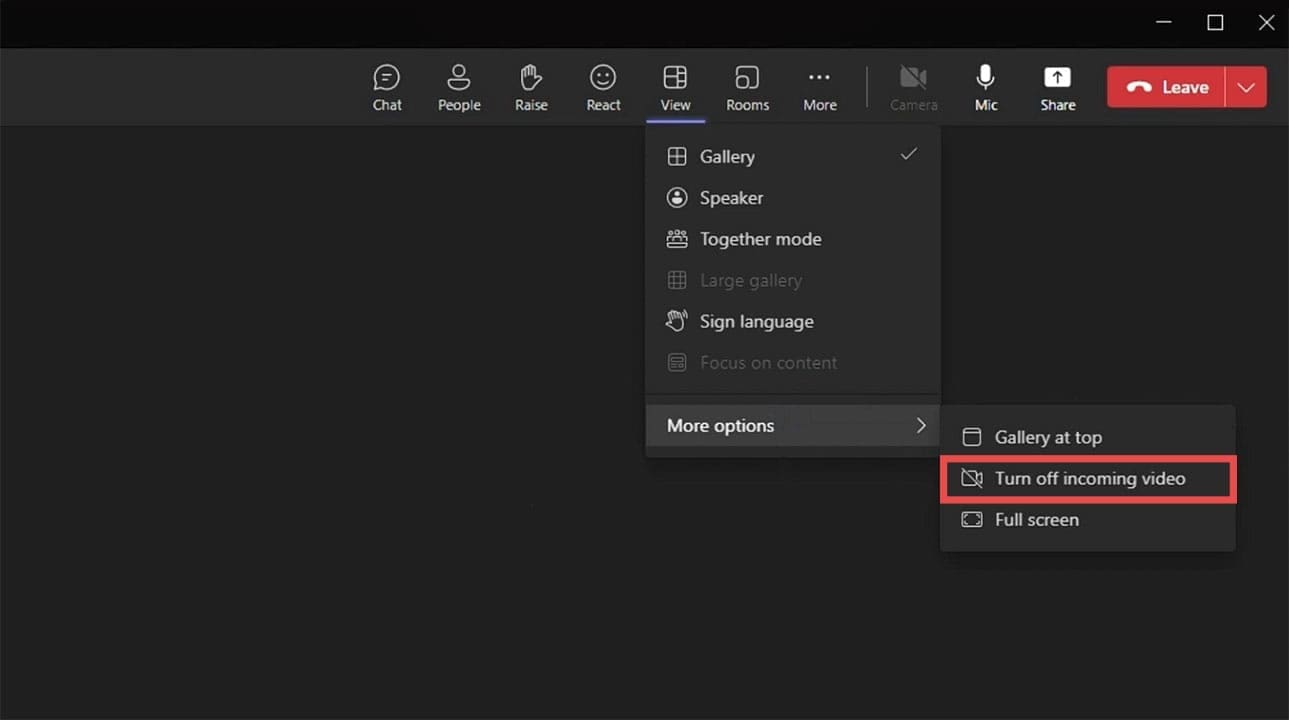
Step 2. In meetings, use the “Turn off incoming video” option if you don’t need to see other participants.
Step 3. Switch to audio-only mode when possible.
Fix 7: Use the Web Version
If the desktop app continues to be problematic, the web version typically uses fewer resources.
Step 1. Open Safari or Chrome and go to teams.microsoft.com.
Step 2. Sign in with your Microsoft account.
Step 3. Use Teams directly in your browser. While it has some feature limitations, it consumes less memory.
Fix 8: Reinstall Teams
As a last resort, a complete uninstall and reinstall often resolves persistent performance issues.
As an avid gamer, I’ve run into my fair share of error codes and weird faults that have forced me to find fixes to problems I never anticipated. That gave me a passion for sharing those fixes with others so we can all game without feeling like our hardware is rebelling against us.














Write a Comment