Have you ever tried to download something onto your Mac that you know is safe, but your machine disagrees? Common error messages include “Apple cannot check ‘[app]’ for malicious software,” or a warning that the developer cannot be verified.
As well as warning you of the potential issue, macOS may block the app from opening, which can be very frustrating. This is part of Apple’s Gatekeeper technology, which is designed to help ensure that only trusted software runs on your Mac.
However, there are ways to get around these Malware Blocked Mac messages if you’re 100% confident that what you’re downloading is safe. Just remember, the security protocols are in place for your protection, so be very sure before you start circumventing them.
All Mac devices have a built-in technology called Gatekeeper, which is a security feature that scans apps to ensure that they’re from a trusted developer.
Newer versions of macOS also check for something called notarization, which is a mark within the app or software that shows it has been checked by Apple for malware.
Non-notarized software, or apps from an untrusted developer, will be blocked on most modern Macs. That includes plugins, apps, and any downloads that come with an installer. All the Gatekeeper processes are entirely automatic, with no input required from you.
Malware Blocked Mac Messages: How to Bypass
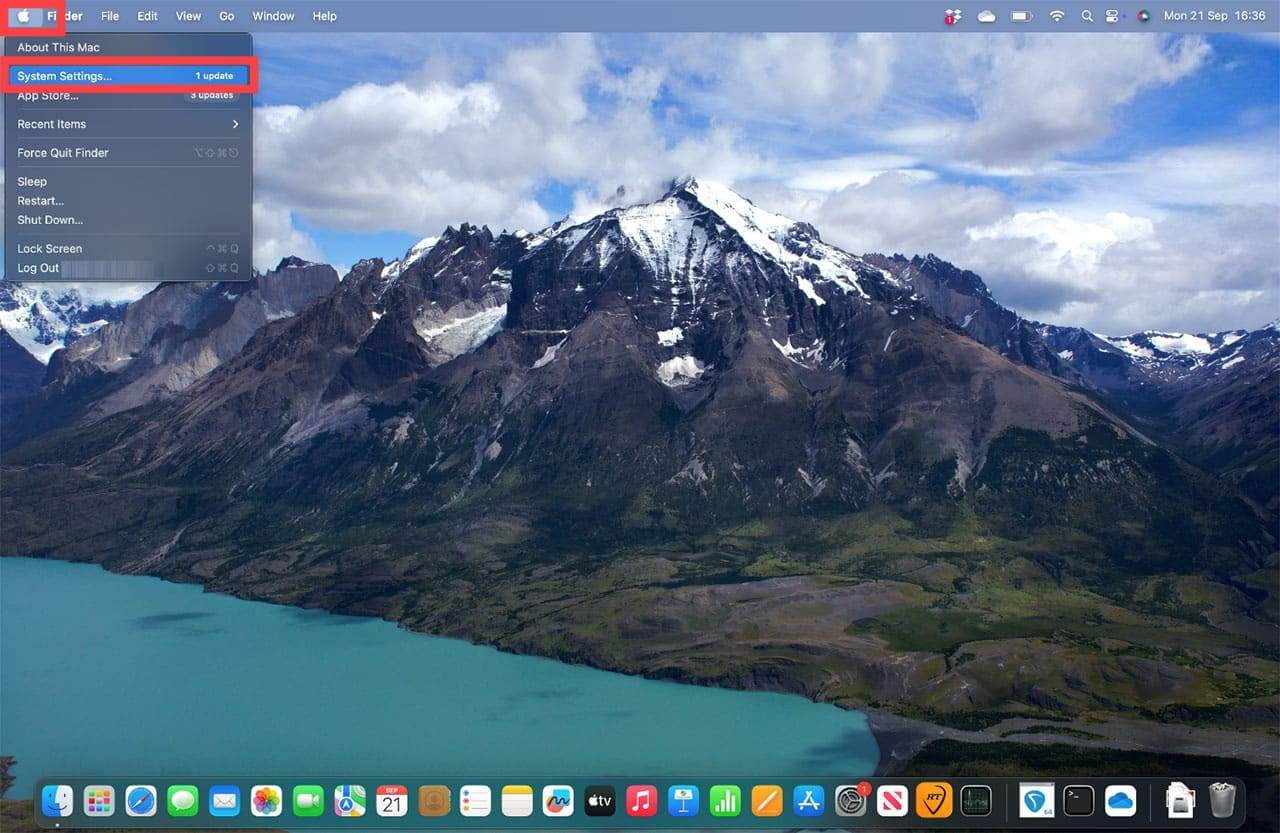
Step 1. If you’re certain that the app is from a trustworthy source and hasn’t been tampered with, there are ways to temporarily override Gatekeeper’s security warnings. One option is to allow apps downloaded from the App Store and identified developers. Start by going to the Apple menu and opening System Settings.
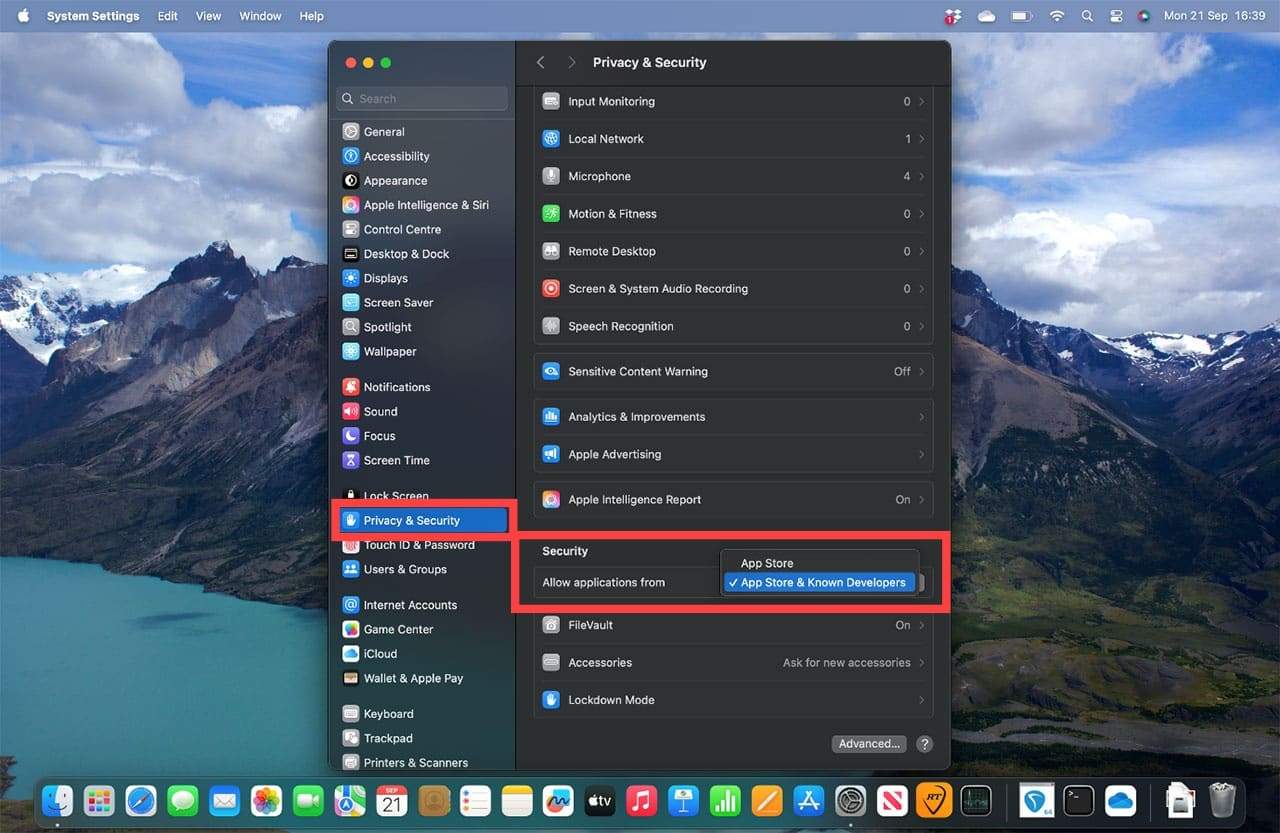
Step 2. Go to “Privacy & Security” and scroll down to “Security.” Under “Allow applications from,” select “App Store and Known Developers.”
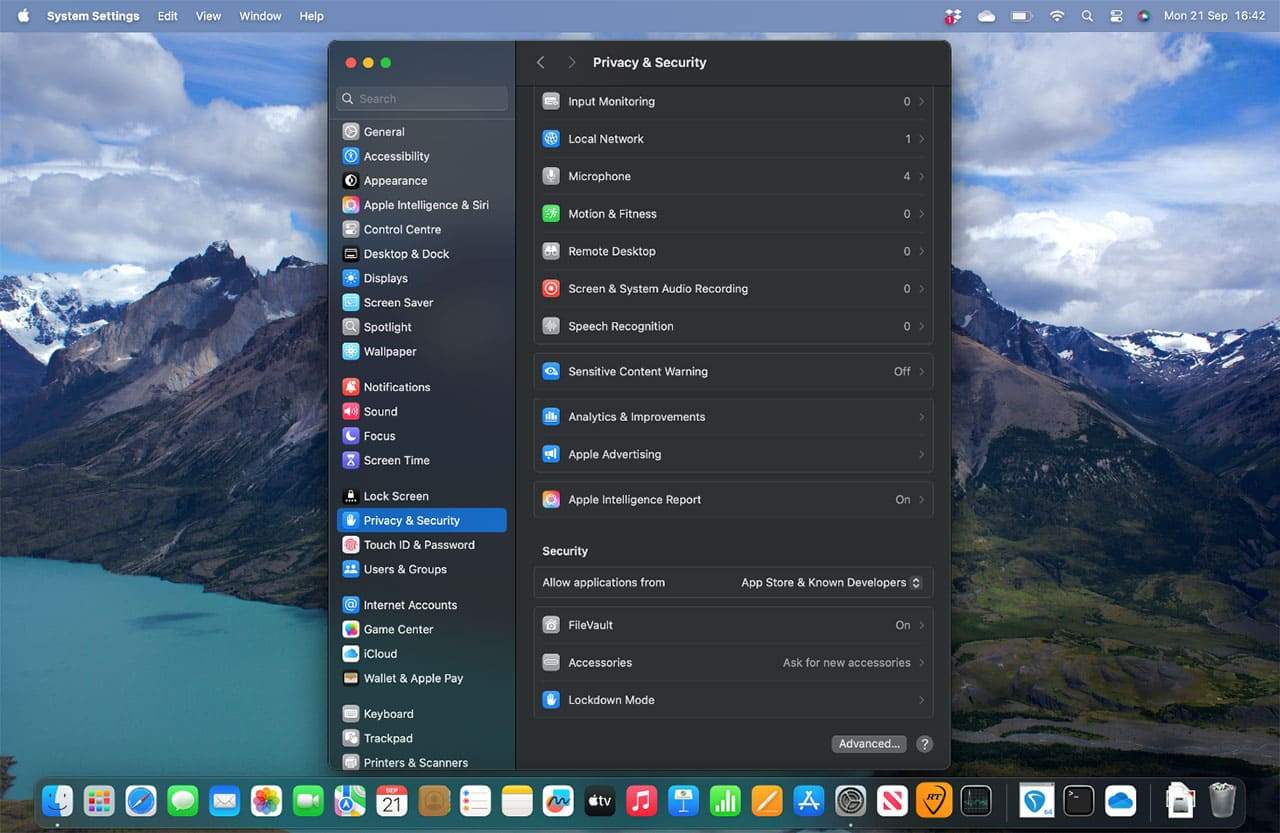
Step 3. Once you’ve clicked that option, it should appear in the box next to “Allow applications from.” You can now download apps and plugins from trusted developers outside the App Store.
Malware Blocked Mac Messages: Non-Notarized Software
Some apps and plugins aren’t notarized, as they haven’t sent their software to Apple for a security check. Some smaller developers may legitimately be in this position. However, software that isn’t notarized hasn’t received Apple’s notarization check for known malware, so exercise caution. Follow these steps for bypassing Gatekeeper for non-notarized apps:
Step 1. Try to open the app you downloaded.
Step 2. You will see the Malware Blocked Mac message, and options for “Done” or “Move to Trash.”
Step 3. Press Done.
Step 4. Now head to System Settings > Privacy & Security > Security.
Step 5. Under “Security,” you should see a message saying that the app was blocked to protect your Mac, along with an “Open Anyway” button
Step 6. Click “Open Anyway,” then confirm that you want to open the app when the warning appears
You may need to do this for each app that macOS blocks, but only the first time you open that app. The app is saved as an exception to your security settings, so you can open it normally in the future.
As an avid gamer, I’ve run into my fair share of error codes and weird faults that have forced me to find fixes to problems I never anticipated. That gave me a passion for sharing those fixes with others so we can all game without feeling like our hardware is rebelling against us.












Write a Comment