Many Zoom users complained the app sometimes gets stuck on “Connecting…” when starting or joining a meeting. This problem usually occurs shortly after installing the latest Zoom updates. Restarting your Mac after updating Zoom should fix the problem for most users. But if the issue persists, pursue the troubleshooting solutions below.
If Zoom is stuck on the “Connecting to audio” screen, this indicates you need to tweak your settings so as to allow the app to use your microphone and camera. On the other hand, if the app is stuck on “Connecting” at all, this appears to be a network or server issue.
Go to Zoom’s service status page and check if there are any known issues that might explain why the app is stuck on “Connecting”. Additionally, check if other users reported similar problems.
Edit Your Security & Privacy Settings
Click on the Apple menu and go to System Preferences.
Then click on Security and Privacy.
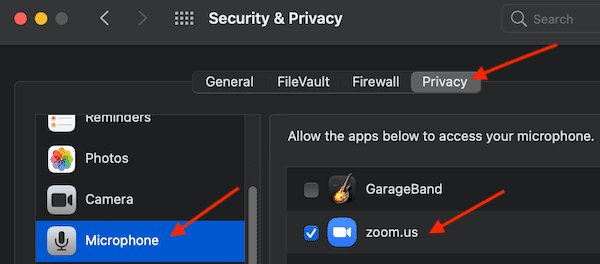
Select the Privacy tab and click on Microphone.
Make sure Zoom is allowed to access and use your microphone.
Do the same for your Camera settings and allow the app to use your camera as well.
Restart Zoom and check if this quick solution solved the problem.
Check Your Connection
Make sure you have enough bandwidth to support Zoom video calls. Keep in mind that video meetings require quite a lot of bandwidth and the app may stop working if there’s not enough bandwidth for its needs. Disconnect all the other devices connected to the network and ensure your Mac is the only device using the connection.
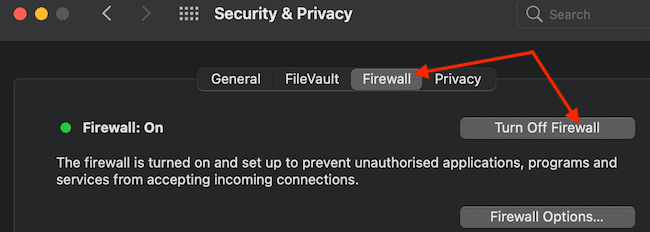
Additionally, restart your router and check if there are any firmware updates. Disable your VPN and firewall, switch to a different network and check the results. Go to System Preferences, select Security & Privacy and click on the Firewall tab to disable the tool.
If the issue persists, change your DNS settings.
Click on the Apple menu, select System Preferences and click on Network.
Select your connection and click on Advanced.
Click on DNS and hit the + button.
Enter your new DNS settings and check the results. For example, you can use Google’s public DNS settings (8.8.8.8 and 8.8.4.4 for IPv4, or 2001:4860:4860::8888 and 2001:4860:4860::8844 for IPv6). Or you can use OpenDNS (208.67.222.222 and 208.67.220.220).
Save the settings and test your connection.
Reinstall Zoom
If you still can’t use the app, uninstall it from your Mac and restart your machine. Then reinstall Zoom from their website and check if you can launch and join video meetings.
Additional Solutions
A number of users confirmed the solutions below worked for them. While they may not do the trick for all of you, it’s still worth giving them a try.
Remove extra audio cables. If the problem persists, disconnect all non-essential peripherals, restart Zoom and check if the app works as intended.
If you’re using a Wi-Fi extender, connect your Mac to the main Wi-Fi network and check if Zoom launches properly.
Disable your antivirus. If you’re using an antivirus on your Mac, disable the tool and launch Zoom again. Certain antivirus solutions may occasionally block your connection to Zoom’s servers. Alternatively, you can edit your antivirus settings and add an exception for Zoom.
Copy the meeting ID in the Zoom app. For some weird reason, using the redirect link doesn’t always work. Zoom connects but fails to actually join the meeting.
Are you running other apps that might be using your MacBook’s camera and mic? If you do, close them and restart Zoom. These apps might be preventing Zoom from accessing your mic and camera.
Conclusion
If Zoom gets stuck on “Connecting…”, check your network settings. Then, make sure the app can access your mic and camera. Additionally, disable your antivirus, firewall and VPN and close all the other apps that might be using your Mac’s camera and microphone. If the issue persists, reinstall a fresh copy of Zoom. Did these tips help you troubleshoot the problem? Which solution worked for you? Share your feedback in the comments below.
Madalina has been a Windows fan ever since she got her hands on her first Windows XP computer. She is interested in all things technology, especially emerging technologies — AI and DNA computing in particular.
I have always had firewall settings and have not changed any router or dns. Zoom camera and mic are allowed. No settings changed. However, I upgraded to Mac – Monterey OS and since then cannot use the zoom app on my laptop. I do not want to turn off my firewall. I looked for the plst files noted below, but there weren’t any. I uninstalled and reinstalled the app. No luck. Will there be any hot fixes from zoom in the coming weeks? Using the browser is problematic, because the audio does not work well through the browsers. I have to phone in to all my conferences. It’s a workaround, but an update would be greatly appreciated.
This is not a Monterey issue. I had this problem crop up a few days prior to Monterey. See the fix in this forum provided by Glenn Marks. He solved it!
I was having the same problem and following is what fixed it.
What you need to do here is to open the Finder on your Mac. From Finder, click on Go on the top and from there, paste the directory which is ~/Library/Preferences/ZoomChat.plist
This will directly open the folder and you will see the file ZoomChat.plist in the folder. You can go ahead and delete the plist file from that folder. Please make sure you quit the Zoom Desktop application first before doing these steps.
1) Quit Zoom (Sign out and quit)
2) Locate the ZoomChat.plist in the folder and delete it.
3) Uninstall the Zoom desktop app from your computer
4) Restart the computer.
5) Reinstall the Zoom app by downloading it from zoom.us/download.
It is very important to restart the computer after the uninstall and before the reinstall.
OMG thank you its been driving me nuts nothing else has worked and I was tired of switching to my windows bootcamp to use zoom bc I couldn’t get the microphone to work on the browser version
We have faculty computers all created the same. But I had one with this issue, why I don’t know but there it is. I deleted the file in Application Support and reinstalled Zoom, this didn’t work. This solution above solved the problem. It’s that plist. Thank you 🙂
Hi Glenn,
That worked fabulously thank you so much. It caused me much angst when I had to dial in to my customer meeting yesterday on my iPhone and I couldn’t see anyone other than the person speaking at that time.
The zoom.us/download didn’t work for me, I’m over in UK (wrong region?) so I went to one of my zoom calendar meetings, clicked on the link, signed in, then it told me I didn’t have the client installed, gave me the option to install and like magic its working again! Stress relieved thank you!!!!
I ended up having to delete all Zoom plists for this to work (not just ZoomChat). But once I did that, it worked. Bloody life saver!! Thank you Glenn!!
Since the last upgrade from Apple, I am having problems with Zoom and a couple of other programmes. The Zoom login got to the page to enter my email address, but then a message comes up ‘A problem repeatedly occurred with ‘https://zoom.us/signing’. As I have just paid out for the second year of Zoom Pro, this is really frustrating.
None of solutions worked. Zoom app still stuck at “connecting” though joining through browser works, its only the app that doesn’t. I’m on macos bigsur 11.5.2
None of the solutions worked for me either. Ironically, it is only affecting my MacBook, I get exactly the same sign-in and can work the programme on my pc desktop.













Cannot install update
I have the same problem, o tried all the solutions you mentioned and still not working,
I have IOS Big Sur
I have been at it for three months. None of these solutions work. I even contacted zoom support and absolutely nothing.
Mine doesn’t work either… I’ve deleted and re-downloaded and all and nothing…
I’ve tried all the fixes, including Glenn’s. Nothing is working. I’m still in a never-ending loop. Any other possibilities?
Hi, I am having this exact issue both with zoom on chrome and now downloading the app only it is not a Mac. It is windows.
Any solutions?
You literally saved my Zoom life, which these days is about the same as real life!
Thank you for sharing this fix and for explaining it so clearly!
I have always had firewall settings and have not changed any router or dns. Zoom camera and mic are allowed. No settings changed. However, I upgraded to Mac – Monterey OS and since then cannot use the zoom app on my laptop. I do not want to turn off my firewall. I looked for the plst files noted below, but there weren’t any. I uninstalled and reinstalled the app. No luck. Will there be any hot fixes from zoom in the coming weeks? Using the browser is problematic, because the audio does not work well through the browsers. I have to phone in to all my conferences. It’s a workaround, but an update would be greatly appreciated.
I have the exact same problem with Zoom since the update to Monterey happened
This is not a Monterey issue. I had this problem crop up a few days prior to Monterey. See the fix in this forum provided by Glenn Marks. He solved it!
I am having this same issue. I thought I was going crazy.
I have issues logging into Zoom and it kept appearing error code 5003.
I was having the same problem and following is what fixed it.
What you need to do here is to open the Finder on your Mac. From Finder, click on Go on the top and from there, paste the directory which is ~/Library/Preferences/ZoomChat.plist
This will directly open the folder and you will see the file ZoomChat.plist in the folder. You can go ahead and delete the plist file from that folder. Please make sure you quit the Zoom Desktop application first before doing these steps.
1) Quit Zoom (Sign out and quit)
2) Locate the ZoomChat.plist in the folder and delete it.
3) Uninstall the Zoom desktop app from your computer
4) Restart the computer.
5) Reinstall the Zoom app by downloading it from zoom.us/download.
It is very important to restart the computer after the uninstall and before the reinstall.
Thank you so so much! This worked wonders. I’ve been struggling with this issue for a week now, and it’s finally solved. Bless up
OMG thank you its been driving me nuts nothing else has worked and I was tired of switching to my windows bootcamp to use zoom bc I couldn’t get the microphone to work on the browser version
Thank you so much! Tried everything else and this is what worked for me!
After the items in the article above failed to work, THIS worked. Thank you so much!
(MacBook Air, macOS Big Sur 11.3.1)
THIS. You are a LIFE saver!!!! I am jam packed with meetings for my new job and was at a complete loss. This is the FIX!!!!!
Thank you for this!! I can’t tell you how happy I am for your comment
We have faculty computers all created the same. But I had one with this issue, why I don’t know but there it is. I deleted the file in Application Support and reinstalled Zoom, this didn’t work. This solution above solved the problem. It’s that plist. Thank you 🙂
Thank you so much!!
Thank you so much! My zoom did not work for several weeks and It is fixed today !
-lin
Thanks so much. My Zoom quit working today & was dreading tomorrow without it operational & this fixed it!!!
Thank You! Thank You! I was literally thinking of buying a new laptop because I am in college and I have classes on Zoom.
I tried everything on my Mac and this worked!
Hi Glenn,
That worked fabulously thank you so much. It caused me much angst when I had to dial in to my customer meeting yesterday on my iPhone and I couldn’t see anyone other than the person speaking at that time.
The zoom.us/download didn’t work for me, I’m over in UK (wrong region?) so I went to one of my zoom calendar meetings, clicked on the link, signed in, then it told me I didn’t have the client installed, gave me the option to install and like magic its working again! Stress relieved thank you!!!!
GLENN THANK YOU KING
Thanks Glenn! Finally my Zoom app is working on my Apple again. Thank you for posting this solution!
Thank you so much Glenn! I finally managed to solve it after a few weeks. You are a lifesaver, really appreciate it.
OMG it works! You just saved my life.
You are a flippin’ life saver! Thank you sooo much!
I ended up having to delete all Zoom plists for this to work (not just ZoomChat). But once I did that, it worked. Bloody life saver!! Thank you Glenn!!
Since the last upgrade from Apple, I am having problems with Zoom and a couple of other programmes. The Zoom login got to the page to enter my email address, but then a message comes up ‘A problem repeatedly occurred with ‘https://zoom.us/signing’. As I have just paid out for the second year of Zoom Pro, this is really frustrating.
reinstalling zom immediately worked for me!
None of solutions worked. Zoom app still stuck at “connecting” though joining through browser works, its only the app that doesn’t. I’m on macos bigsur 11.5.2
Same for me, I am still encountering the same issue also after upgrading to Big Sur 11.6
Hi, I am having the exact same issue with my MacBook Air. On my OTHER Mac Zoom connects fine. Did you ever find a solution to this issue?
None of the solutions worked for me either. Ironically, it is only affecting my MacBook, I get exactly the same sign-in and can work the programme on my pc desktop.
Same thing for me on ios big sur, stuck on connecting. zoom sucks but unfortunately forced to use it.
ditto! Same issue! My Zoom is still not working on Macbook air.