When Apple debuted macOS Monterey alongside iOS 15 and iPadOS 15 at WWDC 2021, it was clear that the company is attempting to take privacy concerns to the next level. In a world filled with spam calls and applications that don’t exactly work as advertised, it’s more important than ever to keep your information and accounts secure. This includes things like the microphone and camera built into your different devices.
Now that Monterey is available, along with the new versions of iOS and iPadOS, your devices will now let you know when an app is using either the microphone or the built-in camera. It’s why you see the little icons appear in the status bar when you open the Camera app or Snapchat, because those apps are using one or both of those pieces of hardware.
Zoom App Listening On Microphone When Not in a Meeting
After the pandemic started, one app flew to the top of the App Store charts as it made video and conference calls easier than ever. Almost two years later, Zoom remains one of the most popular apps on the App Store. It has seen a bit of a rocky lifespan, following more than a few privacy concerns, but there’s another issue going around following a recent update.
Many users have reported that the Zoom app is continuing to use your microphone even if you’re no longer in a meeting. This is a problem on multiple fronts as the app could be seen as trying to bypass Apple’s implemented rules for recording audio even when the app is not actively being used. Another area of concern is simply battery life as you don’t want to have a rogue app working constantly in the background just to end up draining your battery faster than you’re used to.
Is The Microphone On?
In order to check and see what app is using either the microphone or camera, you can do so by following these steps:
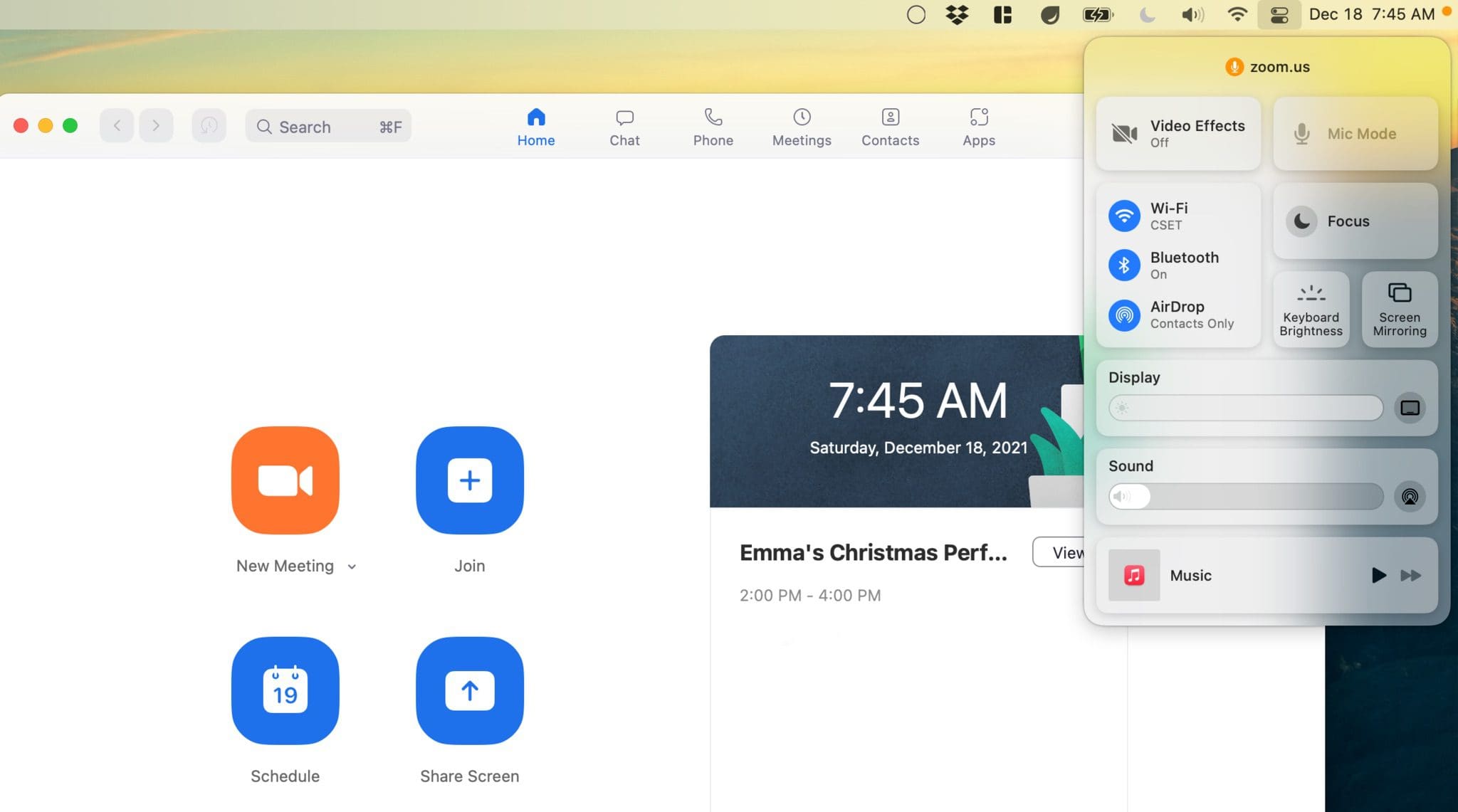
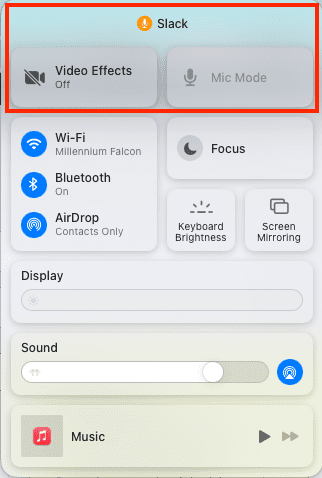
If you see an indicator dot in the Menu Bar, click the Control Center icon.
At the top of Control Center, you’ll see the name of the app using the microphone or camera.
From there, you can either just quit the app entirely or click one of the toggles to disable access to the mic or camera. On one hand, we’re thankful to see that the current problem is limited to the Mac, as you also don’t want the problem to be occurring on either your iPhone or iPad. But on the other, it’s still problematic that any app features a bug that continues to do things that it shouldn’t be doing.
Fix Zoom App Listening On Microphone
Luckily, the developers of Zoom have recognized the problem and have issued a hot-fix while providing a statement:
We experienced a bug relating to the Zoom client for macOS, which could show the orange indicator light continue to appear after having left a meeting, call, or webinar. This bug was addressed in the Zoom client for macOS version 5.9.3 and we recommend you update to version 5.9.3 to apply the fix.
As always, we recommend users make sure their Zoom client is updated to the latest version. Users can also opt-in to Automatic Updates by selecting “Automatically keep Zoom desktop client up to date” in your Zoom client settings.
As is the case with most applications, you have the ability to have updates downloaded and installed automatically (in the background), or to manually update them yourself. Zoom is one of the apps that allows for automatic update installations, so you’ll just need to enable that in the Settings of the app. Or, you can head over to the Zoom website and manually download the latest version in order to fix this pesky bug.
Andrew Myrick is a freelance writer based on the East Coast of the US. He enjoys everything to do with technology, including tablets, smartphones, and everything in between. Perhaps his favorite past-time is having a never-ending supply of different keyboards and gaming handhelds that end up collecting more dust than the consoles that are being emulated.











Write a Comment