If you edit tens of documents every day, the copy-paste combo is crucial for your productivity. Unfortunately, copy-paste may sometimes stop working on macOS. When this issue occurs, you usually get an error message that reads: “Sorry, no manipulations with Clipboard allowed“. If restarting your Mac fails to fix the problem, follow the troubleshooting steps below.
How Do I Fix “Sorry, No Manipulations with Clipboard” on Mac?
Get the Latest Updates
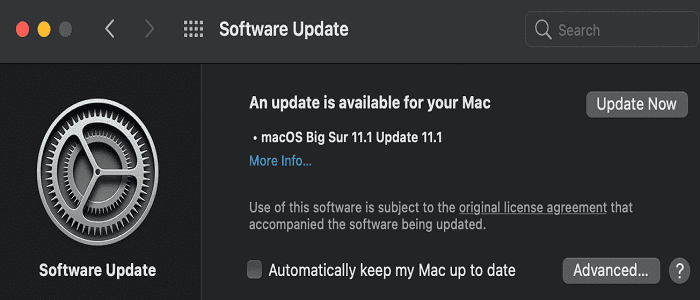
If this issue affects multiple apps and documents, this indicates something’s wrong with your system. Update your machine to the latest macOS version, and check if you notice any improvements. Go to System Preferences, click on Software Update, and hit the Update Now button.
Additionally, launch the App Store and check if there are any pending updates. Be sure to update all of your apps to the latest version.
Use a Different User Account
Create a new user account or use an existing one, such as your Guest account, and check if the copy-paste feature works properly. If you can use the copy and paste commands without any problems on the Guest account, try rebuilding the Launch Services database.
To do that, launch Terminal and run the following command: /System/Library/Frameworks/CoreServices.framework/Versions/A/Frameworks/LaunchServices.framework/Versions/A/Support/lsregister -kill -r -domain u -domain s -domain l -v
Kill Pboard and Trash the Preferences Files
PBoard or the PasteBoard process is the built-in Clipboard daemon for macOS. Force-stop it and check if this quick solution solves the problem for you.
Launch Finder, and go to Applications.
Select Utilities and click on Terminal.
Then, run the sudo killall pboard command.
Enter your password when prompted.
If copy-paste still won’t work, try trashing the com.apple.finder.plist and com.apple.sidebar.plist Preferences files.
Launch Finder again, and click on the Go menu.
Select Go to folder and enter ~/Library/Preferences/com.apple.finder.plist
Click Go and delete the .plist file.
Then, do the same for com.apple.sidebar.plist
Restart your computer and check if you can use the copy and paste commands.
Conclusion
To fix “No manipulations with Clipboard allowed “, update macOS and all of your apps to the latest version. Then, use a different user account and rebuilt the Launch Services database. If you still can’t use the copy-paste commands, kill the Pboard process and trash the Finder and Sidebar Preferences files.
Did you manage to solve the problem? If you found other solutions to fix this issue, share your ideas in the comments below.
Madalina has been a Windows fan ever since she got her hands on her first Windows XP computer. She is interested in all things technology, especially emerging technologies — AI and DNA computing in particular.












Write a Comment