If your desktop contains both a Windows PC and a Mac, you might be thinking about streamlining the desk space with Mac and PC mouse and keyboard sharing. While this might sound complicated at first, the simplest versions of this setup are actually fairly easy to make if you get the right software. Here are some of the best options.
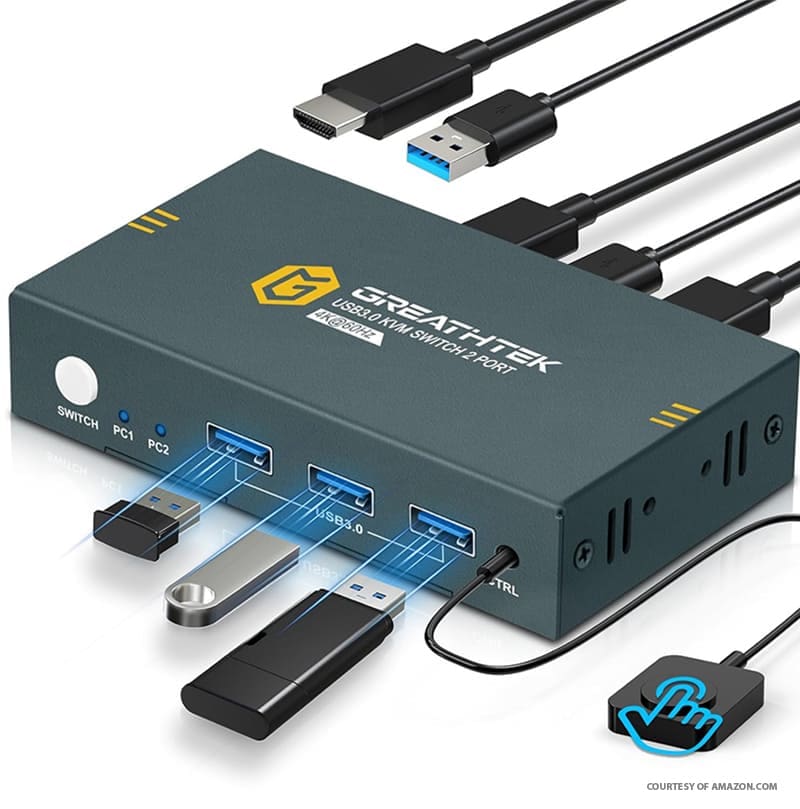
KVM switches are by far the least technical solution for Mac and PC mouse and keyboard sharing, being a physical “hub” for your peripherals to connect to, which is then distributed to the PCs. Even the more “modest” switches have at least two USB ports for the keyboard and mouse followed by an HDMI input-output system for the monitor (which you don’t have to use). Some models also accept wireless peripherals.
In most cases, KVM switches are configured at the hardware level, by setting up all the peripherals into the hub and then connecting the hub to the PCs. The physical switch or button then controls which PC receives the input signals (or outputs video to the monitor).
Option 2: Logitech Mouse and Keyboard
Logitech has developed proprietary software that works similarly to a virtual KVM switch, allowing you to use one mouse and keyboard for both Mac and PC so long as they’re both compatible with the software. Called “Logitech Flow,” the mouse is the operating part of the combo, with the keyboard “following” where the mouse is on the screen.
Step 2. Download the Logitech Flow software on both PCs. When setting up the mouse, use a different channel for each PC.
Step 3. Connect both PCs on the same network.
Option 3: ShareMouse
ShareMouse is a virtual KVM software that emulates a KVM switch for your PCs. While the service is technically paid, you can re-run the trial version in 30-minute increments (which requires a system restart) for full access. Despite its name, it allows both the mouse and keyboard to be shared between devices.
Step 2. On the PC, run the installer file. On the Mac, drag and drop it into the Applications Folder. Back up the installation file as the online repository doesn’t keep a version history and you might get a mismatch when porting to other devices later.
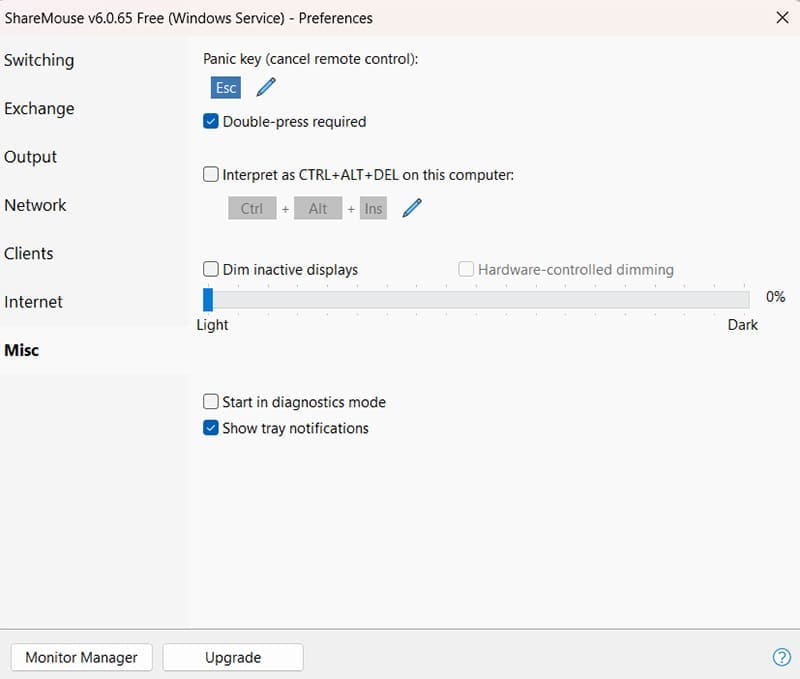
Step 3. Use the app’s window to configure additional settings, such as password protection or Ctrl + Alt + Del sending.
Step 4. After you install and run ShareMouse on the second device on the same network, you’ll immediately be able to set up further sharing, including Drag-and-Drop and clipboard copying.
You can use the online shop to get a professional license which increases the number of options and screens you can share between the PCs. The license costs $99.99, lasts for a lifetime, and includes a year of free maintenance (i.e. you can upgrade to newer versions within that period).
Option 4: InputLeap
InputLeap is an open-source solution and a direct successor of the “Barrier” software by the same developer. Currently, the 3.0.2 version is available for PCs (Windows 10 and later) and Macs (10.15 and later) as well as some Linux systems.
Step 1. Go to the GitHub page and download the appropriate files for your systems based on the name. You can also use the “Releases” page to check newer downloads.
Step 2. For Windows, download and run the .exe file, then complete the installation. For Mac, download the .dmg file and drop it into the Applications folder.
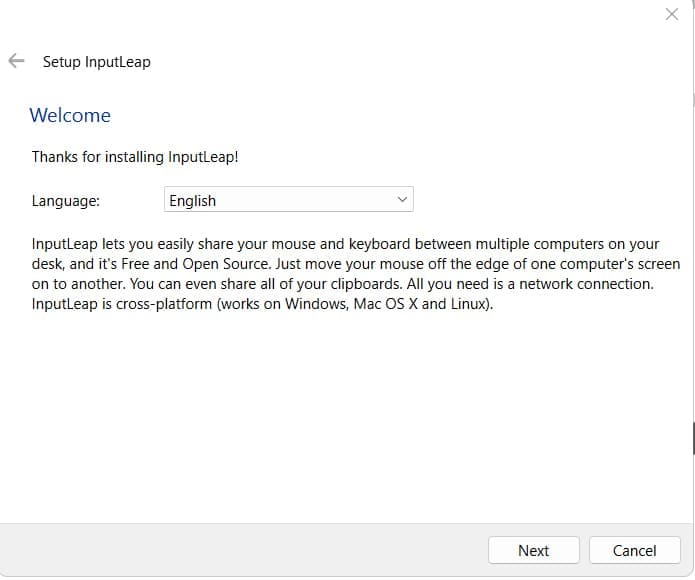
Step 3. Run the app, which will prompt a second setup screen.
Step 4. Choose which system will be the server and which will be the client (you need at least one server). Typically, the server will be the system that is used more often.
Step 5. Accept the prompt to install Bonjour. On Mac, you might need to allow Bonjour through the system’s security settings.
Step 6. After installation, go to the system tray on Windows or the Menu bar on Mac, right-click on the InputLeap icon, and select “Start.” This prompts the server to start controlling the client(s), so long as both are connected on the same network. Once you press “Stop” on the client (or shut it off), the mouse and keyboard inputs revert to the server.
As an avid gamer, I’ve run into my fair share of error codes and weird faults that have forced me to find fixes to problems I never anticipated. That gave me a passion for sharing those fixes with others so we can all game without feeling like our hardware is rebelling against us.












Write a Comment