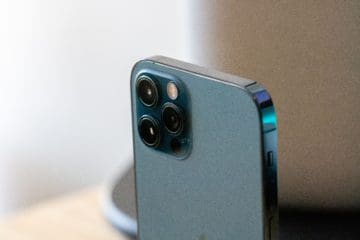
When Apple announced the iPhone 12 Pro and 12 Pro Max, the company had an obvious focus on the new camera systems. Unlike years past, these are no longer the same between both “Pro” handsets. However, there is one new feature that is coming to both models.
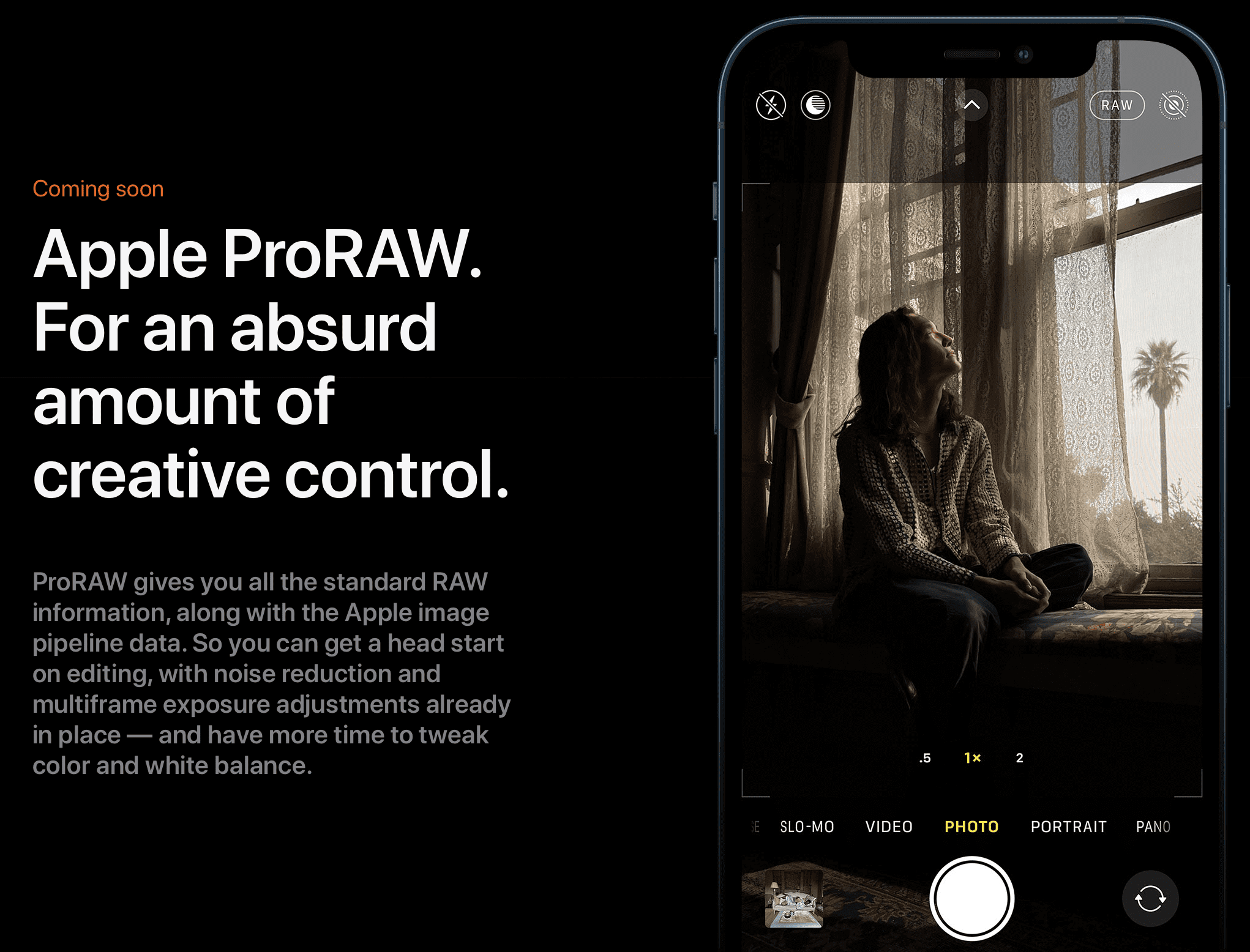
Apple ProRAW has arrived with iOS 14.3, bringing professional-level photography in the palm of your hand. ProRAW combines features like Smart HDR and Deep Fusion, while providing the advantage of taking photos in RAW.
Speaking of RAW, this is a term that you’ve likely heard a few times, especially if you’ve had a 10 minute conversation with a photographer. The benefit of snapping a picture in RAW, over something like HEIC or JPEG comes down to compression.
RAW files are uncompressed, making it much easier to edit every aspect of the photo. You can turn a picture that may look like it belongs in the trash, and turn it into something serviceable, if not downright stunning.
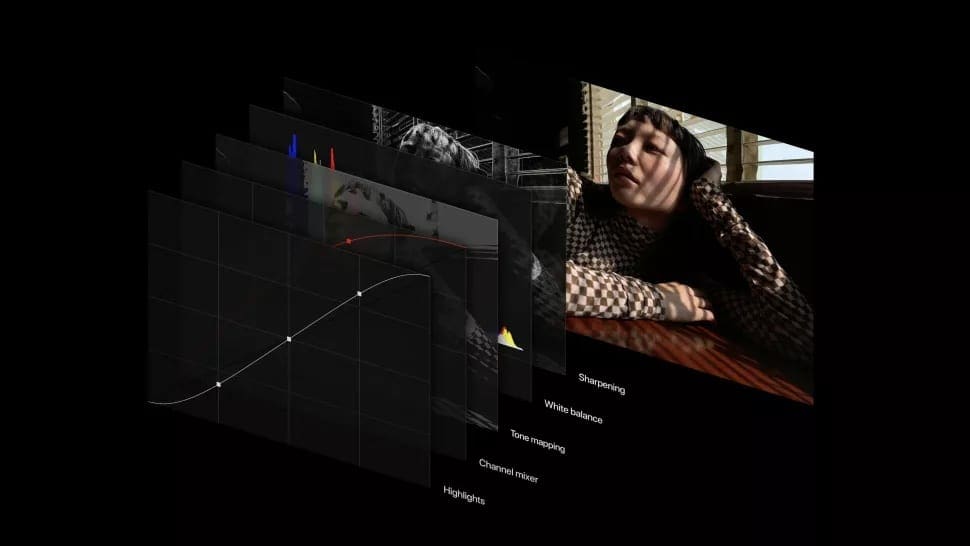
When you take a picture, your iPhone is performing an enormous number of tasks in just split seconds. This combines various images at the same time, without any delay between tapping the shutter button and viewing the photo. There is processing being performed by every aspect of your iPhone, including the CPU, GPU, onboard Neural Engine, and more.
With ProRAW, you not only get the benefits of taking a photo in the RAW format, but also are provided with the computational photography acumen of Apple. This combination is set to take the world by storm, with more and more photographers jumping aboard the 12 Pro and 12 Pro Max.
ProRAW Limitations
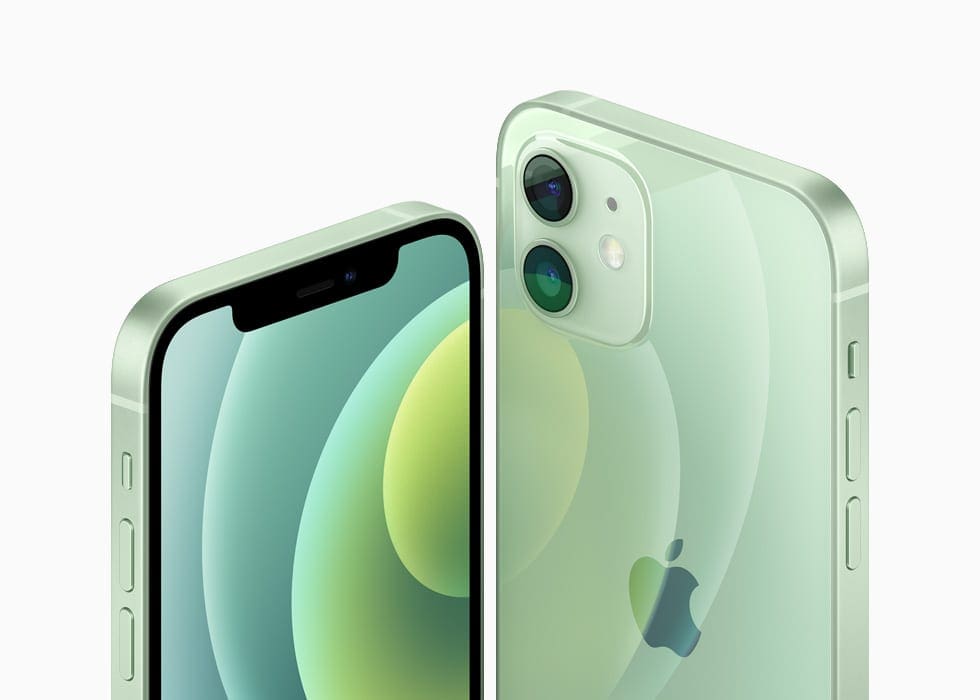
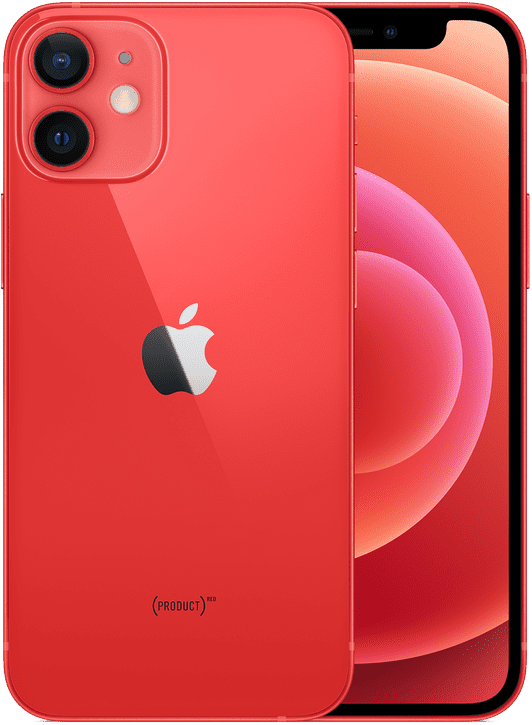
ProRAW is not without its limitations, however, as this is currently only slated to arrive for the iPhone 12 Pro and 12 Pro Max. This means the iPhone 12 Mini and standard iPhone 12 will be left out of the fray. What we aren’t sure about is whether this has something to do with the additional 2GB of RAM found in the Pro models or not.
Another potential limitation comes down to the size of each ProRAW picture that you snap. Apple states that these images can “weigh” in up to 25MB, which is simply massive. For example, a standard HEIC image taken from the iPhone 12 Pro Max weighs in around 1.5MB on average.
If you plan on taking an enormous amount of pictures with your iPhone 12 Pro Max, you’re definitely going to need the larger storage options. Even the base storage of 128GB for the Pro models may not be enough. And if you don’t opt for the 256GB or 512GB variants, be sure to either keep on top of your photo library, or invest in some cloud storage to offload those files.
The final limitation, at least for now, is that there are no devices other than your iPhone that can edit these ProRAW files the way that Apple intends. Sure, you can upload them to your MacBook Pro and fire up Pixelmator for editing. However, apps like LightRoom and Photoshop will be a bit hindered in the editing process until Adobe brings official ProRAW support.
Enable Apple ProRaw on iPhone 12 Pro
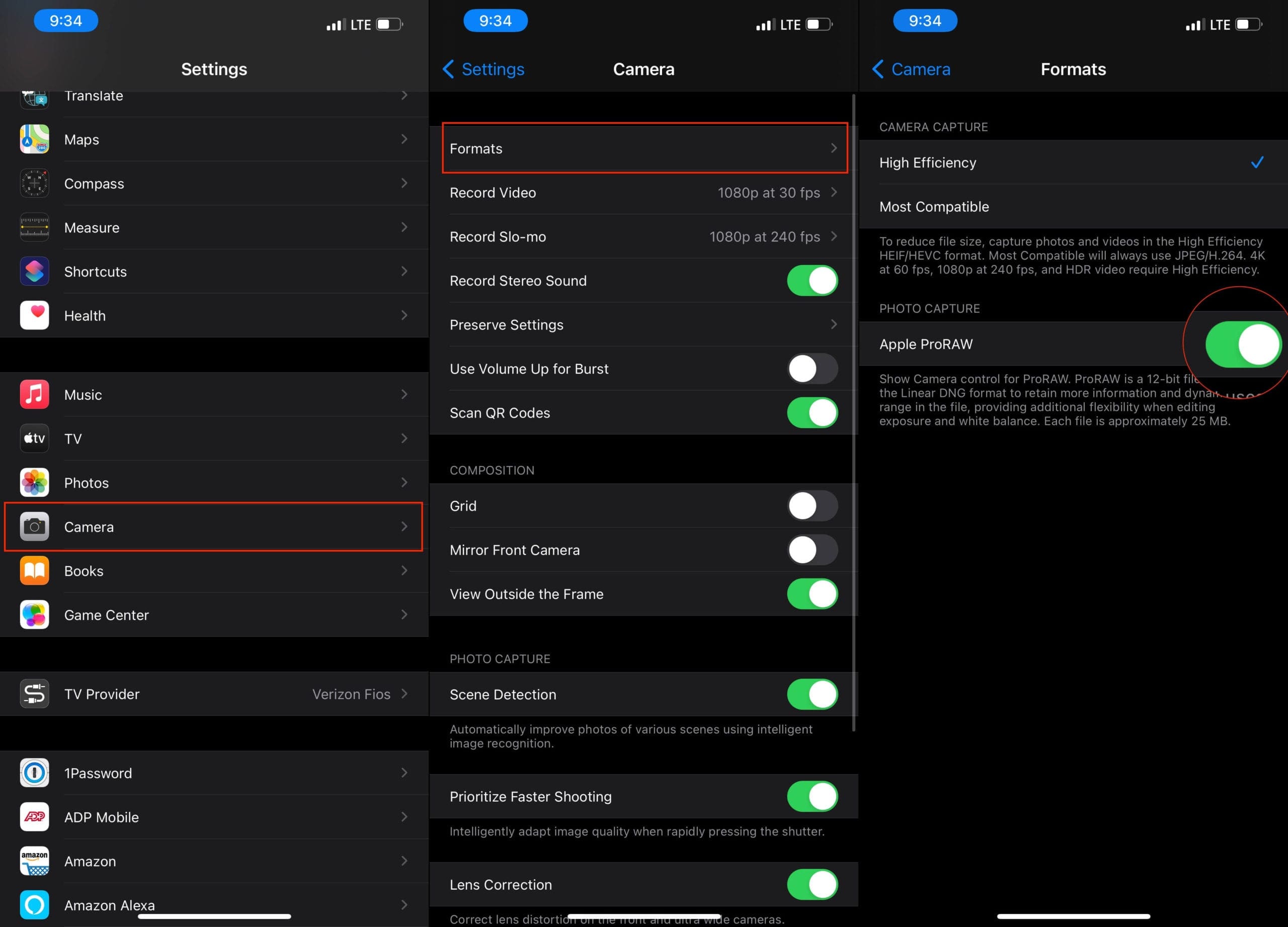
As we stated, Apple has introduced ProRAW into the first iOS 14.3 beta for the iPhone 12 Pro and 12 Pro Max. This means you can get started today with taking these professional-level photos right from your brand new smartphone. Here’s how to enable ProRAW.
Open the Settings app on your iPhone.
Scroll down and select Camera.
Tap Formats at the top of the page.
Toggle Apple ProRAW to the On position.
Profit.
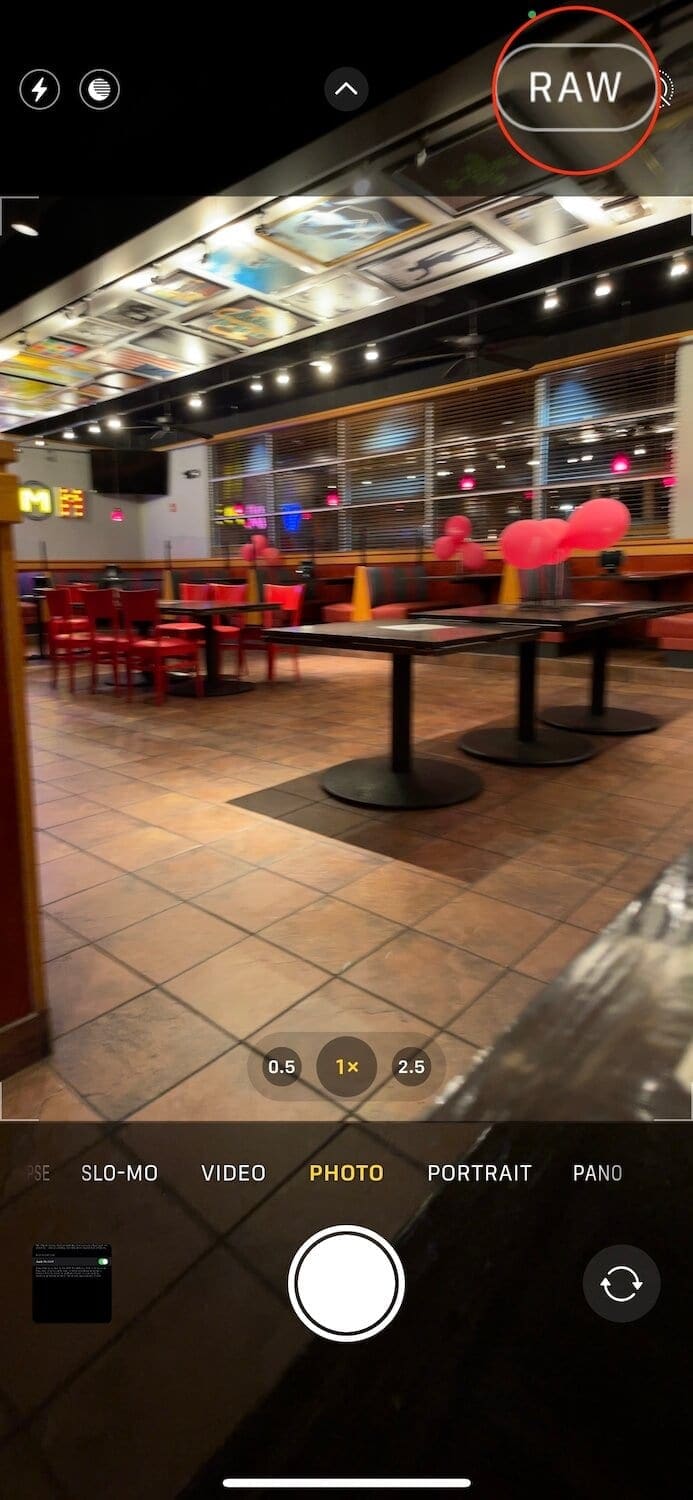
After you have enabled ProRAW from the Settings app, you can start taking advantage of this new photo format. In order to ensure this is enabled in the Camera app, there’s a little toggle at the top.
Open the Camera app on your iPhone.
In the top right-hand corner, tap the RAW logo with a line through it.
That’s it.
Now your pictures will be taken using ProRAW instead of the older HEIC method that was found on previous iterations. If you happen to check the photo’s EXIF metadata, it will appear as RAW.
Andrew Myrick is a freelance writer based on the East Coast of the US. He enjoys everything to do with technology, including tablets, smartphones, and everything in between. Perhaps his favorite past-time is having a never-ending supply of different keyboards and gaming handhelds that end up collecting more dust than the consoles that are being emulated.









Write a Comment