Apple TV users may sometimes experience audio lagging issues and video syncing glitches. These problems often affect live-streaming apps. Restarting your device should help you solve the problem, at least temporarily. Alternatively, you can also exit to the main menu and then resume the video.
But after 5-10 minutes, the video and audio sync issues usually return and get progressively worse. Let’s see what else you can do to troubleshoot these annoying audio and video issues on Apple TV.
What to Do if Video and Audio Won’t Sync on Apple TV
Install the Latest Updates
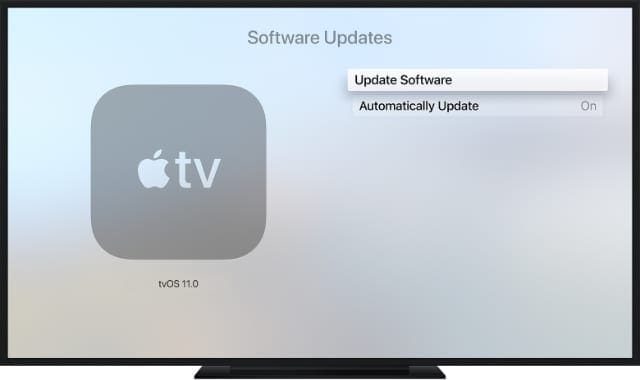
Be sure to update tvOS to the latest version. Outdated software may cause all sorts of glitches, including audio and video sync issues. Updating to tvOS 15.1 and later fixed the problem for many users.
Navigate to Settings.
Select System.
Go to Software Updates.
Select Update Software.
Update to the latest version of tvOS.
Then, select Download and Install.
Wait until Apple TV downloads the update. Your device will automatically restart while installing the updates.
If you’re using Apple TV 3rd generation, you need to go to Settings → General → Software Updates → Update Software.
Check Your Audio and Video Settings
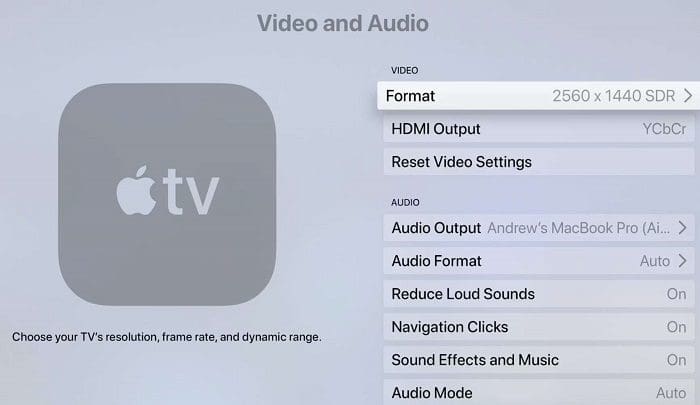
Check your Apple TV audio settings and make sure they’re compatible with the content you’re watching. Your Apple TV may automatically enable the highest audio settings that your equipment supports but they may not necessarily be compatible with the content you’re watching.
Navigate to Settings.
Select Video and Audio.
Go to Audio Format.
Select Change Format.
Try all the options available and check which one works best for you. If you’re using a Samsung smart TV, turn off the Samsung Soundbar, wait for 30 seconds, and then turn the option back on. Tweak your video settings as well, and check if you notice any improvements.
It seems that this problem is related to how the audio is encoded. If it’s AAC, audio and video often jump out of sync after a few minutes. Dolby 5.1 programs appear to be less frequently affected by audio and video sync issues. Stereo audio settings seem to trigger sync issues more frequently than Dolby settings.
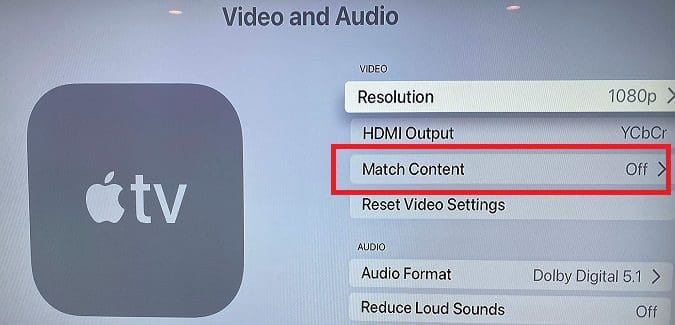
Disable Match Frame Rate
Check if you have Match Frame Rate enabled on Apple TV and Real Cinema on your TV. Many users suggested this combo might cause audio to be out of sync. Try disabling Match Frame Rate, and check the results. However, keep in mind that without Match Frame, video quality goes to DV, and all non-HDR content will look pretty bad.
Use Game Mode
Enable Game Mode on your smart TV. While this may not be the ideal solution, it should keep the match frame rate stable on your Apple TV which should keep everything in sync.
Reset All Settings and Unplug Your TV
If nothing works, try resetting your audio and video settings to default on Apple TV, as well as your smart TV. Then, turn off your TV and unplug the power cord from the wall socket. Wait for two minutes until your connection resets completely. Plug your TV back into the wall outlet, launch Apple TV, and check the results.
⇒ Note: Some users fixed the sync issue for 60Hz by recalibrating that format while setting the delay on the TV to 50.
Bypass Your Receiver for Video and Check Your Cables
If you’re using a Sony AV receiver, try bypassing the receiver for video, and check if you notice any improvements. This workaround did the trick for many Sony TV users who were using a similar configuration. Give it a try and check if it works for you as well.
Additionally, check your cables and ensure they’re not frayed or faulty. Use different HDMI cables, and check if this solution remedies your audio and video issues.
Conclusion
To fix audio and video sync issues on Apple TV, install the latest tvOS updates. Then, check your audio and video settings, and ensure they’re compatible with the content you’re watching. Disable Match Frame Rate, enable Game Mode, or reset all your settings. Additionally, unplug your smart TV, and check if the problem persists when using different cables.
Did you manage to fix your audio and video sync issues on Apple TV? Let us know which solution worked for you.
Madalina has been a Windows fan ever since she got her hands on her first Windows XP computer. She is interested in all things technology, especially emerging technologies — AI and DNA computing in particular.
Apple TV has a built in sync tool if you have an iPhone. Go to: settings>Audio and Video and scroll down to wireless audio sync and have your iPhone handy. It takes 30 seconds.
Used Calibration under Video and Audio in Settings, then Wireless Audio Sync. It sends a sound to your iPhone and syncs the audio video. All automatic, no fuss.
I just bought a new Apple TV 4K with OS 16.1 installed. The audio is terrible and is at least 2 seconds faster than anything I stream.
I tried every single one of these fixes and nothing works. Very disappointed.
I have a link that has appeared in my iPhone settings asking me to update my 50gb on my iCloud account, is this legitimate as I am not clear what I am expected to do
Both of my apple TV’s started having audio sync issues after the 16.0 update. I signed up for Beta versions and 16.1 did not address the issue.
Two different TV brands (LG & Hisense) and different soundbars (LG and Sonos) and the problem is identical.
The sync seems to be the opposite way that correction allows either in the sound settings for the TV or soundbar. I can delay it by 1 – 5 or whatever and it only gets worse. I don’t really know what to do here but really hope Apple can acknowledge that this is a problem with the 16.0+ updates and stop telling their customers to try x y z when they are the problem.











Apple TV has a built in sync tool if you have an iPhone. Go to: settings>Audio and Video and scroll down to wireless audio sync and have your iPhone handy. It takes 30 seconds.
Used Calibration under Video and Audio in Settings, then Wireless Audio Sync. It sends a sound to your iPhone and syncs the audio video. All automatic, no fuss.
Disabling match frame rate on Apple TV 4K fixed the problem (LG projector).
I just bought a new Apple TV 4K with OS 16.1 installed. The audio is terrible and is at least 2 seconds faster than anything I stream.
I tried every single one of these fixes and nothing works. Very disappointed.
I have a link that has appeared in my iPhone settings asking me to update my 50gb on my iCloud account, is this legitimate as I am not clear what I am expected to do
Both of my apple TV’s started having audio sync issues after the 16.0 update. I signed up for Beta versions and 16.1 did not address the issue.
Two different TV brands (LG & Hisense) and different soundbars (LG and Sonos) and the problem is identical.
The sync seems to be the opposite way that correction allows either in the sound settings for the TV or soundbar. I can delay it by 1 – 5 or whatever and it only gets worse. I don’t really know what to do here but really hope Apple can acknowledge that this is a problem with the 16.0+ updates and stop telling their customers to try x y z when they are the problem.
TV game mode worked…easy solution, Thanx!
Setting TV to Game Mode worked for me. I didn’t try any other solutions. thanks!
Disabling match frame rate worked for me
Turning off match frame rate fixed it for me and thankfully hasn’t affected the picture quality either!