If you’re a beginner to investing, you might find all the numbers and possibilities confusing. Fortunately, Apple has a handy app that can help you make smarter decisions.
While you can’t invest in stocks directly from Apple’s dedicated app, you can create watch lists to keep an eye on those that interest you. In this guide, you will find out how to do that on iPhone, Mac, and iPad.
(Side note: None of this is financial advice. We’re simply showing you how to create lists; please understand that your capital is at risk when you invest.)
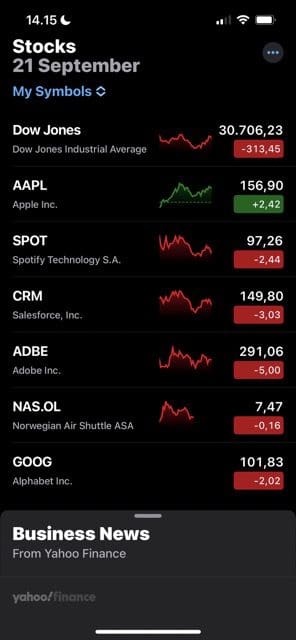
To create a watch list in the Stocks app, you’ll need to add some to your list. You will see several default options, but you can always remove these for others better-suited to you. Follow the instructions below to create a watch list.
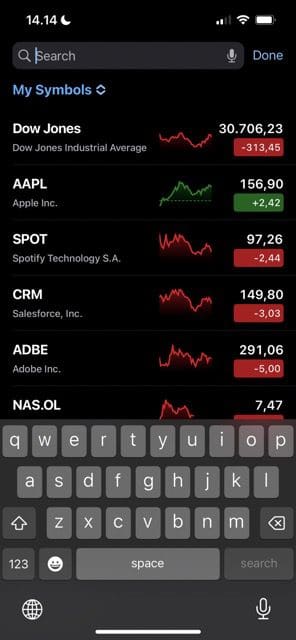
Go to the search bar at the top of your screen.
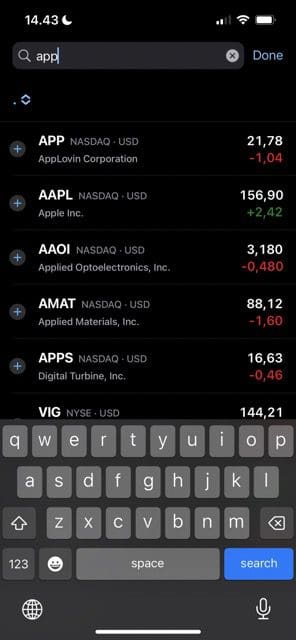
Type in the name of the stock you’d like to add to your watch list.
On the left-hand side, you will see a + symbol. Click on this, and your device will add the stock to your watch list.
You can also remove stocks from your watch list easily. If you tap and hold on to the one you want to get rid of, you will see a Remove from Watchlist option. Select this.
How to Create a Watch List on Mac
If you want to create a watch list in the Stocks app on your Mac, the process is a little different. Follow the steps listed below.
1. Go to the search bar and type in the stock you want to add to your watch list.
2. When you see the stock that you want to add, hold the control button and your trackpad simultaneously.
3. Soon after completing the step listed above, you will see an option titled Add to Watchlist. Select this.
You can also remove stocks easily on a Mac. Hold the one you want to get rid of until you see the Remove from Watchlist option.
How to Create a Watch List on iPad
Adding stocks to a watch list on your iPad is similar to the iPhone; follow the steps below to achieve your desired result.
1. Go to the search bar and look for the stock you want to add to your watch list.
2. Tap and hold on the stock. You will see two Add to Watchlist prompts appear; select either of them to complete the process.
3. To remove a stock from your watch list, hold onto it and select Remove from Watchlist.
How to Create a New Watch List
If you have an iPhone, you can create more than one watch list. Doing so is simple; click on the My Symbols tab in the top left-hand corner.
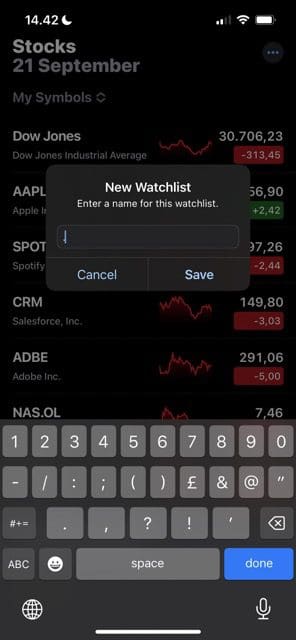
When the dropdown menu appears, you will see an option called New Watchlist. Click on this.
On the next page, you will have to give your watch list a name. Do this and select Save.
You will then get to search for stocks you’d like to add. Hit the + icon and it’ll feature on your watchlist.
Watch Lists Are a Great Way to Keep an Eye on Stocks That Interest You
Regardless of the device you use, creating a watch list is simple. You will have access to prices from multiple stock exchanges, and you can also consume news directly from the app. While you will need to use a separate platform for actual investing, Stocks is handy for keeping up with the latest in the world of business.
You should have Stocks as a default app on your device. But if you previously deleted it, you can always redownload it from the App Store.
Danny has been a professional writer since graduating from university in 2016, but he’s been writing online for over a decade. He has been intrigued by Apple products ever since getting an iPod Shuffle in 2008 and particularly enjoys writing about iPhones and iPads. Danny prides himself on making complex topics easy to understand. In his spare time, he’s a keen photographer.


















Write a Comment