It’s a truth universally acknowledged that Apple and Microsoft devices will never be the best of friends. Apple saves the best features for its own ecosystem, and it takes a lot of effort and third-party products to get the same benefits on Windows. If you’re wondering how to fix your AirPods Max and AirPods Pro on Windows, this is the article for you.
What Can Your AirPods Do in Windows?
Straight off the bat, let’s start by saying that there’s no native way to get the full functionality of your AirPods Max or AirPods Max on Windows 11, let alone your AirPods Pro. That said, Windows 11’s smoother Bluetooth performance means that the experience is better than before. So, what can Windows and your AirPods do together?
You can connect them via Bluetooth and use them as an audio device. That said, you may occasionally need to reconnect your AirPods after your PC wakes from sleep.
The microphone will work for making and receiving calls. The microphone does become a generic hands-free one, though, so the quality becomes muffled and soft.
You can connect them via Bluetooth and use them as an audio device. That said, you may occasionally need to reconnect your AirPods after your PC wakes from sleep.
Yes, the list is not impressive at all, especially considering that wonderful features like AirPods Pro noise cancelling on Windows are practically non-existent. This doesn’t justify the amount of money you spent on them at all. Not to fear, there is a solution.
Magic Pods – Third Party to the Rescue Again
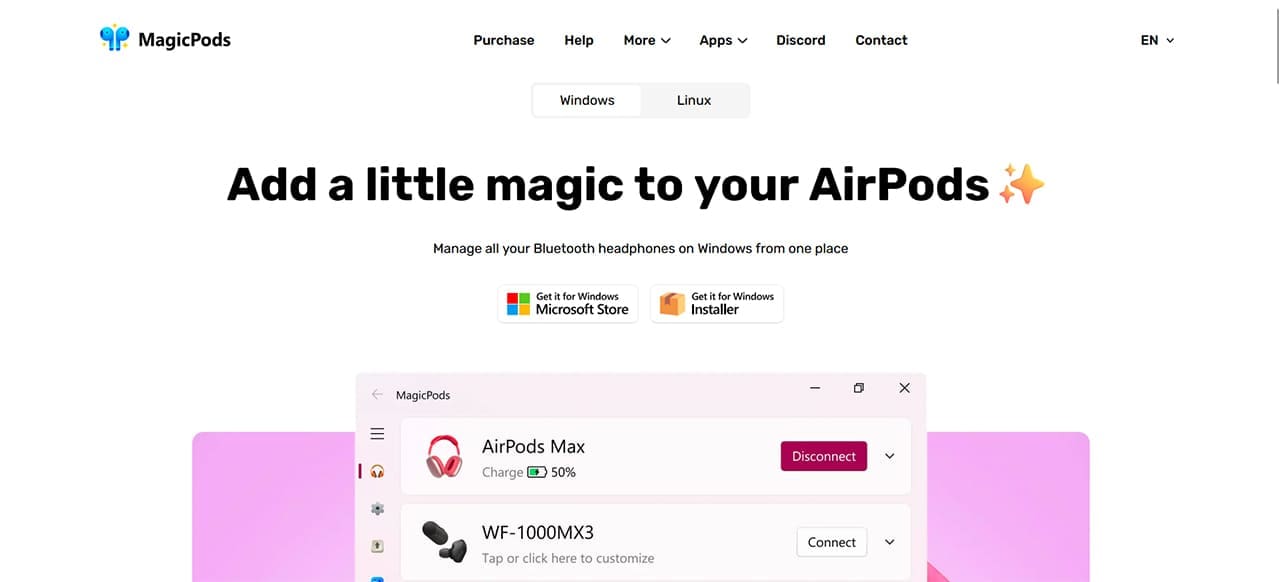
Yes, ultimately, if you want more of the functionality you’d get on a Mac in Windows, you’re going to need to look beyond the operating system’s native support. Yes, ultimately, if you want the same functionality you’d get on a Mac in Windows, you’re going to need to look beyond the operating system’s native support. Perhaps the best third-party option out there is Magic Pods, an app downloadable from the Microsoft Store. Even better, it’s a once-off purchase of USD 2, with no need for subscriptions. You buy it, you own it.
Once you’ve connected your AirPods, an icon in the System Tray will show battery levels for both pods and the charging case. A widget can even be added to your Taskbar to save you the trouble.
So, what does this app bring to Windows? It turns out, pretty much everything that was missing. Some of the major features include:
Ear detection – The app detects when you have one or both AirPods in and pauses playback if you remove one quickly.
Low audio latency – MagicPods includes a low-latency mode that can reduce audio delay when AirPods Pro volume low on Windows.
Noise Cancellation – With the MagicAAP driver, you can switch between supported noise-control modes, including Noise Cancellation and Transparency mode.
Low Latency – MagicPods includes a low-latency feature designed to reduce audio delay, which can be useful for music and games.
In addition to these features, Magic Pods also includes its own features to facilitate a better Windows experience, including customizable voice notifications for different apps and the ability to turn your PC into a Bluetooth audio streamer for other devices.
In short, Magic Pods is the best solution to enjoy all the advanced features you paid for with your AirPods and is indispensable to a proper listening experience.
As an avid gamer, I’ve run into my fair share of error codes and weird faults that have forced me to find fixes to problems I never anticipated. That gave me a passion for sharing those fixes with others so we can all game without feeling like our hardware is rebelling against us.












Write a Comment