Ignoring the massive camera improvements, the next biggest reason you might want to get the iPhone 13 Pro or Pro Max is the ProMotion display. This was first implemented back on the 9.7-inch iPad Pro, and has since made its way to pretty much every device category in Apple’s lineup.
Apple’s ProMotion technology essentially enables ultra-fast 120Hz refresh rates, making the experience with your iPhone feel even smoother. But instead of sacrificing battery life in order to reach these speeds, ProMotion automatically adjusts the refresh rate based on what you’re doing.
This is great for when you’re scrolling through Twitter or browsing Reddit, but isn’t exactly necessary when your iPhone is on the Home Screen. At launch, Apple had a bit of a hiccup, however, as not every app was able to take advantage of the faster refresh rates. That problem has since been rectified, and we’re seeing quite a few apps updated with support. The latest of which happens to be Pokémon Go, as you can finally enjoy the ProMotion display.
Enable 120fps in Pokémon Go
Pokémon Go remains one of the most popular apps on the App Store along with the Google Play Store. The app saw a little bit of a revival earlier this year, as Pokémon celebrated its 25th anniversary. This resulted in a massive uptick in the popularity of Pokémon Cards, and there was even a special anniversary set available from McDonalds.
Additionally, the developers of Pokémon Go created various events where trainers could perform various tasks that previously had not been available. While the game already works great on the iPhone 13 lineup, it’s a perfect example of a game that could take advantage of the faster refresh rates on the 13 Pro and Pro Max.
A new update has been released to the App Store, bringing support for 120fps on your iPhone 13 Pro or Pro Max. Surprisingly, the feature is turned off by default, but here’s how you can go into Pokémon Go and enable the feature yourself:
Download the latest version of Pokémon Go from the App Store.
Open the app on your iPhone 13 Pro or Pro Max.
Tap the Pokémon ball at the bottom of the screen.
In the top right corner, tap the Settings Gear icon.
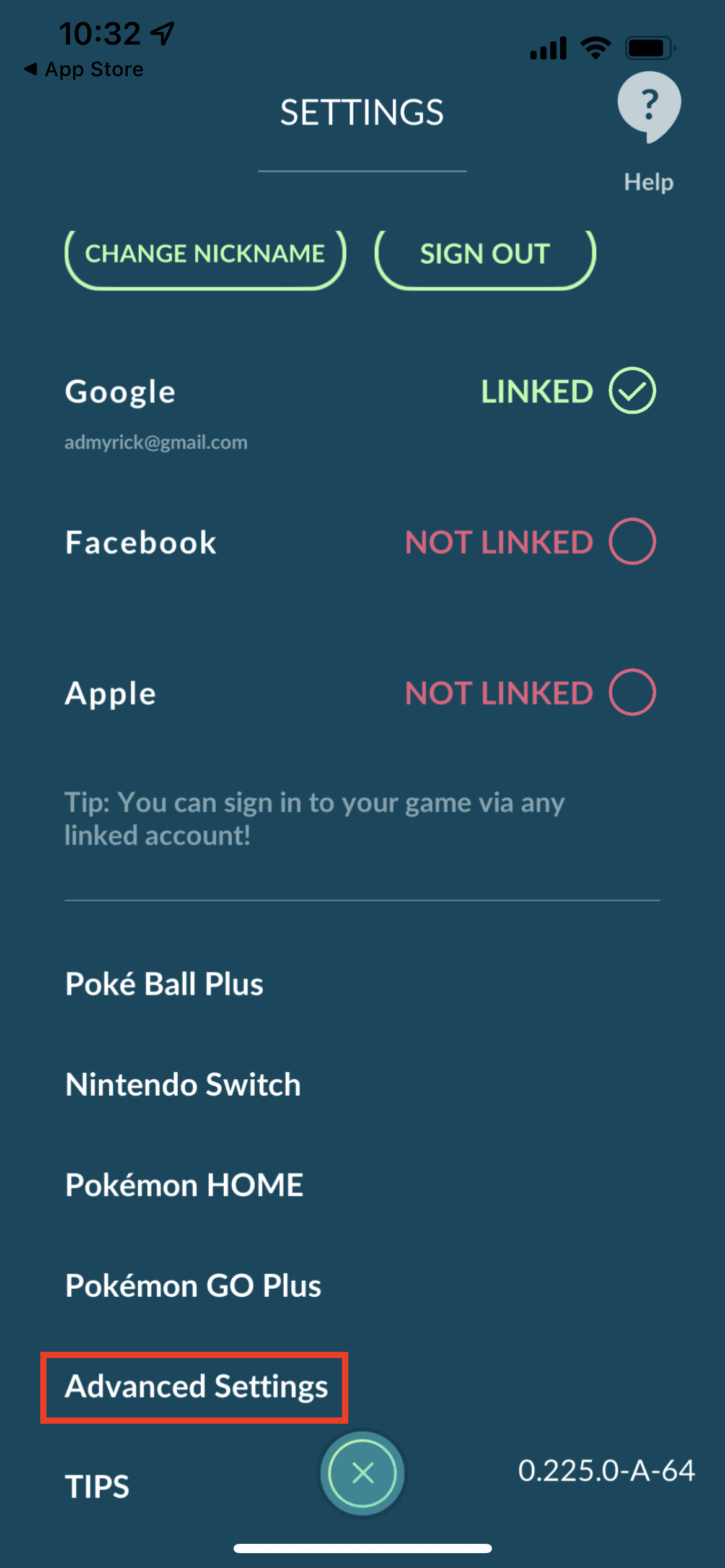
Scroll all the way to the bottom and select Advanced Settings.
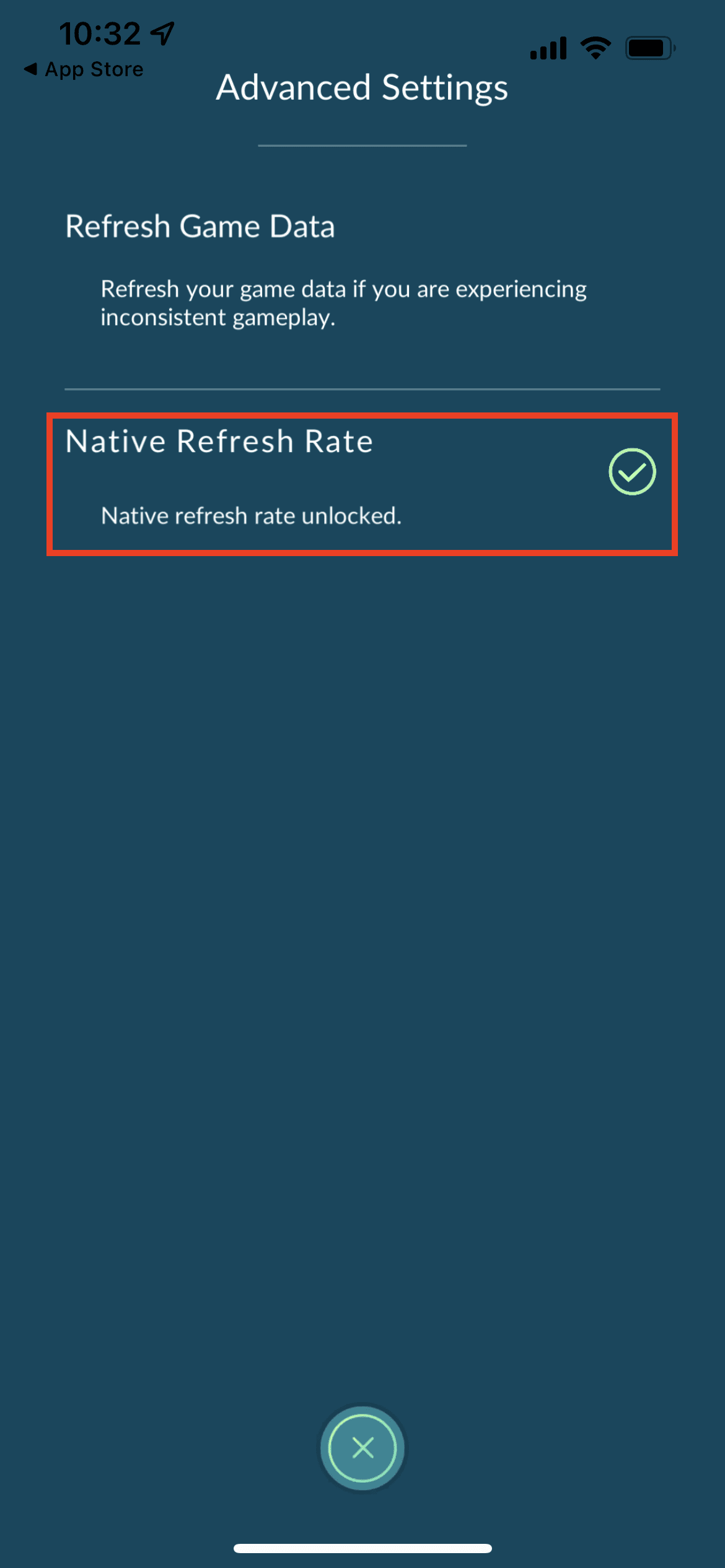
Tap Native Refresh Rate.
Just as a reminder, Pokémon Go already wreaks havoc on your battery life, especially if you use the Augmented Reality features when catching Pokémon. Even with the ability for the ProMotion display to automatically adjust the frame rate, this will still drain your battery even more.
But after the update is installed and the faster refresh rate support is enabled, it will feel like a brand new game. We’re excited to see Niantic Labs issue this update, and we can’t wait for more apps to do the same.
Andrew Myrick is a freelance writer based on the East Coast of the US. He enjoys everything to do with technology, including tablets, smartphones, and everything in between. Perhaps his favorite past-time is having a never-ending supply of different keyboards and gaming handhelds that end up collecting more dust than the consoles that are being emulated.











Write a Comment