Have you ever visited a crowded place with someone, such as a Farmer’s Market or sporting event, to lose sight of your friends? Sure, you could call them, but there is always that one friend who has their phone on silent or can’t hear it due to all the noise. Thanks to Precision Finding, you won’t have to deal with walking around wasting time looking for your friends. Keep reading to see how to use this helpful feature to find family and friends in crowded places.
Find Your Friends With Precision Finding Thanks to the Second Generation Ultra Wideband Chip
With the original Ultra Wideband chip, you would use Precision Finding to find a lost item. For example, you put an AirTag in one of your bags for an easy find. With the second-generation ultra wideband chip, you can use Precision Finding to find family and friends when they share their location with you.
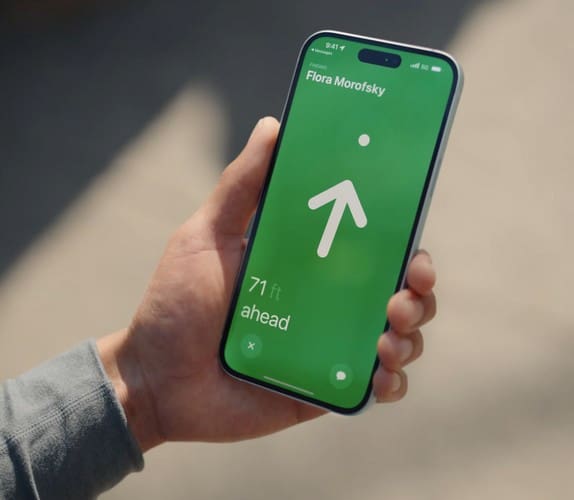
On your iPhone 15, you’ll see the exact distance and get clear directions as to where you need to go. It’s also built into Find My, so you can count on having the same privacy protections you’re used to. The second generation Ultra Wideband chip lets you find others with a device with the same chip since it covers up to three times the distance.
On your iPhone 15, you’ll see as the distance between you and your friends becomes less and less. An arrow will guide you and show you if you need to go to your left and keep straight. When you reach your friend or family member, you’ll see a checkmark letting you know the trace is complete. Remember that to use Precision Finding to find family and friends, the other person’s device also needs to have the second-generation Ultra Wideband chip.
No New App Needed
The good news is that you won’t have to learn how to use a new app since you can open the Find My app and tap the People option. Select the Start Sharing Location option and choose with whom you want to share your location. Remember to select a time frame, such as for an hour until the end of the day, or share indefinitely.
Sharing your location with others at a distance the second generation Ultra Wideband offers is something that Apple users have been waiting for for quite some time. Apple users seem happy with being able to find their friends with Precision Finding but are disappointed in how long it took. Now that it’s here, you’ll only need to follow the arrow, and you’ll be reunited with family or friends shortly.
So, if you ever lose one of your parents while shopping, you won’t have such a hard time finding them. Precision Finding will exit when you’ve found your family member or friend. You may have felt that the prior distance Precision Finding had was not enough and will find it more helpful with the added distance.
Apple also announced Voice Isolation, so if you get a call after you find your friend, they won’t have a hard time hearing you. You’ll only need to choose Voice Isolation and enjoy the conversation. Some Apple users might not find it necessary to upgrade to iPhone 15. Should you upgrade? Here is the info you need to decide if you should upgrade from iPhone 14 to 15.
Conclusion
The Precision Find feature is something that Apple users have been using for some time to find items and not people. So the next time you go to a concert and separate from the group, you can find them in no time. Remember, they will also need to have an iPhone with a second-generation chip to use the improved feature. Do you think you’re going to use this feature frequently? Let me know in the comments below and remember to share the article with others on social media.
I am a tech geek who loves technology. I have been writing about tech for over a decade, covering various devices and programs. I write about the latest Apple products and services and never go far without my Apple devices. I always stay updated on the latest gadgets, upgrades, features, and news. I aim to make complicated tech information easy for everyone to read. I’ve been with TechniPages from the beginning to help others fix their tech issues with the easy-to-follow guides.













Write a Comment