Apple has a notorious history of not playing well with Windows. Though cross-platform compatibility has come a long way, there are still occasional flare-ups. Case in point: Apple Music crashes on Windows 11.
If this has been happening to you, then hopefully this article can help. We have a few solutions you can try to get the tunes playing again.
Apple Music Crashes in Windows 11 – A Problem with Many Causes and Solutions
Apple Music has replaced iTunes as the go-to Apple way of playing music on a Windows machine. The only problem is that software and compatibility issues persist. If you’re struggling with constant crashes, here are a few fixes to try. Let’s get started:
Do the Obvious Checks and Fixes
We’re not going to waste time on the obvious, but neglecting to do so could also be a waste of yours. Before going on to the other solutions below, be sure to do the following:
Check your internet connection.
Restart the Apple Music app.
Restart your entire machine.
If the issue persists, carry on.
Check Updates
Newer Windows system software might be conflicting with your version of Apple Music. Though Microsoft Store automatically updates all apps by default, you might have disabled it or it’s not working correctly. To check:
Step 1. Open the Music app.
Step 2. Press (Ctrl + ,) to open the “Settings” menu.
Step 3. Under the “About this app” section, check the version number.
If the version is out of date, a new one can be installed via Microsoft Store. Here’s how:
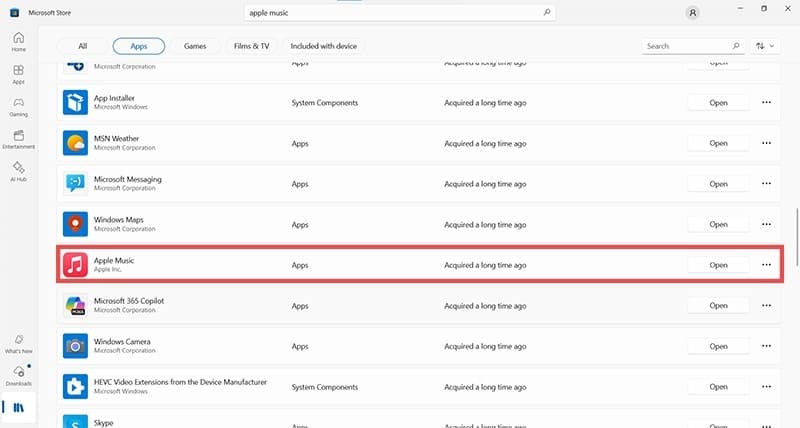
Step 1. Open the Microsoft Store.
Step 2. Click the “Library” icon on the sidebar to view your list of currently installed apps.
Step 3. Scroll down to “Apple Music.” If in need of an update, the “Open” button will be replaced with “Update.” Click it to begin the process.
Check for Clashing Software
Some Windows software and third-party programs have problems working with Apple Music. Users report freezing when using other apps simultaneously with Apple Music and crashes in worst-case scenarios. Common culprits include games, GPU overclocking tools, and any program heavy on processing and graphics power.
Try closing all other programs before running Apple Music to see if it resolves the problem and you can fix Apple Music crashing on Windows 11.
Use Apple Music Web Player
If Apple Music running on Windows is causing software clashes, then why not just skip the installation completely and rely on its web player? Yes, Apple Music can also be accessed through any web browser and still give you access to all your favorite music. All you need to do is sign in, and you’ll be back in the groove.
Reinstall Apple Music
If you’re having no luck getting the app to work without crashing, you can try a clean install. To uninstall the app:
Step 1. Right-click the Apple Music app in your “Start” menu and select “Uninstall” from the context menu.
Step 2. Confirm by clicking “Uninstall” again.
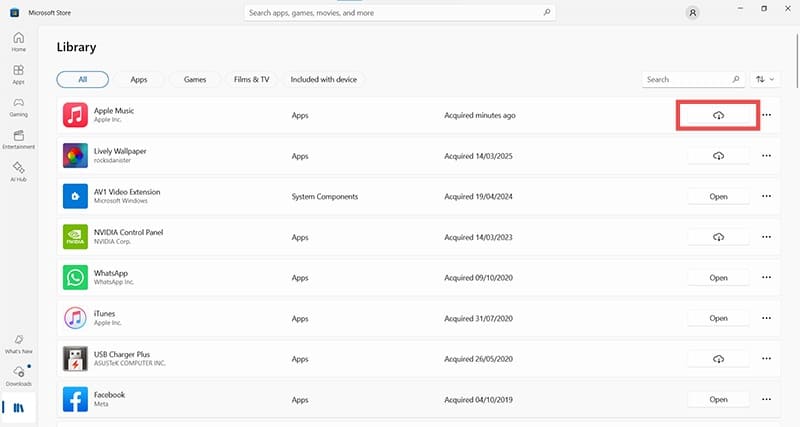
Step 3. After the app is uninstalled, go to Microsoft Store and select the “Library” icon from the sidebar.
Step 4. Scroll to reach “Apple Music.” You should see a cloud download icon. Click it to re-download and install the app.
Reset the App
If you think the Apple Music app is corrupted, you can always try resetting it. This will sign you out of the app but could fix any problems. To do this:
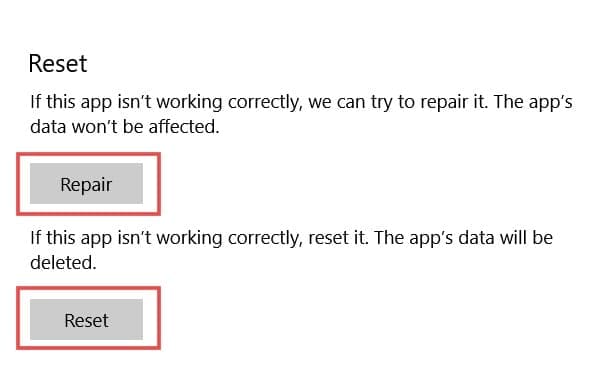
Step 1. In your “Start” menu, right-click the Music app and select “App Settings.”
Step 2. In the “App Settings” menu, you can either click the “Repair” or “Reset” buttons to fix the app.
Step 3. Once the process is complete, reopen Apple Music to see if the problem is resolved.
As an avid gamer, I’ve run into my fair share of error codes and weird faults that have forced me to find fixes to problems I never anticipated. That gave me a passion for sharing those fixes with others so we can all game without feeling like our hardware is rebelling against us.















Write a Comment