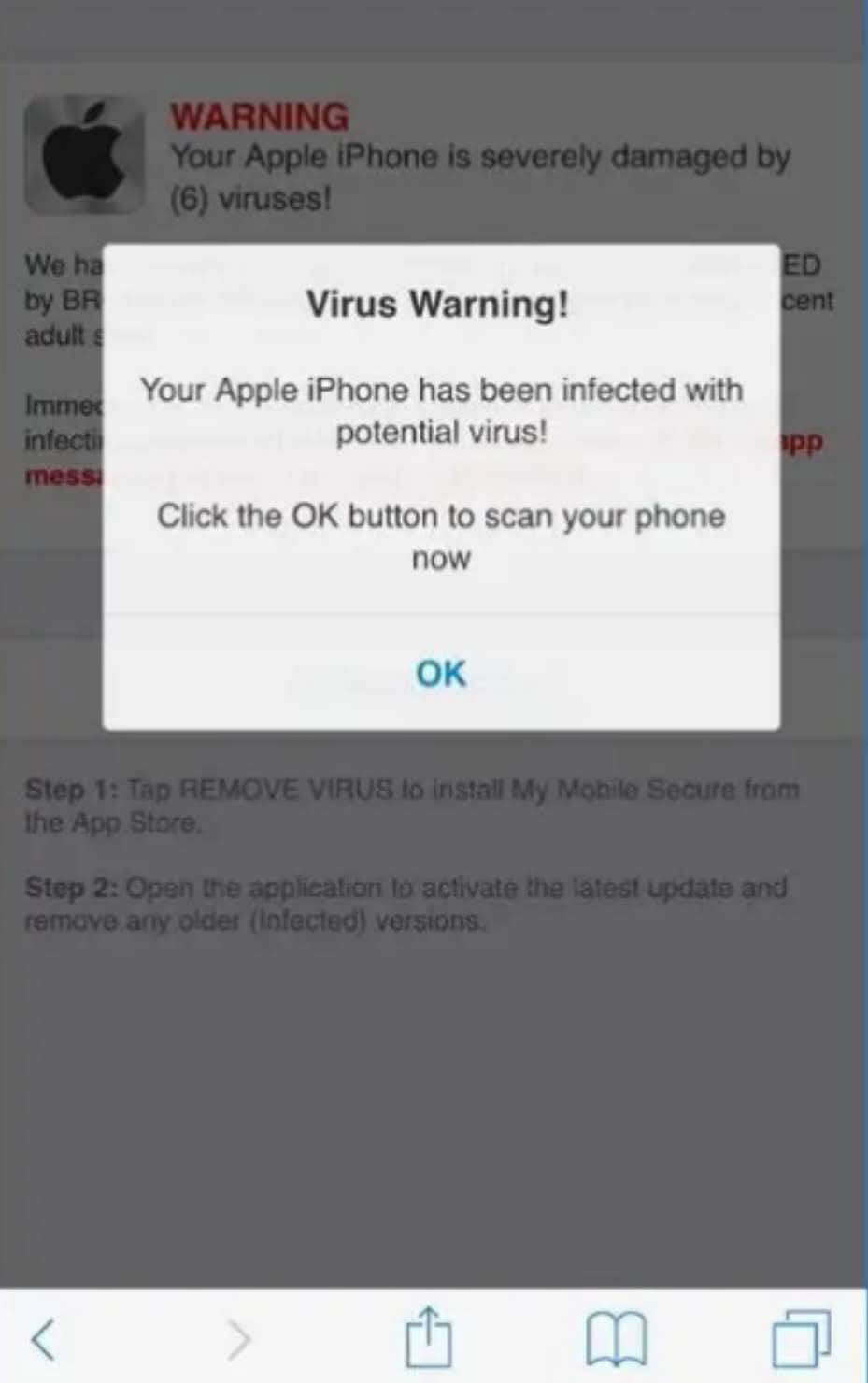
Have you ever seen the “iPhone has been hacked” pop up on your device, or been told that a virus has been installed on your iPhone? These op ups are common, and they’re usually fake. An exception may be a legitimate security app that sends you a notification, but these warnings are different from the fake pop ups that appear within a browser.
You should never click any button on a pop up, even if it promises to clean a virus or fix the hack. In some cases, following these prompts can lead you to download unwanted or malicious software or disclose personal information. Close Safari (or whichever browser you’re using), and work through the following steps to prevent this from happening in the future.
How to Stop the iPhone Has Been Hacked Pop Up: Clear Website Data
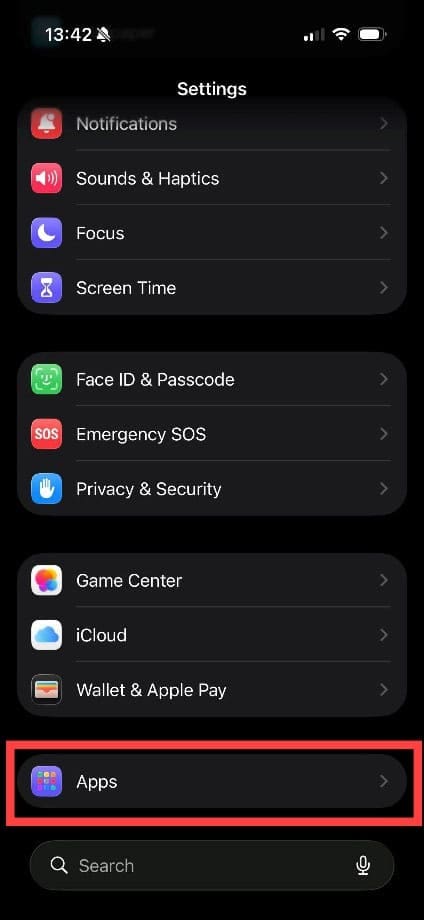
Step 1. The websites that force these pop ups onto your phone may store data on your device to make it happen again. You can clear this data by going to Settings > Apps > Safari.
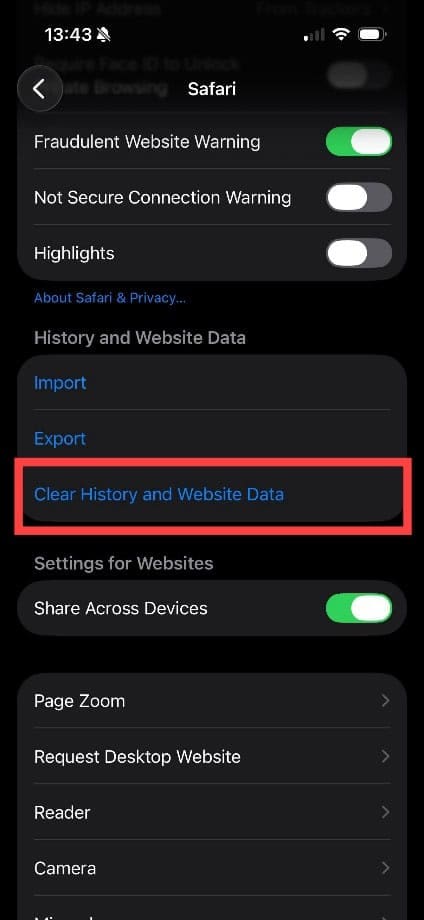
Step 2. Scroll down until you see “Clear History and Website Data.” Tap this option.
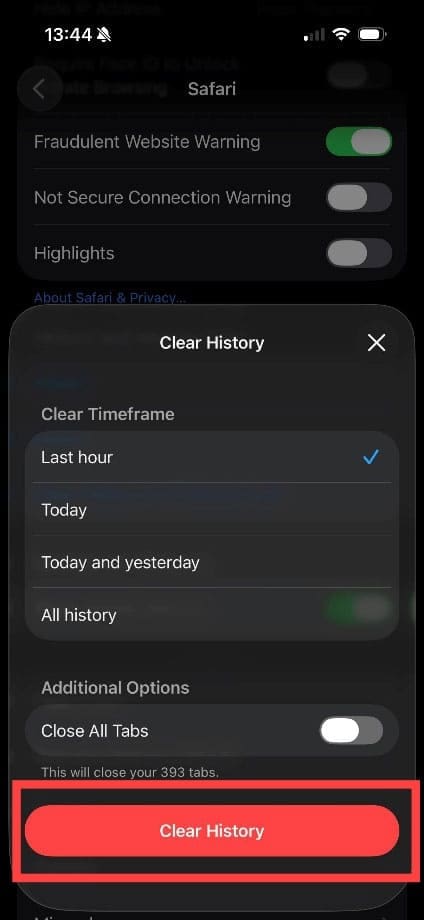
Step 3. You will now be given some options. To clear the Safari history and website data, choose the appropriate timeframe, such as “All History,” then tap “Clear History.”
Note: If you use a browser other than Safari, you will need to open a browser page and use the built-in settings function in the browser to perform the same function. For example, in Google Chrome, open Chrome, tap “More,” then tap “Delete Browsing Data.” Choose the types of data you want to remove and tap “Delete Browsing Data.”
How to Stop the iPhone Has Been Hacked Pop Up: Remove Unknown Extensions.
An unwanted or unfamiliar Safari extension may affect your browsing, so it’s worth checking which extensions are installed. To check your extensions,
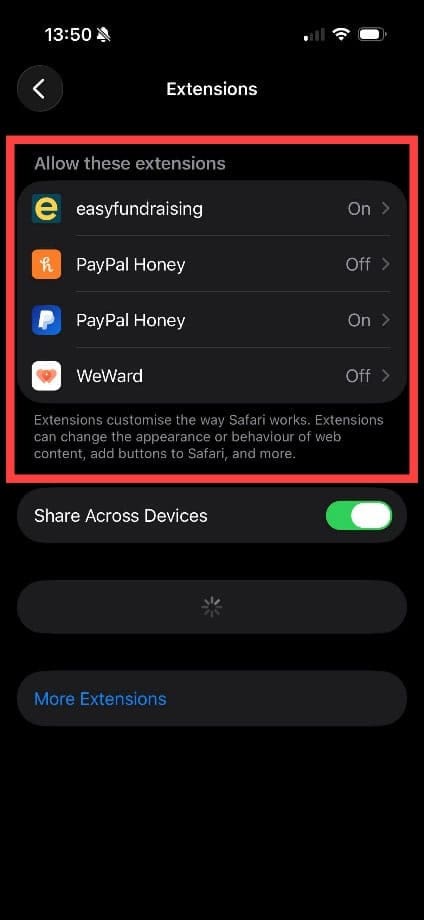
Step 1. Head to Settings > Safari again. This time, look for “Extensions.” Tap here.
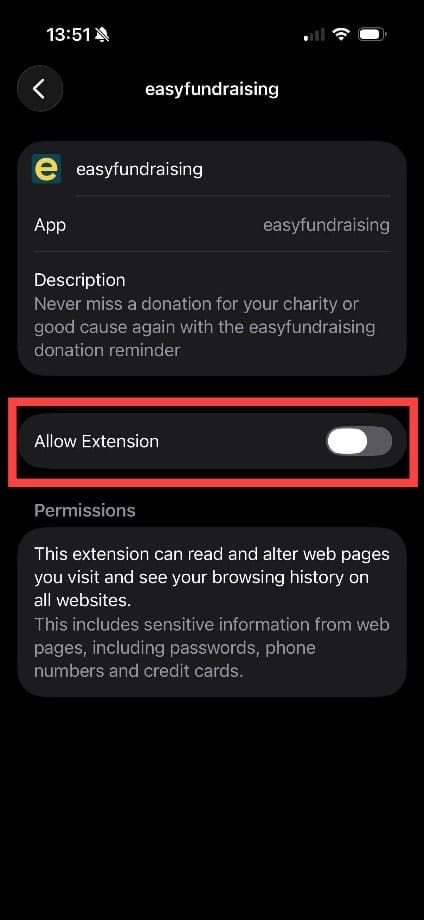
Step 2. If you recognize all the extensions, you don’t need to take any action. If you notice an extension you either don’t recognize or never installed, you can tap on it and change the “Allow Extension” button to Off. It’s good advice to turn any unused extensions off, as they can contribute to battery drain.
If you entered your Apple Account password or other sensitive information into a page prompted by one of these warnings, change your password immediately and review your account security.
Whichever fix you do, always restart your iPhone afterward. You should find that you can browse safely, without alarming pop ups.
As an avid gamer, I’ve run into my fair share of error codes and weird faults that have forced me to find fixes to problems I never anticipated. That gave me a passion for sharing those fixes with others so we can all game without feeling like our hardware is rebelling against us.









Write a Comment