System data is an essential part of your Mac and can take up a lot of space with temporary files, browser caches, backups, and other items you may not use or need every day. Some Mac users report their macOS system data taking up too much space and potentially slowing their device down.
In these instances, you can try the following tips to free up storage space and potentially improve performance if your Mac is running low on available storage.
MacOS System Data Taking Up Too Much Space: Fix No. 1 – Optimize Storage Features
Before removing System Data, know that it’s not a single folder you can easily delete. Apple describes System Data as generally consisting of Apple and third-party files that don’t fit into another storage category. MacOS also automatically removes some caches and logs when storage space gets low.
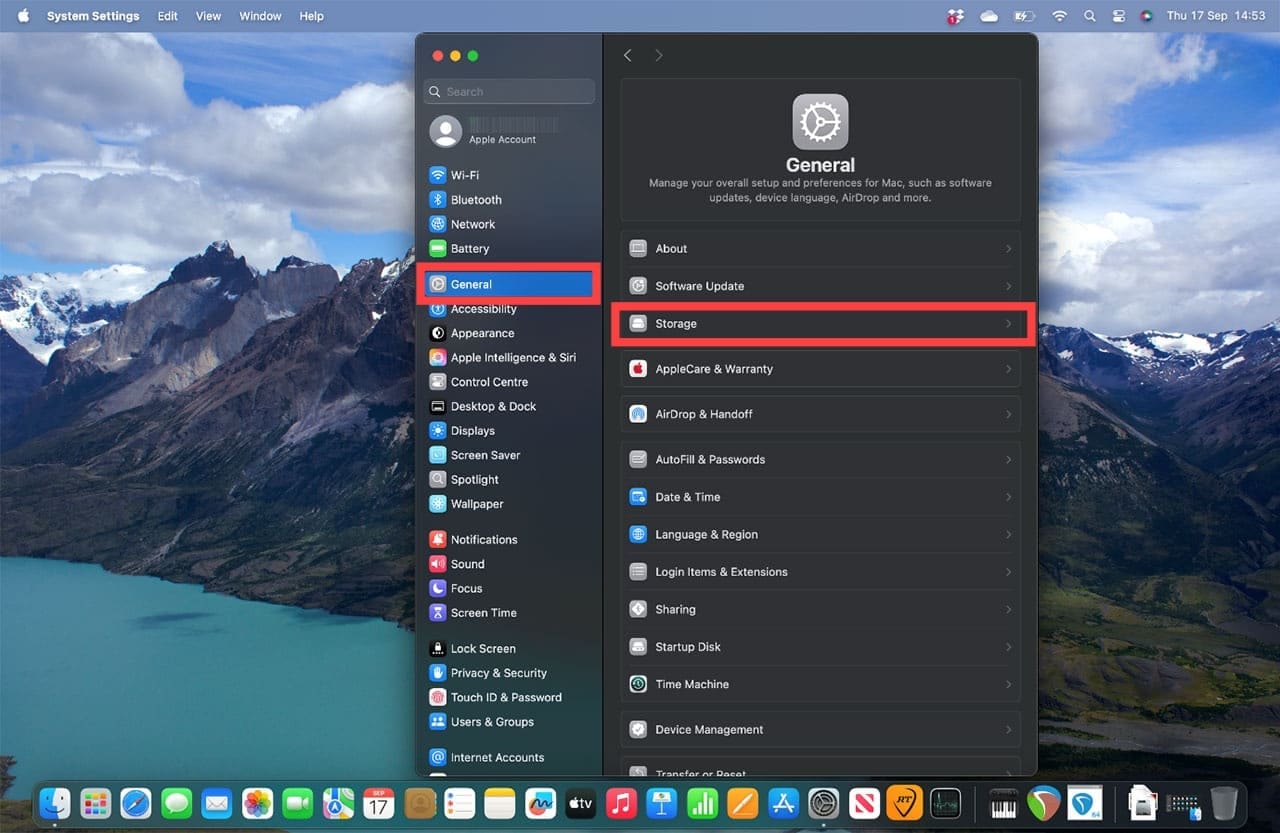
Step 1. Apple has built in some features to help you optimize your Mac’s storage and performance if you find your macOS data takes up lots of space. To view these, go to the Apple menu > System Settings > General.
Step 2. From here, click on “Storage.” You can immediately see Recommendations near the top of the window.
The three main options are:
Store in iCloud: This stores files from your Desktop and Documents folders, photos and videos, and messages and attachments in iCloud, helping save space on your Mac.
Optimize Storage: Choose this option to automatically delete media you’ve watched, such as movies and TV shows.
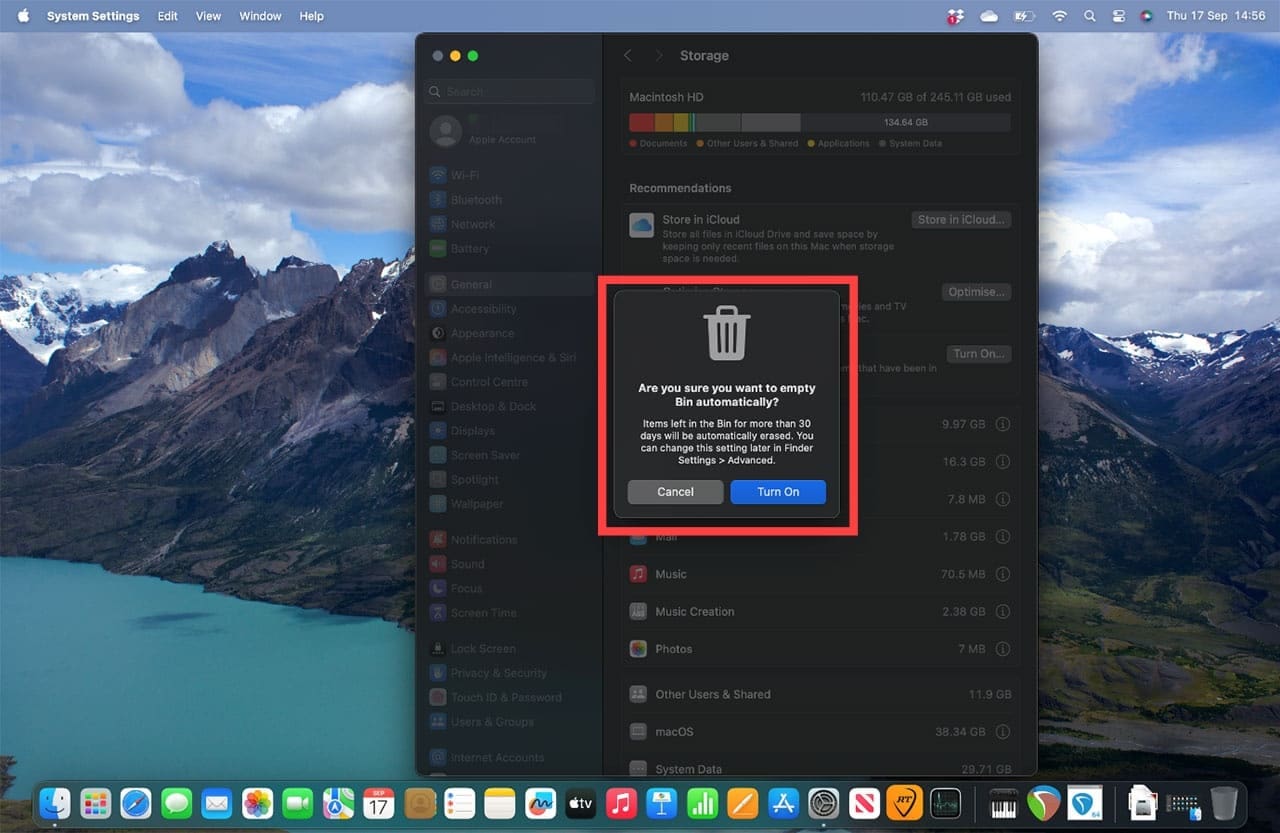
Empty Trash automatically: When this option is switched on, deleted items will be permanently erased from your Mac after 30 days.
Choose the options you want. You may be asked to confirm some of these options, so make sure you don’t enable automatic deletion for files or media you want to keep.
MacOS System Data Taking Up Too Much Space: Fix No. 2 – Delete Time Machine Backups
Step 1. Time Machine backups allow you to back up everything on your Mac to an external device, such as a USB drive. But the Mac keeps local backups that can take up space and slow the machine down. If you want to manually remove local snapshots, Apple recommends temporarily turning off automatic Time Machine backups rather than deleting them individually in Terminal.
Step 2. Open “Utilities.”
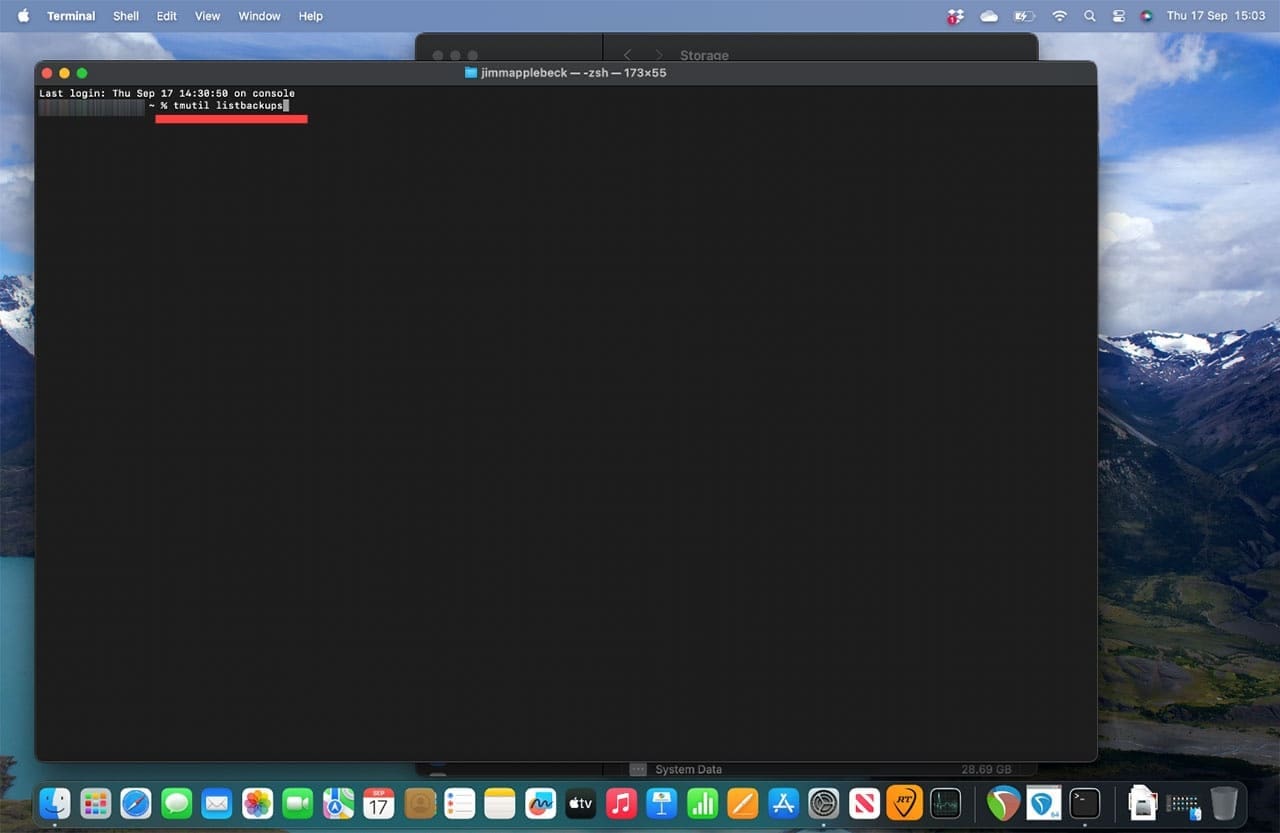
Step 3. Double-click on “Terminal.”
Step 4. You will now see an interface where you can type instructions. Type:
tmutil listbackups
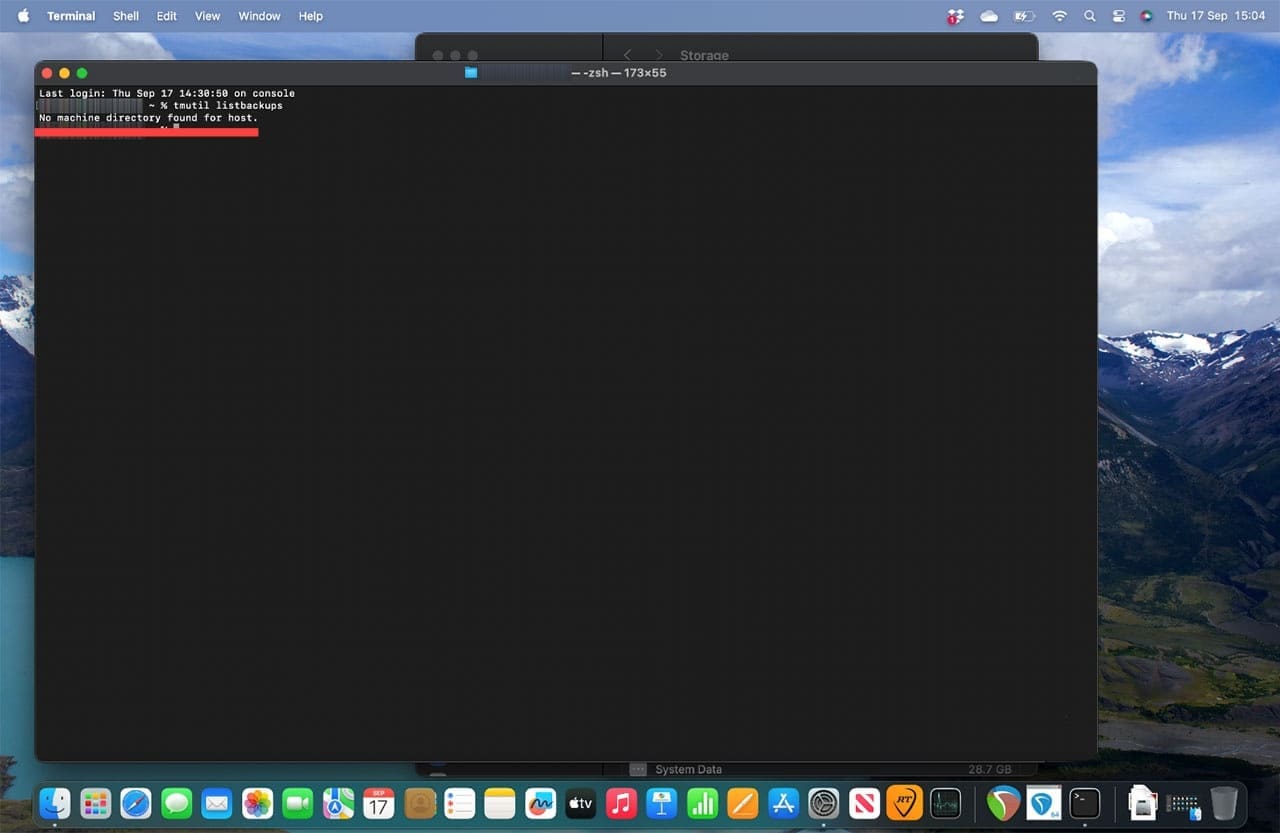
Press Enter.
If you see the message “No machine directly found for host,” this means that there are no Time Machine backups, so this is not the cause of your system data strife.
Step 5. If you do see backups listed, you can use this instruction:
sudo tmutil delete [path to backup]
Followed by “Enter to delete the backup.” Ensure you only delete older backups you have no use for, so you don’t end up stuck without a recent backup file that you might need.
As an avid gamer, I’ve run into my fair share of error codes and weird faults that have forced me to find fixes to problems I never anticipated. That gave me a passion for sharing those fixes with others so we can all game without feeling like our hardware is rebelling against us.















Write a Comment