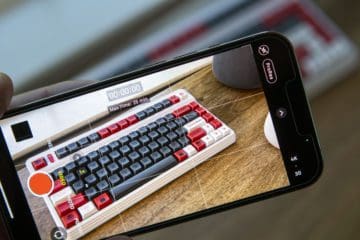
No matter whether you’re using the latest iPhone 13 Pro Max or even the iPhone 8, video recording is second-to-none in the smartphone space. Chances are you’ve probably watched a few YouTube videos that were completely recorded using an iPhone. And of course, having your iPhone in your pocket gives you a fantastic video recorder for those precious moments that come up that you don’t want to forget.
Did you know that the original iPhone had a camera, but you couldn’t use it to record video? Owners were relegated to the jailbreak scene if they wanted to try and record any videos. Of course, back then, the camera quality was a little bit better than a potato, but it just goes to show how far we’ve come.
Speaking of limitations on the iPhone, there is one frustrating limitation as you currently cannot pause video recording on iPhone. When you start recording, the only way to “pause” is to stop recording entirely, which then saves the specific video clip to the Photos app. This is fine in most cases, but if you don’t want to really have a bunch of different video clips that need to be spliced together later, it can be a bit of an annoyance.
How to Pause Video Recording on iPhone
All hope is not lost, however, for those who want to pause video recording on iPhone. As is the case with most limitations, all you need to do is turn to the App Store in order to solve your problems. Here are a few different camera apps in the App Store that actually make it possible to pause video recording on iPhone:
PauseCam Video Recorder Camera: The easiest way to pause your camera while shooting video. Edit your videos and save or share it with friends!
Pause – Video editor & Camera: Pause – new generation video camera recorder and video editor that instantly allows you to record, pause, resume, and stop video recording.
ClipyCam – Pause Video Camera: Pause & continue recordings. Record clips separate from the main video. Snap photos while recording. Arrange videos & photos. Edit name & location. Add recording timers.
For this example, we’ve downloaded PauseCam Video Recorder Camera on our iPhone 13 Pro Max in order to show you how to pause video recording on iPhone. Once the app is downloaded, you’ll want to follow these steps:
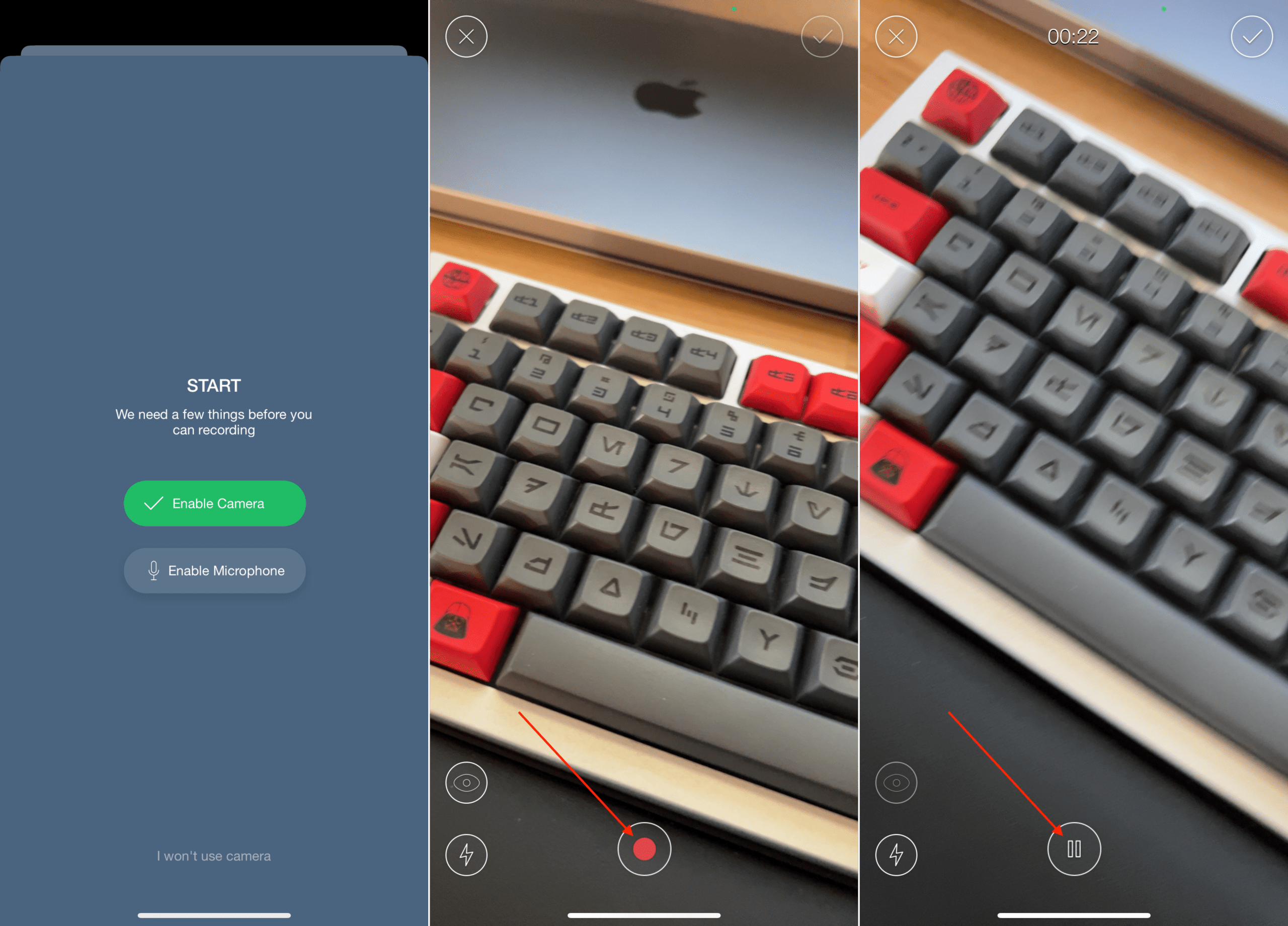
Open the PauseCam app on your iPhone.
On the splash screen, tap Enable Camera.
Confirm Camera usage permissions.
When taken back to the splash screen, tap Enable Microphone.
Confirm microphone usage permissions.
Tap the Record button at the bottom to begin recording.
When you need to pause, just tap the Pause button that has replaced the record button.
Tap the Record button to pick back up where you left off.
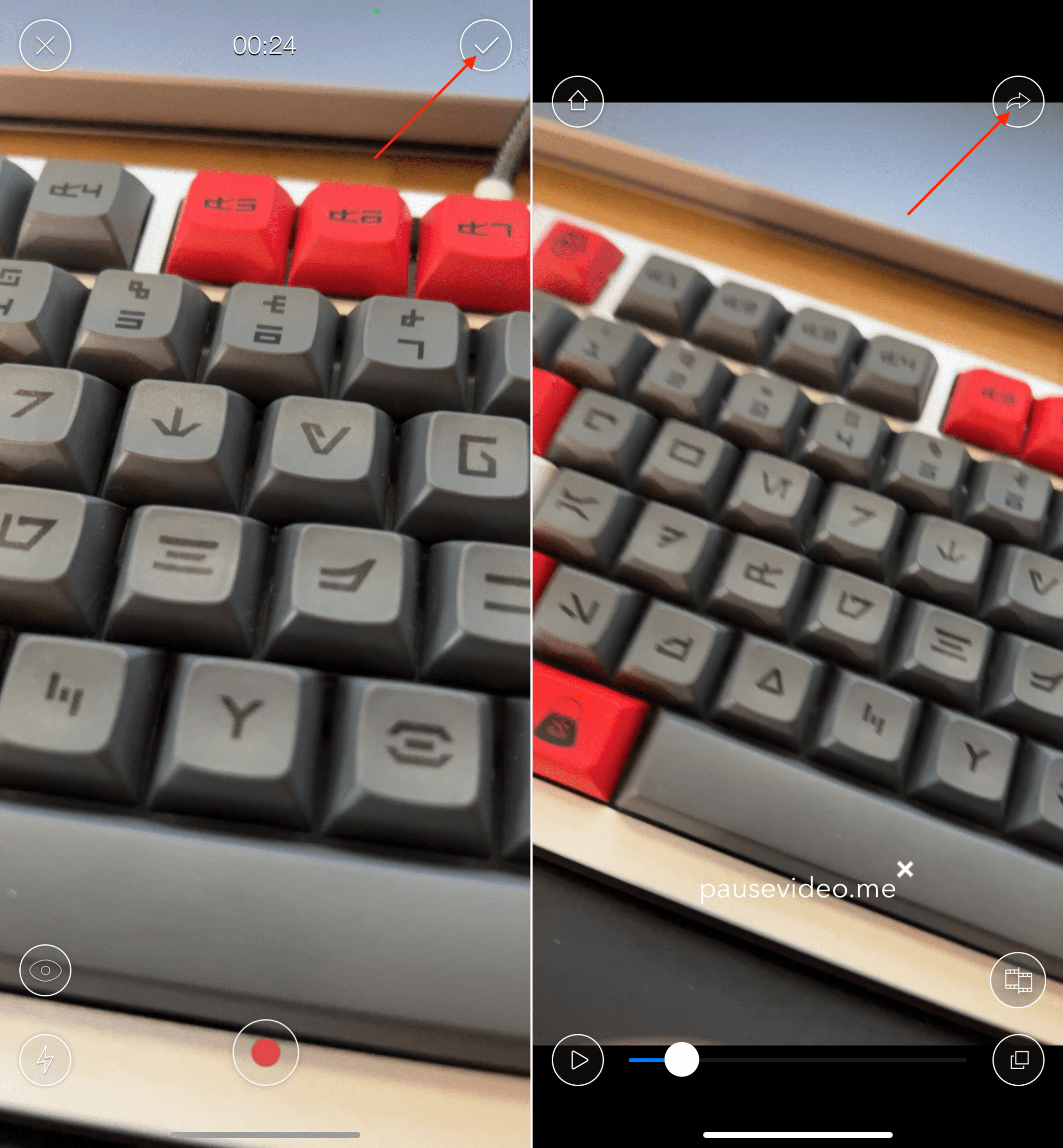
Once you’ve finished recording, tap the checkmark icon in the top right corner.
From the video preview, tap the share icon in the top right corner.
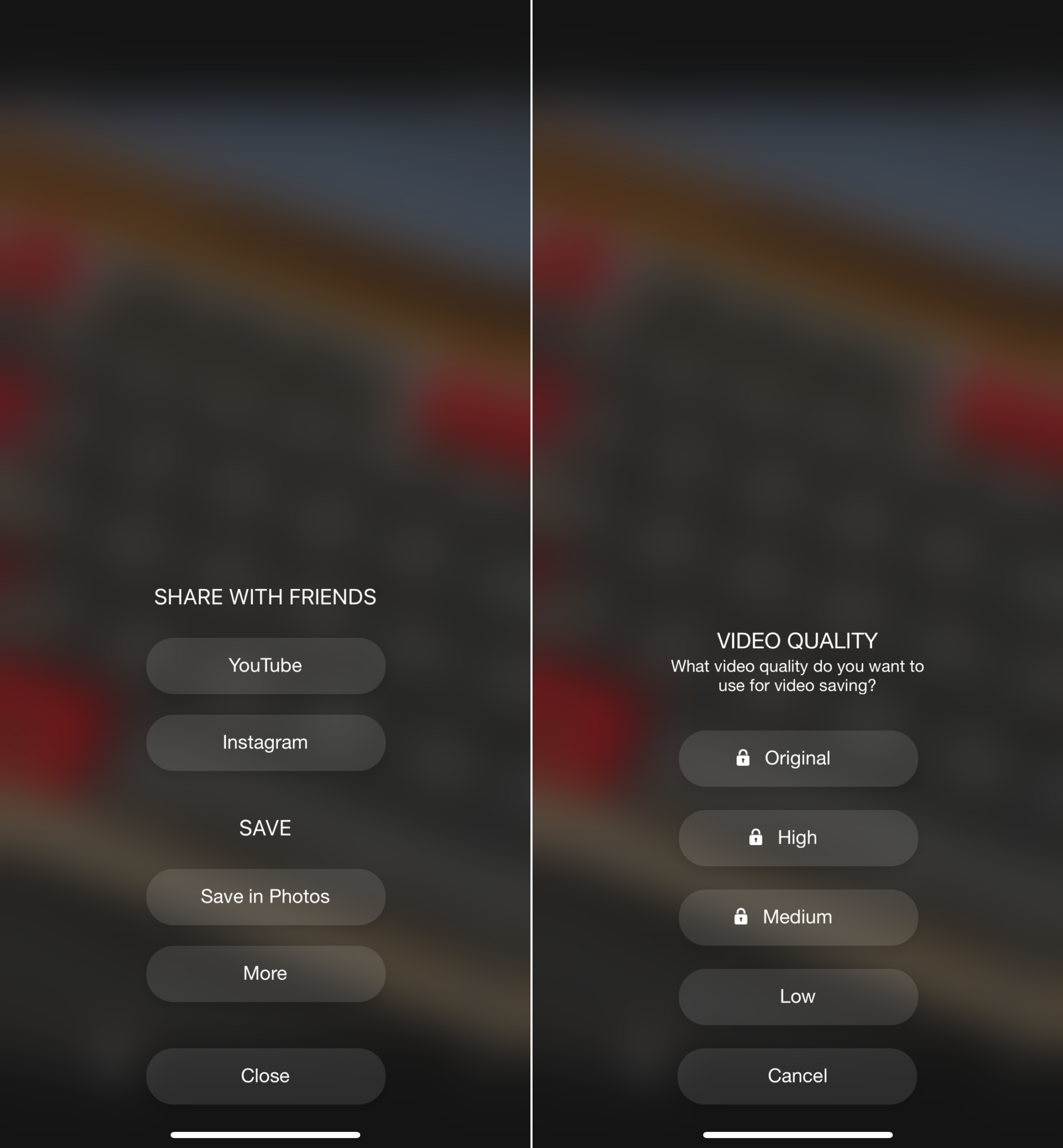
Choose one of the following video quality options:
Original
High
Medium
Low
Select one of the following options for sharing:
Share With Friends
YouTube
Instagram
Save
Save in Photos
More
While PauseCam makes it possible to pause video recording on iPhone, there is one thing to be aware of. In order to export your video in its full quality, you’ll need to pay to unlock the app’s full capabilities. Otherwise, you’ll only be able to export the video in Low Quality, which you may find is not as great as you would have hoped, and falls quite short of matching what you can produce when recording from the stock Camera app.
Andrew Myrick is a freelance writer based on the East Coast of the US. He enjoys everything to do with technology, including tablets, smartphones, and everything in between. Perhaps his favorite past-time is having a never-ending supply of different keyboards and gaming handhelds that end up collecting more dust than the consoles that are being emulated.







When trying to purchase the app. an “not in use” mail adress shows up, how do I change adress ??
I purchased the PauseCam app and did a few practice videos. Now how do I delete them from Video Manager Page?
Thank you!